
Sales Orders are now broken out into different objects: Order Records, Pick Tickets, Consolidations, and Fulfillments. This page focuses on Pick Tickets.
Table of Contents
New order structures include:
- Order Records: represents the order at the highest level, containing the customer and shipping details, all order lines, and linking all pick tickets and fulfillments generated and processed against it. Order Records will match up the order object in sales channels and host systems.
- Pick Tickets: represent the picking tasks created against an Order Record that will be batch or single picked. There can be multiple Pick Tickets assigned to a single order.
- Consolidations: represent the packing task or object against an Order Record. They will be associated with at least one Pick Ticket, a Pick Ticket Consolidation (PTC) can be made up of multiple Pick Tickets combined at the packing step.
- Fulfillments: represent shipments created for an Order Record. Fulfillments will be associated with a Consolidation. They can be made up of multiple packages (multi-parcel shipments) or single packages. Fulfillments are only created for fulfillable order types (Sales and Transfer orders).
Overview
A Pick Ticket represents a task or object for items needing to be picked for an order. One order can have it's lines broken out into multiple Pick Tickets if needed.
A single Pick Ticket is intended to be fully picked at one time, so any short picks performed during picking will remove those lines or quantities off the Pick Ticket so it will be fully completed.
Short Picked quantities will still reflect on the Order Record and can be added to another Pick Ticket at any time. Review Short Picks for more details
Pick Tickets will have a unique identifier in WOS that contains the (Order Number)-PT-(1). The number at the end will increase incrementally every time a ticket is created on an order.
Example: 12345-PT-1 and 12345-PT-2.
Pick Tickets are required to have a Pick Process, an Allocation Process, and a Facility assigned in order to be picked or batched. Pick and Allocation Processes are set automatically on the ticket by the Order Process assigned to the order. If an Order Process is not set on the order, a Pick Process will need to be manually set on the Pick Ticket either on the Batch Build page, on the Pick Ticket grid, or the Order Edit page. See Assigning Pick Processes for more details.
A Facility can also be automatically assigned to the Pick Ticket through the Order Process. Without a Facility assigned Pick Ticket lines will not be able to allocate to available inventory and will show as Unknown. Facilities can also be assigned on the Pick Ticket grid, or the Order Edit page, or through an API integration. See Assign a Facility for more details.
Multiple Pick Tickets Per Order
For simple operations only one Pick Ticket will be needed to fulfill each order. It will be picked with all the order lines on it, any short picks will be refunded or cancelled with the customer, and the fulfillment can ship out.
For more complex operations, creating multiple Pick Tickets for a single order can support scenarios that were not previously possible in WOS. A few common use cases are outlined below.
Back Ordered Items
Back Ordered items are items on an order that are not currently in stock at the warehouse and will need to wait for product to arrive to ship out, (whether by intention or due to an inventory shortage). In these scenarios, multiple Pick Tickets can be used to separate the items ready to ship immediately from the items that have to wait to be restocked.
The Pick Tickets that are allocated against inventory and ready to ship can be processed and have a fulfillment created and sent out, while the remaining Pick Ticket waits for inventory to restock.
Split Picking
Multiple Pick Tickets per order allows more than one user to pick against the same order at a time. There are several operational advantages to distributing picking across multiple team members, including:
- The warehouse is too large for all users to pick across the whole floor. Separating the locations into zones can help segment the pick face into more reasonable sections for users to be assigned to. Pick Tickets can be created per zone for different users to work against
- An order may be large enough that it can be helpful to have multiple users able to work on picking. Wholesale orders are a good example of this
Multiple Facilities
When an operation has more than one warehouse to fulfill orders, it can occur that an order needs to be fulfilled out of multiple facilities. Pick Tickets can be created per facility, with each ticket picked from a different warehouse location. For automated splitting, a Fulfillment Routing Process can assist with automatically assigning and splitting Pick Tickets based on different factors, including available inventory.
Pick Ticket Grid
Pick Tickets can be viewed in WOS Manager by navigating to Order -> Sales Orders -> under the Pick Tickets tab. This grid view is pre-filtered to show only Pick Tickets with an Available or In Progress status.
This grid includes all the fields relative to the Pick Tickets, like Batches and Compartments. Some of the fields are described in more detail below:
- Order - this is the Order Record associated with the ticket
- Status - see below for more detail
- Created Date/Time - when the Pick Ticket is created
- In Progress Date/Time - when the Pick Ticket is pulled to a Device
- Completed Date/Time - when all lines on the Pick Ticket are picked
- Picking Process - the assigned Picking Process on the ticket
- Facility - assigned facility on the ticket, allocation for the line items will only look within this facility
- Allocated Zones - a list of any zones the lines have allocated to
- Client - assigned Client on the order, if using the Client Portal
- Pick Ticket Notes - any note value added to the Pick Ticket note field (this is separate from the Order Note)
- Tags - custom Tags can be created and used site-wide and applied to multiple objects, Pick Tickets included. Any attached tags will show here
Pick Ticket Status
Pick Tickets have different statuses that will update as they are processed.
- Available - a Pick Ticket is ready for lines to be picked. A Pick Ticket is still Available when assigned to a batch or Device
- In Progress - when the Pick Ticket has been pulled down to a Device to be picked
- Complete - when all lines on the Pick Ticket have been picked complete
- On Hold - unavailable to start picking, Pick Tickets on Hold will not show on the Batch Build page
Bulk Actions
At the bottom of the Pick Tickets grid there are bulk actions that can be performed against selected pick tickets.
- Allocate Pick Tickets - this action triggers the assigned Allocation Process to run on all Pick Tickets on the order. If a Pick Ticket is unallocated, it will allocate inventory; if a Pick Ticket is already allocated, it will re-allocate and run the process again seeing updated inventory locations
- Deallocate Pick Tickets - this action removes any allocation on associated Pick Tickets, even if batched
- Complete Pick Tickets - selected Pick Tickets will be marked as complete, any lines that are not picked will be short picked and removed from the Pick Ticket.
- Hold Pick Tickets - all Pick Tickets that are not already picked are set to Hold.
- Release Pick Tickets - any Pick Tickets on Hold will be released to an Available status
- Assign Pick Tickets to Device - Pick Tickets will be assigned to the selected device and prevent any other devices from picking them
- Remove Pick Tickets from Device - removes any device assignments on the selected Pick Tickets
- Change Sequence - updates the priority Sequence field on the ticket to the value specified during the action
- Set Picking Process - assigns the Picking Process to the selected Pick Tickets. If the Pick Ticket was already allocated it may need to be reallocated after the update
- Set Allocation Process - assigns an Allocation Process to the selected Pick Tickets. If an Allocation Process was previously assigned, the ticket will be deallocated
- Change Facility - updates selected Pick Tickets to a different Facility. Any previous allocation will be removed from the Pick Tickets and will show as unallocated
- Set Note - adds or updates the Pick Ticket Notes field
- Set Custom Field (1-4) - adds or updates the Custom Field on the Pick Ticket (this does not change the order record)
- Clear Custom Field (1-4) - removes any value in the Custom Field on the Pick Ticket (this does not change the order record)
- Delete Pick Tickets - ticket deleted and lines made available to be assigned to a different Pick Ticket
Order Edit Page - Pick Tickets
The Order Edit Page has been improved with functionality like hot keys, shortcuts, upgraded tab layouts, and more. There is a page dedicated to this specifically, please view Order Edit Page - New for detailed changes.
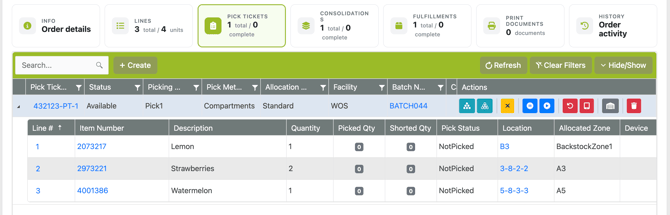
Navigating to the Order Edit page a tab view is dedicated to Pick Tickets. All pick tickets created on a Sales Order will be listed on the grid with general details, like Status, Pick Method, Facility, etc.
Beneath each pick ticket is a nested grid with all order lines and quantities assigned to the ticket. The pick status and allocated location for each line is visible in the grid.
Pick Ticket Modal
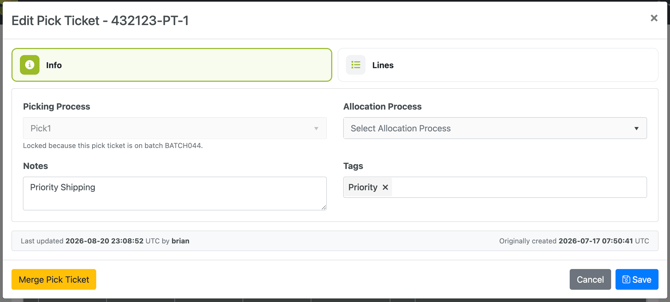
When a specific Pick Ticket is clicked on a modal with the specific details will show. The Info section will show the assigned Picking Process, Allocation Process, and any notes or tags. The Lines section shows any order lines assigned for picking.
Edit a Pick Ticket
Pick Tickets can be edited after creation. To do this, go to the Order Edit page -> Pick Tickets tab -> Click on the Pick Ticket link -> Lines tab.
The Lines grid shows all items and quantities on the ticket and can be edited here. To remove a line entirely, select the red Delete button. To change a quantity, click on the Line number link, then edit the quantity. The quantity cannot be lower than 0 and it cannot be greater than the quantity on the order not yet assigned to a ticket.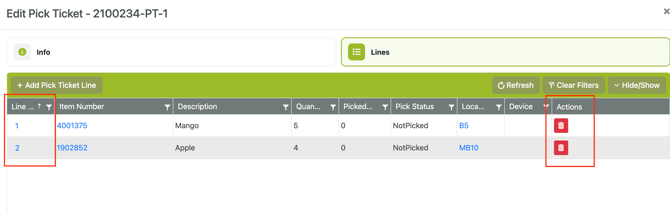
Pick Ticket Merge
Pick Tickets can be merged with other Pick Tickets on the same order. To do this use the Merge button on the Pick Ticket modal. Open the Pick Ticket that will be the source (original) ticket, then in the merge function select the Pick Ticket that will be the destination (remaining) ticket.
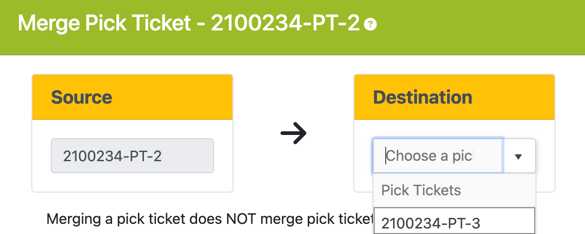
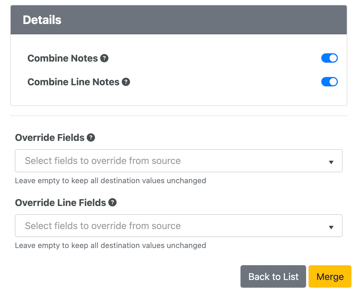 After selecting the destination ticket, review the Details and Override sections to determine what information is passed from the original ticket to the new ticket or ignored.
Once all data mappings have been determined, select Merge. The original Pick Ticket lines will be merged into destination ticket, and the original ticket removed.
Splitting Pick Tickets is not currently supported, but will be coming soon
Grid Actions
Under the Pick Tickets tab there are actions that can be performed on each ticket.

- Allocate - runs Allocation Process assigned to Pick Process on Pick Ticket lines
- Deallocate - removes any previous allocation
- Add to Batch / Remove from Batch - depending on if the ticket is already in a batch or not
- Hold Pick Ticket - updates ticket status to On Hold
- Release Pick Ticket - updates ticket status to Available
- Reset Picks - options for resetting the picks and how to handle the inventory
- Remove from Device - clears Active flag and removes the device assignment
- Change Facility - set or update the assigned Facility
- Delete Pick Ticket - ticket deleted and lines made available to be assigned to a different Pick Ticket
At the bottom of the grid are bulk actions that can be performed against multiple pick tickets. These include all the bulk actions listed on the Sales Orders Index - Pick Ticket grid, see above.
Short Lines to New Pick Ticket
A site Setting "Short Lines to New Pick Ticket" can be enabled to automatically send any short picked items to a new Pick Ticket. This is an option to skip manual splitting of the Pick Tickets, relying on the short picks to determine what items need to be split off from picking together. Navigate to Admin -> Settings -> "Short Lines to New Pick Ticket" to enable.
This setting will create a single Pick Ticket for all lines that are shorted on an order. If more Pick Tickets are needed for the short items they will need to be split manually.
