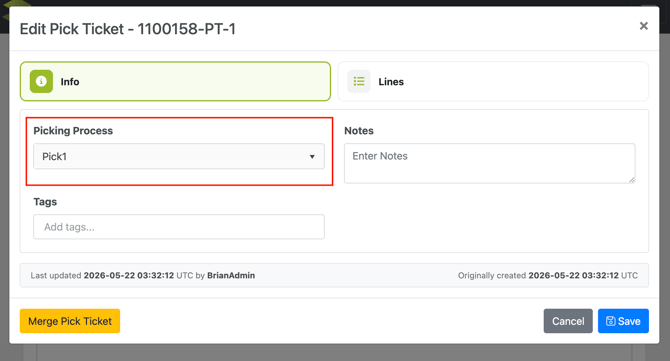
A Picking Process determines which pick method will be utilized to complete a Pick Ticket in WarehouseOS, and which Allocation Process to use for allocation against inventory.
Table of Contents
Overview
Picking Processes are created to represent different methods for picking orders in WOS. Current pick method options are Single Pick, Compartment Pick, and Bulk Pick. See Pick Methods for more details (Coming soon).
A Pick Process is also tied directly to an Allocation Process, which determines how the tickets will allocate to available inventory. Rules and factoring can be applied to those processes to create custom allocation routines.
An Order Process is typically the default way to set a Pick Process on the pick tickets related to the order, but they can also changed or updated without having to update the Order Process. Pick Tickets attached to the same order can have different Pick Processes and work through the picking app differently.
Create a Pick Process
Navigate to Admin -> Processes -> Pick Processes -> Create New
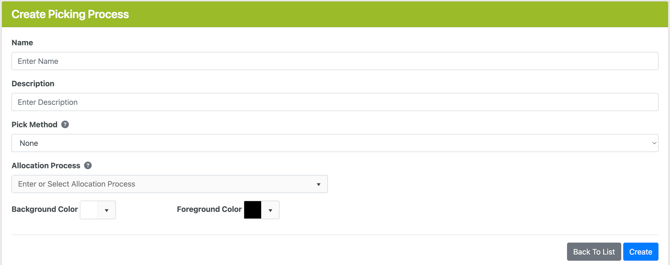
- Enter a Name and Description
- Select a Pick Method
- Single Pick - one pick ticket at a time
- Bulk Pick - batch of multiple pick tickets to a cart with no compartments
- Compartment Pick - batch of multiple pick tickets to a cart with compartment organization per ticket
- None - no picking required
- Select an Allocation Process
- Create
Assigning a Pick Process
Order Process
When creating an Order Process it requires a Pick Process to be assigned to pick tickets on the order. Because Order Processes are required for orders to be worked on, this will be the default way a Pick Process is assigned to pick tickets. However, the pick process set this way is not locked in, it can be changed via the 2 methods below. Or the Order Process can always be changed on an order as well and opted to update all pick ticket's Pick Processes as well, see here.
Reassign at Batch Build
Pick Processes can be reassigned on the Batch Build screen during organizing and batching orders. Processes can only be reassigned here because any pick tickets without a Pick Process will not show on this grid. Batches will need to be made up of pick tickets with the same Pick Process, they cannot contain multiple processes.
Pick tickets can have their process updated to one determining a Single or None pick method from the Batch build screen, but once saved the updated tickets will be removed from view.
Please Note: only Pick Tickets with a pick method of Compartment or Bulk pick type are shown on the Batch Build grids. If a Single or None pick method is assigned (or no Pick Process is assigned), those tickets will not show on the grids.
Also any tickets on Hold are excluded from Batch Build.
To set or update a Pick Process on one or more pick tickets, filter or select the pick tickets to update. Then use the "Assign Picking Process" button at the bottom of the grid to select from a drop down menu. Save Filtered to update the process for all pick tickets in the grid, or Save Selected to only update tickets that are currently selected in the grid.
Manual Assignment/Re-assignment
Pick Tickets can have their Pick Process manually updated in two places: from the Pick Ticket grid view, or from the Order Edit page.
Pick Ticket Grid
- Go to Order -> Orders -> Pick Tickets tab
- Filter and select the tickets to assign
- At the bottom of the grid select the bulk action "Set Picking Process"
- Select a process from the drop-down menu
- Save Selected
Order Edit Page
Find a specific order and click to the Order Edit page and go to Pick Tickets tab. From here either:
- Use the grid actions at the bottom to Set a Picking Process for selected tickets
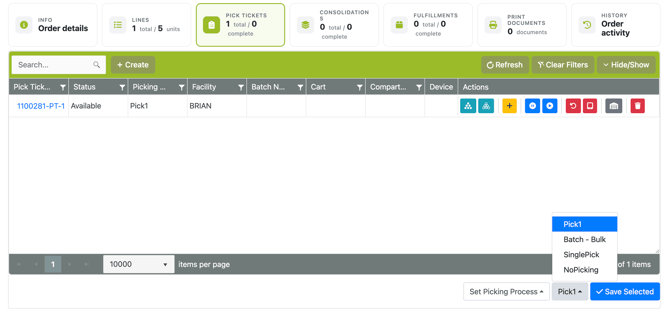
OR - Click on the Pick Ticket and change the Pick Process in the modal that pops up