Sales Orders are now broken out into different objects: Order Records, Pick Tickets, Consolidations, and Fulfillments. This page focuses on Fulfillments.
Table of Contents
New order structures include:
- Order Records: represent the order at the highest level, containing the customer and shipping details, all order lines, and linking to all Pick Tickets, PTCs, and Fulfillments generated and processed against it. Order Records will match up the order object in sales channels and host systems.
- Pick Tickets: represent the picking tasks created against an Order Record that will be batched or single picked. There can be multiple Pick Tickets assigned to a single order.
- Consolidations: represent the packing task or object against an Order Record. They will be associated with at least one Pick Ticket; a Pick Ticket Consolidation (PTC) can be made up of multiple Pick Tickets combined at the packing step.
- Fulfillments: represent shipments created for an Order Record. Fulfillments will be associated with a Consolidation. They can be made up of multiple packages (multi-parcel shipments) or a single package. Fulfillments are only created for fulfillable order types (Sales and Transfer orders).
Overview
An Order Fulfillment represents a shipment or shipping package on a fulfillable order. A Fulfillment is automatically created and tied to a Consolidation when it is activated in Packing on the iPad, and multiple Fulfillments can be created for the same PTC during packing.
Fulfillments are made up of shipping packages (boxes in Packing) and the lines packed into them. A single Fulfillment can include multiple boxes shipped together as a multi-parcel shipment, pallet, or LTL shipment. If individual labels and tracking numbers are created per shipping box, Fulfillments can also be configured to split automatically and create a new Fulfillment for each box. See the Fulfillments & Shipping Packages section below.
Fulfillments are intended to represent shipments and can contain only one tracking number. This allows WOS to support different types of shipping, from single packages to LTL and FTL shipments.
Similar to Consolidations, Fulfillment creation is automatic and streamlined with little to no effort required in a standard operation. This also allows packing and shipping to be configured by order type so different orders can be shipped in different ways.
Order Fulfillments have a unique identifier in WOS that uses the format (Sales Order Number)-OF-(1). The number at the end increases incrementally each time a Fulfillment is created on an order.
Example: 12345-OF-1 and 12345-OF-2.
Fulfillments are only created and used for fulfillable order types: sales orders and transfer orders. Work orders do not have a fulfillment created, they generate Production Runs instead.
Fulfillments Index Grid
Fulfillments can be viewed in WOS Manager by navigating to Order -> Sales Orders -> Fulfillments tab. Because fulfillments will typically be reviewed when complete there is no default status filter on this grid. All existing fulfillments are included in the initial load of the page.
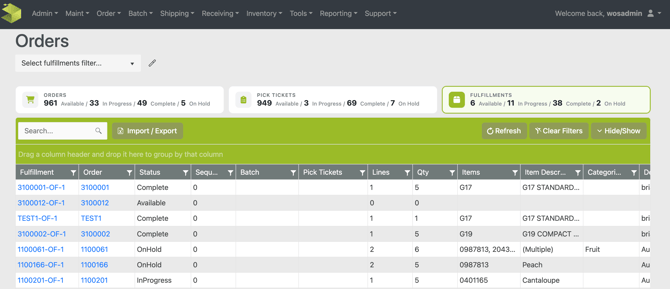
This grid includes applicable information for a fulfillment, relative to the shipping and tracking information. Fields will include the following:
- Order - this is the Order Record associated with the fulfillment
- Status - Available, In Progress, Completed, On Hold
- Pick Tickets - pick tickets consolidated into the fulfillment
- Lines - amount of lines in the fulfillment
- Quantity - total number of items in the fulfillment
- Item information
- Device - the device used to pack the related PTC
- Packed By - the user who packed the related PTC
- Cart - the cart the related PTC was packed off of
- Packages - the number of shipping packages/boxes on the fulfillment
- Documents - the number of documents in the print queue assigned to the fulfillment
- Shipped Date/Time - for future use to indicate actual shipping time of first scan/pickup
- Ship Method, Shipping Carrier, Shipping Service - data mapped from shipping systems
- Tracking # - tracking number attached to the fulfillment
- Fulfillment Notes - any note value added to the Fulfillment note field (this is separate from the Order Note)
- Tags - custom Tags can be created and used site-wide and applied to multiple objects, fulfillments included. Any attached tags will show here
Fulfillment Statuses
- Available: a fulfillment is available and ready to be processed through packing the PTC
- In Progress: a fulfillment has been activated on a device and has at least one open Shipping Package assigned
- Complete: when all Shipping Packages assigned to the fulfillment have been closed
- On Hold: a fulfillment is on hold and cannot be completed. Packing can still occur against the PTC and Shipping Packages with items will still be added to fulfillments
Bulk Actions
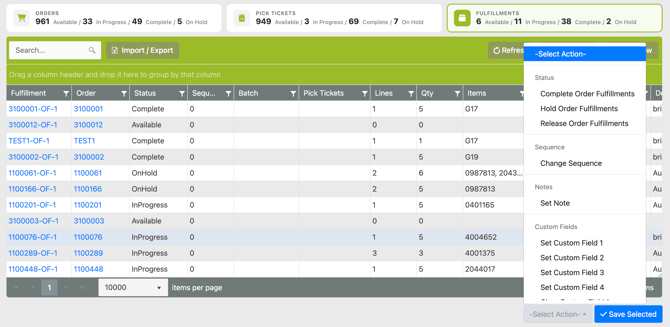
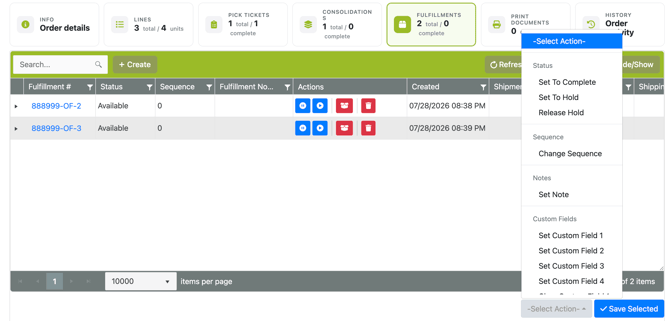
At the bottom of the Fulfillments grid there are bulk actions that can be performed against selected fulfillments.
- Complete Order Fulfillments - updates a fulfillment status to Complete. This will only work for fulfillments that are In Progress and the related PTC is marked Complete. Fulfillments that are available and not worked on yet are unable to be marked Complete
- Hold Order Fulfillments - updates a fulfillment status to On Hold
- Release Order Fulfillments - updates a fulfillment status to Available
- Change Sequence - updates the priority Sequence field on the fulfillment to the value specified during the action
- Set Note - adds or updates the Fulfillment Notes field
- Set Custom Field (1-4) - adds or updates the Custom Field on the fulfillment (this does not change the order record)
- Clear Custom Field (1-4) - removes any value in the Custom Field on the fulfillment (this does not change the order record)
- Delete Order Fulfillments - deletes selected fulfillments. If already completed, the items are unpacked and the associated PTC will be made available to be packed again
Order Edit Page - Fulfillments
The Order Edit Page has been improved with functionality like hot keys, shortcuts, upgraded tab layouts, and more. There is a page dedicated to this specifically, please view Order Edit Page - New for detailed changes.
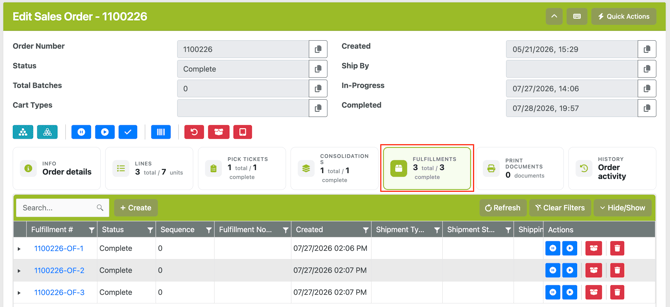
Fulfillments can be viewed in the Order Edit page by clicking on an order and going to the Fulfillments Tab. This will show a nested grid for all fulfillments on an order with drop downs to show the packages and items inside the packages.
Fulfillments Modal
When a specific fulfillment is clicked on in the Order Edit -> Fulfillments view, or from another page inside of WOS Manager, it will open up a fulfillment modal that shows additional details and information. This modal view is where information can be edited, like addresses, ship methods, and tags.
There are 4 tab views:
- Info - shows Fulfillment Notes and Tags. Also has a Merge Fulfillments option
- Shipment Details - shows shipping related information, including Ship Method, Shipping Carrier and Service, Tracking numbers, etc.
- From Address - shows the from address on the package. This will be defaulted to the From Address on the Order Record, but can be changed
- To Address - show the destination address on the package. This will also be defaulted to the To Address on the Order Record and also able to be edited
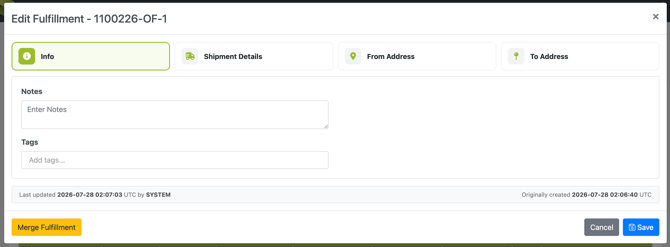
Edit a Fulfillment
Not all objects on a fulfillment can be edited. Most editable fields are included in the Fulfillment Modal shown above. Opening that modal offers an space to edit fields and adjust data manually.
Shipping Packages and Lines are added to a fulfillment as they are packed on the iPad in Packing. These lines and package attributes are not editable from WOS Manager and if a change is needed, it must be performed from the iPad.
Grid Actions
Actions can be performed from the Order Edit page on fulfillments in a few places: inline actions on the fulfillment, inline actions on the shipping package, and bulk actions at the bottom of the Fulfillments grid.
- Inline Fulfillment Actions: these actions are found on the fulfillment level in the grid
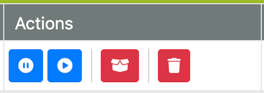
- Release Fulfillment - make the fulfillment available if it is On Hold
- Hold Fulfillment - sets the fulfillment to On Hold
- Reset Fulfillment Packs - this resets all packed items in a fulfillment and moves them out of the package(s) back to the cart to be packed again. Shipping packages are not deleted during the reset, they can be packed into again. To delete the packages, delete the fulfillment.
- Delete Fulfillment - deletes the fulfillment
- Inline Shipping Package Actions: these are found on the Package level of the nested grid. Click on the first drop-down in a fulfillment to see it
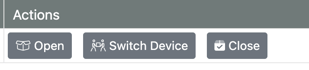
- Open Box - this will reopen the shipping package making it available to edit on the iPad. If the related fulfillment was Completed, then reopening a box moves it back to In-Progress
- Switch Device - switches which device a package is assigned to so a different iPad can access and work on it
- Close Box - manually closes a shipping package. If it is the only box on a fulfillment and all items are packed, the fulfillment will be marked Complete as well
- Bulk Actions: these are found at the bottom of the Fulfillments tab view. These actions mirror the list of bulk actions on the Fulfillments Index Grid. See above for a full list
Fulfillments & Shipping Packages
As noted above, a fulfillment can be made up of one or more Shipping Packages. Shipping packages are added during the Packing step on the iPad and items are organized and packed into them. A fulfillment will represent a shipment, as only one tracking number can be stored on a fulfillment. A shipment can have multiple packages or boxes.
Depending on an integration setup or shipping requirements, a shipment may be limited to one package and receive an individual shipping label per box. In this instance, a Packing Process will need to be configured to allow only a single package per fulfillment. When turned on, this setting will automatically create a new fulfillment every time a box is added on the iPad during the packing process.
This can be configured in an integration to create an individual shipping label for each fulfillment/shipping package.
Packing Processes will be assigned to a Consolidation, which will determine the packing behaviors related to fulfillments.
A fulfillment will only be marked as Complete when all shipping packages assigned to it have been closed. If any empty boxes are assigned to a fulfillment, they must also be closed or deleted to complete the fulfillment.
For shortcuts on closing boxes in the Packing app, consider using Close All or Close All On Compartment Advancement, found in the User Group settings under Packing.