Facilities are replacing the Area object in WarehouseOS. When transitioning to the new version of Order Management, a conversion process may be used to determine if current areas match a Zone or a Facility according to the new definitions. Facilities will represent distinct warehouse locations. Zones will encompass any divisions of inventory and locations inside of a warehouse.
Please review the new article on Zones for more information.
- Overview
- Create New
- Locations and Facilities
- Assign Orders to a Facility
- Users and Facilities
- WOS Fulfillment app
Overview
With the introduction of Facilities, WarehouseOS now supports multiple warehouse locations in a more intentional way. Facilities in WOS will represent distinct warehouse or distribution center locations. A facility can be set up with a unique address, type of facility - warehouse or storefront, and configured to be allowed to fulfill orders or not.
Facilities will have separate locations and inventory. A location can only be assigned to one facility and inventory in the location is attributed to that facility.
Configuration within a facility object and a Fulfillment Routing Process allows for different relationships between buildings. Facilities can be designated to fulfill sales orders or be used to store overflow inventory to be transferred as needed.
Transfer orders will be a direct function to support multiple facilities. If configured, transfer orders can be automatically created when inventory is needed to fulfill an order from the main distribution center (this automation is coming soon).
Facility assignment is a requirement for processing Pick Tickets. They cannot allocate against any inventory without having a designated facility.
Facility is also a requirement for creating or importing a location to WOS. Locations can only have one facility associated.
Create New
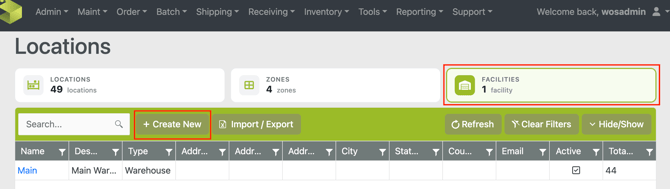
Navigate to Maint -> Locations -> Facilities tab -> Create New
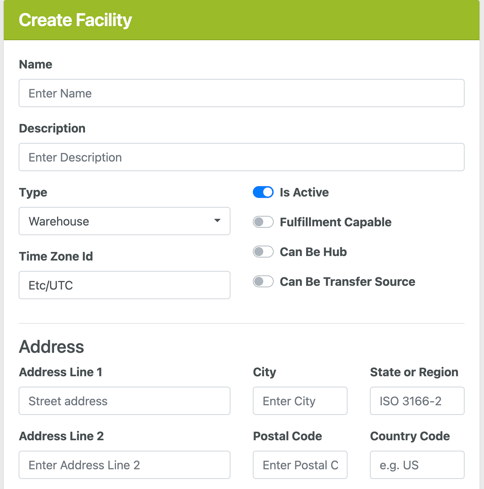
- Add a Name and Description
- Set a Type
- Warehouse - distribution center
- Storefront - retail location
- Set a timezone
- Set Active flag - On or Off
- Set "Fulfillment Capable" flag
- On - this facility can have Sales Orders picked and fulfilled from it
- Off - this facility is ineligible for Sales Order fulfillment
- Set "Can Be Hub" flag (coming soon)
- Set "Can be Transfer Source" flag (coming soon)
- Add an Address
- Add Contact information
Locations and Facilities
Locations must be assigned to a facility when created or imported. A location can only be assigned to a single facility. The assignment can be changed or updated if needed, even if inventory exists. Inventory is not directly assigned to a facility. Instead, inventory is attributed to a facility through the facility assignment on each location.
Assign Facility to Locations
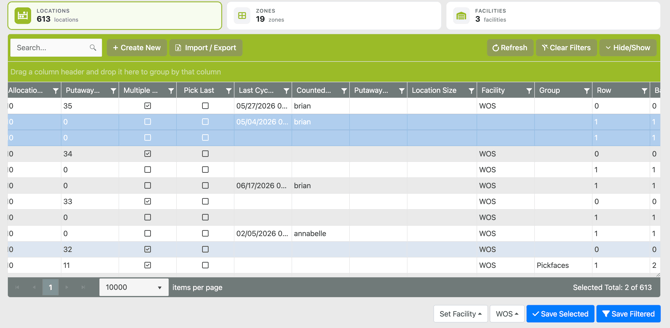
Assigning a facility to a location can be done from the Locations grid (bulk) or Location Edit page (individual).
- Locations grid
- Go to Maint -> Locations -> Locations tab
- Select or Filter the locations to assign
- Use the grid action "Set Facility"
- Save Selected or Save Filtered
- Location Edit Page
- Click into a Location from any page to see the Location Edit page
- Under Location Details scroll to Facility Id
- Select a Facility from the list
- Save
Facilities Grid
The Facilities grid can be used to view and manage Facilities in the system. This is found under Maint -> Locations -> Facilities tab. Facilities can be manually created here using the Create New button. The grid view shows field information including the type, facility address, active status, and total locations assigned.
Facility Edit Page
Clicking to a Facility will open the Facility Edit page. This page allows for edits and management.
- Facility Details - review or update Address and Contact information
- Locations - all locations that are assigned to this facility is shown
- Users - any users that have this facility assigned will show on the grid
Assign Orders to a Facility
Orders and Pick Tickets are required to be assigned to a facility in order to be processed. A pick ticket cannot allocate to inventory unless assigned to a facility, any order lines will show as Unknown.
The standard method for assigning a pick ticket to a facility is through a Fulfillment Routing Process. However facility assignment can always be manually updated if needed. Facilities can also be assigned through the API and integration if a warehouse location is determined by an outside system.
Fulfillment Routing Process
A Fulfillment Routing Process is created to determine how an order should create and assign pick tickets to a facility. This process is attached to an Order Process, which is assigned to an order, typically on creation. A Routing Process can determine through configuration which facility to assign each order individually based on different priorities.
The Fulfillment Routing Process is still under development and has limited current configuration. This will be updated soon. Currently a routing process is only able to set orders to a specific facility.
API Integration
If the warehouse location an order, or lines on an order, will be fulfilled from is determined by an outside system then the assignment can be passed through the API directly on a Pick Ticket. An Order Process can be created without attaching a Fulfillment Routing Process, so no facility would be assigned when an order is created - even with setting an Order Process. The pick tickets can be created directly with specific order lines and facility assignment.
Manual Assignment
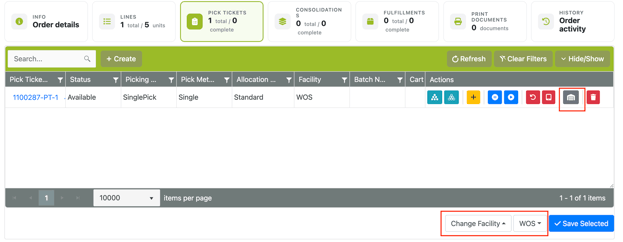
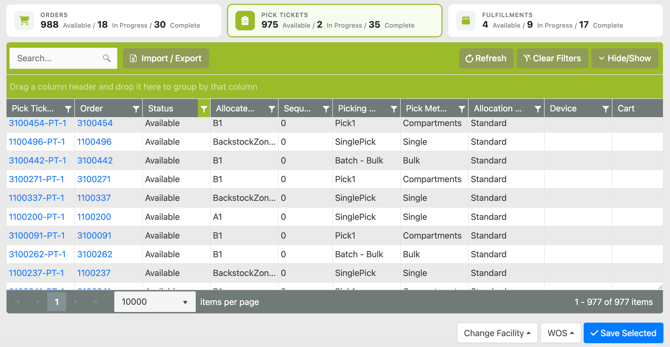
Any pick ticket can be manually reassigned to a different facility at any time. This reassignment can be done through the Order Edit page -> Pick Tickets tab, or from the Orders grid -> Pick Ticket tab.
- Order Edit Page -> Pick Tickets
- Open an order and go to the Pick Tickets tab
- Use either the inline grid action Change Facility, or the action at the bottom of the grid Change Facility
- Select the new destination Facility
- Orders page -> Pick Ticket grid
- Go to Order -> Sales Order -> Pick Ticket tab
- Use the grid action at the bottom of the page: Change Facility
- Select the new destination Facility
Users and Facilities
A user must have a facility added in order to work against it in WOS Fulfillment. If no facilities are assigned to a user, they will not be able to log into a device.
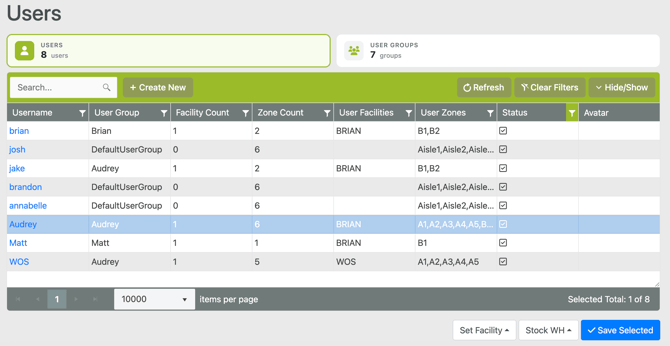
To add a facility to a User, go to Admin -> Users. The facility can be added on the User Edit page, or from the grid actions on the Users grid.
- Users Grid:
- Select the User(s) to update
- Use the action "Set Facility"
- There are also actions to remove or clear facilities if needed
- Select the facility to add
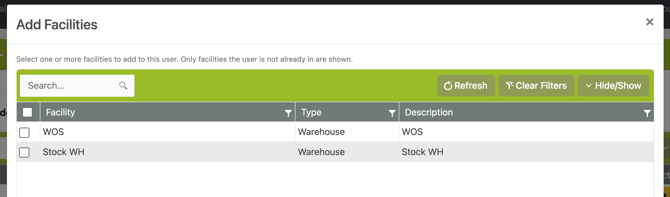
- User Edit Page:
- Open the User Edit page by clicking on a User
- Go to the Facilities tab
- Use Add Facility
- Select any facilities to add
WOS Fulfillment app
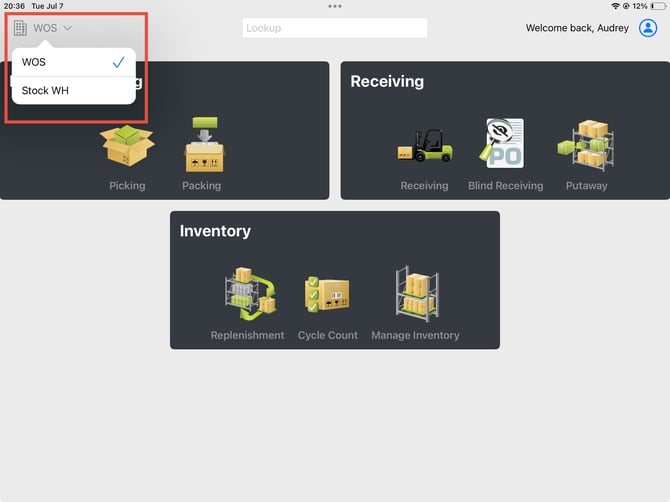
When there are multiple facilities in a single WOS instance, the iPad app WOS Fulfillment will only operate in one facility at a time. This is designed to help keep operations separate between buildings and teams, preventing any overlap or mistaken actions.
If a User is only assigned to one facility, WOS Fulfillment will automatically populate the facility being worked against in the app. If a User is assigned to multiple facilities they will be prompted to select a facility to work against when logging into WOS Fulfillment.
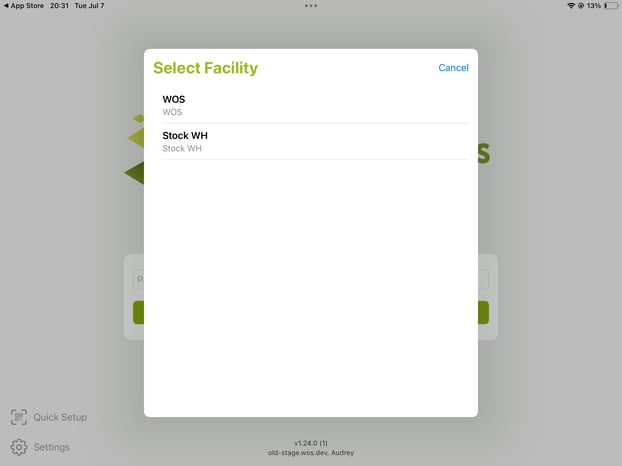
If the facility needs to be changed to work against another facility on the app, a dropdown menu exists on the Home Page in the top left corner. The current facility will display, and can be changed by tapping on it and selecting a different one from the list. The list will only show facilities the User is assigned to.