
An Order Process determines how an order will be treated when it comes into WarehouseOS. They provide customizability to change how different actions will be performed against each order or order type. Order Processes can be defaulted, assigned through the API, or assigned manually.
Table of Contents
Overview
An Order Process determines most of the other processes that will be assigned in a waterfall effect. When creating an Order Process the following processes must be selected to be assigned to the order:
- Picking Process - determines pick method
- Allocation Processes - determines how to allocate to inventory, these are attached to a Picking Process
- Packing Process - determines packing requirements
- Fulfillment Routing Process - determines how to select a facility
An Order Process is required to be assigned before an order can proceed to be handled in the warehouse in picking and packing. An order can be created without an Order Process, but in order to begin picking one must be assigned.
All orders should have an Order Process assigned that matches their projected fulfillment procedure.
Create an Order Process
To create an Order Process, navigate to Admin -> Processes -> Order Processes -> Create New
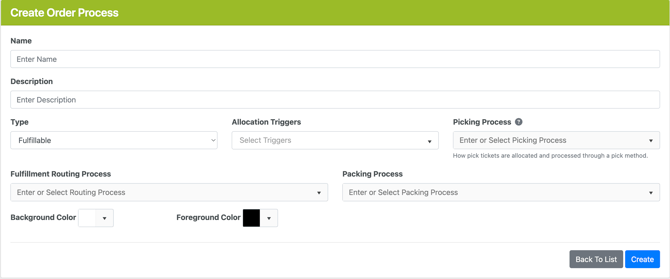
- Add a Name and Description
- Select a Type
Fulfillable: intended to be shipped or exit the warehouse (most common)
Work Order: assembly or pickable order not getting shipped or intended to leave the warehouse - Select Allocation Trigger(s)
- Pick Ticket Created - pick tickets created relative to the order will be allocated immediately upon creation
- Pick Ticket Batched - pick tickets created relative to the order will allocate upon being added to a batch
- Pick Ticket Started - pick tickets created relative to the order will allocate when the ticket is marked In Progress and dropped to a Device
Allocation happens at the Pick Ticket level instead of the order level as a ticket represents the picking task in WOS, but triggers are still attached to the Order Process.
The actual Allocation Process/Rule that will determine how the Pick Ticket allocates is assigned to the Picking Process.
- Select a Picking Process to assign to associated pick tickets
- Note: Picking Processes can be manually updated at any time on a pick ticket, the Picking Process assigned to the Order Process will be the default process applied initially
- Select a Fulfillment Routing Process (Optional)
- Select a Packing Process to assign to pick ticket Consolidations
- Select Create
Assign to User Groups
User Groups can be assigned to an Order Process during the creation process, or added/edited again after the initial creation. User Groups can also be assigned to an Order Process on the User Groups page.
Assign via Order Process
- Go to Admin -> Processes -> Order Processes -> select the Order Process to work against
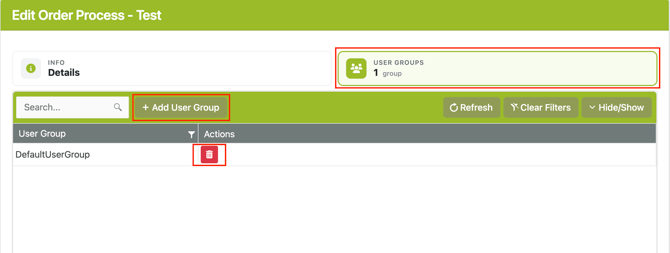
- In the Edit Order Process page navigate to the User Groups tab
- Click "Add User Group" and select a group
- Save
To Remove a User Group from the Order Process, use the red trash can icon next to the group name to unassign.
Assign via User Groups
- Go to Admin -> Users -> User Groups tab
- More to come...
Assigning an Order Process
Order Processes can be assigned to orders in a few ways:
- Manually
- Through the API (integration)
- Site Setting Default
Order Processes are not locked once set on an order, they can always be updated or edited later. However an Order Process is required for an order to be worked on through the operations of picking and packing, so a default assignment is usually recommended.
Manual Assignment
An Order Process can be assigned manually using the bulk actions on the Orders Index Grid.
- Go to Orders -> Orders tab
- Filter or find orders to assign and select the row(s)
- Select the Assign Order Process action
- Select an Order Process from the list
- Determine if selected Order Process should waterfall down to update eligible Pick Tickets or Consolidations
- A Pick Ticket or Consolidation is eligible for update until marked active or In Progress, and cannot have any picks or packs performed.
Pick Tickets on a batch are ineligible as well.
- A Pick Ticket or Consolidation is eligible for update until marked active or In Progress, and cannot have any picks or packs performed.
- Save Selected
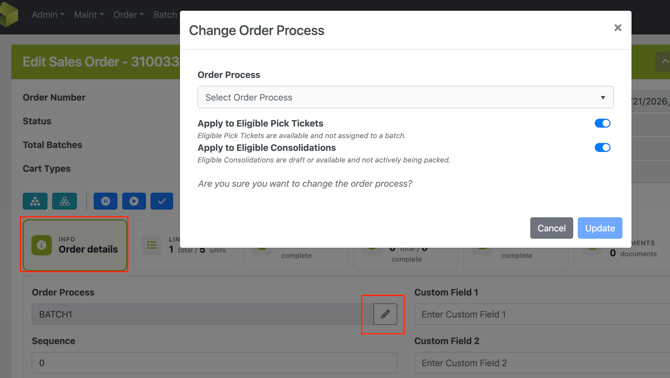
Order Processes can also be assigned or updated individually on the Order Edit page under the Order Details tab.
Assign through the API
The Sales Order APIs allow for an Order Process to be assigned to an order when created. This can be a default Order Process or determined following criteria or logic in an integration layer. If your integration is owned by the WOS team and you'd like to review or make updates, please reach out to support@warehouseos.com
Assign through Order Import
When importing orders through the Excel import, a field header for Order Process is included. If this value matches an Order Process in WOS, it will be set on the order on import.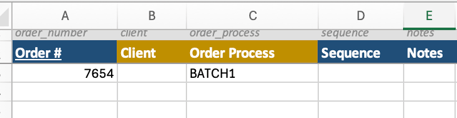
Site Setting Default Assignment
Go to Admin -> Settings, and find the "Default Fulfillable Order Process" setting option. Select the Order Process to be a default. When selected and saved, any order that is created will have this Order Process assigned if no other process was determined.

A default can be a good idea to set as a catch all to ensure all orders have an order process assigned (a requirement to start handling an order), but other methods can be relied on to be more specific or intentional about assigning a process. This will not override or remove the option to set specific Order Processes via API or Import, it will only apply to orders that have no process specified at creation.