
Shipping Packages are replacing Shipping Boxes in WOS Manager. This is a slight wording adjustment to better reflect a wider range of scenarios, as items are not always shipped in boxes.
- Overview
- Shipping Package Templates
- WOS Fulfillment (app) - Shipping Packages
- Order Fulfillments - Shipping Packages
- Admin Setting - Auto Create Package Label
Overview
A Shipping Package represents a container of items that will be shipped or delivered and is organized during the Packing step on the iPad in WOS Fulfillment. Shipping Packages are created on a PTC and assigned to a specific Order Fulfillment.
Shipping Packages can exist as empty if items are not packed into them. Any empty Shipping Packages will still need to be closed to mark the Fulfillment they are assigned to as complete.
Shipping Packages can be preconfigured using the Shipping Package Templates to display a list of package types for selection during packing. Templates can also be used in conjunction with a shipping integration to create an Order Fulfillment and Shipping Package with preassigned dimensions and package types to display at packing.
Shipping Package Templates
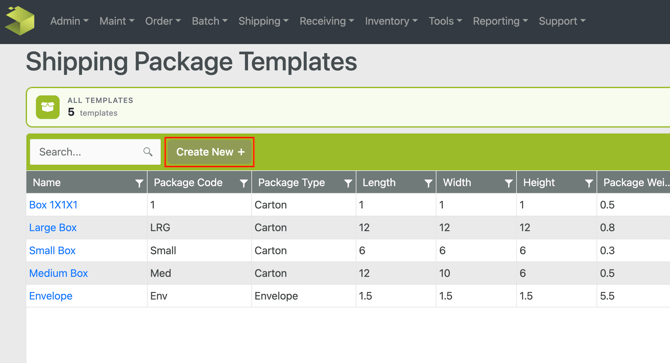
To setup a list of package types to be selected during Packing, go to Shipping -> Shipping Package Templates. Use the Create New button to add a template.
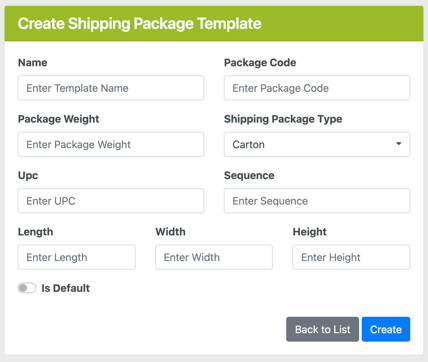
- Add a Name - this is will be displayed in the Packing app when selecting from the list of package types
- Add a Package Code
- Set Package Weight (Optional) - this will be added to the package weight in addition to any item weights packed inside
- Select a Package Type (Optional)
- Carton
- Pouch
- Envelope
- Enter a UPC (Optional) - this barcode value can be scanned during Packing to select the package template
- Set a Sequence (Optional) - this value determines the order templates will show on the list to select from during packing, sorted from lowest to highest (rank most used packages to show at the top of the list for easy selection)
- Enter dimensions: Length, Width, Height
- Default template flag - this feature is not currently functional
WOS Fulfillment (app) - Shipping Packages
In the Packing app in WOS Fulfillment, a shipping box is equivalent to a shipping package.
Order Fulfillments - Shipping Packages
A Shipping Package must be assigned to an Order Fulfillment, they are unable to exist independently. Shipping packages assigned to an order can be reviewed in the Order Edit page in the Fulfillments tab. The Fulfillments grid on this page will list all fulfillments on the order with a nested grid view of package details.
Order Edit - Fulfillments - Nested Grids
To view specific shipping packages, click the small arrow on the side of the fulfillment number to expose the packages. All shipping packages created and assigned to that fulfillment will be listed. To see what items have been packed into each package, click on the small arrow by the package to see a nested grid of items listed.
Shipping Packages Nested Grid
The Shipping Package nested grid has the following fields and attributes:
- Package Label - created as the Shipping LPN or box label, (this is automatically created if the Admin Setting option is turned on)
- Package # - sequential order of packages being created on the order overall
- Status - Open or Closed
- Device - the device that was used to pack the PTC
- Items - the quantity of items that were packed
- Dimensions - assigned dimensions on the package, if any
- Weight - total package weight, including the item weights and package template weight
- Unit
- Tracking #
- Actions:
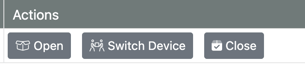
Open Box - this will reopen the shipping package making it available to edit on the iPad. If the related fulfillment was Completed, then reopening a box moves it back to In-Progress- Switch Device - switches which device a package is assigned to so a different iPad can access and work on it
- Close Box - manually closes a shipping package. If it is the only box on a fulfillment and all items are packed, the fulfillment will be marked complete as well
Packed Items Nested Grid
Items that have been packed can be found under the Shipping Package nested grid. To see items packed and assigned to each package, click the arrow on the package line. The items grid will show Item Numbers, Item Description, Quantity, Serial #, and Lot # for any items that were packed into the respective shipping package.
Admin Setting - Auto Create Package Label
Under Admin -> Settings, there is a setting option that will automatically create a Shipping LPN (synonymous with Package Label/Box Label) if enabled. By default this is recommended to be on to remove any extra toggling or actions during the packing step.
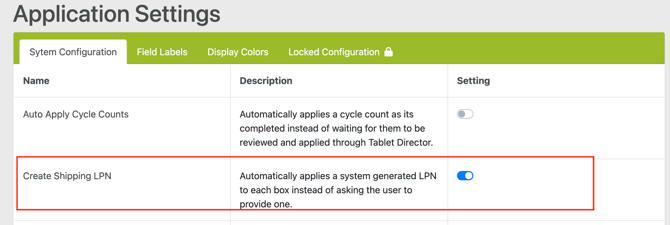
If custom Package Labels are needed, turn this setting off. Users will be prompted to type in a Package Label every time a shipping box is added during Packing on the iPad.