Orders are now broken out into different objects: Order Records, Pick Tickets, Consolidations, and Fulfillments. This page focuses on Consolidations.
Table of Contents
New order structures include:
- Order Records: represents the order at the highest level, containing the customer and shipping details, all order lines, and linking all pick tickets and fulfillments generated and processed against it. Order Records will match up the order object in sales channels and host systems.
- Pick Tickets: represent the picking tasks created against an Order Record that will be batch or single picked. There can be multiple Pick Tickets assigned to a single order.
- Consolidations: represent the packing task or object against an Order Record. They will be associated with at least one Pick Ticket, a Pick Ticket Consolidation (PTC) can be made up of multiple Pick Tickets combined at the packing step.
- Fulfillments: represent shipments created for an Order Record. Fulfillments will be associated with a Consolidation. They can be made up of multiple packages (multi-parcel shipments) or single packages. Fulfillments are only created for fulfillable order types (Sales and Transfer orders).
Overview
A Pick Ticket Consolidation (PTC) represents the packing action against an order. It can be made up of a single Pick Ticket, or multiple Pick Tickets combined into a single Consolidation. In the Packing app when the cart or order scanned after picking, a Pick Ticket will become a Pick Ticket Consolidation automatically when selected from the Packlist.
Situations may vary for combining Pick Tickets at packing, an example use case is for orders picked across multiple Zones by different users. An order may be split into multiple Pick Tickets but shipped out in a single package. Consolidations allows the different Pick Tickets to be brought together at packing and generate a single Fulfillment for the order.
A PTC can also have multiple Fulfillments tied to it if needed. While Consolidations offer an opportunity for multiple Pick Tickets to be combined into a single Fulfillment, the opposite can also be true. A single Pick Ticket can be turned into multiple Fulfillments (multiple shipments) through the Packing Process as well.
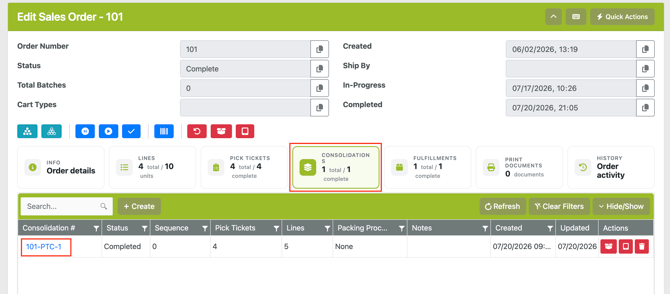
Consolidations will have a unique identifier in WOS that contains the (Order Number)-PTC-(1). The number at the end will increase incrementally every time a ticket is created on an order.
Example: 12345-PTC-1 and 12345-PTC-2.
PTC Creation
Automatic/Default
A Pick Ticket Consolidation is automatically created when a Pick Ticket is pulled up in the Packing app on WOS Fulfillment and packing is initiated. The PTC will be completed when the packing is complete. An order Fulfillment will also be automatically created and tied to the PTC as well.
For MOST operations expecting a single shipment/fulfillment per Pick Ticket, Consolidations needn't be considered much in the operation, as they will be created and completed seamlessly.
For manual creation of Consolidations, this can happen in 2 places: in the Packing app on an iPad, or inside WOS Manager on the desktop.
Pick Ticket Consolidations - Packing App
Multiple Pick Tickets can be consolidated for shipments in the Packing app on the iPad. In order to combine the tickets into a Pick Ticket Consolidation (PTC), they must first be picked.
In WOS Fulfillment open the Packing app and scan the order number. All Pick Tickets associated with that order will show on the Packlist. To consolidate, tap on a Pick Ticket and a selection menu will show. Select any other tickets to add to the PTC then hit Continue.
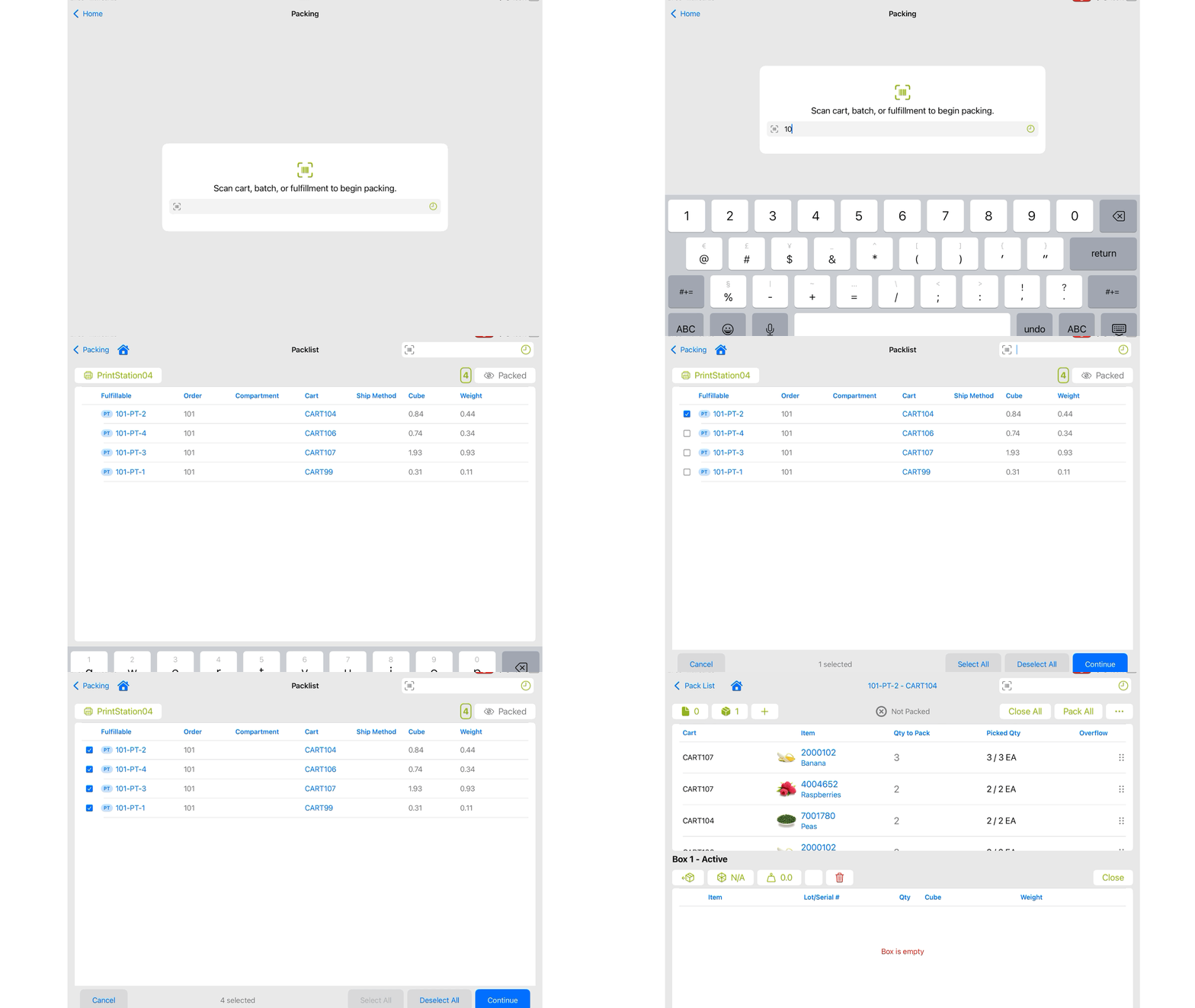
Pick Tickets that do not have a picked status will still show up on the pack list, but will result in an error if attempted to add to a consolidation. Pick Statuses will be added soon to avoid this occurring.
Pick Ticket Consolidations - WOS Manager
To Create a Consolidation before the Packing app, it can be done on the desktop in WOS Manager.
-
Go to the Order Edit page -> Consolidations tab.
- Select Create New
- Add Associated Pick Tickets: these are pick tickets that will need to be packed on the consolidation, the lines from each pick ticket will be automatically added to the Consolidation as they are picked
- Set a Facility (Optional)
- If no Facility is set, then no User restrictions will be applied - anyone can pack it on the iPad no matter the Facility assignment or current Facility selected
- Set a Packing Process (Optional)
- If no Packing Process is set, the default from the Order Process will be assigned automatically
- Add any Notes
- Create
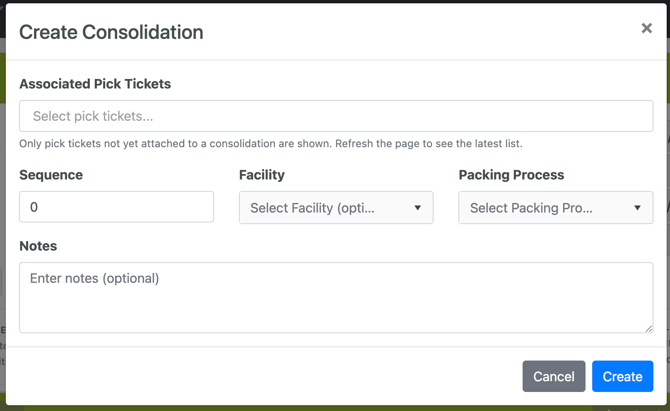
PTCs created through WOS Manager will be in a draft status until one of the lines on an associated Pick Ticket is picked.
Order Edit Page - Consolidations
The Order Edit Page has been improved with functionality like hot keys, shortcuts, upgraded tab layouts, and more. There is a page dedicated to this specifically, please view Order Edit Page - New for detailed changes.
Navigating to the Order Edit page, there is a tab view dedicated to Consolidations. This tab view will list any PTCs that exist on the order. The grid includes most header details and can be filtered or scrolled to find information. Line details can be found by clicking on the Consolidation number to access a modal for the specific PTC.
PTC Modal
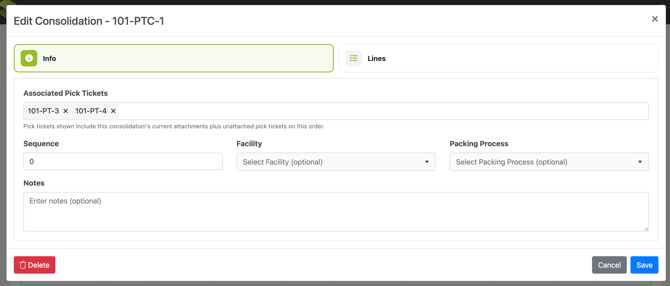
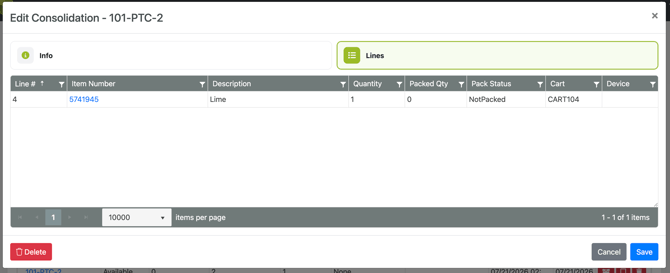
When a specific Pick Ticket Consolidation is selected a modal will show with two tabs, one for Info and another Lines.
The Info tab will show details for which Pick Tickets are assigned to the PTC, and if there is a Sequence, Facility, Packing Process, or Notes. These fields are all editable.
The Lines tab will show the picked lines from the assigned Pick Tickets. If a PTC is created before the packing step with Pick Tickets added, the lines will not show on the PTC until they are picked and in a state ready to be packed.
Edit a PTC
Consolidations cannot be edited by line, but they can be adjusted for which Pick Tickets are assigned to them. To remove or add a Pick Ticket to a Consolidation, open the Order Edit page -> Consolidations tab -> click on the PTC number and use the Associated Pick Tickets field. Pick Tickets can be removed by clicking on the 'x' and they can be added by selecting from the list. Pick Tickets will only show and can be selected from the list if they are not already assigned to a different PTC.
By default if no Packing Process is manually set on a Consolidation, the Packing Process assigned to the overall Order Process will be set. The Packing Process can always be manually edited on the PTC Modal or on the tab view using the grid action.