
The Batch Build page in WOS experienced several changes and updates with the New Order Management upgrade. This article will outline how to build batches in basic steps, navigate the page, and describe new functionalities.
Overview
Pick Tickets can be grouped into batches, enabling warehouse teams to pick multiple tickets together while reducing travel distance and improving picking efficiency. The Batch Build page is where pick tickets are organized and grouped into batches.
There are two kinds of batch picking in WOS:
- Compartment Pick - pick tickets are assigned to individual compartments on a cart. Cart Types are required to determine the configuration of compartments on the cart, as well as determine how many tickets can fit on the batch
- Bulk Pick - picked items are not organized by pick tickets, any organization of the items is determined by the picker. Picking a Bulk Pick batch to a cart is optional.
- This pick method includes Pack One (single line tickets), Mass Mail, and pallet picking type scenarios.
How to Build a Batch
This is a basic step by step process for how to build a batch. More details on particular functionalities or options are described in other sections below.
- Go to Batch -> Batch Build -> Unassigned grid
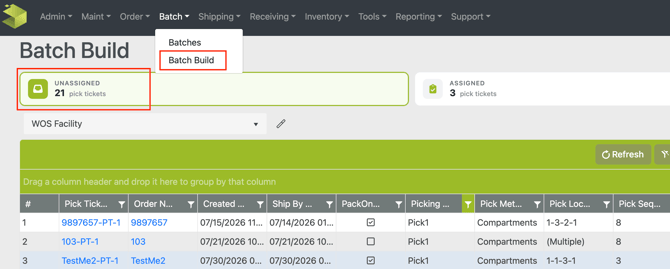
- Filter, sort, or group pick tickets in the grid restricting the grid view to only show tickets getting batched together (see Filtering Options below)
- Pick tickets can also be selected in the Unassigned grid to build batches of those specific tickets
- If tickets are assigned as Compartment Pick method, select a Cart Type
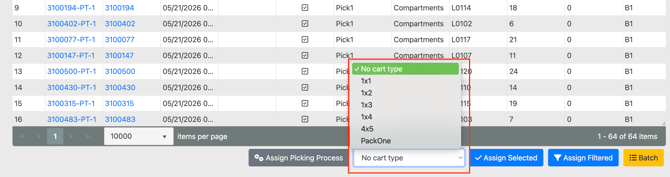
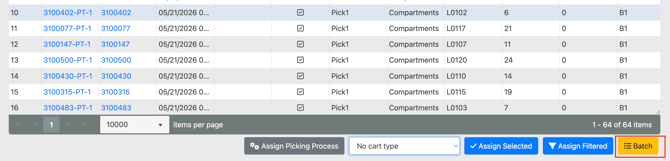
- Click on the Batch button
- A modal labeled Batch Pick Tickets will appear with decision-making options for the batches that will be created. Details on the options are below under Batch Pick Tickets
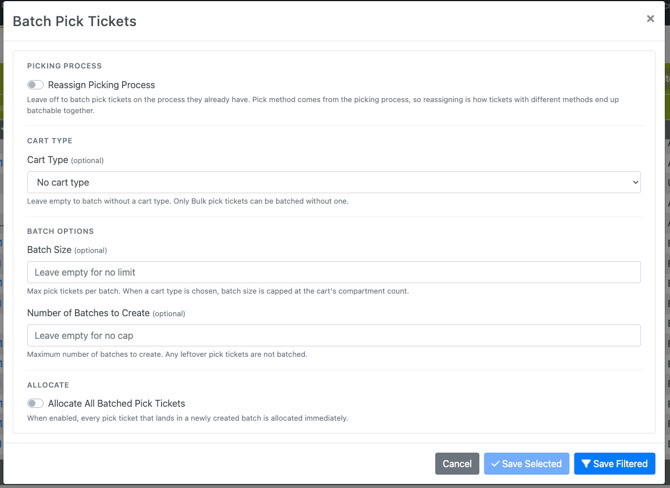
- After specifying any configuration options or limits in the modal, click Save Filtered to batch the tickets currently visible in the grid, or click Save Selected to batch only the tickets selected
To view and manage created batches, go to Batch -> Batches.
Batching Grid Actions
At the bottom of the Unassigned and Assigned grids there are batching related actions. They are described below.

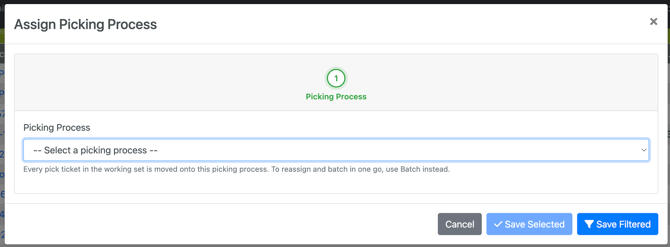
Assign Picking Process
The Assign Picking Process button allows for the Picking Process on filtered or selected pick tickets to be reassigned. Pick Tickets will not show on the Batch Build page without a Pick Process, but they are not locked to that process and may be changed using this button or in the Batch step.
Pick Tickets can be reassigned to a Single Pick process in this grid, when the reassignment happens, that pick ticket is removed from the Batch Build page.
Cart Type Selection
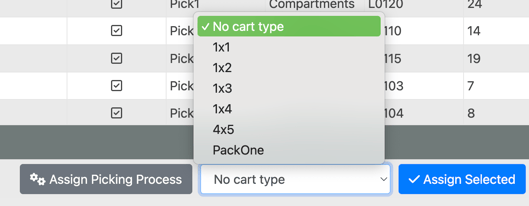
The Cart Type selection drop down allows a cart type to be selected that will be assigned during the Batch step for the Compartment pick method tickets. The Cart Type selection can also be included in any Saved Filters.
Pick Tickets can be filtered for different attributes, such as small or large orders and batched to a respective cart type using this selection tool.
Assign

The Assign Selected and Assigned Filtered buttons allow pick tickets to be sorted or organized by cart type to the Assigned grid before being batched. Assigning pick tickets instead of batching them can be done for a few reasons, one being created a multi-layer sorting opportunity; for example, if multiple items should be batched together, the current filtering capability only allows for 1 item to be filtered at a time so they can be filtered and put into the Assigned grid for each item, then batched all together from that grid.
Another reason can be sorting certain pick tickets into the Assigned grid to remove them from getting pulled into regular batches created from the Unassigned grid until they are ready to be processed. These tickets may not want to be put on Hold as that status is removed from the Batch Build page entirely; the Assigned grid allows them to show as needing to be processed without having to exclude them in normal batching.
WOS Integrations are able to assign a cart type to pick tickets when they are created so they avoid the Unassigned grid entirely. This can be helpful for orders with custom needs, see the article for Value-Added services for more information.
Batch Pick Tickets
The Batch button is the final step to building a batch and allows for some configuration or decision-making opportunities if needed.
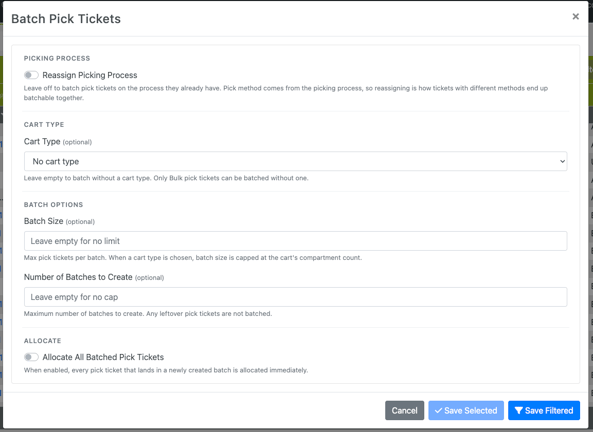
- Reassign Picking Process - this option allows for the Picking Process to be reassigned during the batching step. This can be helpful if a default Picking Process is assigned to all pick tickets, and the process is determined at the batching step.
- Pack One tickets are a good example of this, if all pick tickets default to a Compartment pick process the Pack One eligible tickets can be filtered in the Batch Build grid and reassigned to a Bulk pick process in the Batching step
- Cart Type - the cart type can be selected in the final Batching step using this option. If the Cart Type Selection grid action already has a cart type set, the one cart type selected in this Batching modal will override the grid selection. Only tickets assigned to a Bulk pick method can be batched without a cart type
- Batch Options
- Batch Size - this allows for a batch size to be determined, if not already determined by the number of compartments on a cart type. If a cart type is assigned, then batches will have a maximum size built in.
If no cart type is assigned, usually for Bulk pick batches, this Batch Size configuration allows for a max number of tickets to be assigned to a batch - Number of Batches to Create - this allows for a maximum number of batches to be created, to avoid partial batches if desired
- Batch Size - this allows for a batch size to be determined, if not already determined by the number of compartments on a cart type. If a cart type is assigned, then batches will have a maximum size built in.
- Allocate - pick tickets that are batched in the current action will be allocated when assigned to the batch. This allocation will include reallocation for any lines that are not already assigned to a pick location. See Allocation for more details on the automatic reallocation
Batching Restrictions
There are a few restrictions when creating a batch that must be met:
-
Pick tickets batched together must be assigned to the same Facility. A batch cannot exist with mixed facilities
- Pick tickets batched together must be assigned the same Pick Method: Compartment or Bulk (determined through the Pick Process)
- Different Picking Processes can be mixed in a batch, but the Pick Method must be the same
- Bulk Pick batches cannot be assigned to a Cart Type
Unassigned Grid
The Unassigned grid shows all the pick tickets that are Available, not already assigned to a Cart Type, and has a Pick Process assigned that allows batching (Compartment or Bulk).
Pick tickets in a Hold status will not show up in the Unassigned grid and must first be released from the Hold status in the Orders, Pick Tickets, or Order Edit page. Similarly, any pick tickets with a Single pick method assigned will not show in this grid.
Pick Tickets in the unassigned grid can be filtered to identify tickets that should be batched together. The selection of filters can be saved as a Saved Filter to speed up assigning the same filters again in the future.
It is generally recommended to filter and batch pick tickets directly from the Unassigned grid. The Assigned grid can be used to create batches as well, but adds an additional step in the process.
To simplify the process, a Cart Type can also be saved as part of the saved filters. After assigning all of the filters in the grid, go to the bottom and select the Cart Type associated with the group of tickets. Saving that combination into a Saved Filter will retrieve not only the filters for the pick tickets, but will also assign the Cart Type selection.
Assigned Grid
Pick Tickets that were assigned a Cart Type but were not batched will display in the Assigned grid. From here, tickets can be filtered further and then batched to their assigned selection. This grid functions very similar to the Unassigned grid with a few exceptions:
- Pick Tickets with a Bulk pick method are ineligible to be moved to this grid, as they are non-compartmentalized and cannot be assigned to a cart type
- Eligibility columns are not visible and are replaced with an Assigned To column to show which Cart Type the order has been assigned to
- The Unassign and Batch buttons will provide a Save Selected or Save Filtered option, but additional options on changing the batch sizes or creating a specific number of batches are not available
- The Batch button can be performed against all filtered pick ticets, even if they have different assignment. The tickets will be grouped by the Assigned To column and batched into their assigned CartType
- Assigned Pick Tickets have a set of Saved Filters that are distinct from the Unassigned grid. This allows for deeper filtering that is unique from the ticket filtration done before they become Assigned
Filtering/Grouping Options
Pick Tickets can be filtered to create more efficient batches of similar tickets. The Batch Build grids offer a wide range of filtering attributes, allowing users to tailor batching to the needs of different operations. Batching strategies can include (but are not limited to) the filters described below.
Pick Ticket Eligibility
All batch types are created from the same page. The PackOne Eligibility, Cell Pick Eligibility, and Full Order Zone columns show if a pick ticket can be batched and processed through one of those methods.
- PackOne: Only pick tickets with a single line item are eligible for PackOne batches. These must be batched with a Bulk pick method Pick Process to be processed efficiently. When a Bulk pick method is assigned and tickets are batched together that are PackOne eligible, the batch name will automatically show "PACKONE" at the front of the batch to indicate.
- Cell Pick (no longer supported): Only tickets that can be fully picked from within a Cell are eligible for Cell Pick batches. The Cell Groups which contain all of the items on the ticket are displayed in the Cell Groups column. These must be batched into a Cell Group to be eligible for the Cell Pick process.
- Full Order Zone: Instead of an Eligibility column, tickets that can be fully picked within a zone marked as a Full Order Zone will show the Zone names in the Full order Zones column. Select the Assign to Full Order Zone option when batching to have these tickets reallocated to the specified zone
All pick tickets are eligible for a Compartment or Bulk batch generally. The Pick Process assigned to a pick ticket can be reassigned if it makes more sense to process the ticket through a different pick method. After batching for specialized batches like Bulk Pick, PackOne, etc, all remaining orders can be assigned and batched into a Cart Type for compartmentalized batch picking
Item
Instead of simply saying "(Multiple)", the Unassigned grid shows all items on the pick ticket. This allows tickets to be filtered for a particular item so they can be batched together for more efficient picking.
- Lengthen the Item column to see as much as the list of items as desired
- Click on the filter for Item and enter the desired item number
- The grid will be filtered for the desired item to show any pick tickets containing that item and they can be batched together
Tip: if trying to filter tickets that ONLY contain a certain item, use the Item filter described above paired with a filter of 1 on the Total Lines column. This will restrict the grid to only show tickets with a single item, restricted to the item filtered.
Item Category
The Item Master record contains a Category field. All of the categories for the items on the pick ticket will be summarized and displayed in the Item Category column in the Unassigned grid. This allows for tickets to be filtered by categories or "types" of products, as configured on the Item Master record.
This can be helpful for batching together certain items that have particular packing or shipping processes, bulky or difficult to handle items, custom items, etc.
Zone
Pick Tickets can be filtered and batched together by Allocated Zone. Zones can be setup in a warehouse to represent different things, including types of items and sections of racking. Consider batching tickets by zone to create more efficient batches: tickets allocated to a single zone can be batched together to be picked quickly; tickets allocated across multiple zones can be batched together since zone lines need to be crossed for all pick tickets.
Zones can also be used to help with order profiling (see below), different item types can be grouped together and located in a unique zone to determine processing needs. For example, items that need to be shipped in a box could be in a separate zone from items able to ship in an envelope or poly bag. Batching by zone would allow the tickets to be grouped and taken to the correct packing stations.
Packers can subsequently perform more efficiently as well when packing a whole batch with the same packaging process.
Shipping Details
Grouping orders by Ship Method, Shipment Type, or Shipping Carrier can make the Packing process easier for users and speed up package organization. Batching together high priority shipping tickets can ensure those get shipped out in the correct time. Batching together larger pick tickets that will need dimensions determined for a shipping label, separate from tickets that already have a pre-generated shipping label will allow packers to get into a flow and know how to expect to process a cart.
An option for utilizing the integration in batching is pre-determining certain Shipping Methods to set a higher priority Sequence value on the order and pick ticket when created in WOS. When building batches, the sequence value can be used to filter for priority shipping rather than needing to filter for multiple Ship Methods.
Pick Ticket Profile
Pick Ticket profiles can be used to determine what size of Cart Type they will fit on, custom order needs, or other orders that need to be processed the same. The Total Lines or Total Quantity fields can be used to determine a ticket's size for different Cart Types. Tags or Sales Channels can be used to filter for tickets that need to be processed differently from standard order processing.
Many other fields can be utilized to determine a profile, the ones listed above are just a few examples.
Pick Sequence and Pick Sequence Magnitude
The Pick Sequence column will show the lowest pick sequence on the pick ticket.
For PackOne eligible orders, this is the only pick location and allows tickets being picked from the same or near locations to be grouped together into more efficient batching.
For other pick tickets, this is the starting point when picking that batch. Sorting this column will pull together tickets that all start in the same place, making more efficient batches.
The Pick Sequence Magnitude column shows how far through the pick sequence the pick ticket goes through to pick the first and last item. The smaller the number, the smaller the distance to be traveled to pick the entire order. The larger the number, the farther the distance to pick the entire ticket.
Together, the Pick Sequence and Pick Sequence Magnitude can be used to group pick tickets that start in the same place and are picked in a small footprint, allowing for more efficient picking.
Note: The actual meaning of the Pick Sequence Magnitude column will depend on the specific layout. A pick face with 4 tiers and 10 locations per tier could show a larger Pick Sequence Magnitude than a pallet storage with only 2 locations in the same space. This column is only based on the difference between the largest and smallest Pick Sequence number, not on the actual distance between locations.
Each WarehouseOS site will need to get used to the meaning of the Pick Sequence Magnitude within their setup for it to be truly meaningful.
Saved Filters
Saved Filters can and should be used as much as possible in the batch creation process to help make batching orders more efficient. Typically when batching orders, the filters are pre-determined to match against certain cart types, sorting by a date or priority sequence, or any other filters described above. The batching process can become arduous to manually filter and sort the grid every time.
If the filters or sorts are consistent and predictable when creating batches, a Saved Filter can be created for each batch type. For example a list of Saved Filters could look like this:
| Filter Name |
Grid Filter Example |
| Priority Ship - 4x5 |
- Priority Shipping methods |
| Priority Ship - 1x5 | - Priority Shipping methods - Priority Sequence Value - High Qty for large tickets - Cart Type set as 1x5 |
| PackOne | - PackOne Eligible = true - Pick Sequence sorted in ascending order |
| 4x5 Standard | - Low Qty for small tickets - Cart Type set as 4x5 |
| 1x5 Standard | - High Qty for large tickets - Cart Type set as 1x5 |
| Custom Orders | - Tag, Note, Item Category showing custom process requirement |
When batching tickets, the Saved Filters could be selected one at a time and applicable pick tickets batched together in a few clicks.
For details on how to create Saved Filters, review article here.