
An Allocation Process determines how Pick Tickets choose a warehouse location to assign to an order line.
Table of Contents
- Create an Allocation Process
- Allocation Process - Types
- Zone Preferences
- Allocation Triggers
- Automatic Reallocation
- Manual Allocation/Deallocation
Overview
An Allocation Process is a named, reusable configuration that tells the system where to pull inventory from when an order needs to be picked. Allocation runs against Pick Tickets. When an order is released for fulfillment, every line on that order has to be matched to a specific location in the warehouse. The Allocation Process is the rulebook that decides which location each line gets matched to.
When using an Inventory-based process type, factors for determining the inventory location can include Order details, Order Line details, and Inventory attributes.
Allocation Processes can be assigned to multiple Pick Processes and different order groups. A process only needs to be created once and then can be applied in different scenarios. This is the expected setup if all orders are expected to allocate the same way in WarehouseOS.
For varying allocation needs across different order types, multiple Allocation Processes can be created and utilized. For example, ecommerce and wholesale orders may not want to be allocated against the same zones, pick locations, or groups of inventory; create a separate allocation rule for each of those order types and assign it to different Pick Processes.
Create an Allocation Process
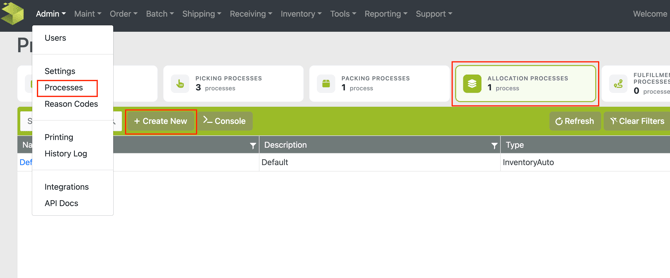
Go to Admin -> Processes -> Allocation Processes -> Create New
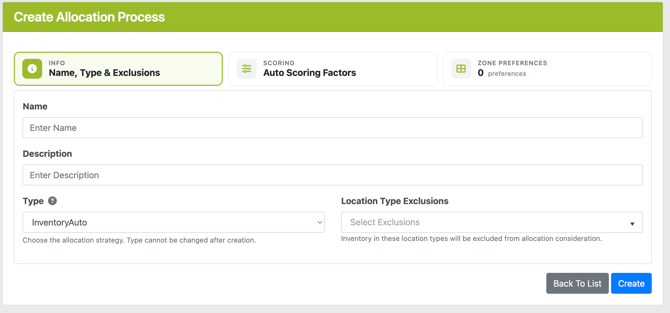
- Create a Name and Description
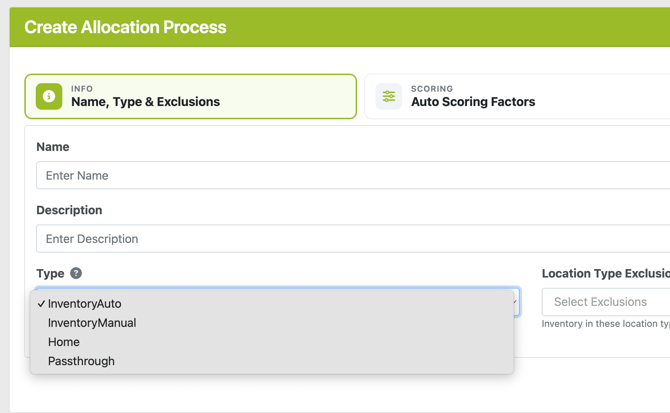
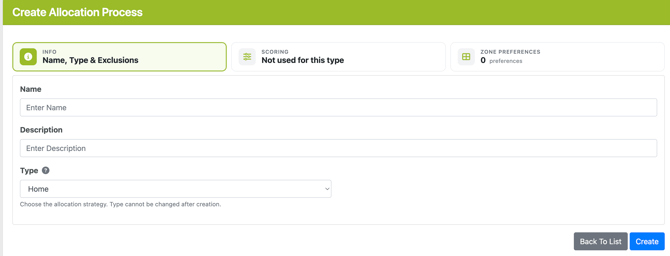
- Select a process Type
- Inventory Auto
- Inventory Manual
- Home Location
- Passthrough
- Add any Location Types to exclude from allocation (if inventory based)
- Determine Scoring factors (if inventory Type was selected)
- For details on those factors and selection, see Type section below
- Set any Zone Preferences
- Rules about which warehouse zones (groups of locations) the process is allowed or prefers, to pull from
- Rules about which warehouse zones (groups of locations) the process is allowed or prefers, to pull from
Pick Tickets are assigned an Allocation Process ONLY through a Pick Process. Allocation Processes are tied directly to a Pick Process; in order to run against a different Allocation Process, a ticket must have the Pick Process reassigned.
Allocation Process Types
When creating an Allocation Process a Type must be selected to determine how to configure the allocation rules. Once the Type is selected the Scoring tab will reflect either with the method for adding priorities and factoring, or "Not used" if Home or Passthrough are selected.
Inventory based allocations run on scoring factors. The Scoring tab allows each process to create specific criteria and factors to weigh and score while looking for a location to assign. These scores are also important when considering multiple order lines looking for inventory at the same time. If pick tickets with different (or the same) allocation processes find the same inventory location preferable, the score assigned on the Order factors will determine which ticket takes priority for the most optimal locations.
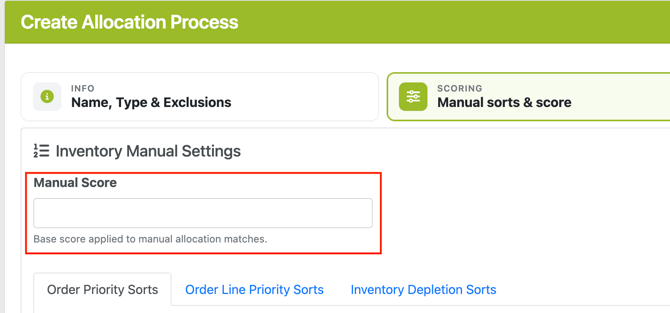
The Inventory Manual Scoring tab has an optional Manual Score value that can be set. This is a single fixed score (0.0 – 1.0) to give a process so its assigned order lines compete for inventory at a known priority level against other processes running concurrently.
Inventory Auto
The Inventory Auto allocation type looks at every available piece of inventory the rules allow, scores each candidate, and assigns the highest-scoring location to the line. Pick Ticket lines themselves are also scored, so when many lines are competing for the same inventory, the most important lines win first.
This option works well when the system needs to make smart, automatic trade-offs across many factors (age of order, deadline pressure, freshness of inventory, lot expiration, quantity fit) without requiring a strict priority order to be defined. Best used when operations face variable conditions and allocation must balance several priorities at once.
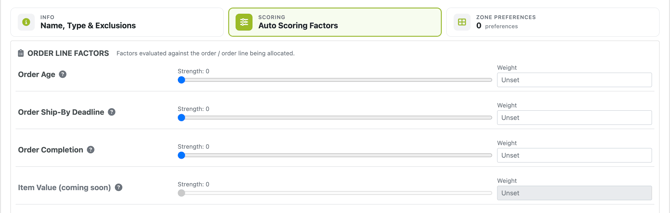
Order Line Scoring Factors: These determine which pick ticket lines get the first shot at the best inventory.
- Order Age - favors older orders (based on the Order Created Date)
- Order Ship By Deadline - favors the pick tickets with the closest (or already past) Ship By date
- Item Value - weights items by value (coming soon)
- Order Completion - favors pick tickets that are nearly fully allocated, so almost complete tickets get prioritized over creating more tickets with Unknowns
Inventory Scoring Factors: These determine which physical location is selected for a pick ticket line.
- Inventory Age - favors older inventory first (first in, first out)
- Lot Expiration - favors inventory whose lot expires first
- Quantity Usage - favors locations whose on-hand quantity best matches
the requested quantity (a location holding exactly what's needed beats one
with too much or too little). - Preferred Zone Preference - selected in another tab on the Allocation Process, see below
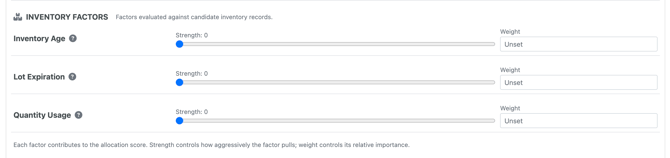
Each factor has two dials: Weight and Strength. Weight determines a factor’s importance relative to the other factors in the same group (Order Lines or Inventory). Each factor’s weight is treated as a fraction of the total weight across that group. For example, if Factor 1 = 10, Factor 2 = 5, and Factor 3 = 5, then Factor 1 accounts for 50% of the total weight. Setting a factor’s weight to 0 turns it off entirely.
Strength is an optional dial set between 0 and 1 that adjusts how much a factor contributes to the final score. The factor score is calculated by multiplying the weight by the strength. For example, if a factor’s weight is 2 and its strength is 0.5, the resulting score contribution is 1. Strength is not required, but it can be useful for fine-tuning factor importance after setup.
Scoring in this allocation type is dynamic, so it remains relative to the other order lines trying to allocate or reallocate at the same time.
Inventory Manual
The Manual Inventory allocation process picks inventory using explicit sort orders created by a user, instead of computed scores. The configuration specifies, in order, exactly how the system should rank competing orders, lines within an order, and inventory locations. The first sort that produces a winner decides the outcome.
When allocation needs to have consistent and predictable outcomes, this is process type will help. This will create the opportunity for explainable behaviors, rather than having factors scored and weighted. For example things like "always allocate the oldest order first; within a pick ticket do the largest line first; pull from the location with the lowest pick sequence number", etc.
Scoring:
To add a field to be considered for allocation, follow the steps below:
- Go to corresponding tab: Order Priority, Order Line, or Inventory Depletion
- Use the Add button
- Select a Field to factor
- Set the Direction - ascending or descending
- i.e. if adding Location Pick Sequence and this is set to ascending, it will prioritize inventory at the beginning of the pick sequence. Descending would prioritize inventory at the end of the pick sequence.
- Assign a Sequence value - fields with lower values will be considered first
- i.e. if Allocation Sequence is set to 1 and Location Pick Sequence is set to 2, allocation will look first for inventory in the lower allocation sequence value, then prioritize pick sequence for any inventory with the same allocation sequence.
As noted above in the Process Type overview, a Manual Score can be set on an Allocation Process. This is a score to weight against any other processes that may be running at the same time. It will give this process standing to determine if orders from both processes are looking at the same inventory, which process (and the assigned pick tickets) should be prioritized.
For example if there are 2 allocation processes, "Wholesale" and "Ecommerce" and orders within both processes are considering the same inventory in a pick location - whichever process has a higher Manual score will be prioritized and allocate the preferable inventory first.
Scoring Factors - Order Priority
- Order Number - alphabetical/numeric sort by pick ticket number
- Sequence - by the pick ticket's sequence value
- Created Date - oldest first or newest first
- Ship By Date - most urgent deadline first or last
Scoring Factors - Order Line Priority
- Line Number - by line number on the order
- Quantity - by line quantity, largest first or last
- Sequence - by the pick ticket's sequence value
Scoring Factors - Inventory Depletion
- Quantity - locations with the smallest or largest quantities first
- Allocation Sequence - by the location's allocation sequence number
- Created Date - oldest inventory first (FIFO)
- Lot Expiration Date - inventory soonest to expire
- Location Pick Sequence - by the location's position in the pick path
Home Location
The Home allocation type skips any inventory lookup or factoring and automatically assigns each line to the item's preconfigured Home Location. This option is best when inventory tracking is not the source of truth for where to pick from — for example, items that always live in the same spot on the floor, fast-movers with dedicated bins, or workflows where pickers expect a consistent location regardless of what the inventory system thinks is on hand.
There is no additional configuration for this process type for Scoring or Zone Preferences, as it is not considering any information from inventory or the order details. The location assignment comes directly from the Item assignment.
If an Item with no Home Location assigned appears on an order line, it will allocate as Unknown even if inventory exists in WOS. A Home Location MUST be assigned if using this allocation method.
Passthrough
The Passthrough allocation type can be used when allocation is handled outside the system, by an upstream system. Or if a location simply isn't applicable for that order flow — for example, drop-ship orders where no warehouse pick happens, virtual orders, or staging steps that just need to acknowledge an order without touching inventory.
When applied, this allocation routine counts the line as "processed" but does not assign any location. The line stays unallocated and moves on to the next stage of the workflow as-is.
There is no additional configuration for this allocation type for Scoring or Zone Preferences.
Zone Preferences
Inventory based Allocation Processes can add zone considerations under Zone preferences. Specific zones are not set when adding a preference, a zone category will be referenced instead.
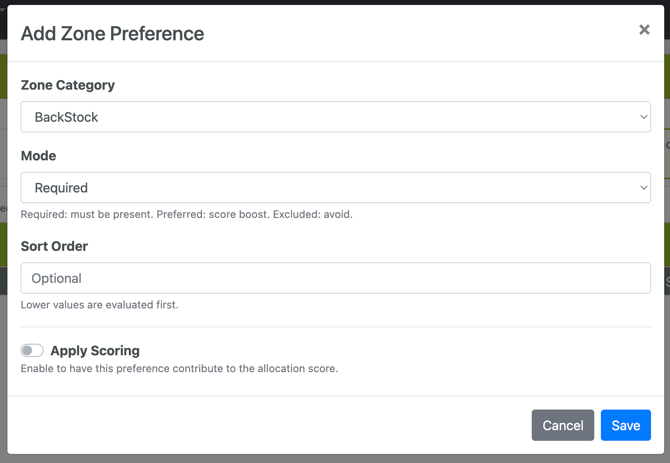
To set a zone preference, use the Add Zone Preference button at the top of the grid. 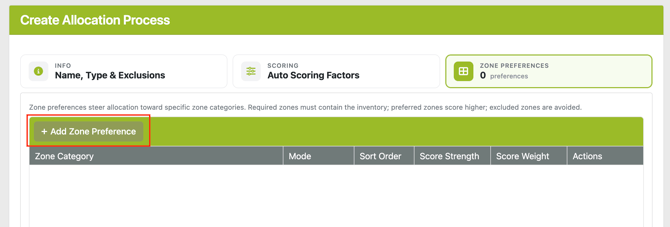
- Select a Zone Category
- Set the Mode:
- Required - only locations in this zone category can be allocated to
- Preferred - inventory in this zone category will be prioritized over other categories
- Excluded - order lines cannot allocate to a location in this zone category
- Add a Sort Order (optional)
- This ranks the preferences within the same process, for example if a few zone categories are marked as preferred this would allow ordering them for which category to look for inventory first
- Apply Scoring - enable/disable
- If Enabled: this preference is active and will contribute to allocation
- If Disabled: this preference is inactive and will not contribute to allocation
Allocation Triggers
The triggers for automatic allocation live on the Order Process and will determine when a Pick Ticket can be allocated and/or reallocated. The trigger options are listed below:
- Pick Ticket Created - pick tickets created relative to the order will be allocated immediately upon creation
- Pick Ticket Batched - pick tickets created relative to the order will allocate upon being added to a batch
- Pick Ticket Started - pick tickets created relative to the order will allocate when the ticket is marked In Progress and dropped to a Device
Automatic Reallocation
Automatic reallocation runs as part of every allocation pass. In addition to allocating the batch of order lines requested, the system also scans for other eligible lines in the facility that are stranded and includes them in the same pass. This allows the system to resolve lines that are no longer in a valid pick state without requiring a separate manual action.
A line that was not part of the original request is only included in automatic reallocation if all of the following are true:
- The line has not been picked
- The line is not actively being worked on by a picker
- The Pick Ticket the line is assigned to is not On Hold
- The Pick Ticket the line is assigned to is not Complete
In addition, at least one of the following must also be true:
- The line is assigned to an Unknown
- The line is assigned to a non "Pick" Location Type
- The line has no location assigned
Re-allocated lines receive a 1.5× score multiplier, giving them a 50% priority boost over newly requested lines. This helps previously stranded lines compete first for available inventory. On Hold, Complete, and in-progress lines are never changed.
Automatic reallocation only succeeds if eligible inventory exists in the same facility. If no inventory is available for a stranded line, the line remains in Unknown and is evaluated again on future allocation passes until inventory becomes available.
Manual Allocation/Deallocation
Pick Tickets can always be manually allocated or unallocated in WOS Manager. For allocation actions against individual pick tickets, use the Pick Ticket grid or Order Edit page; for allocation against a batch of tickets, use the Batches page; for allocation regarding Unknown items and order lines, use the Tools page.
Pick Ticket Grid Actions
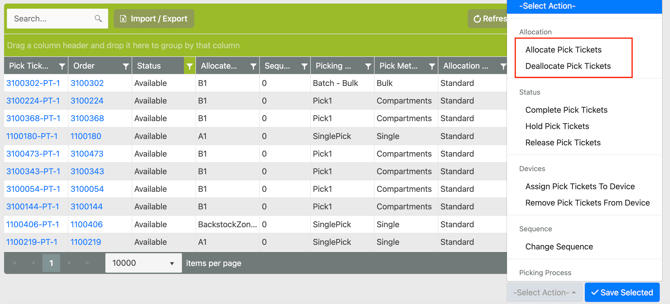
Navigate to Order -> Orders -> Pick Tickets tab. At the bottom of the grid are actions that can be used for bulk or filtered updates. Click here for more details on the actions.
Allocate Pick Tickets - this action triggers the assigned Allocation Process to run on all Pick Tickets on the order. If a Pick Ticket is unallocated, it will allocate inventory; if a Pick Ticket is already allocated, it will re-allocate and run the process again seeing updated inventory locations
Deallocate Pick Tickets - this action removes any allocation on associated Pick Tickets, even if batched
Order Edit Page
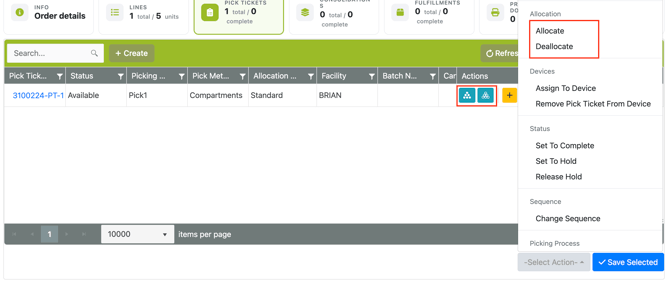
Find the order or pick ticket number and click into the Order Edit page, Pick Ticket tab. Use either the inline actions on each ticket, or a grid action at the bottom of the grid to Allocate or Deallocate. Click here for more detail.
Batches Page
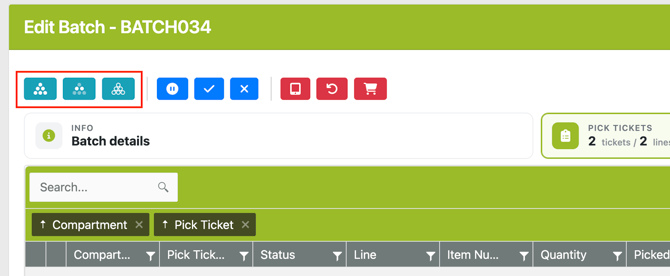
Batches can be allocated or deallocated from the Batches page, go to Batch -> Batches. These actions function the same as outlined on the pages above, but against all pick tickets on the batch(es) selected.
This is also an option from the Batch Edit page, using the actions at the top of the page.
Tools - Unknowns
Unknowns by Item
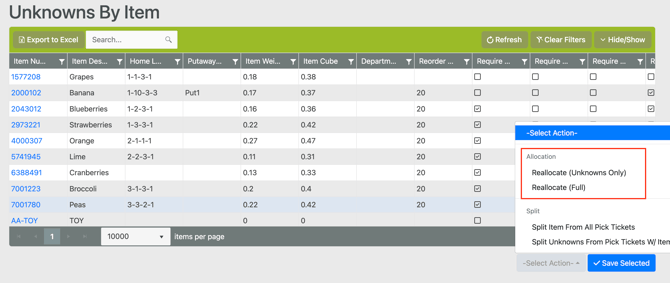
Navigate to Tools -> Unknown by Item to see a list of any items that have allocated on a pick ticket as Unknown. To reallocate all pick tickets with a listed item, use the Reallocate actions at the bottom of the grid.
- Reallocate (Unknowns Only) - This action reallocates the Pick Ticket order lines containing the Unknown item. Any other lines on the affected Pick Tickets that are already allocated to inventory remain unchanged.
- Reallocate (Full) - This action fully reallocates any Pick Tickets containing the selected item allocated to Unknown. All order lines on those Pick Tickets will be reallocated.
Unknowns by Pick Ticket
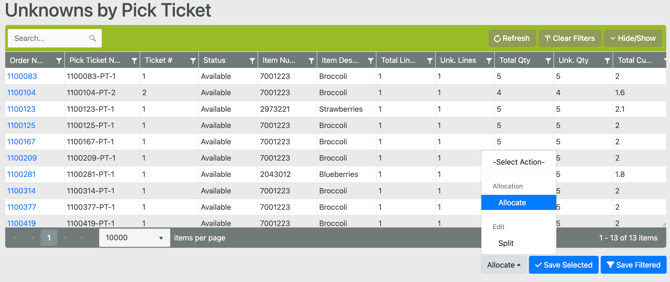
Navigate to Tools -> Unknowns by Pick Ticket to see a list of any tickets that contain lines allocated to an Unknown location. To reallocate pick tickets, select from the grid and use the Allocate action at the bottom of the grid. This action will reallocate all order lines on the pick ticket, even if already allocated to a pick location; if inventory is found for the previously Unknown allocation, the line will update to allocate to the new inventory location.
For details on the Unknown Splitting action, see Splitting Pick Tickets.