
- Introduction
- Create a Kit Item
- Item Edit Page
- Kit Item Index Grid
- Reorder Point
Introduction
In the New Order Management (NOM) version of WarehouseOS, different item types are supported, including Bundles and Kits.
A Kit is a single SKU that is stocked, inventoried, and picked as a complete item. When a kit is included on a fulfillable order, such as a Sales Order or Transfer Order, the order line remains intact and is not split into its component items. The kit is picked directly from available inventory, just like any other standard item.
In addition to being inventoried as a single item, each kit includes a Bill of Materials (BOM) that defines the component items and quantities required to assemble the kit.
When a kit is included on a Work Order, WarehouseOS uses the kit's BOM to determine the component items and quantities needed for assembly. The picking and assembly processes are then driven by those component requirements rather than the kit item itself.
Create a Kit Item
Kit items can be created in WOS Manager, imported in bulk, or created through an API integration. Instructions for creating kit items through the Bulk Import Tool and API integrations are available in their respective articles. The steps below illustrate how to create a kit item in WOS Manager.
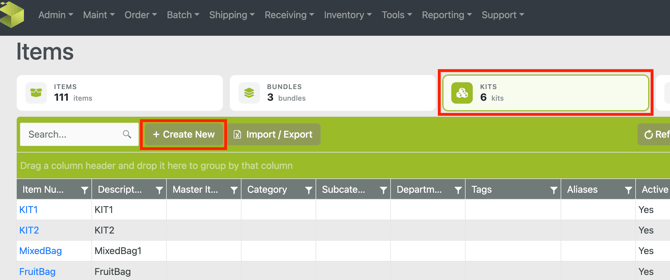
- Go to Maint -> Items -> Kits
- Click on Create New
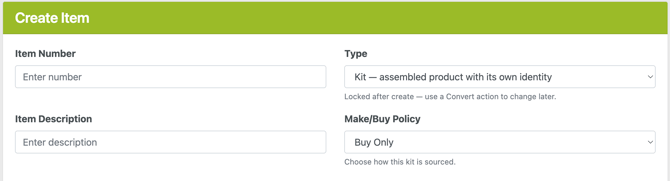
- At the top of the create section add the Item Number (SKU) and Description.
- Set the item type to Kit (configurable kits are not supported yet)
- Select a Make/Buy Policy (these options do not have supporting functionality yet)
- Under the Details - Item Fields tab, fill out additional information for the kit
- For example: Min and Max values for replenishment; dimensions and weight; Home or Preferred Putaway Locations; etc.
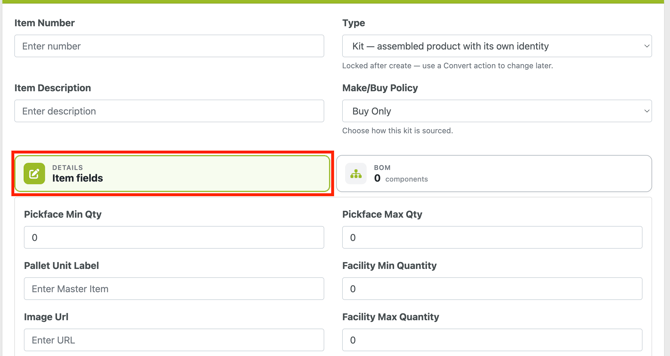
- For example: Min and Max values for replenishment; dimensions and weight; Home or Preferred Putaway Locations; etc.
- Open the BOM tab to create the Bill of Materials
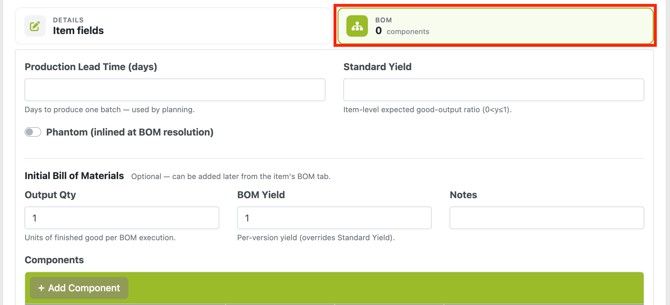
- Add a Production Lead Time and Standard Yield
- Turn on the Phantom flag
- Add an Output Qty (how many kits are produced per BOM)
- Add Component Items

- Add an Item Number (required)
- Quantity (required)
- Scrap Factor
- When all details and components have been added, hit Create
Definitions for BOM terms can be found in the Kitting and Work Orders article
Item Edit Page
The Item Edit page provides access to item details, inventory and order information, and item history, allowing these records to be reviewed and managed from a single location. For tabs and information common to all item types, refer to the Item Edit Page article. This section focuses on the areas of the Item Edit page that are specific to Kit items.
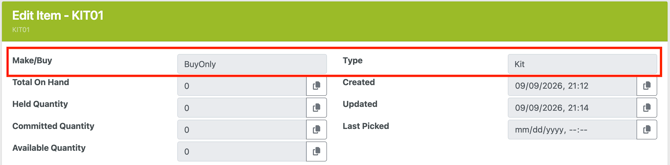
At the top of the Edit page the Make/Buy policy is displayed, as well as the Item Type. For kit items, this will show as "Kit".
Bill of Materials
In the Item Edit Page is a tab call BOM - Bill of Materials. A Bill of Materials is a list of the component items and quantities required to produce one kit. This tab view shows the current BOM and allows for edits to be made if needed.
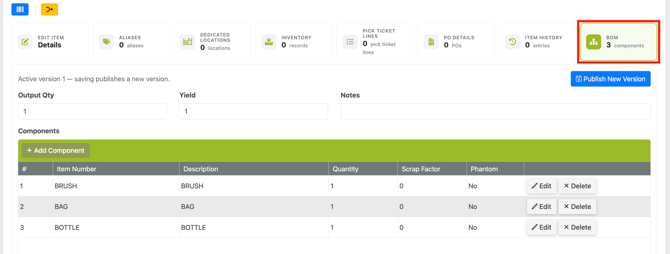
A BOM will also include an Output Quantity, Yield, and Notes.
-
Output Qty- The number of kit items produced from a Bill of Materials during an assembly.
-
Yield - The percentage of kits produced correctly and without damage or missing components. For example, if 100 kits are produced and 90 are complete and correct, the yield is 90% (0.9)
-
Notes - Any applicable notes or information pertaining to the kit or BOM. These are not currently configured to automatically populate anywhere downstream on Work Orders or Assembly
Components
The Component items that currently make up the kit are listed in the grid below the Bill of Materials tab. Components make up the main part of a BOM, determining what items the Picking and Assembly process will require to produce the number of kits on a Work Order.
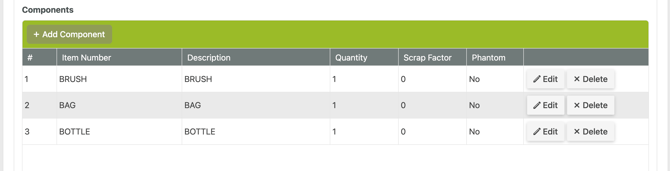
Edit Components - existing Component Lines can be edited or removed, or new Components can be added
- To add a New Component: Click on +Add Component
- Enter an Item Number and Quantity
- (Optional) Set a Scrap Factor
- Click on Update

- To Edit an existing Component: Click on the Edit action
- The Item, Quantity, or Scrap Factor can be edited
- Or the Component can be removed with the Delete action

Component Items can be either standard inventory-tracked items or Kit Items. When a component is a Kit Item, it can be fulfilled in one of two ways:
- As a preassembled kit that is picked from inventory.
- As a kit that is assembled at the same time as the parent kit.
When a child kit is assembled alongside the parent kit, its components are expanded inline during the pick or assembly process rather than being treated as a separate item.
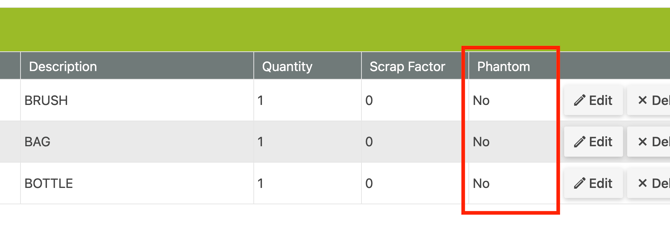
This behavior is controlled by the Phantom flag on the child kit item. In the BOM grid, the Phantom field displays Yes or No to indicate whether a component kit will be expanded into its underlying components during assembly.
BOM Versions
When a BOM is changed, a new version is created and stored which is a little different from simply saving the change. A version count is tracked at the top of the BOM tab.
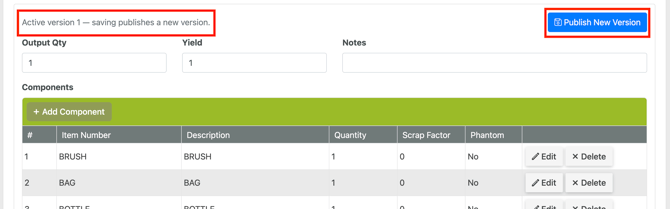
BOM versions are used to preserve the exact component list that was in effect when a work order was created. When a kit is added to a work order, the work order is linked to the active BOM version at that time.
If the kit's BOM is updated later and a new version is published, existing work orders continue to use the BOM version that was originally assigned. This ensures that component requirements remain consistent and are not affected by subsequent BOM changes.
To use a newer BOM version on an existing work order, remove the kit line and add it again after the new version has been published.