User Groups are used to adjust the requirements or way a user can interact with functions on the iPad. Multiple groups can be used in the warehouse to differentiate veteran employees from temporary or new employees, or different warehouse roles: inventory, picking, packing, etc.
The User Group settings described below are for the Picking application in WOS Fulfillment.
- Enable Picking App
- Allow Order Selection
- Auto Assign By Cart Type
- Auto Next Assignment
- Allow Assignment Skipping
- Lock To Cart
- Force Show Order Notes
- Show Order Line Notes
- Require Location Scan
- Require Item Scan
- Require Quantity Verify
- Require Scan Each
- Require Compartment Scan
- Allow Compartment Tap
- Allow Lot Selection
- Allow Pick Location Override
- Pick Location Override Types
- Enable Picks Before Puts
- Disable Short Picking
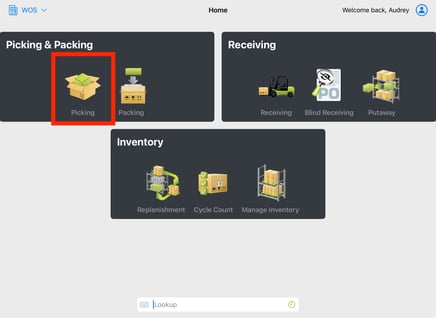
Enable Picking App
- ON: enables a user to access the Picking app on WOS Fulfillment
- OFF: user is unable to access the Picking app on WOS Fulfillment
Allow Order Selection
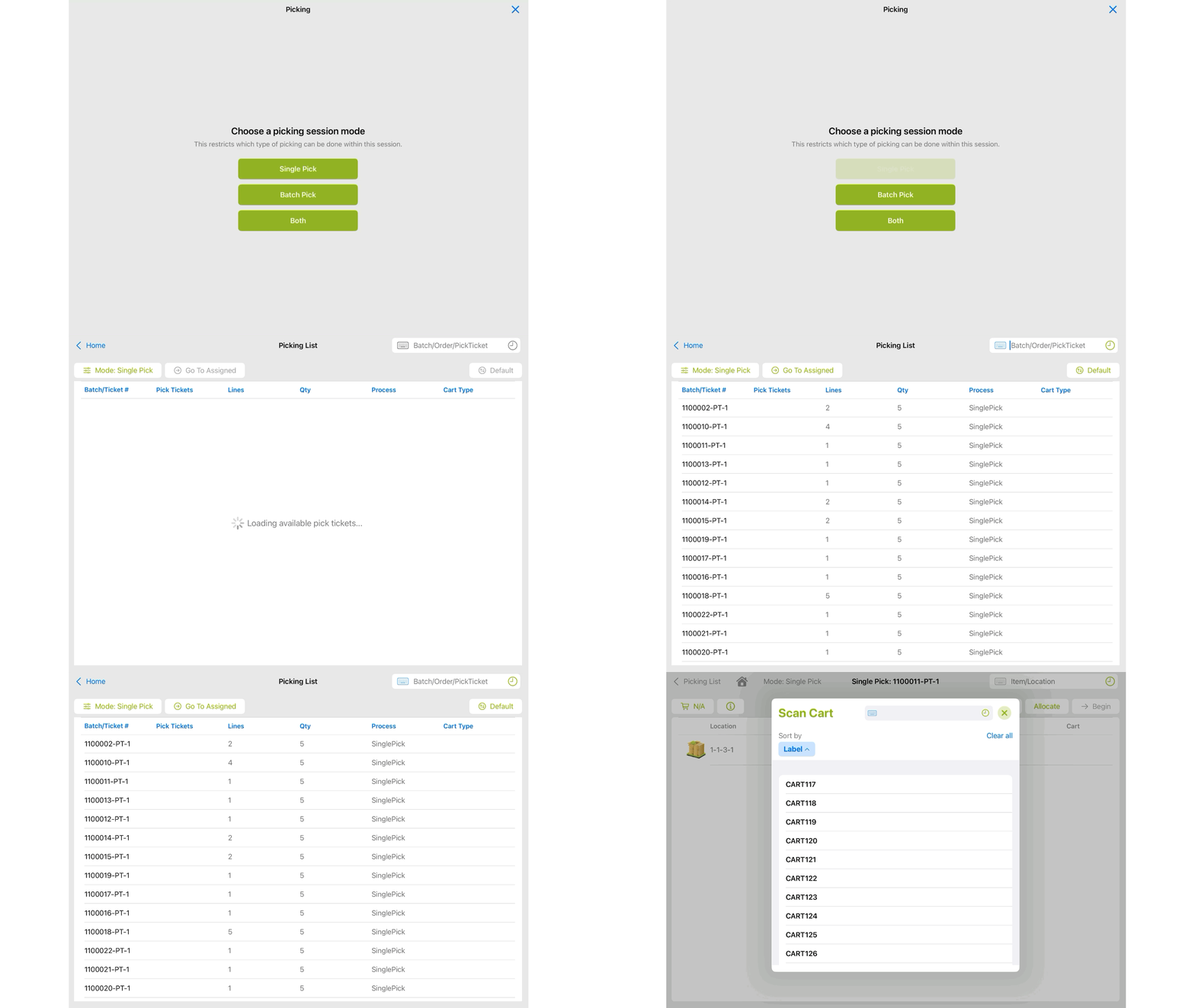
- ON: inside the Picking app, a user is able to view a list of pick tickets and/or batches available to be picked. A ticket or batch can be tapped on and selected from the list, or scanned for selection. If an order number is scanned, the first available pick ticket will be selected
- Single Pick - allows selection of a pick ticket from the list of available. An order or ticket number can still be scanned or assigned from WOS Manager
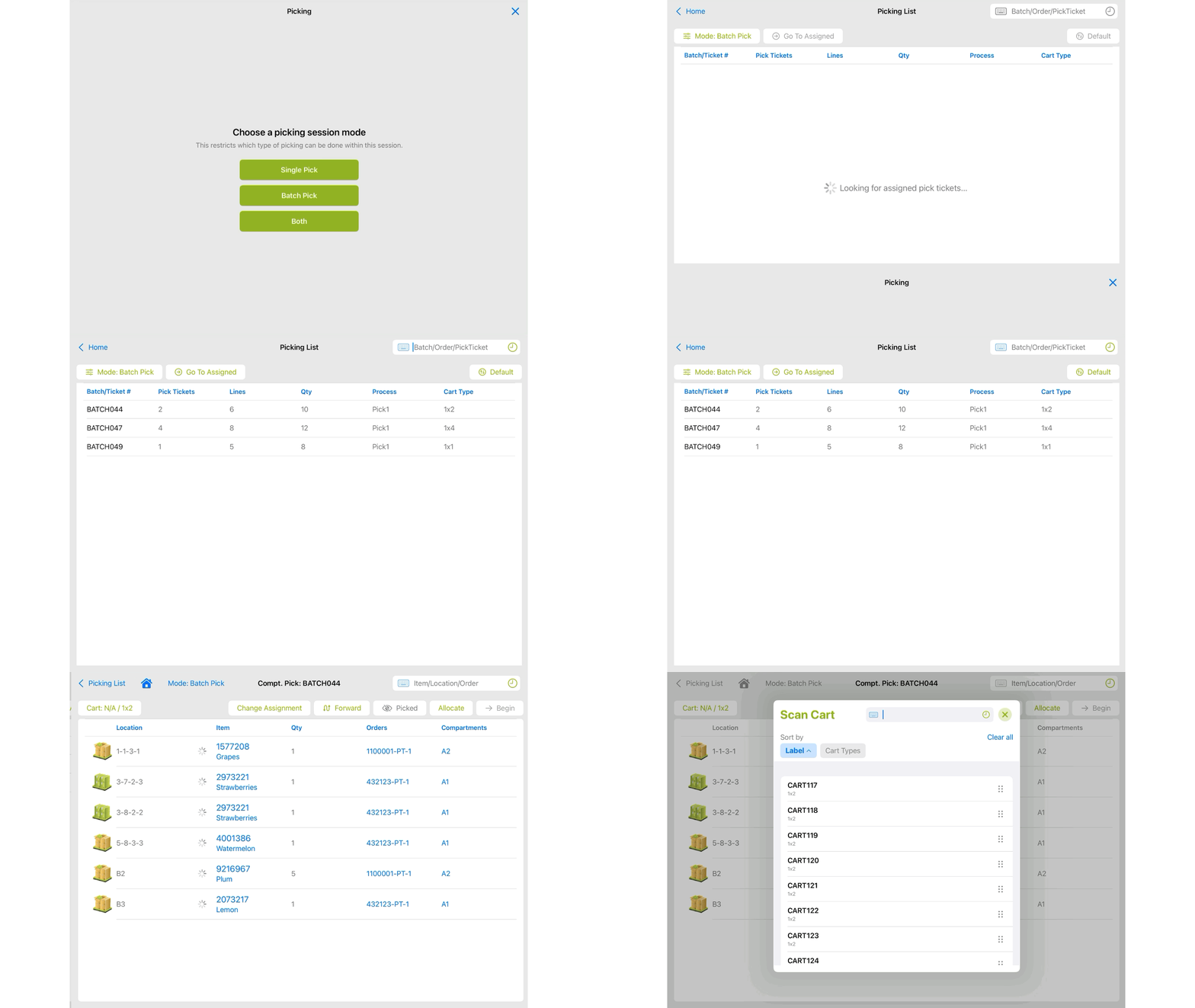
- Batch Pick - allows selection of a batch from the list of available batches. A batch may still be specifically scanned or assigned from WOS Manager
- Single Pick - allows selection of a pick ticket from the list of available. An order or ticket number can still be scanned or assigned from WOS Manager
- OFF: in the Picking app, a picking task must be scanned or assigned to initiate picking
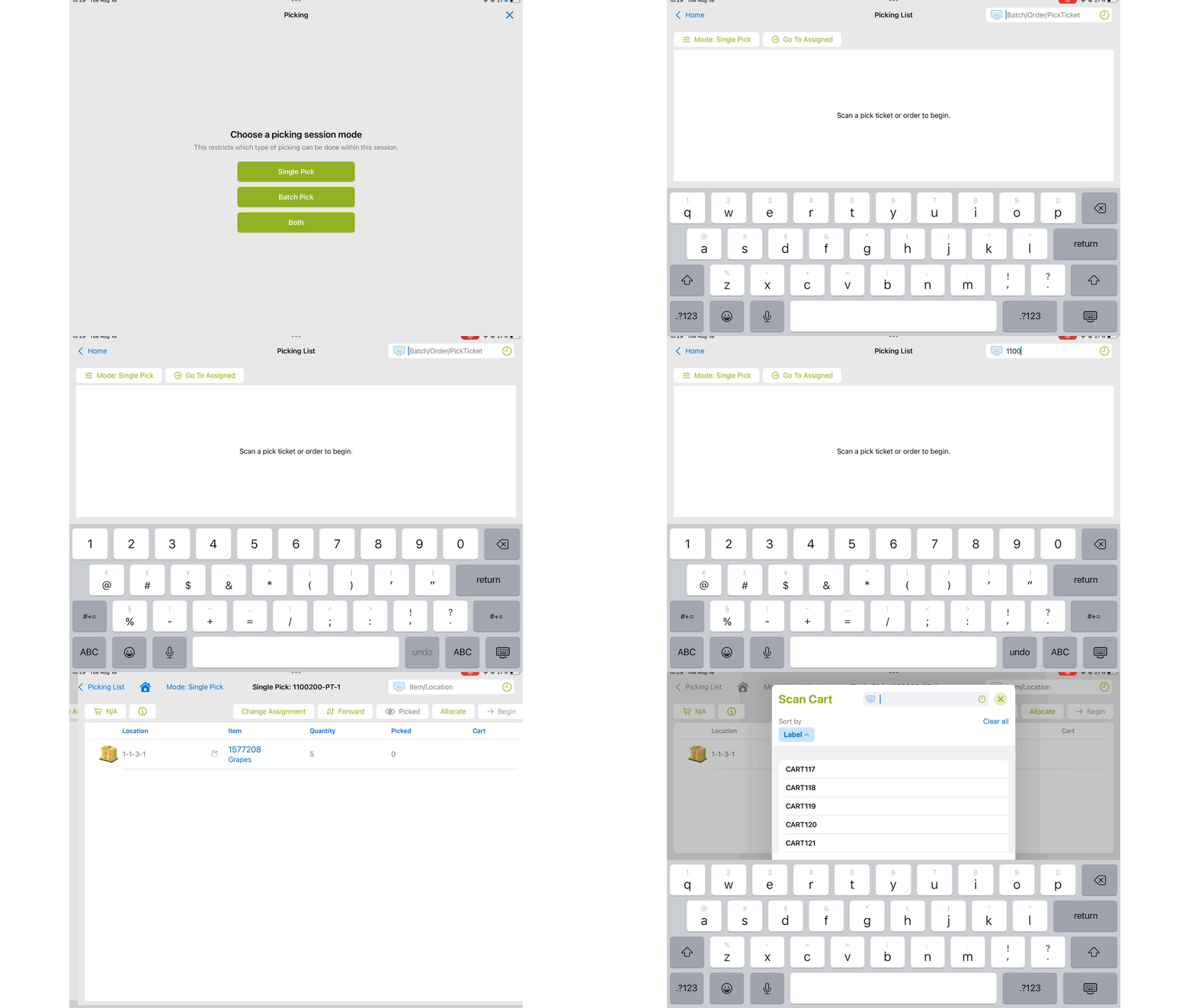
- Single Pick - a specific Pick Ticket or Order number must be scanned in the app, or assigned to the Device in WOS Manager. If a ticket is already assigned, that will automatically be pulled up to start picking (or pick up where left off)
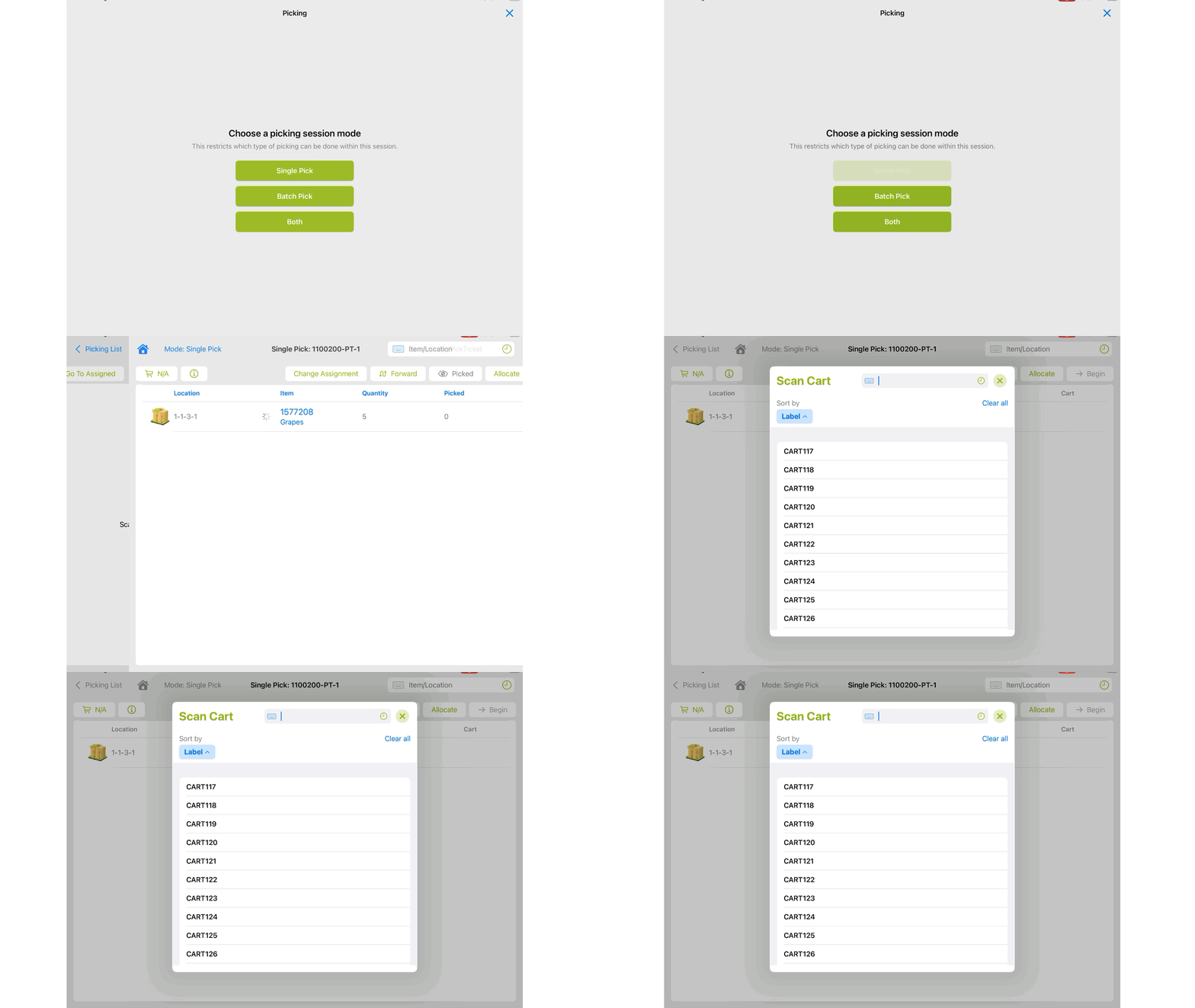
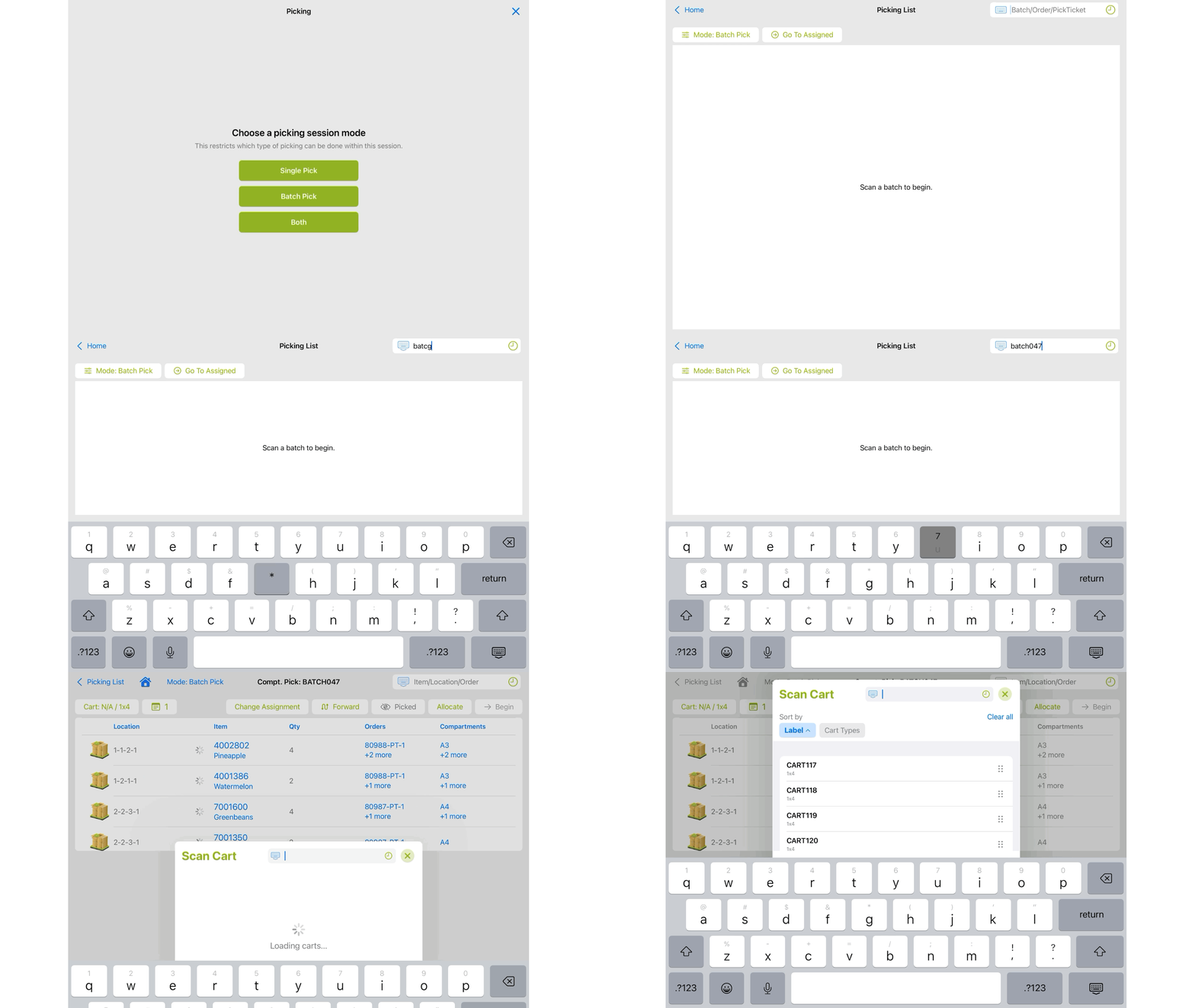
- Batch Pick - a specific batch must be entered or assigned in WOS Manager. If a batch is already assigned, then it will automatically pull up the batch to start (or pickup where left off) picking
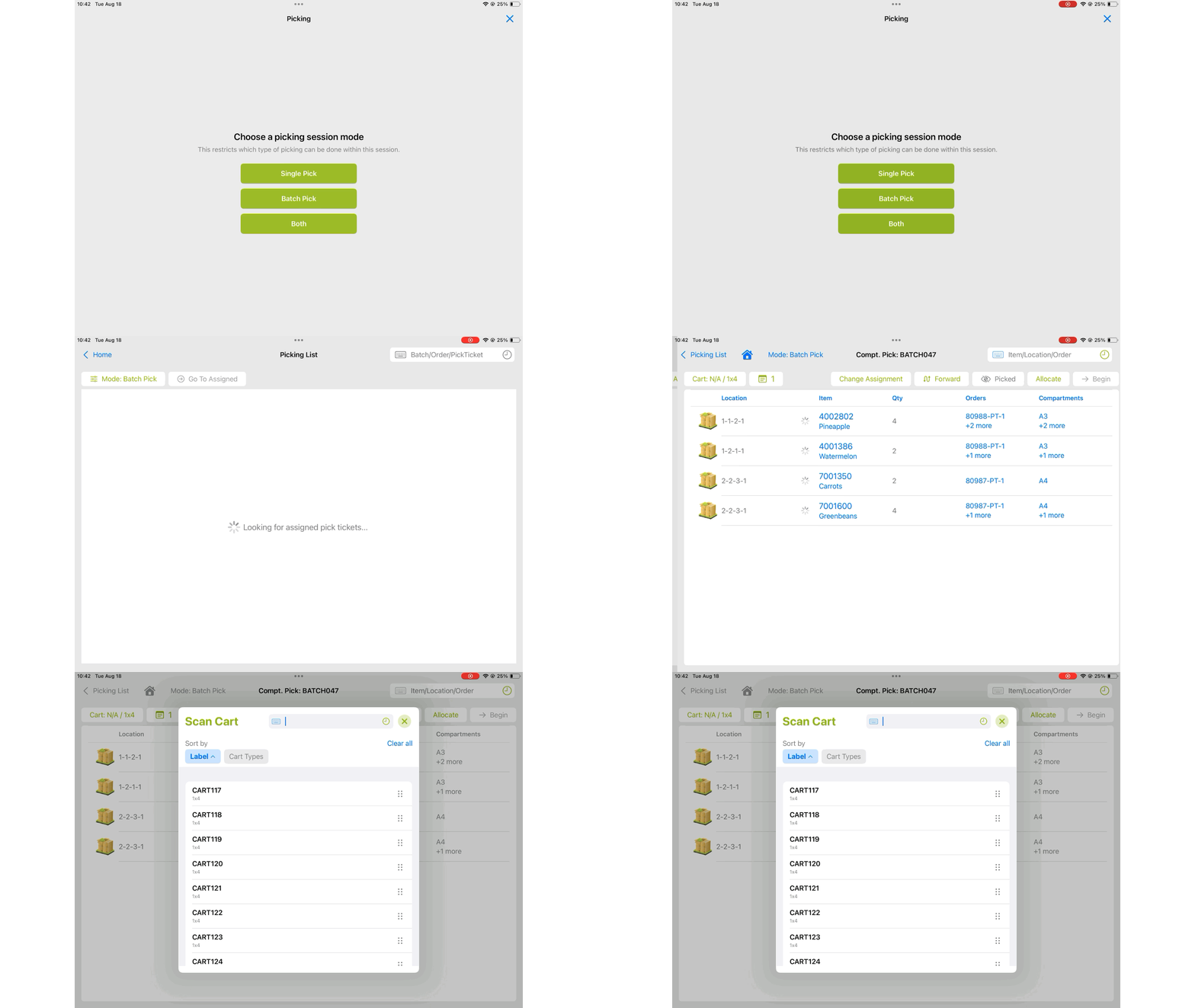
- Single Pick - a specific Pick Ticket or Order number must be scanned in the app, or assigned to the Device in WOS Manager. If a ticket is already assigned, that will automatically be pulled up to start picking (or pick up where left off)
Auto Assign By Cart Type
- ON: when the Batch or Both Pick Mode is selected, a Cart prompt will appear for a cart to be scanned, or selected. The first available batch that has a matching Cart Type to the Cart that was scanned will be pulled down to the device
- This is for Batch Picking, as Single pick does not use Cart types. If a Cart does not have a Cart Type assigned, a Bulk pick Batch will be pulled down to the device
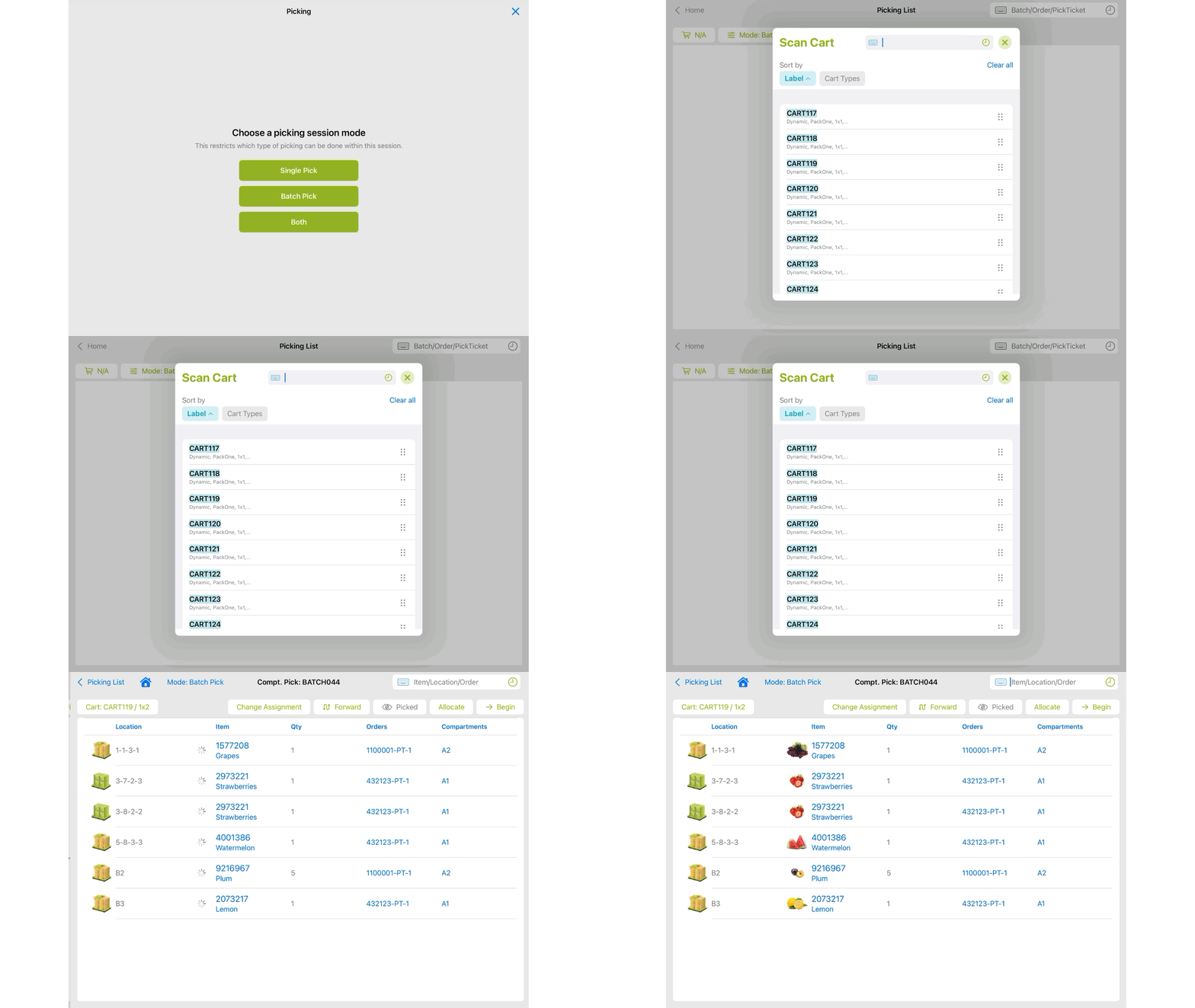
- This is for Batch Picking, as Single pick does not use Cart types. If a Cart does not have a Cart Type assigned, a Bulk pick Batch will be pulled down to the device
- OFF: when a Batch or Both Pick Mode is selected, a batch selection or entry is expected first. After the batch's pick list pulls up, a cart entry will be prompted
Auto Next Assignment
- ON: in the Picking app, once a mode is selected or a batch or pick ticket has been picked complete, a new pick assignment will be automatically assigned based on availability and sort order.
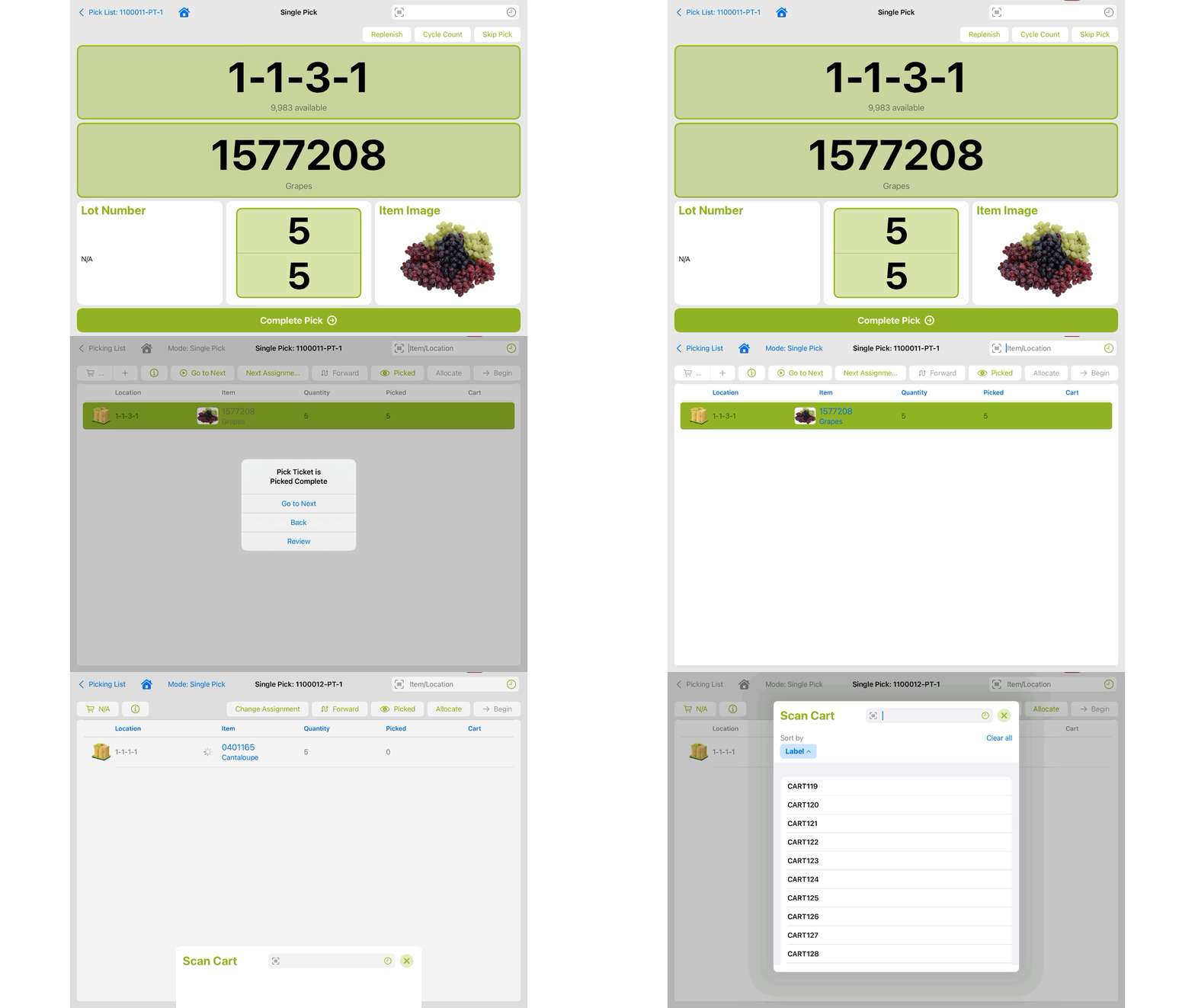
- Single Pick Mode - the next ticket is assigned based on highest priority, then created date FIFO
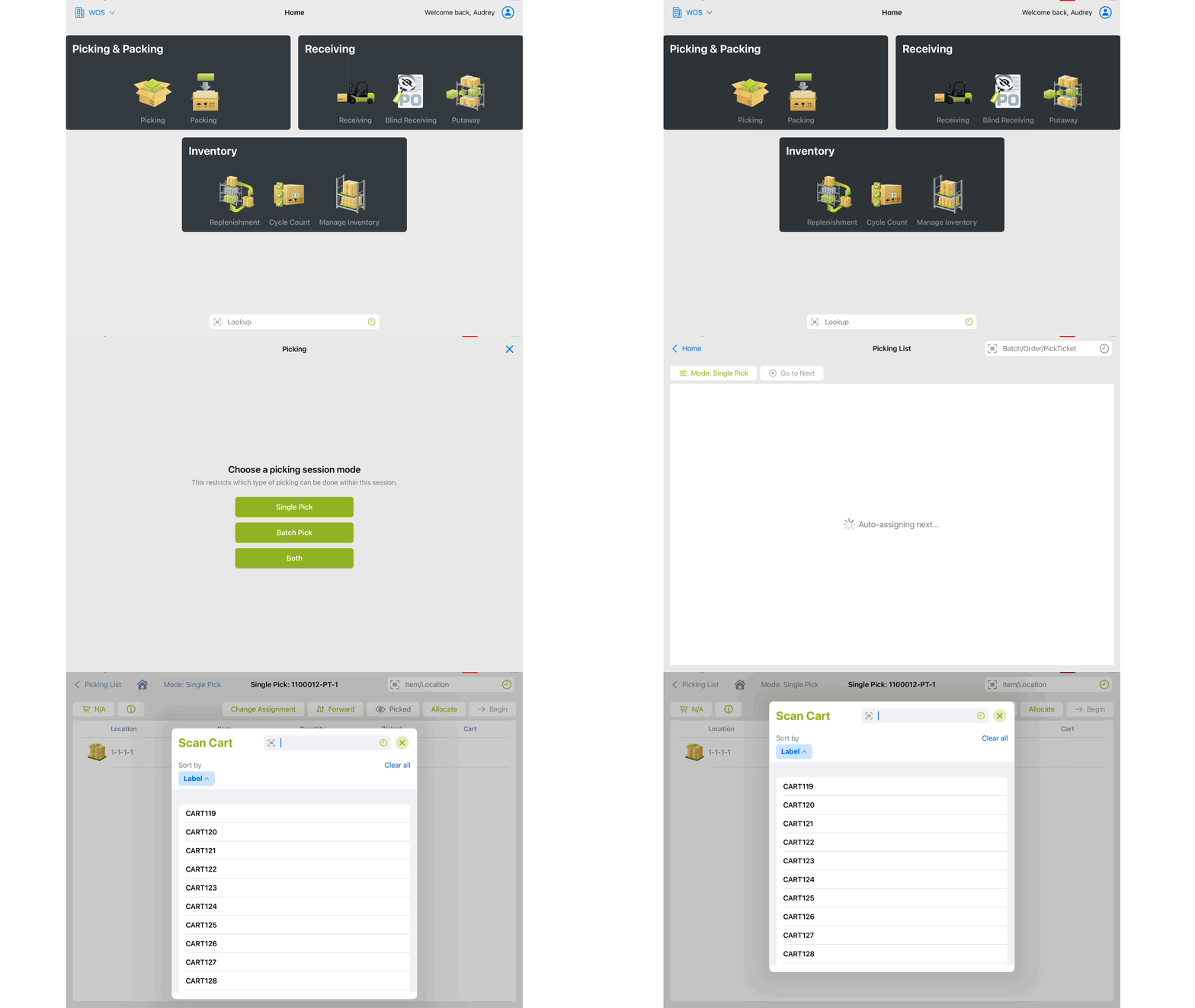
- Batch Pick Mode - the next batch is assigned based on highest priority, then created date FIFO
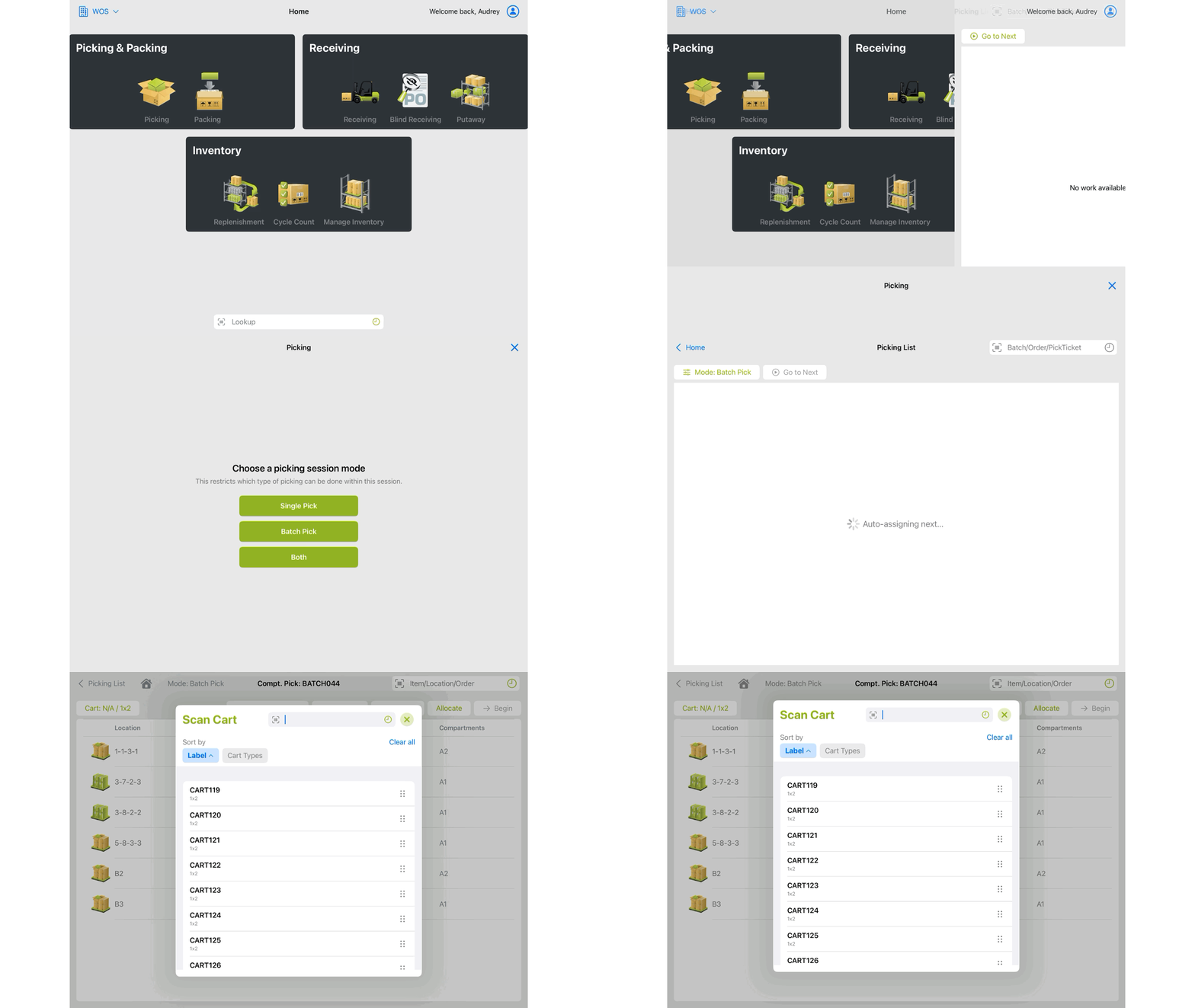
- Both Mode - assign next based on the highest priority, then FIFO sort for batches, then FIFO for pick tickets
- Single Pick Mode - the next ticket is assigned based on highest priority, then created date FIFO
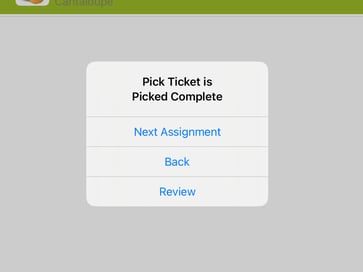
- OFF: when a batch or pick ticket has been picked complete, a popup will show with options to go back to the pick list, review the completed pick task, or scan a new batch or ticket
Allow Assignment Skipping
- ON: when a batch or pick ticket is active on a device, the user may change or skip the current task and move on to a different assignment by using a Change Assignment button at the top of the Pick List screen
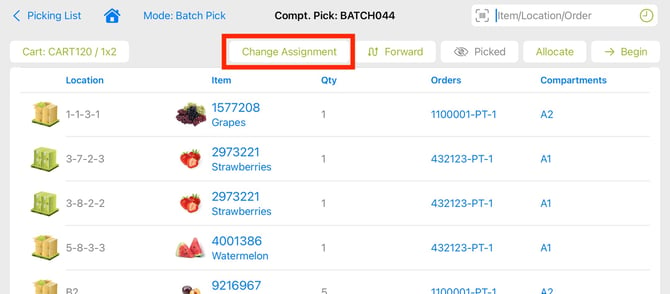
- OFF: the Change Assignment button is not available and a user is only able to work on the current assignment before moving onto the next
Lock To Cart
- ON: batches and pick tickets must be picked to a Cart entity
- OFF: batches and pick tickets are not picked to a Cart
If any batches are created with a Cart Type assigned, they will be ineligible to be picked by any user with Lock To Cart turned off. Batches with Cart Types (Compartment Pick) must be picked to a Cart.
Force Show Order Notes
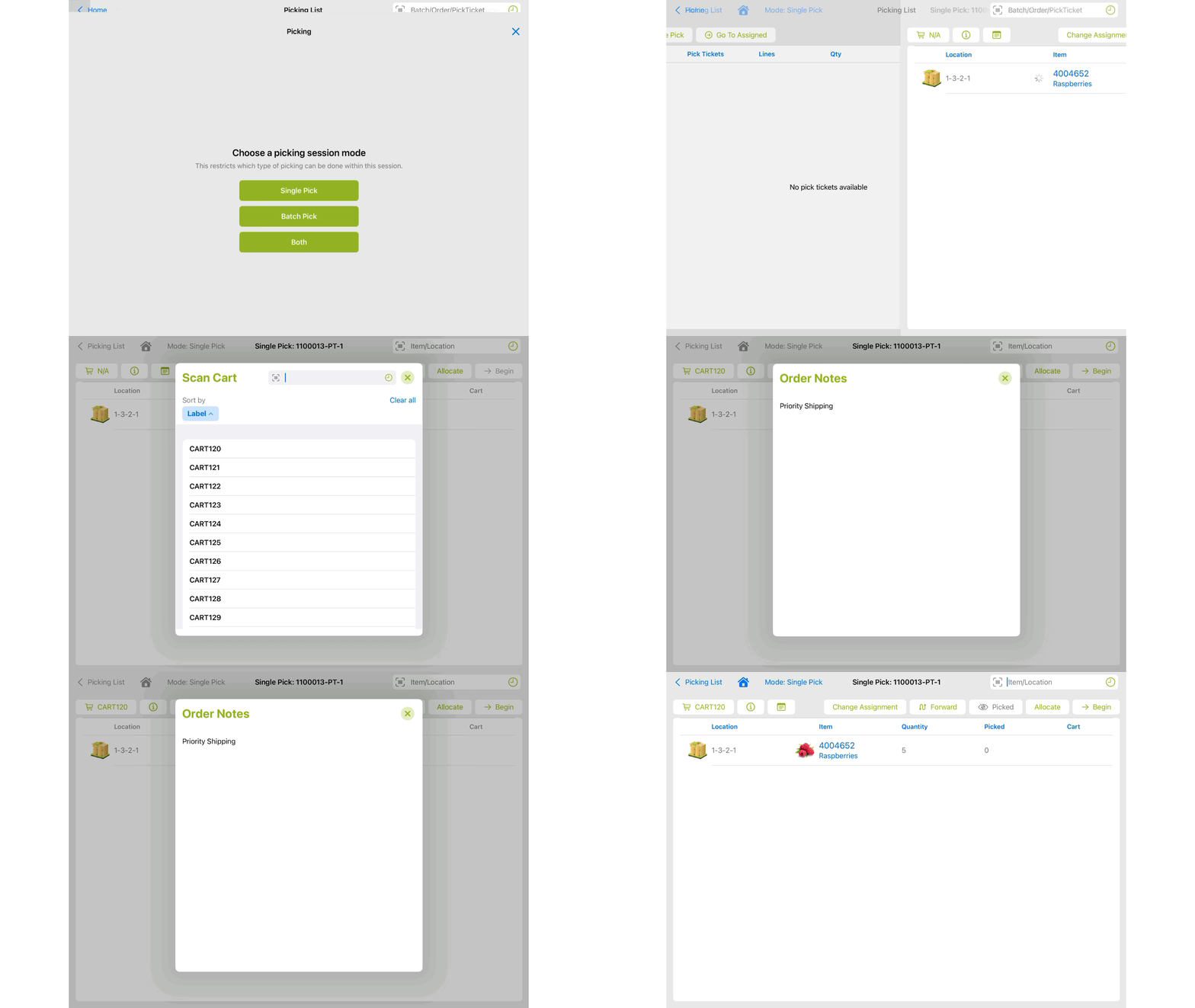
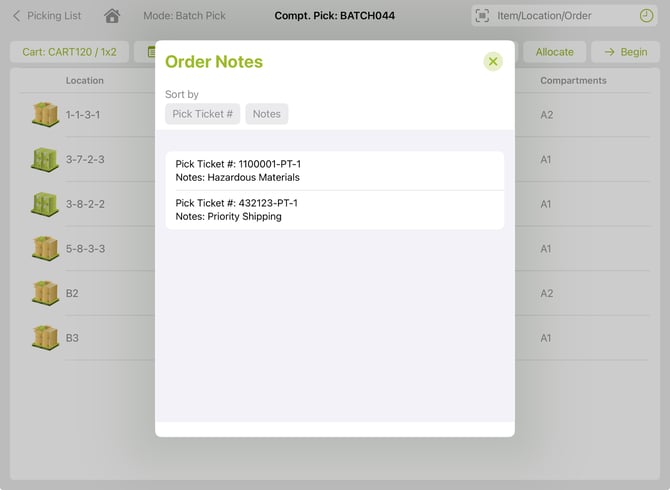
- ON: any note value on a pick ticket will be displayed when the ticket or batch is selected and before its Pick List can be accessed
- Single Pick - shows the note for the pick ticket
- Batch Pick - shows a list of any notes for the tickets batched
- Single Pick - shows the note for the pick ticket
- OFF: any pick ticket notes must be manually selected to view, they will not pop up when the picking task first begins
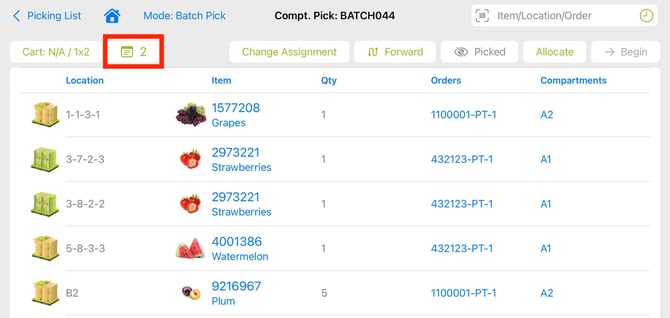
Show Order Line Notes
- ON: if an order line has a Note, the note will be visible on the Picking screen by the Item Description
- OFF: only the Item Description will be visible on the Picking screen for item details, no Line Notes visible
Require Location Scan
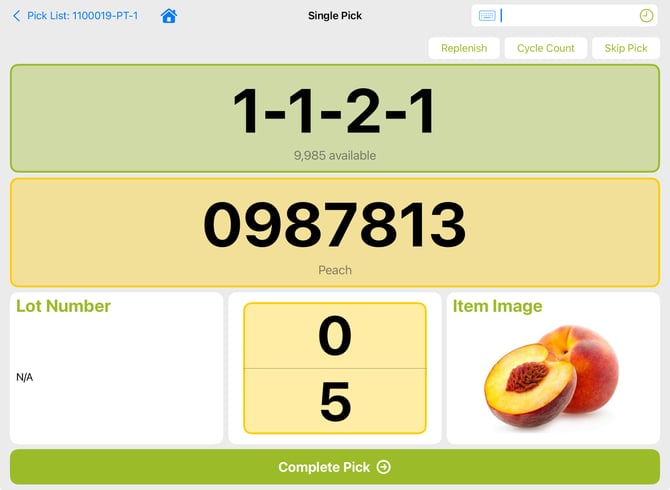
- ON: while picking, the directed location must be scanned in order to verify and move on to the next scan. To indicate that a location scan is needed, the Location section will show yellow; once scanned accurately, it will turn green
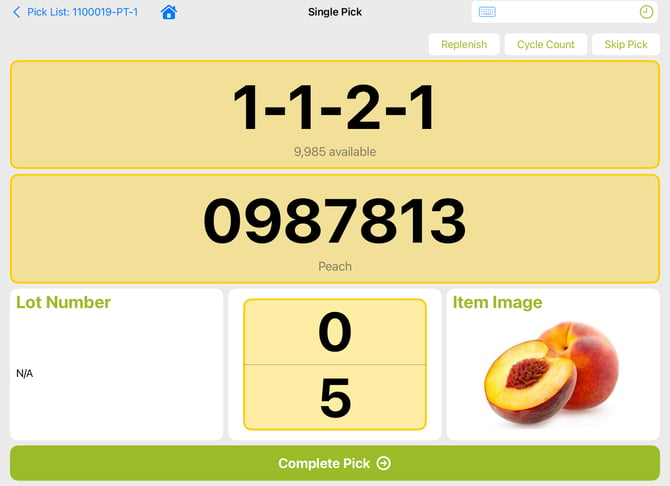
- OFF: while picking, the directed location does not need to be scanned for verification; it will show as green to indicate that no location scan is required
Require Item Scan
- ON: while picking, the required Item must be scanned in order to verify and move on to the next scan. To indicate that an Item scan is needed, the Location section will show yellow; once scanned accurately, it will turn green
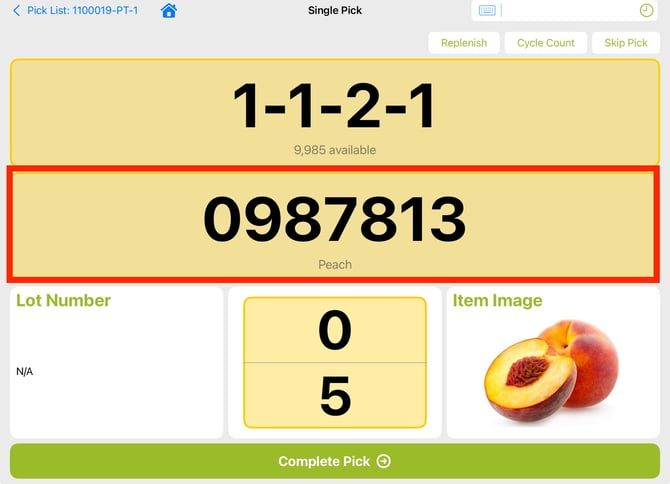
- OFF: while picking, the required Item does not need to be scanned for verification; it will show as green to indicate that no Item scan is required
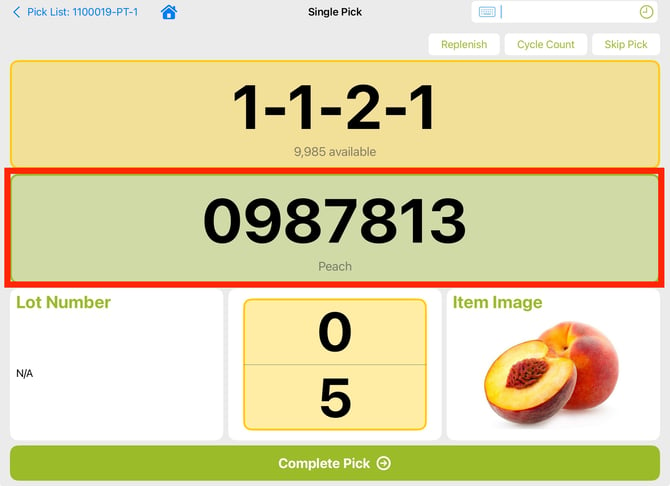
Require Quantity Verify
- ON: during Picking, the requested quantity must be verified by scan or entry. On the Pick screen the quantity section will show yellow, indicating that verification is required to move forward
- Single and Bulk Pick - quantity verification happens on the Pick screen by scanning the item(s) to accumulate a count, or tapping on the section and entering a quantity
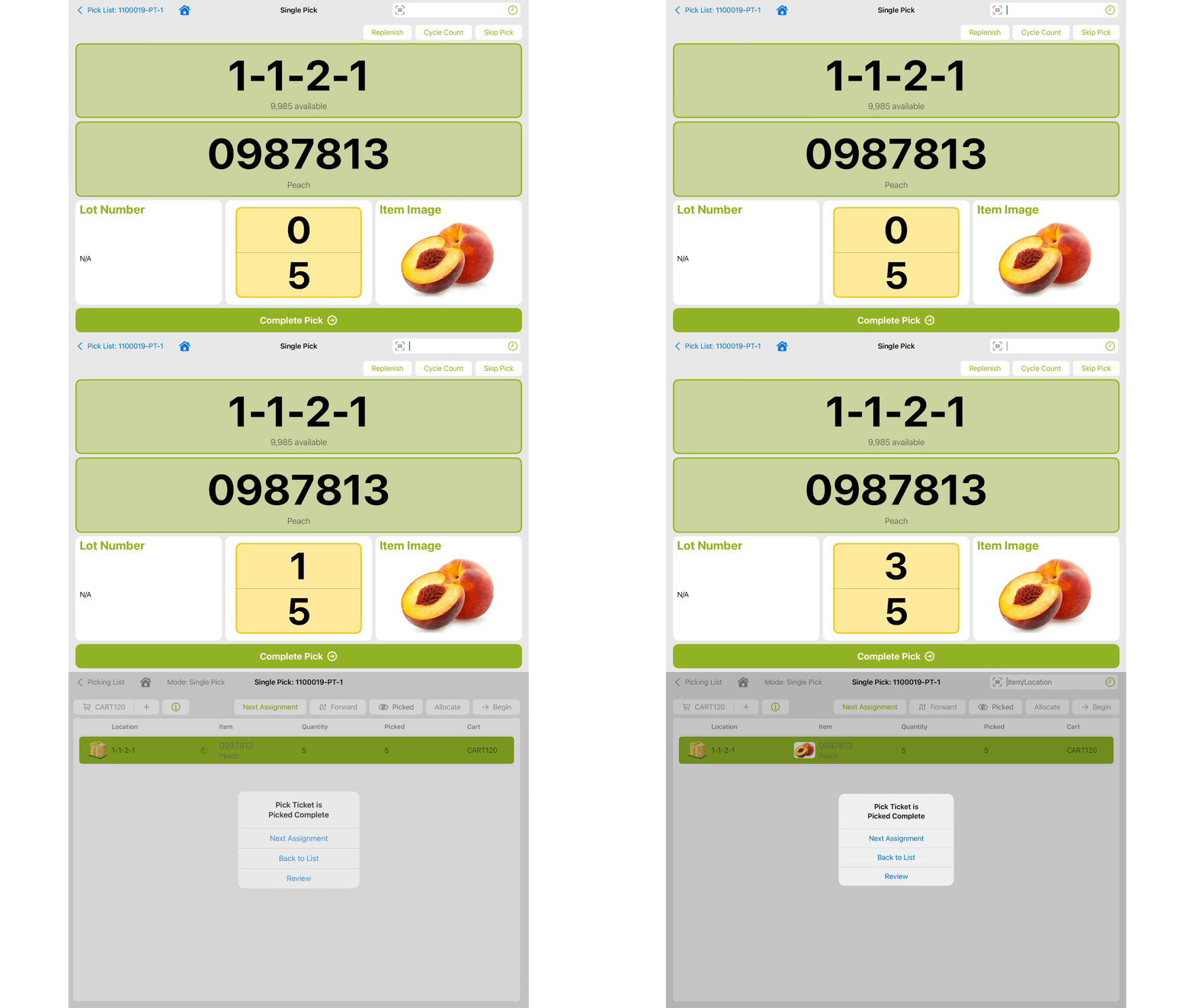
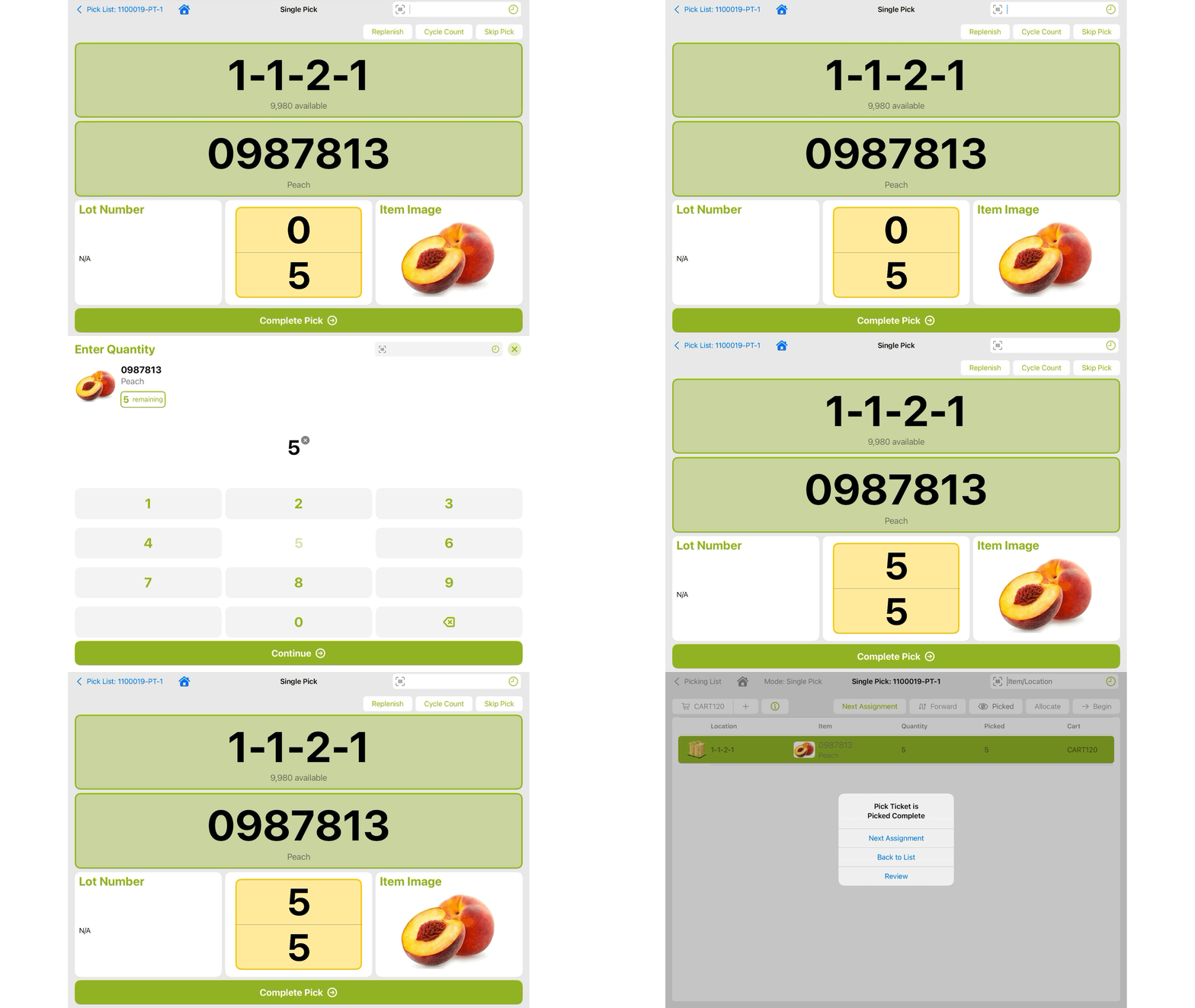
- Single and Bulk Pick - quantity verification happens on the Pick screen by scanning the item(s) to accumulate a count, or tapping on the section and entering a quantity
-
-
- If tapping on the section to manually enter a quantity, the Complete Pick button must be used to move forward. If scanning the item to verify, the next pick will automatically move forward once the requested quantity is met
- Compartment Pick - quantity verification happens on the Compartment screen by verifying the count into each compartment. The quantity can be verified by scanning the item(s) or tapping the compartment and entering a quantity
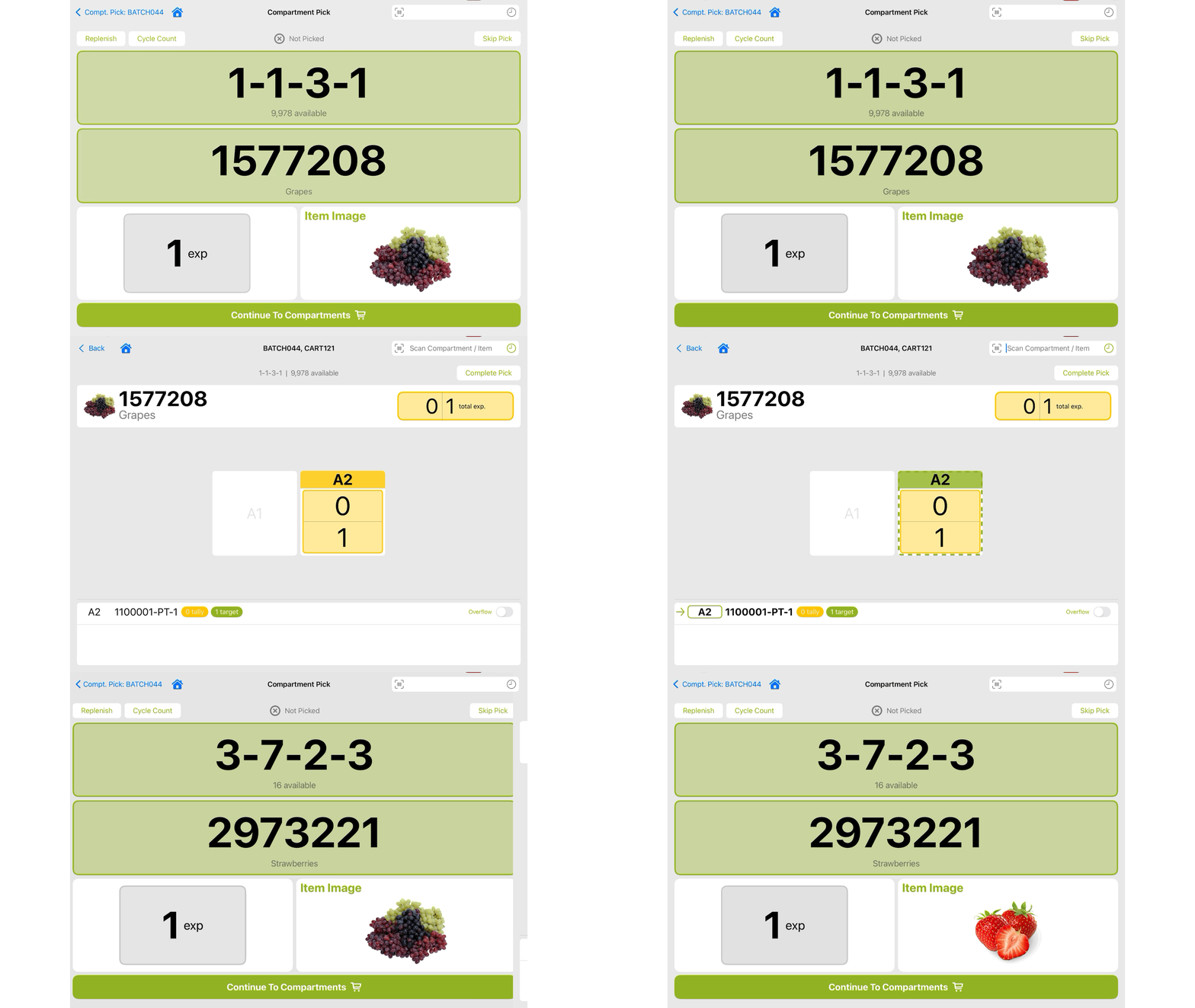
-
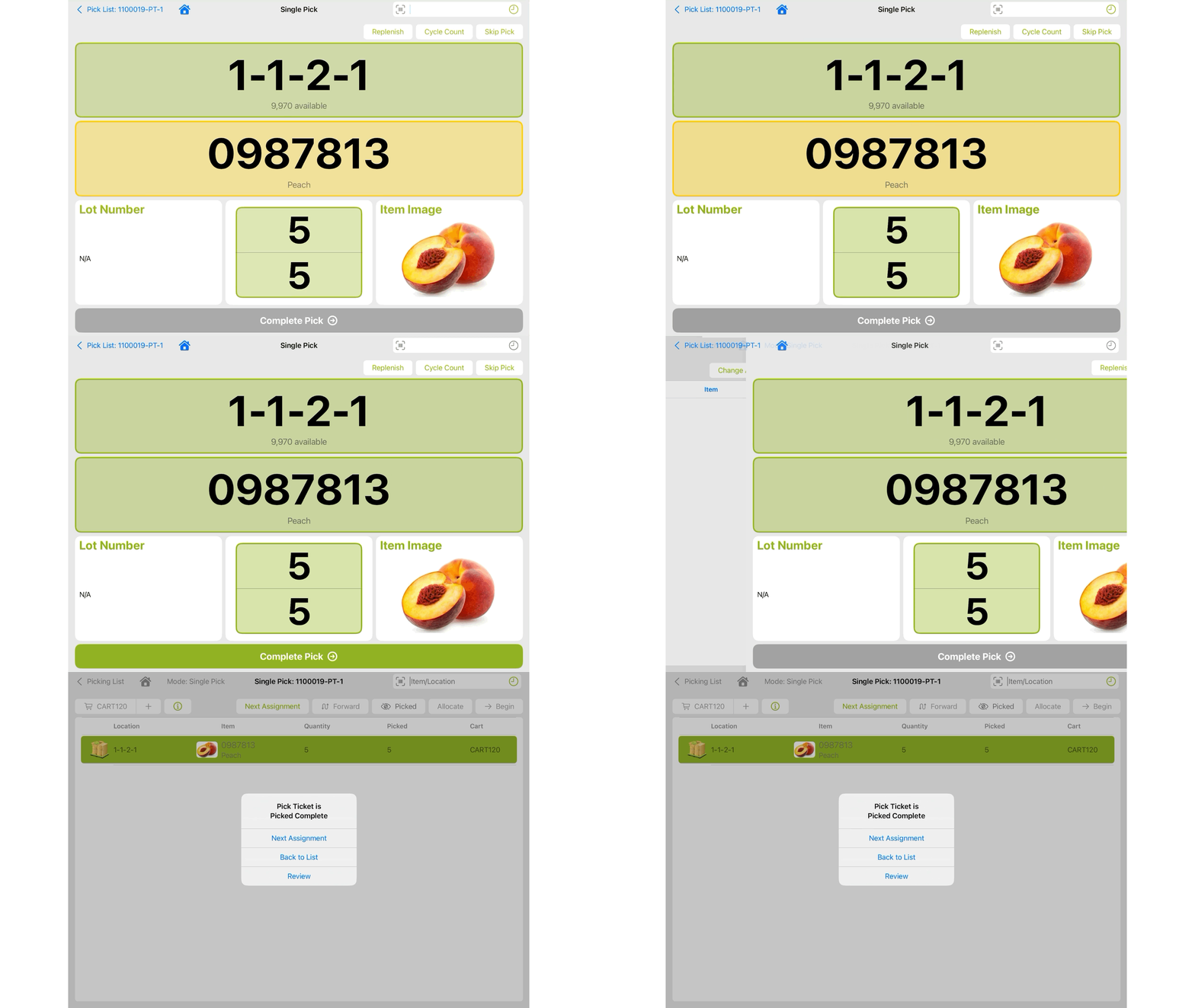
- OFF: during Picking, the requested quantity does not require any verification to move forward. On the Pick screen the quantity section will show green, indicating that no scan or entry is required
- Single and Bulk Pick - once any verification requirements for the Location and Item are met, the user must tap Complete Pick when ready to move on
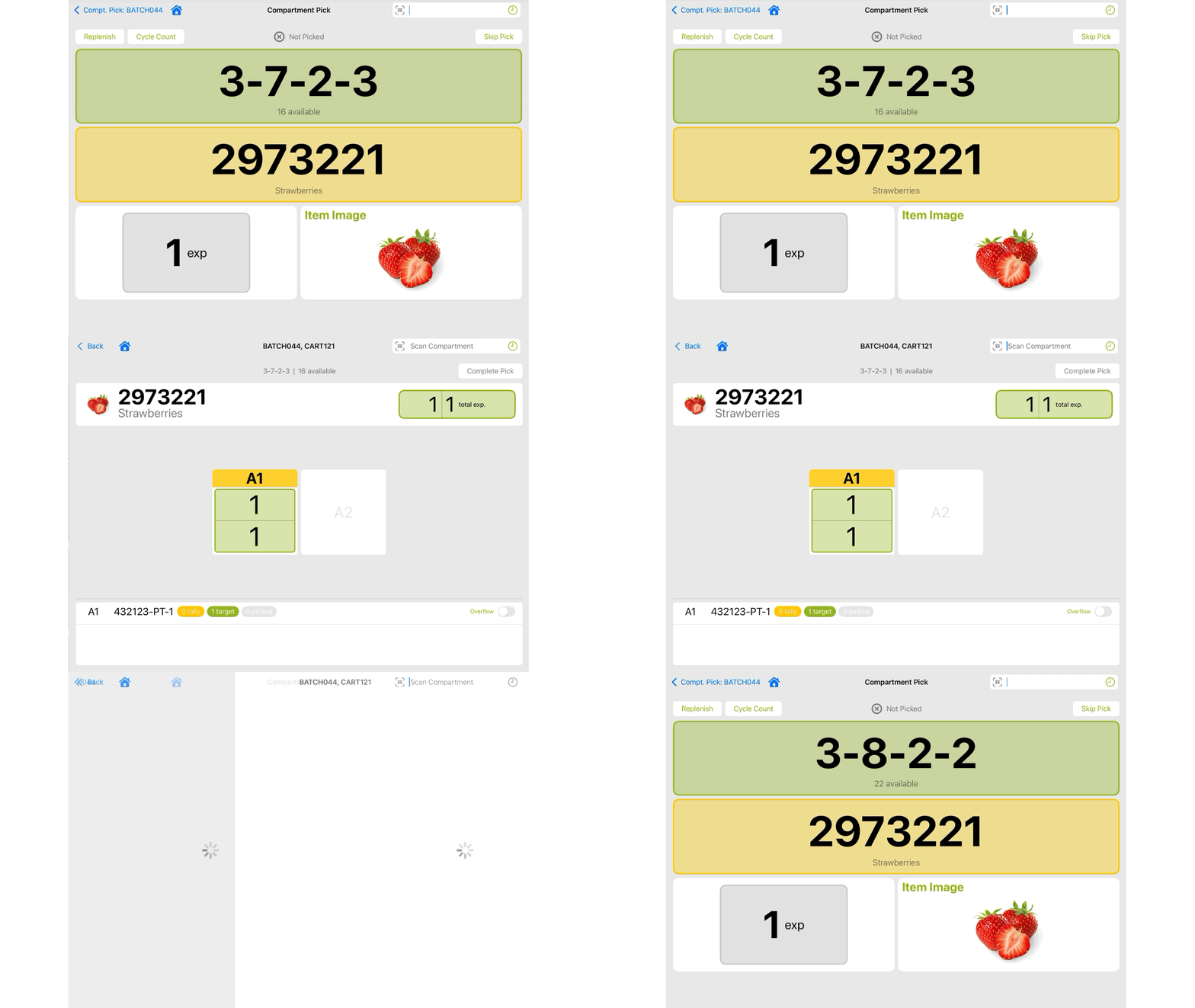
- Compartment Pick - if the Compartment verification is turned on, the pick will automatically move forward once the compartments are scanned. If Compartment verification is off, then a user must tap Complete Pick once they are finished on the Compartment screen to move forward
- Single and Bulk Pick - once any verification requirements for the Location and Item are met, the user must tap Complete Pick when ready to move on
Require Scan Each
- ON: when verifying the quantity, no tap function is available and the item must be scanned to add to the count
- This setting is how Alias Quantities can be applied during picking if using cases inside of WOS. When an alias is scanned for the item, the associated quantity on the alias will be added to the count instead of a quantity of 1
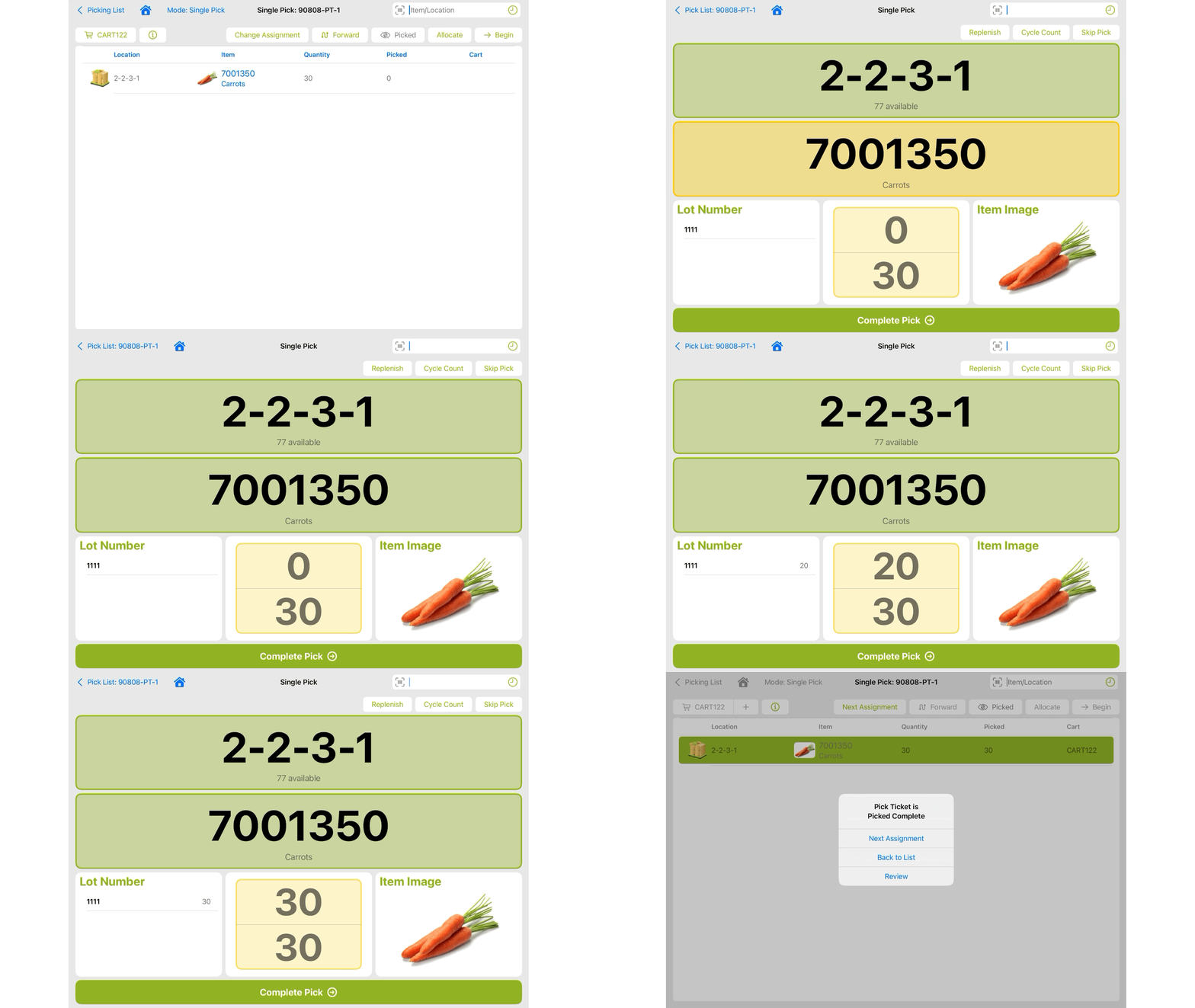
- This setting is how Alias Quantities can be applied during picking if using cases inside of WOS. When an alias is scanned for the item, the associated quantity on the alias will be added to the count instead of a quantity of 1
- OFF: when verifying the quantity, the user may tap on the screen to manually set the quantity or scan the item to increase the quantity.
This setting can only be enabled if Require Quantity Verify is turned on as well.
Require Compartment Scan
- ON: when picking Compartment batches the user must scan each compartment to verify during the Picking process. The compartments will display yellow until they are scanned to indicate a verification is required
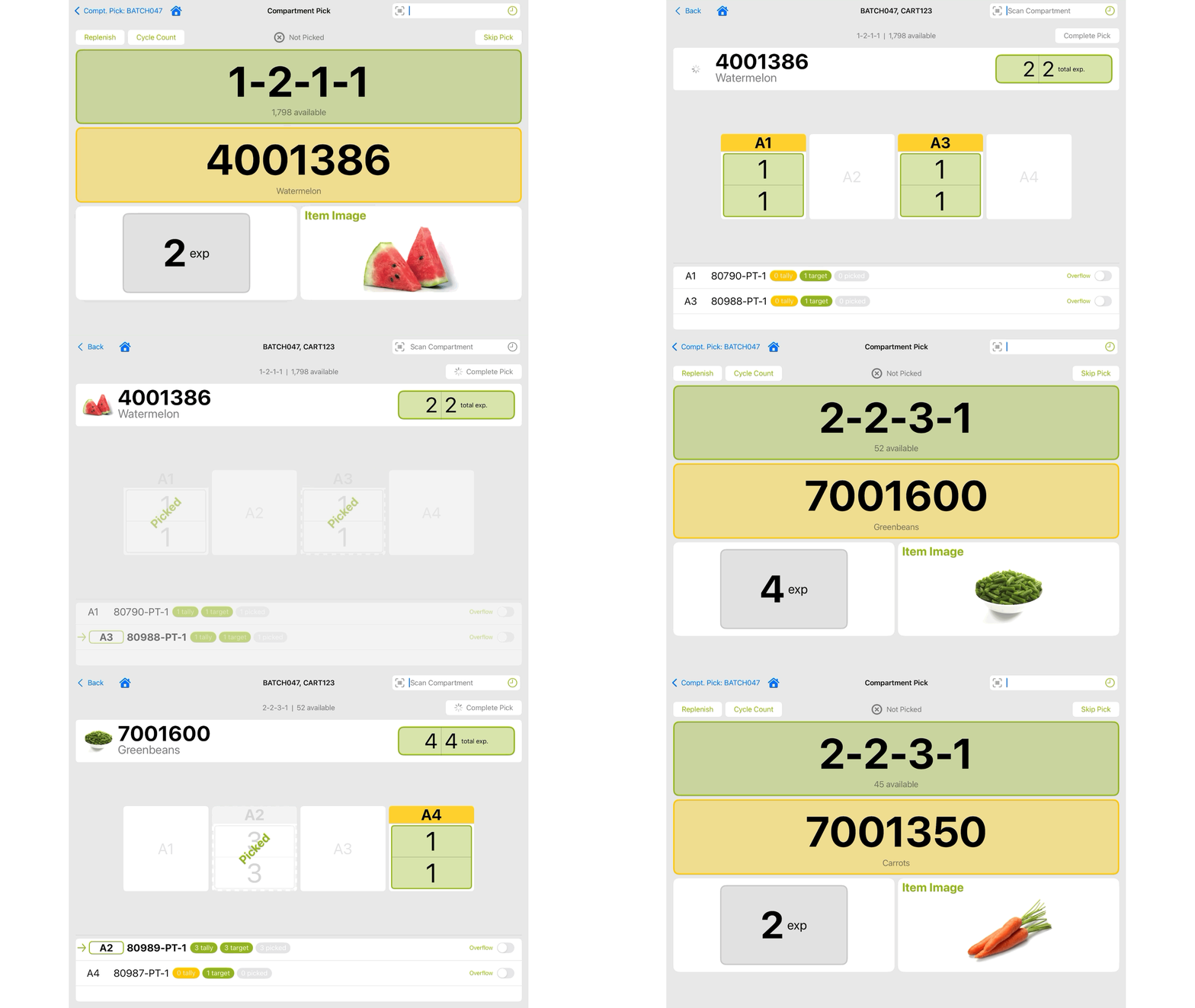
- OFF: when picking Compartment batches, the compartment is indicated but no scan is required. The compartments will be highlighted green to show no verification is needed
This setting must be enabled in order to enable Require Quantity Verify.
Allow Compartment Tap
- ON: a user may tap on a compartment to fulfill the compartment verification, rather than strictly requiring a scan entry
- OFF: a user can only scan a compartment to verify it
This setting can only be enabled if Require Compartment Scan is turned on.
Allow Lot Selection
- ON: when picking an item that has Lot Required enabled, a lot must be assigned to the pick. If multiple lots are stored in the pick location a list of all lots in the location will show as options and a lot can be selected from the list or scanned.
If a barcode representing the lot number is available on the product, scanning is recommended over manual selection.- Single or Bulk Pick - lots are selected at different times depending on if the quantity verification is on or off.
- If Quantity Verify is on then lots are selected during the scanning process and will list in the bottom right Lot Number section.
- If Quantity Verify is off, a lot is selected after the item verification and will be assumed for the entire quantity picked
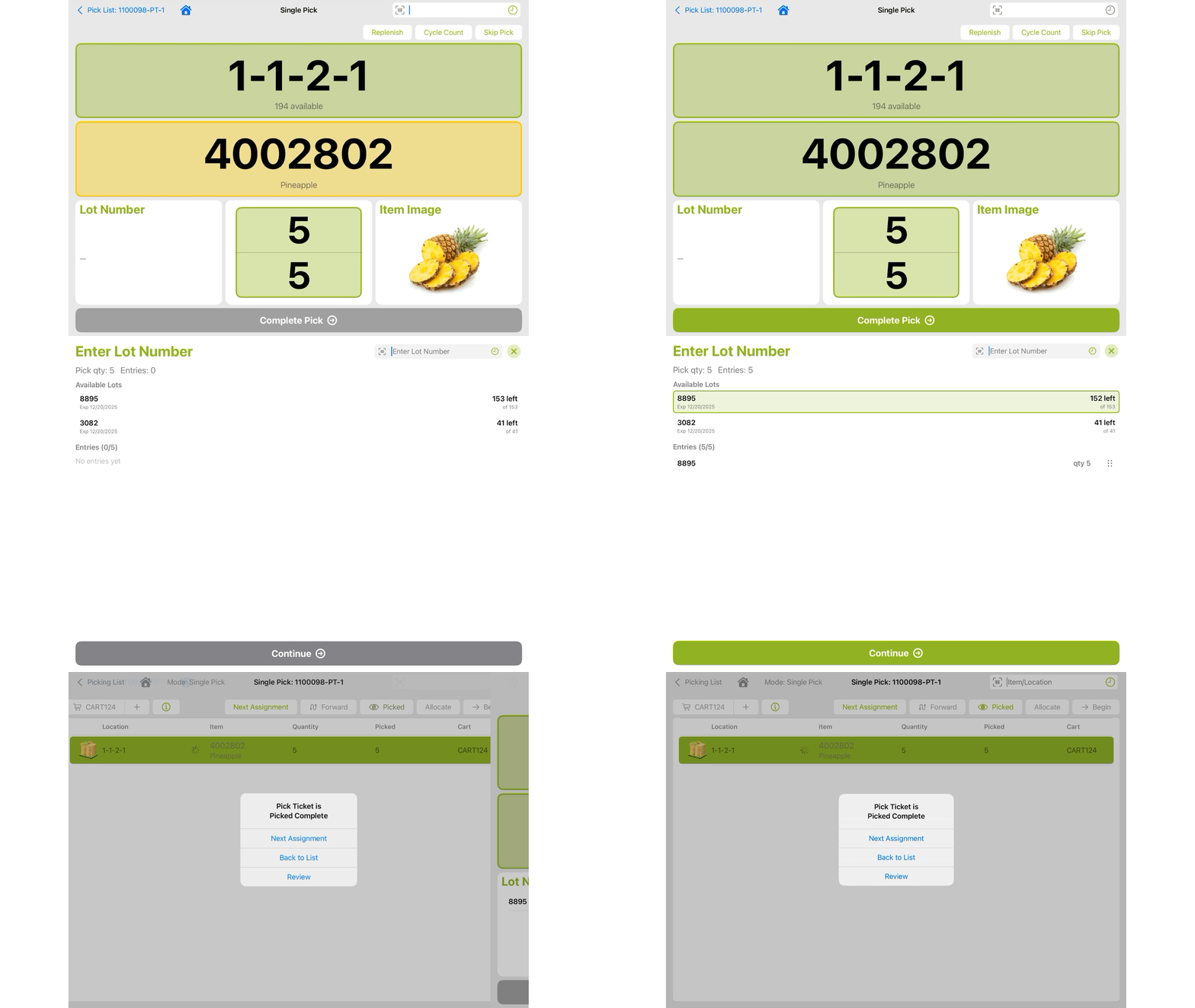
- If Quantity Verify is on then lots are selected during the scanning process and will list in the bottom right Lot Number section.
- Compartment Pick - lots are assigned to the ticket during the compartment phase
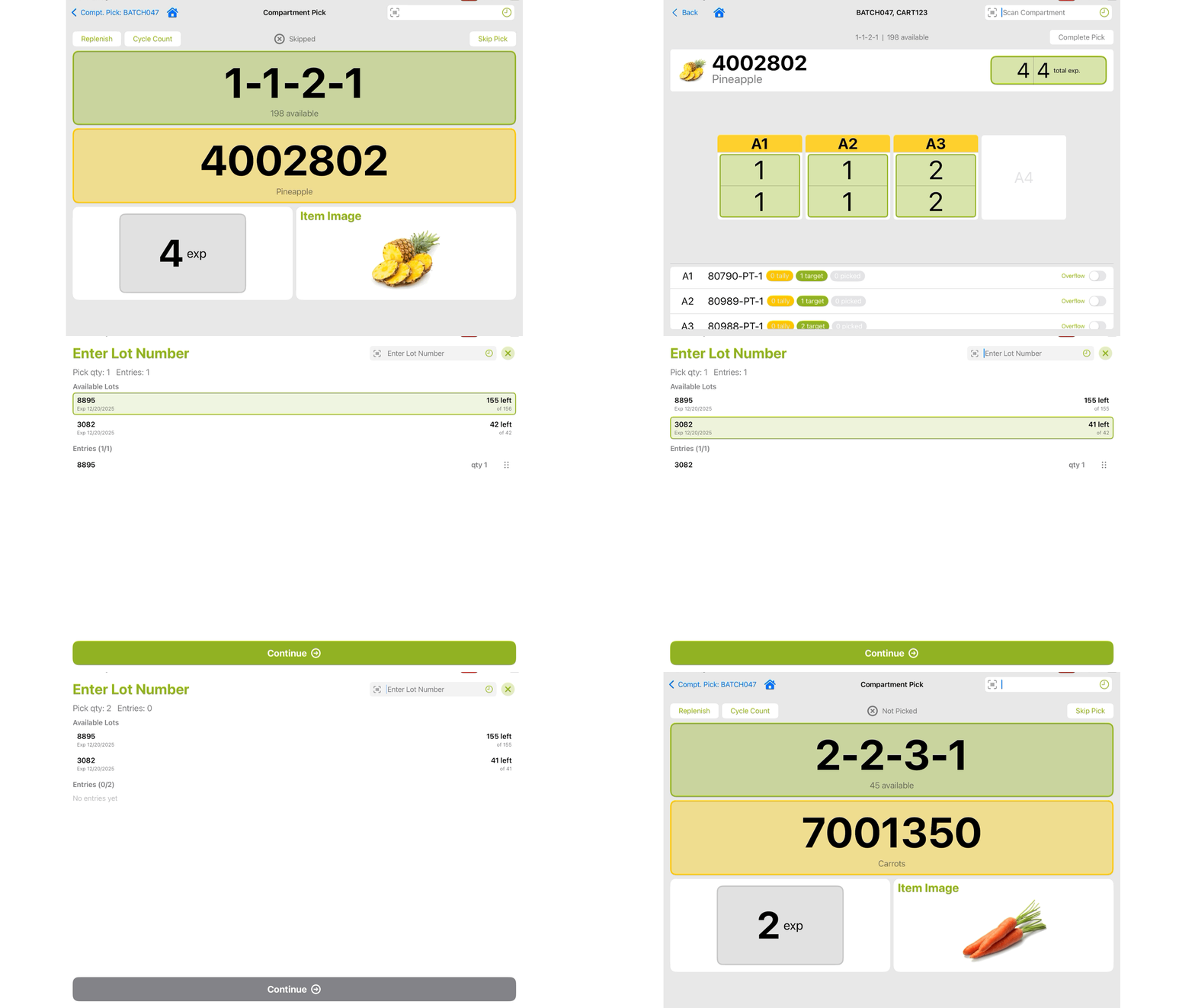
- Single or Bulk Pick - lots are selected at different times depending on if the quantity verification is on or off.
- OFF: when picking an item that is Lot Required the lot number must be scanned during the Picking process. No list of existing lots will show to be selected from
Allow Pick Location Override
- ON: during the Picking process, a user may tap on the allocated location and select a different location from the list to override and pick from
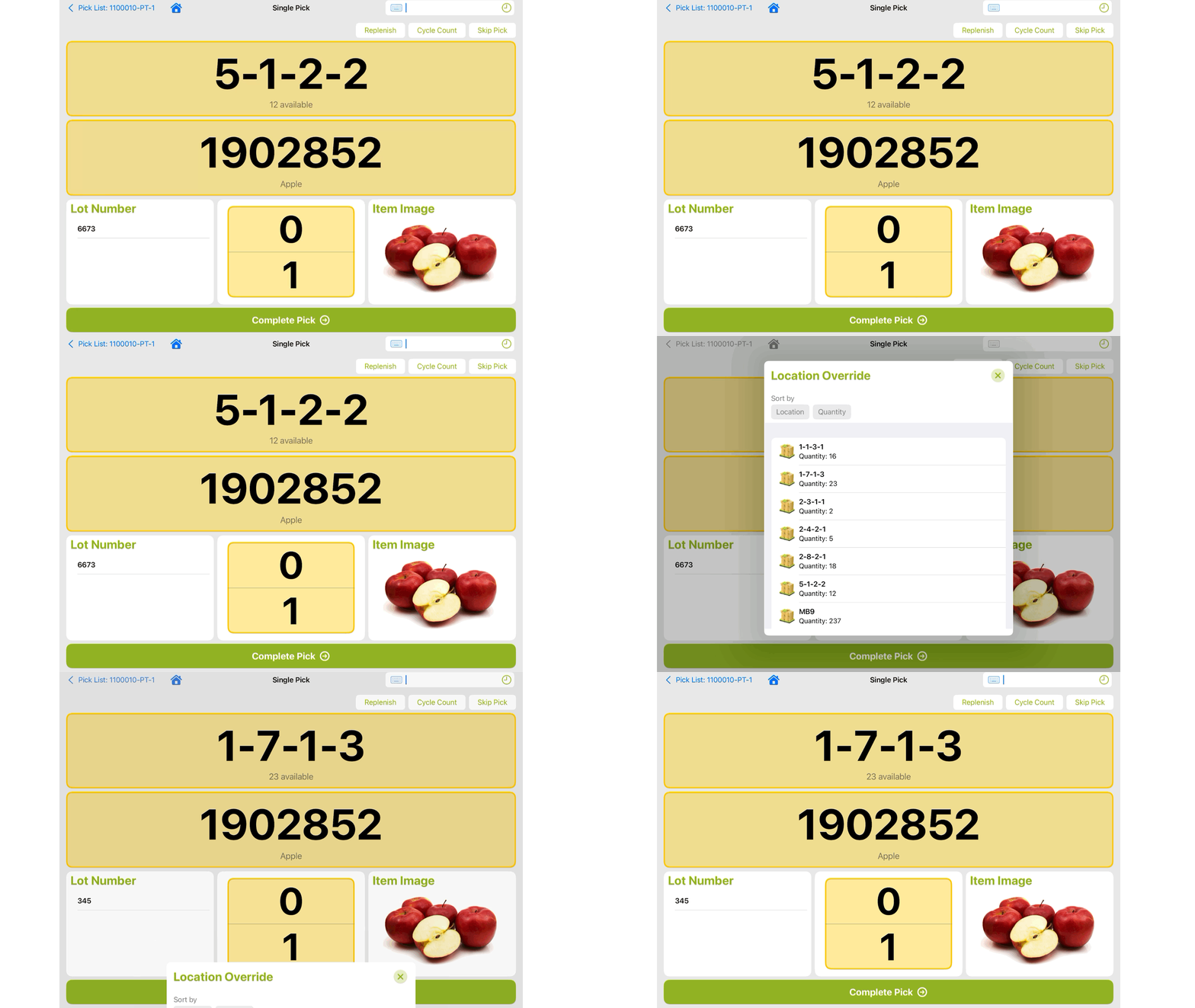
- OFF: once a pick ticket has allocated to a location, the user picking must pick from the assigned location or reallocate for a new location; no override is available
Pick Location Override Types
This setting is automatically enabled or disabled based on the Allow Pick Location Override setting. If that is turned on, so is this.
- Select any location types that can appear on the list when the Location Override action is being used during Picking
Enable Picks Before Puts
- ON: during the Picking process, a user may pick as many items off the shelves as desired before sorting them into the compartments on the cart. This is only applicable for Compartment picking
- The Pick Step: stays on the Pick screen showing the location, item, and quantity to pick. Once location and item are verified, the next pick will automatically continue. At any time the user may back out to the Pick List to do the Put Step and organize items into the compartments
- The Put Step: scans an item that has been picked off the shelf and the corresponding Compartment screen will pull up showing where to put the item on the cart
- The Pick Step: stays on the Pick screen showing the location, item, and quantity to pick. Once location and item are verified, the next pick will automatically continue. At any time the user may back out to the Pick List to do the Put Step and organize items into the compartments
- OFF: Picking will follow the normal 2 step process to pick the item off the shelf and put it directly on the cart
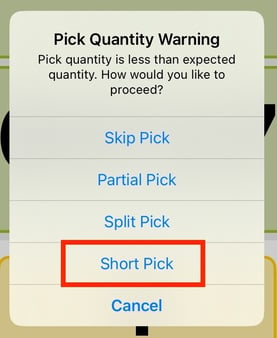
Disable Short Picking
- ON: when a user performs a partial pick action, Short Pick WILL NOT be an option to select
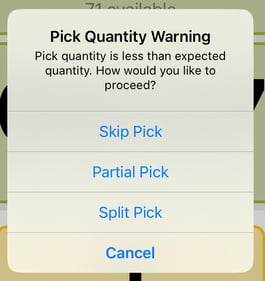
- OFF: when a user performs a partial pick action, Short Pick WILL show as an option