Table of Contents
Replenishment process
Replenishment is performed in 3 separate steps.
- Identify and create Tasks for the needed Replenishment.
- Options for creating tasks can be found in Replenishment - WOS Manager.
- Pick Items out of Backstock and stage them in a Replenish Location.
- Put Items into the epickface from the staged Replenish Location.
- Processes for both the Replenish Pick and Replenish Put steps can be found in Replenishment - WOS Fulfillment.
Required Configuration
Using Replenishment within WarehouseOS requires some setup within the system. Without these steps, the Replenishment Report won't be able to identify needed Replenishment.
Item Setup for Replenishment:
- Item Masters set to Active and Enable Replenishment
- Items that need to be considered for Replenishment need to have the Active flag set to "true"
- Items that need to be considered for Replenishment need to have the Enable Replenishment flag set to "true"
- Item Masters set with a Pickface Min and Max Qty
- If the Item is setup with a Pickface Min Qty, then the Item will show on the report when the pickface drops below this minimum quantity, regardless of what is on Order.
- (Optional) If the item is setup with a Pickface Max Qty, this will be considered in deciding how much can be Replenished.
- (Optional) Item Masters set with a Area Min and Max Qty, if using By Area report
- Area Min Qty is used to identify when an Item needs to have more brought to the Picking area.
- Only required when the By Area report is being used.
Zone Replenishment Setup:
-
- Locations should be assigned to Zones
- Pick locations sorted into zones separate from the backstock/overstock locations
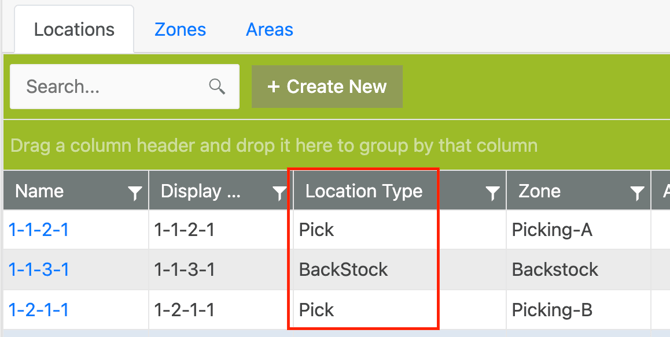
- Location Type must match the respective sortation:
- Pick locations need a Location Type of "Pick"
- Backstock locations need a Location Type of "BackStock"
- Zone Types assigned respectively
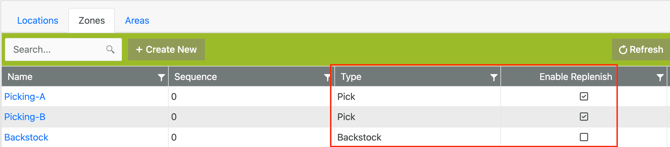
- "BackStock" type for overstock zone (these are the zones being replenished FROM)
- "Pick" type for pickface zones (these are the zones being replenished TO)
- Pick Zones set to Enable Replenish as "true"
- Locations should be assigned to Zones
Home Location Replenishment Setup:
-
- Items need to be have an assigned Home Location
- Locations need to have a "Pick" or "BackStock" type assigned
- Zones on the Home Location are not required, but assigning them can provide the ability to swap between Home and Zone reports
Area Replenishment Setup:
-
- Items need to have an Area Min/Max configured - see above
- Locations need to be assigned to an Area
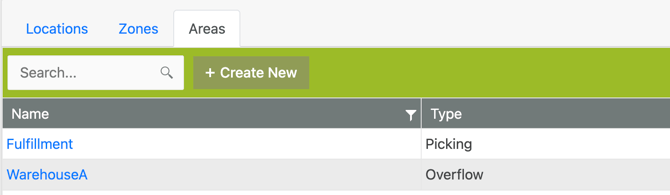
- Areas need to have the respective Type assigned
- "Pick" for Areas where order fulfillment happens
- "Overflow" for Areas where backstock inventory is
Site Setting Selection
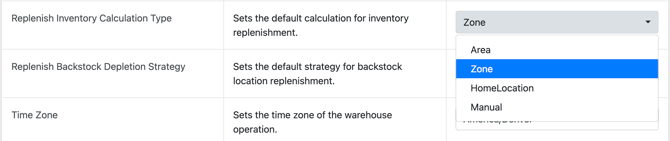
Using Replenishment performs a live calculation during the Replenishment Planning and Replenish Pick action. The live calculation will consider the type of replenishment set on the site-wide level. Be sure to select Area, Zone, Home Location, or Manual to match the type of replenishment that is being used to generate tasks. Otherwise when tasks are pulled to devices, they may not show up if they don't match the set Replenishment Calculation type.
Once these settings are determined, the Planning Options on the Replenishment page will default to these, removing the need to select them every time the report is run.
To do so, navigate to Admin -> Settings -> Replenish Inventory Calculation Type
Legacy Reports
Paper based reports that have been used in the past are still available. These can be found under Reporting -> Reports -> Printable Reports in the Replenishment section.
- Replenishment - Open Orders by Zone
- Replenishment - Zone Minimum & Open Orders
- Replenishment - Home Location
- Replenishment - Items Not in Pickface
- Priority Putaway - Home Location
- Priority Putaway - Zone Min