
Replenishment is performed in 3 separate steps. This article focuses on Step 1: creating the Tasks for needed Replenishment.
- Identify and create Tasks for the needed Replenishment.
- Pick Items out of Backstock and stage them in a Replenish Location.
- Put Items into the pickface from the staged Replenish Location.
- Processes for both the Replenish Pick and Replenish Put steps can be found in Replenishment Process.
Creating Replenishment Tasks
There are 3 ways that replenishment tasks can be created in the Work Queue:
- Tasks Created by Pickers
- Replenishment Planner
- Auto-Replenishment Tasks (not available yet)
Tasks created by Picker flagging the Item
- During the Pick operation, a Picker can tap "Replenishment" to create a Replenishment Task for that Item.
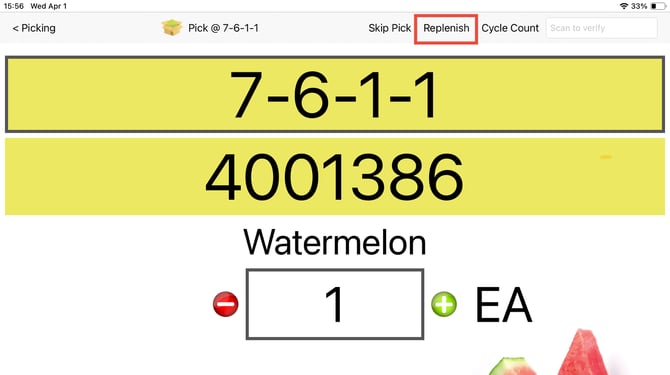
- Replenishment Tasks show the Backstock Location to Pull from. Because this is based on the pickface quantity getting low, a specific Location is not assigned in the Task and must be set from the tablet when the Task is assigned.
- These are considered the highest priority Tasks because Users are noticing that quantity is low and they need it to be Replenished.
- A counter on the Work Queue Task shows how often Pickers have requested that Item be Replenished.
Replenishment Report
- The Report can be used to identify Replenishment needs in bulk and create Tasks
- Tasks are created with a Backstock Location to pull from and Quantity to replenish
- The directed location and quantity are not locked in and can be changed by the user during the process on the device
- Tasks created through this report by default are lowest priority, but can be changed in the Work Queue
Replenishment Planner
- In WOS Manager, go to Inventory-> Replenishment and select the Planner Tab
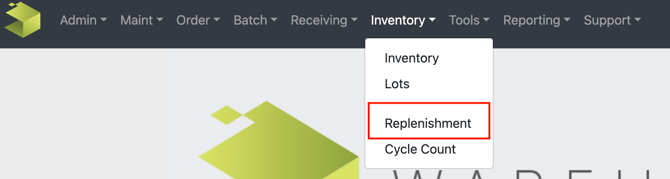
- Select "Change Planning Options" to set the parameters of the report
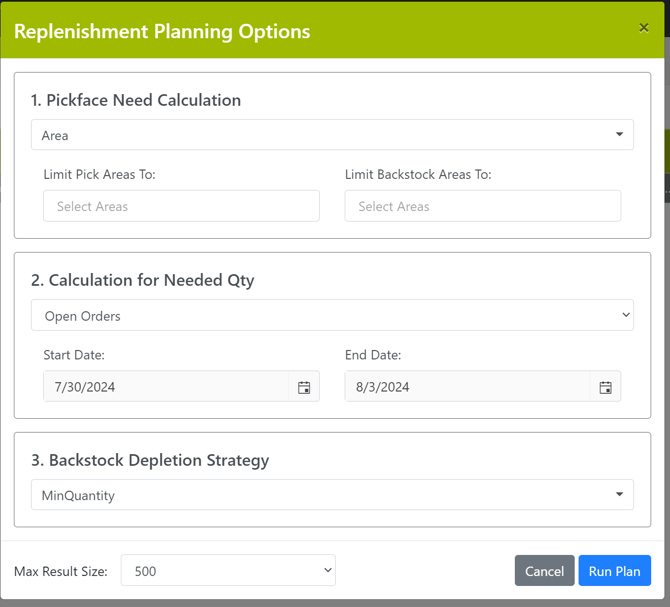
- In the pop-up first choose which type of Report to create
- Select the Pickface Need Calulation Type
- By Zone will calculate pickface quantity based on items in zones marked as "Enable Replenishment".
- By Home Location will calculate pickface quantity only in Locations set as the Item's Home Location.
- By Area will focus on refreshing Backstock inventory from another Area.
- Manual will focus on the specific Zones and Areas that are selected.
- Filters on the Pick or Backstock Zones will limit the calculations to only the Zones selected.
- Select the Pickface Need Calulation Type
- Choose how to calculate the Needed Qty
- Open Orders will include all open Orders that need to ship within the designated date range.
- Provides details on what needs to be Replenished for open Orders.
- Date Range provides filter to exclude Orders that don't need to ship soon.
- Date Range is based on the Order's Ship Date value.
- Open Batch will include only Orders that are currently Batched.
- Provides details on what needs to be Replenished for the Batches about to be Picked.
- Open Orders will include all open Orders that need to ship within the designated date range.
- Select the Backstock Depletion Strategy
- Minimum Quantity focuses on emptying Locations to make room in the Warehouse.
- Select the Backstock Location with the smallest quantity to empty the Location and provide room for other Items
- Age of Inventory focuses on a FIFO approach
- Select the Backstock Location that was created first to get the oldest inventory brought forward and Picked
- Lot Number focuses on lot-based Replenishment
- Lots are sorted by Expiration Date in ascending order and the first Lot Number is then selected
- Minimum Quantity focuses on emptying Locations to make room in the Warehouse.
- The result size can also be adjusted.
- Click “Run Plan”
- In the pop-up first choose which type of Report to create
- The Replenishment Planner will now be populated
- Filters and sorts can now be applied to the report
- For example, sort by the Recommended Location column. When tasks are scheduled it will honor the sort of the locations Pick Sequence and keep things more organized for users pulling tasks to Devices, eliminating the need to organize by assigning devices later
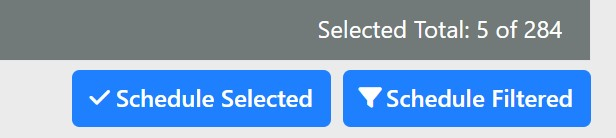
- Highlight the tasks to be created and click “Save Selected” or click “Save Filtered” for tasks filtered within the page to create the Replenishment Task
Tip: Once Replenishment defaults have been determined in the Settings page (refer here), skip Step 2 and simply click on the Refresh button on the grid. It will populate any replenishment tasks within the default parameters. The Planning Options will only need to be viewed if changing the defaults.

Manage and Assign Replenishment Tasks
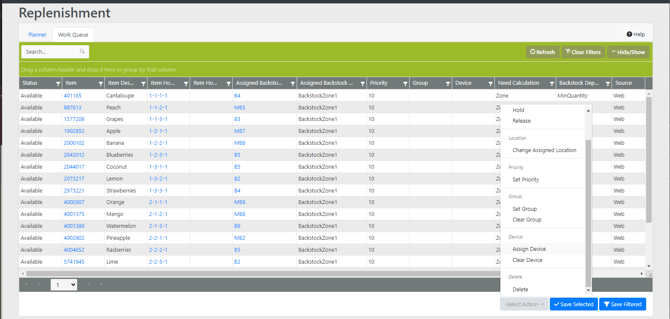
From the Work Queue, all outstanding Replenishment Tasks can be viewed, the grid can be filtered, Tasks can be assigned to a device, the sequence of Tasks can be changed.
Assign to device
- In WOS Manager, go to Inventory-> Replenishment and select the Work Queue tab
- Filter the Tasks appropriately
- Select the Tasks to assign them to Devices
- From the Action Menu, select Assign Device
- An additional dropdown menu will appear next to the Action Menu from which the device can be selected
- Click “Save Selected”
Change Sequence
- In WOS Manager, go to Inventory-> Replenishment and select the Work Queue tab
- Filter the Tasks appropriately
- Select the Tasks to change the priorities
- From the Action Menu, Select Priority
- An additional field will appear where Priority can be set
- Click “Save Selected”

Auto-Replenishment Tasks - This feature is not available yet
- When a Pick or Pull updates the quantity in a pickface Location below the set Pickface Min Qty, a Task can be automatically generated.
- Replenishment Tasks show the Backstock Location to Pull from. Because this is based on the pickface quantity getting low, a specific Location is not assigned in the Task and must be set from the tablet when the Task is assigned.
- These are medium-priority Tasks. The system determined a need, but Pickers are not yet asking for it.