Replenishment App on the iPad
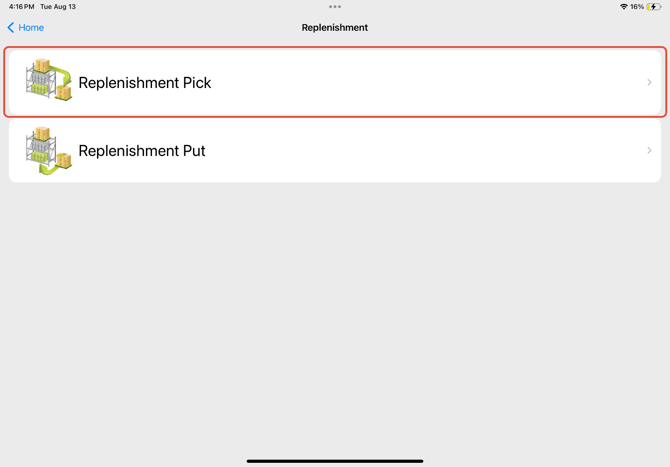
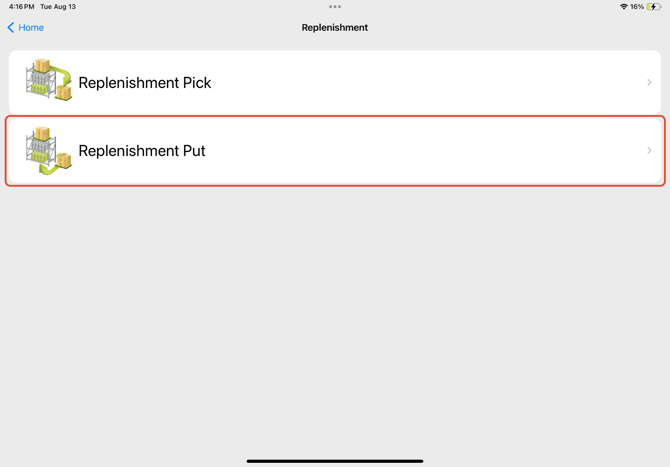
When the WOS Fulfillment App is opened, choose the Replenishment feature. There will be the option to choose from Replenishment Pick and Replenishment Put. Replenishment Pick is the first step to 'pick' inventory from the backstock locations; Replenishment Put is the process of then 'putting' the inventory into the pickface.
Tasks must be created prior to using these applications, see Replenishment - WOS Manager for details on task creation.
Replenishment Pick
- Open the App from the iPad
- Tap the Replenishment option
- Tap “Replenishment Pick”
- Scan the Replenish Location to Pick to.
The location scanned/selected MUST be a location with Type Replenish.
Inventory that is picked out of Backstock will be moved into this Location, where it will be staged until the Replenishment Put operation can be performed.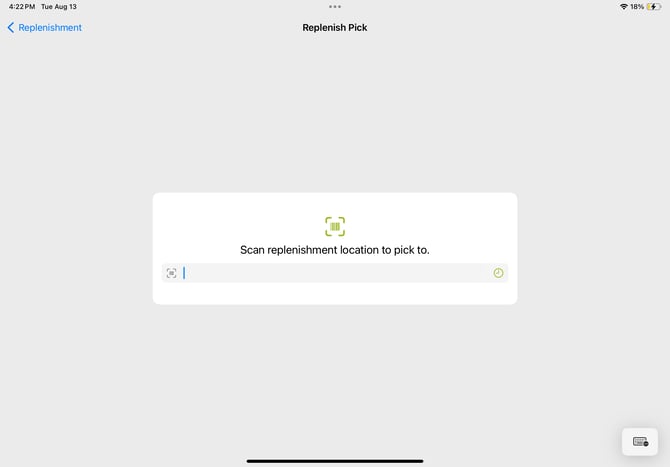
- If a User has assigned Tasks, they will automatically be taken to the Pick screen once Location is scanned.
Otherwise select the Task Type to determine how tasks are assigned to the User.- Priority will select from the top of the list based on the Priority value.
This might select Tasks from all sections of the warehouse, but will prioritize needed Replenishment first. - Nearby will focus on keeping Tasks together for more efficient Pick Paths.
A Location scan is requested to identify the Users placement in the warehouse and which Tasks are closest in proximity.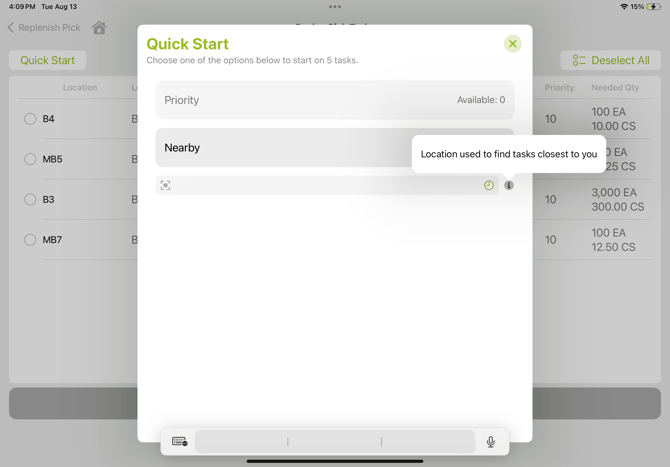
- If manual selection of tasks is preferred, simply tap the 'x' in the top right or anywhere outside of the Quick Start popup. This will move to the task list and allow manual selection to happen.
- Priority will select from the top of the list based on the Priority value.
- Up to 5 Tasks will populate on the screen if a Quick Start option is utilized
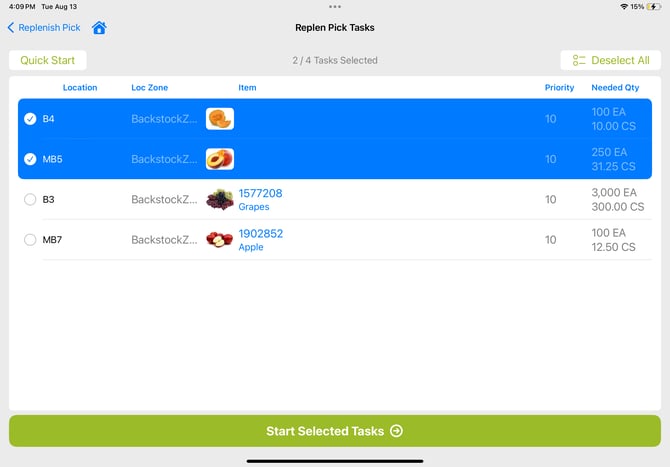
- These Tasks can be sorted by Location, Item/SKU, and Quantity.
- The User will select which tasks to work on and then tap Start Selected Tasks
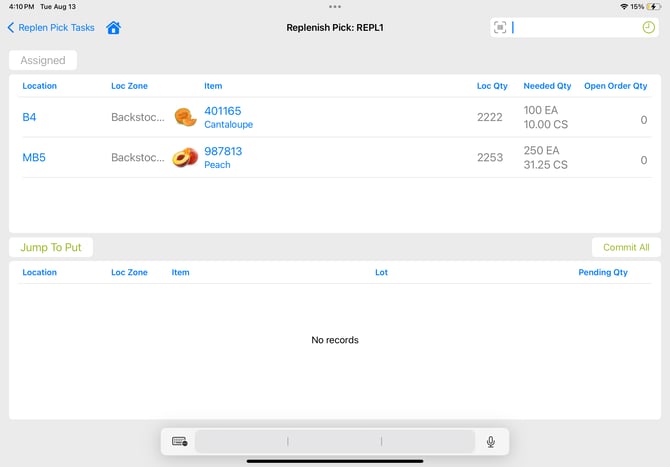
- Navigate to the Location and Pick the Items
- Tap/Scan the Item
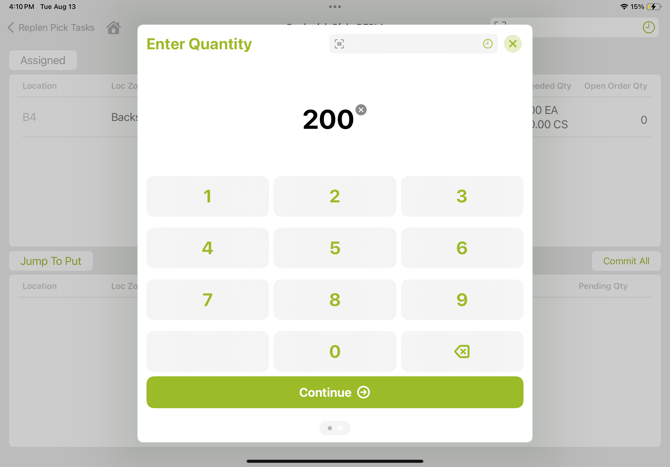
- Enter the Quantity Picked
- Tap OK
- The Item task will be moved from the top section to the bottom section, waiting to be committed
- Proceed to the next task
- Once all Picks have been completed, Commit the tasks
- This can be done individually by tapping on the task line or with the Commit All button
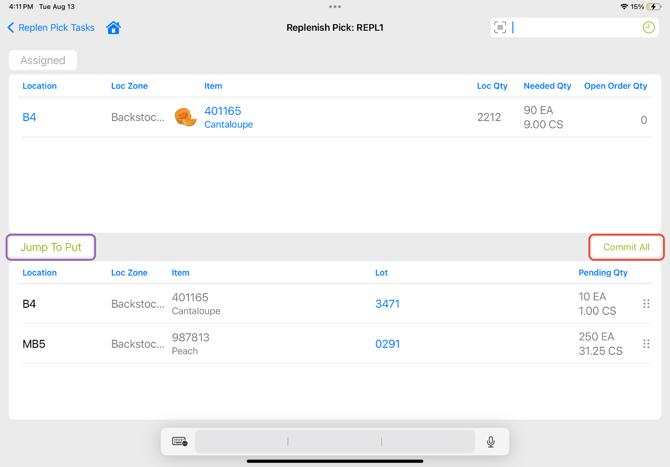
- This can be done individually by tapping on the task line or with the Commit All button
- After Tasks have been committed, the User can tap the Jump to Put button to go directly into Putting the Items away into the proper Locations
Replenishment Put
- Open the App from the iPad
- Tap the Replenishment option
- Tap “Replenishment Put”
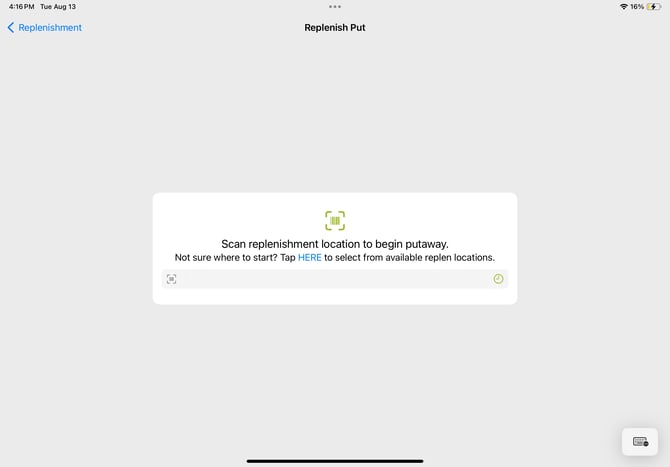
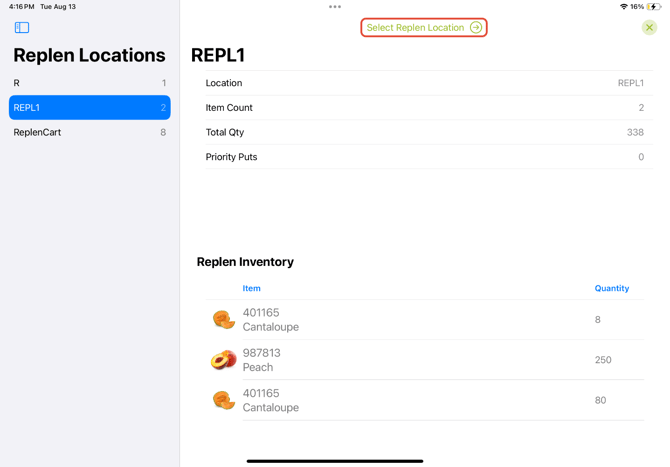
- Scan the Replenish Location where inventory has been staged or tap HERE to select from available replenishment Locations, then tap Select Replen Location to enter the Put process
- Put Tasks will populate the screen according to what items and associated tasks are in the Replenishment Location
- Scan/Tap the Item
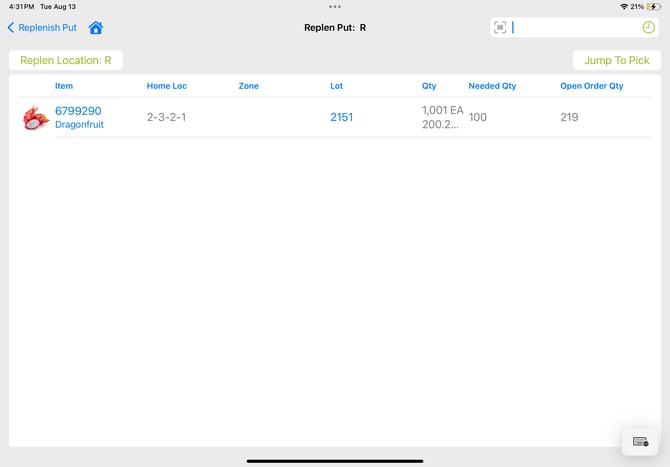
- Scan/Tap the pickface Location to Put the inventory into
- Shown is the available Locations where the Item already exists, but a Location that is not listed can also be scanned
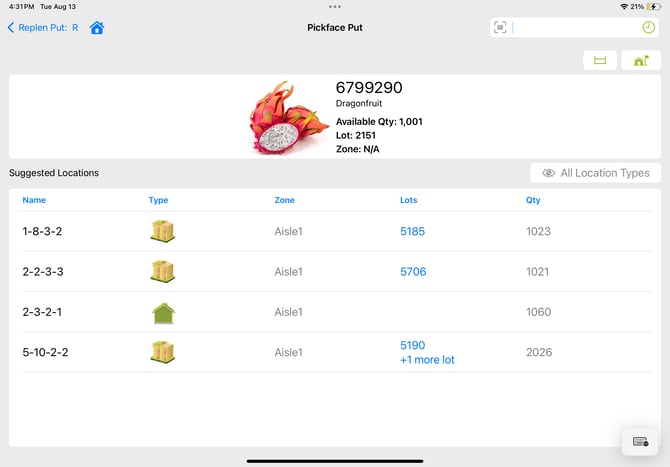
- Shown is the available Locations where the Item already exists, but a Location that is not listed can also be scanned
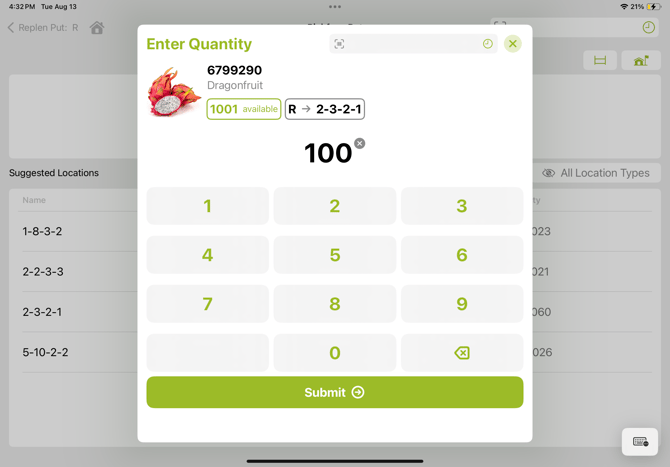
- Enter the Quantity to Putaway
- Tap OK
Other Features
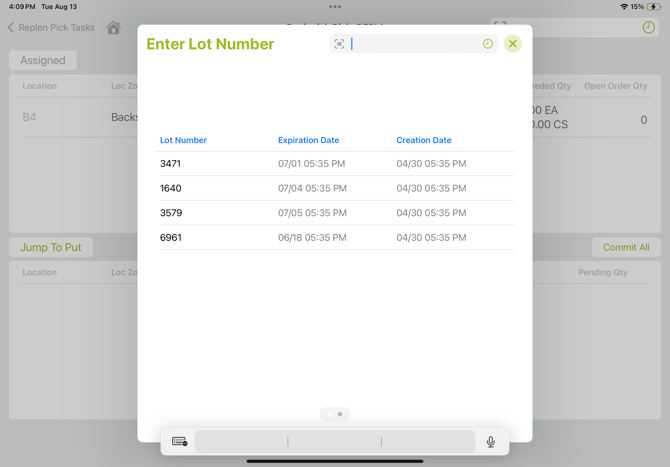
Lot Selection: On Items where Lot is required, the User is prompted to scan a Lot Number, or to select one from the list of Lot Numbers for that Item
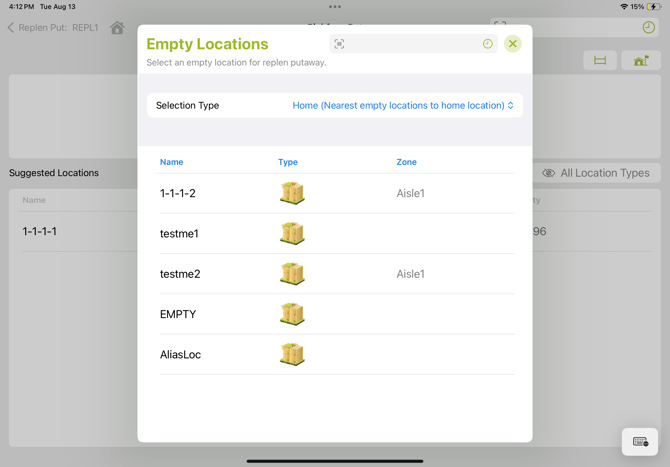
 Empty Locations: The Empty Location button will allow Users to see which Locations are currently Empty, so Items can be Putaway there.
 Home Locations: the Home Locations button will allow Users to set a Home Location for an Item.