
Inventory transactions can be performed with a Reason Code that can help identify the purpose of the transaction. Reason Codes are configurable per transaction.
Table of Contents
- Create and Manage Reason Codes
- Delete Reason Codes
- Enable Reason Codes
- Select Reason Codes on Device
- View Reason Codes in Logs
Create and Manage Reason Codes
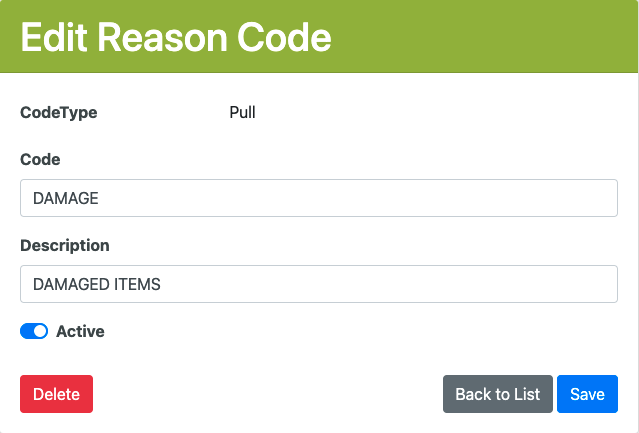
Reason Codes can be configured for different types of inventory transactions.
- Go to Admin -> Reason Codes
- Select Create New to add a Reason Code (or click on an existing Reason Code to edit)
- Select the transaction this code will apply to:
- Pull - performed in Manage Inventory
- Put - performed in Manage Inventory
- Move - performed in Manage Inventory
- Order - future feature
- Packing - assigned to Short pack in Packing
- Putaway - assigned to a Receipt Edit during Putaway
- Returns - future feature
- Assign a Code
- Provide a Description
- Select the transaction this code will apply to:
Delete Reason Codes
- Go to Admin -> Reason Codes
- Click on the Code to be deleted
- Click Delete
- When the confirmation page loads, click Delete again.
Enable Reason Codes per Group
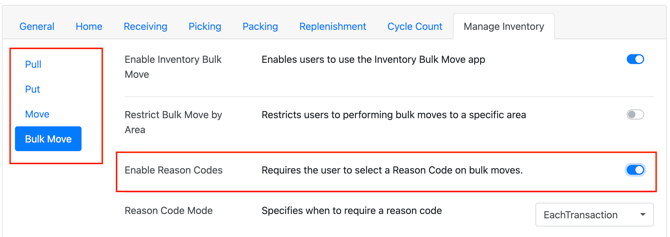
- In the Group Settings, enable the use of Reason Codes in the Manage Inventory section. Go to Admin -> Users -> WOS Fulfillment Groups
- Click on the desired group, open the Manage Inventory tab
- Reason Codes can be enabled individually for Puts, Pulls, Moves, and Bulk Moves
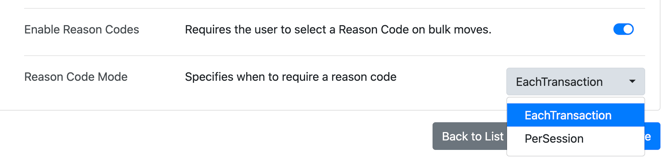
- Select whether the Reason Code must be selected for Each Transaction or once Per Session. Each Transaction means users will be prompted to select a Reason Code for every single transaction performed. Per Session means that users will be asked to set a Reason Code when first entering the app function (like Put), that Reason Code will be applied to all the following transactions.
Set a Reason Code on a Device
Manage Inventory
If Reason Codes are enabled for the group, the user will be prompted to enter a reason code as each transaction is selected within the Mange Inventory app.
Note: The section below describes the PerSession setting. If the Group Setting was set as EachTransaction, the process is similar but instead of prompting for the Reason Code as the transaction type is selected the Reason Code will be prompted for each transaction after the Quantity value is entered.
- On the WOS Operator tablet app, open the Manage Inventory app
-
If Reason Code has been enabled, selecting Put, Pull, or Move will prompt for a Reason Code
-
- Select the Reason Code and click Ok
- The Reason Code is displayed at the top of the app
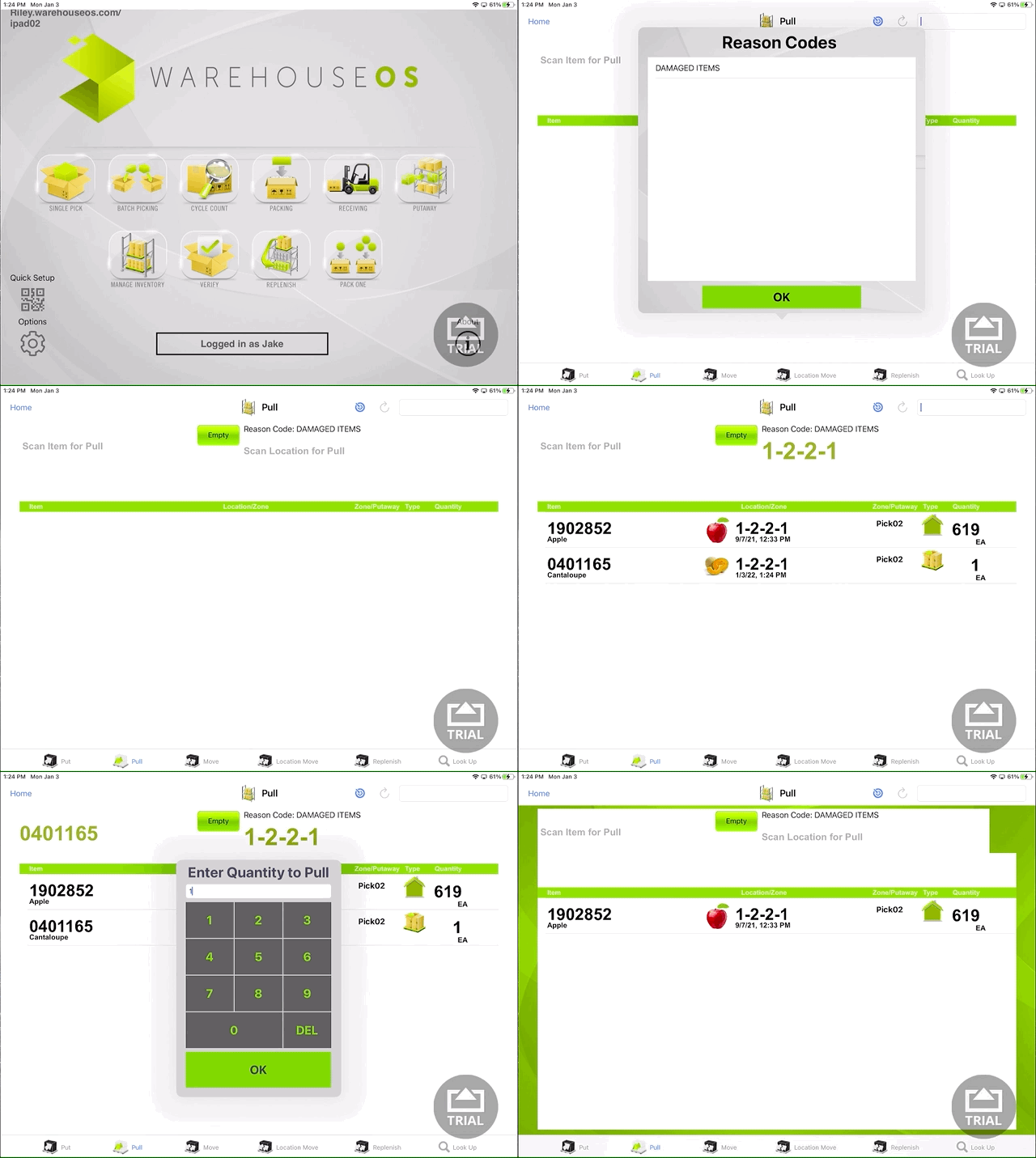
- The Reason Code is displayed at the top of the app
- Each subsequent transaction will use the same Reason Code until the transaction is changed
Packing
Reason Codes for Packing are used to set a reason for Short Packing (Reporting an Issue) an item in the Packing app. For the steps on how to perform that process, review Packing - WOS Fulfillment.
To enable Short Packing and Reason code selection, turn on the Allow Short Packing Group setting.
Putaway
Reason Codes for Putaway are used to set a reason for editing the receipt. For steps on how to perform that process, review Putaway - WOS Fulfillment.
To enable Reason Codes for Putaway, turn on Allow Receipt Edits for Errors in the Group Settings under Putaways.

Review Transactions by Reason Code
- History Log
- In the History Log, the Reason Code is recorded in the Notes of the transaction
- Host Triggers
- In the Host Triggers for Put, Pull, and Move, the Reason Code is part of the message and can be read as part of an integration