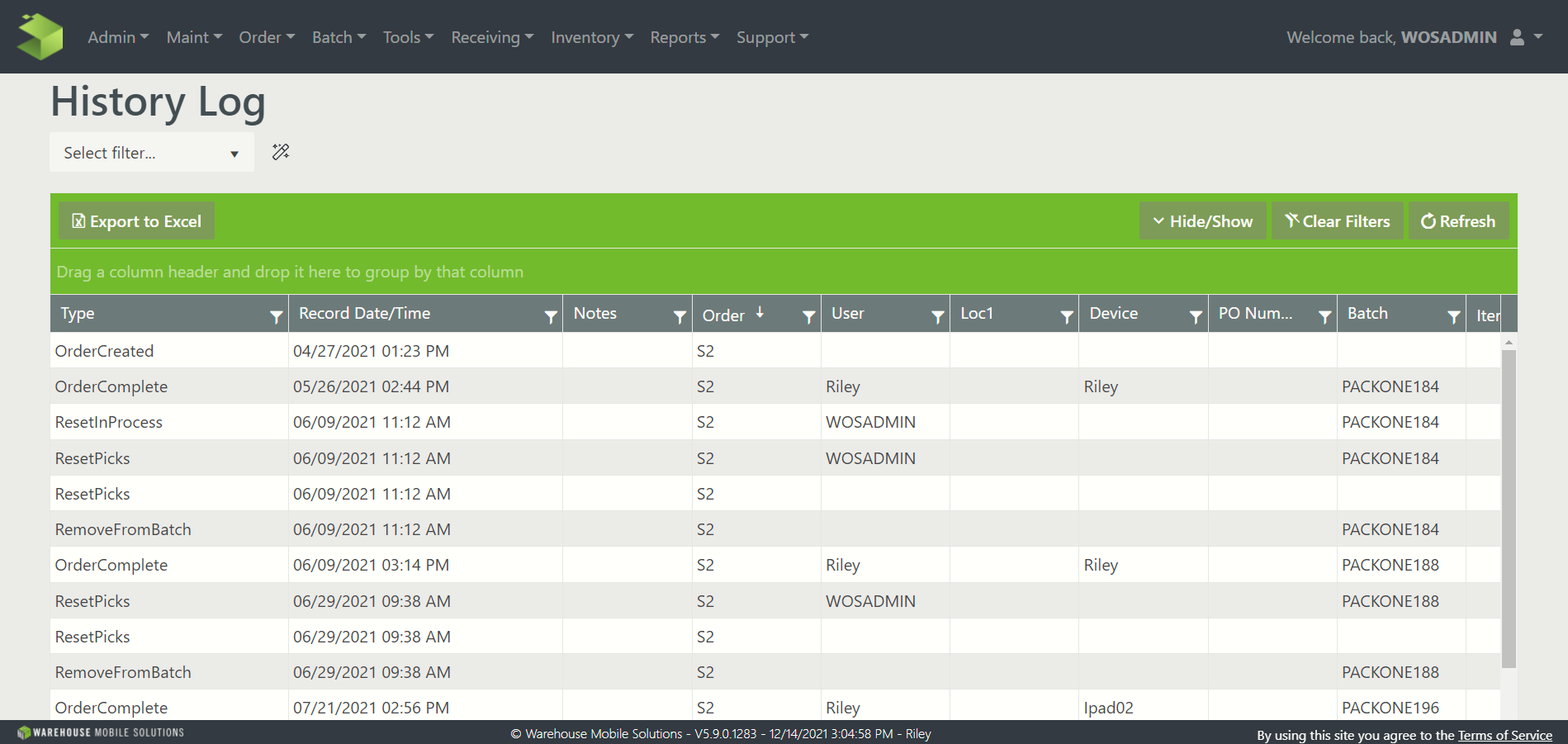
TABLE OF CONTENTS
The purpose of the History Log is to capture and time stamp all operational events as they occur in the system. In its initial release the History Log captures all Trigger events.
Note: The Trigger event does not have to be Enabled to be captured.
Field Definitions
Most of the fields in the History Log are the same across different record types, but a few fields represent different values relative to the record that aren't inherently explained in the field name. Definitions of what some of the fields represent are below.
Quantity 1 and Quantity 2
| Record Type | QTY1 |
QTY2 |
| PutComplete | Quantity Entered | Quantity Before |
| PullComplete | Quantity Entered | Quantity Before |
| PickComplete | Picked Quantity | Expected Quantity |
| OrderCreated | Number of Lines | Total Quantity |
| CycleCountPerformed | Original Quantity | Counted Quantity |
| CycleCountComplete | OriginalQuantity | Counted Quantity |
Navigating the data:
The data within the History Log grid can be manipulated in different ways to more quickly see the records applicable to a specific search. The different functions of the grid below illustrate how to do so:
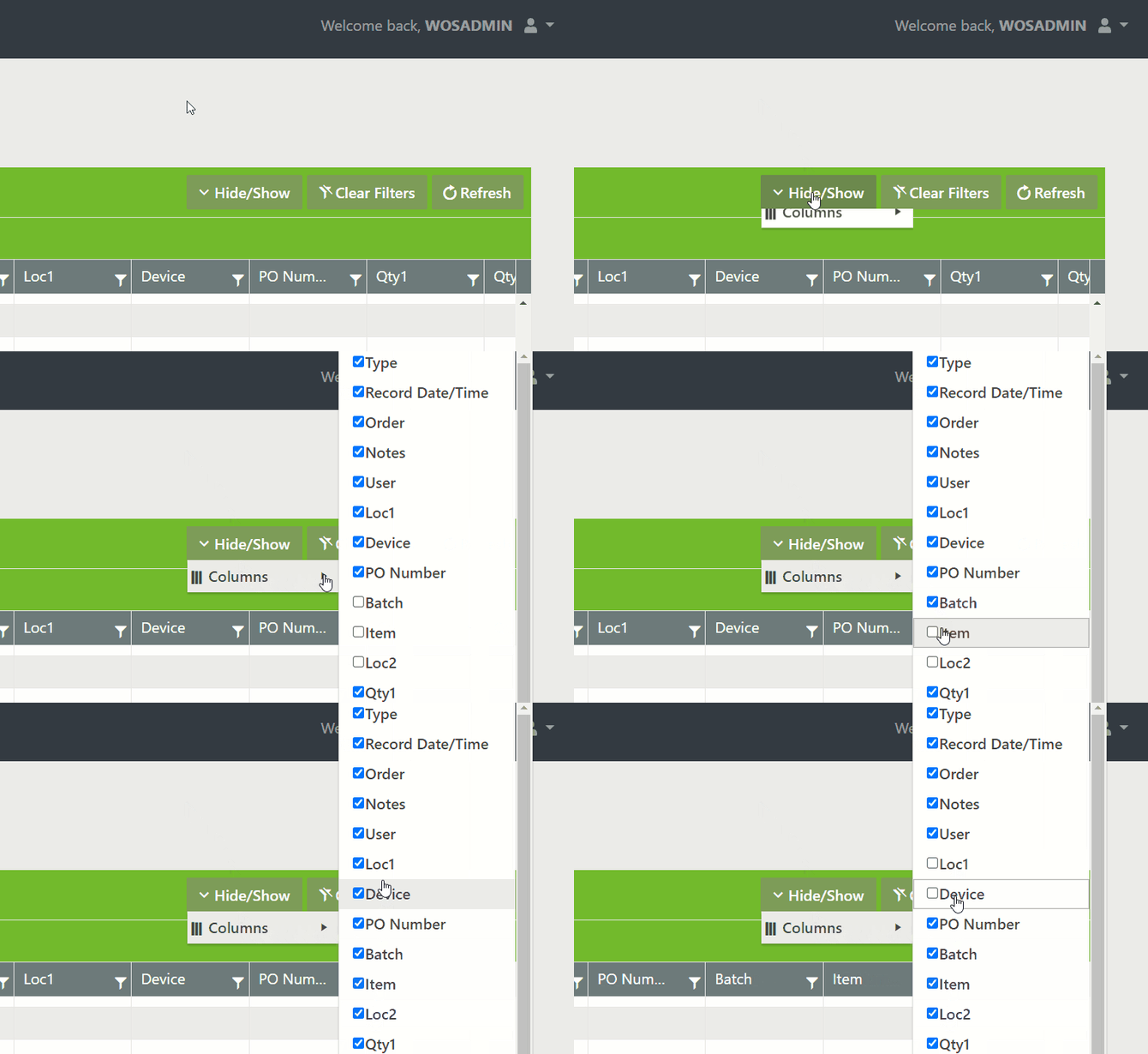
Columns
For ease of viewing, Columns may be rearranged, as well as hidden.

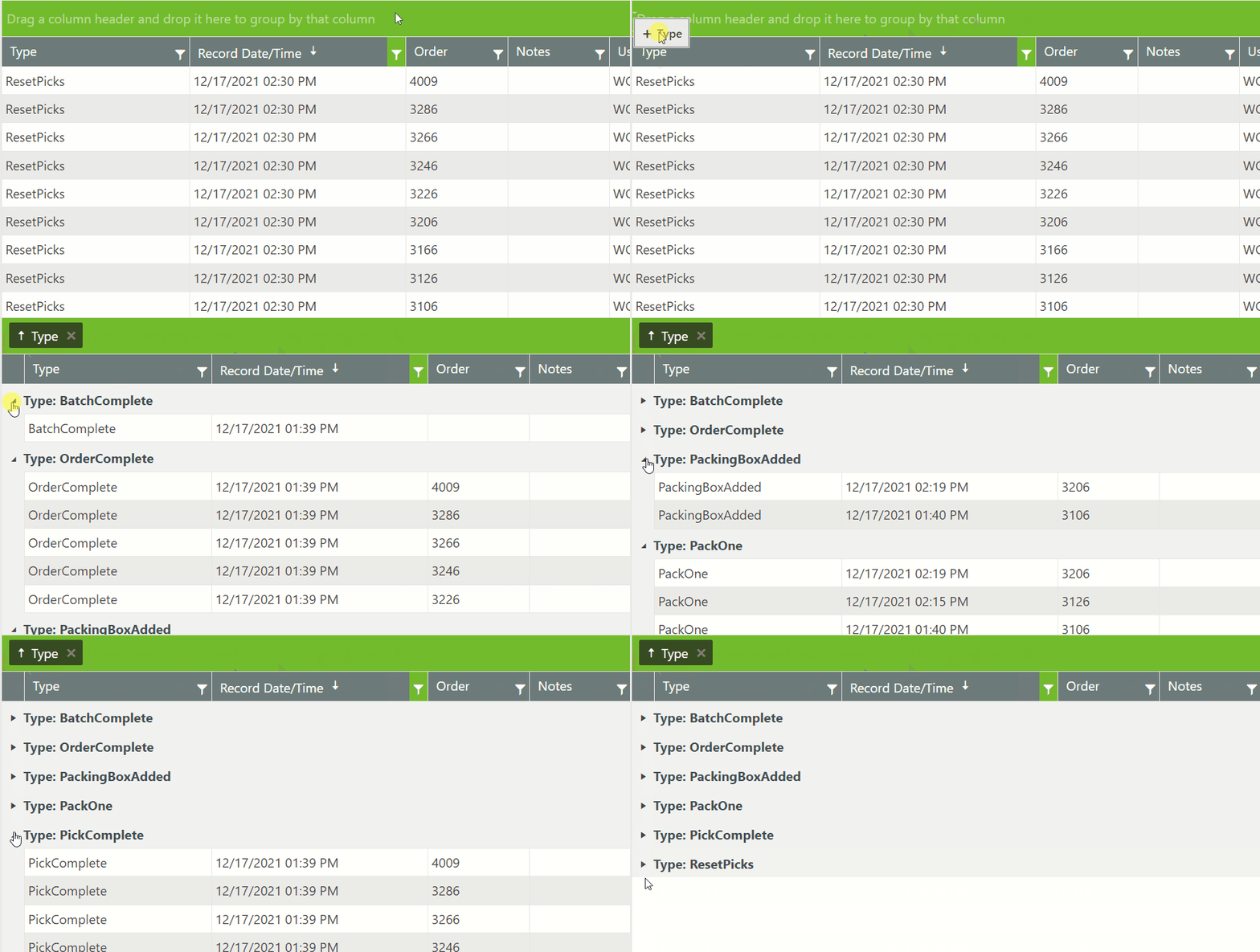
Groups
Any column header may be dragged into the Grouping, resulting in the data being grouped.
Filters
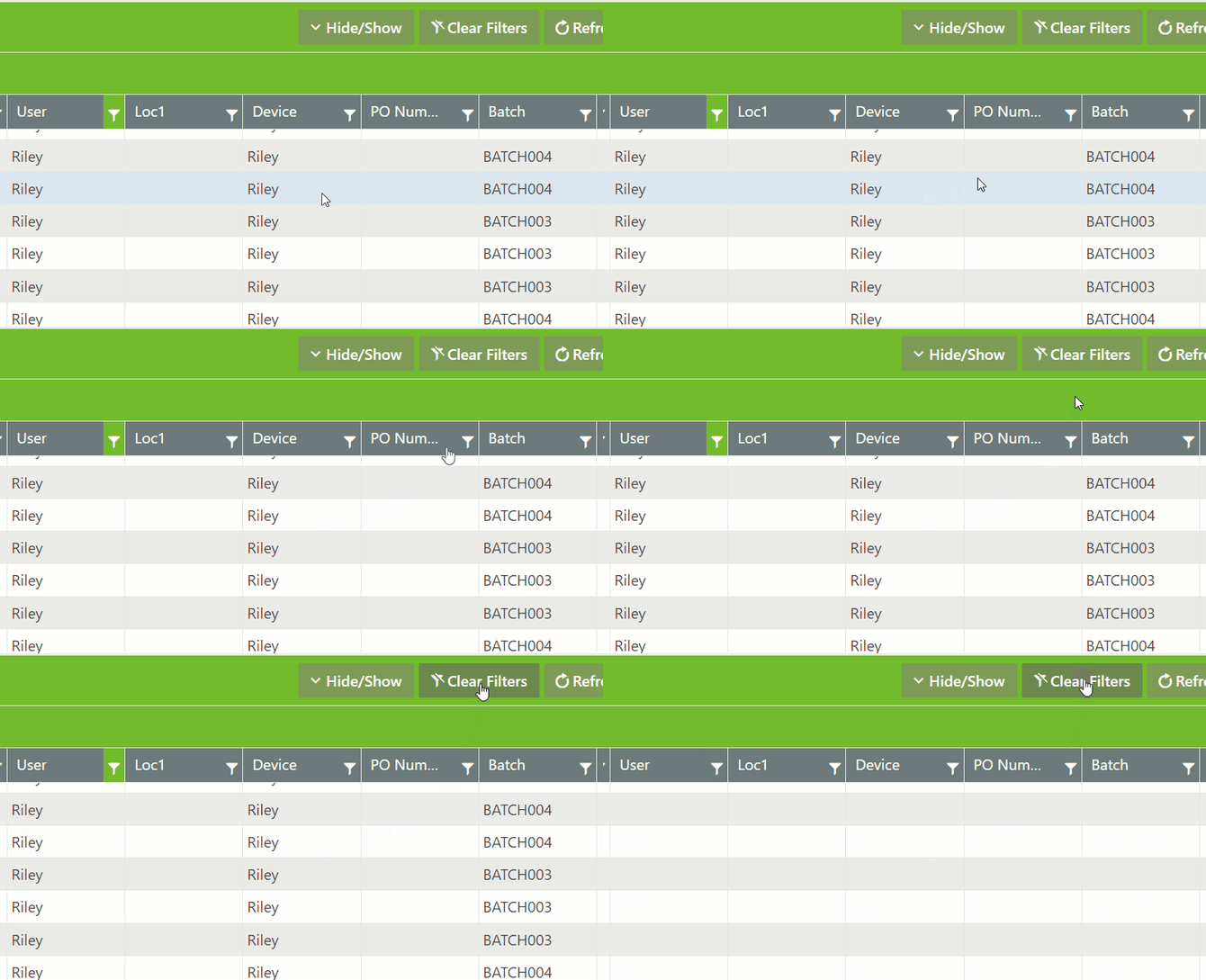
Every field has a filter imply click the Filter icon in any Column Header, and Filters are nested.
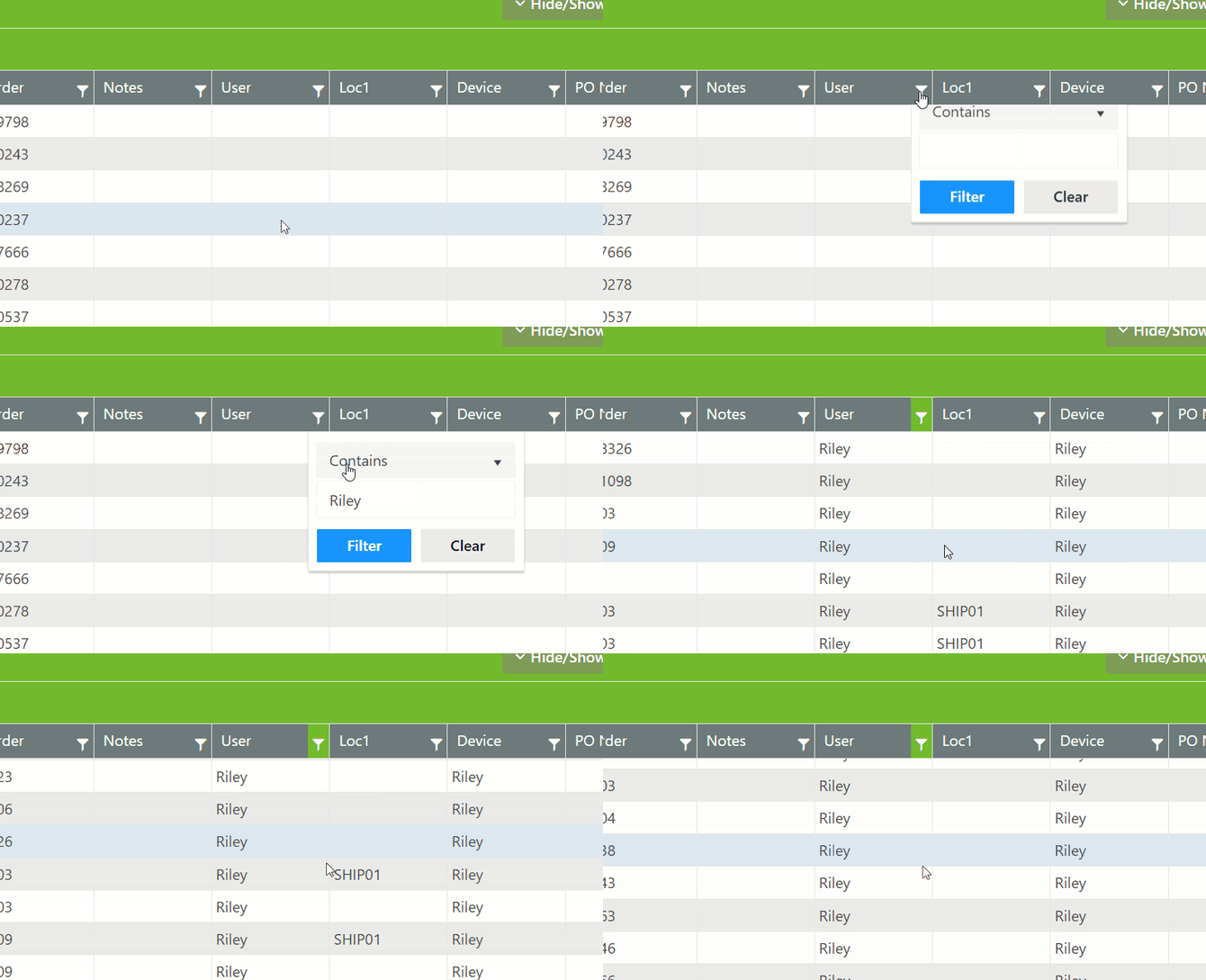
Ability to clear individual filters or click <Clear Filters> button to clear all filters.
Sorts
Every field may be sorted simply click the Label in any Column Header
- First click – sort by ascending
- Second click – sort by descending
- Third click – reset sort
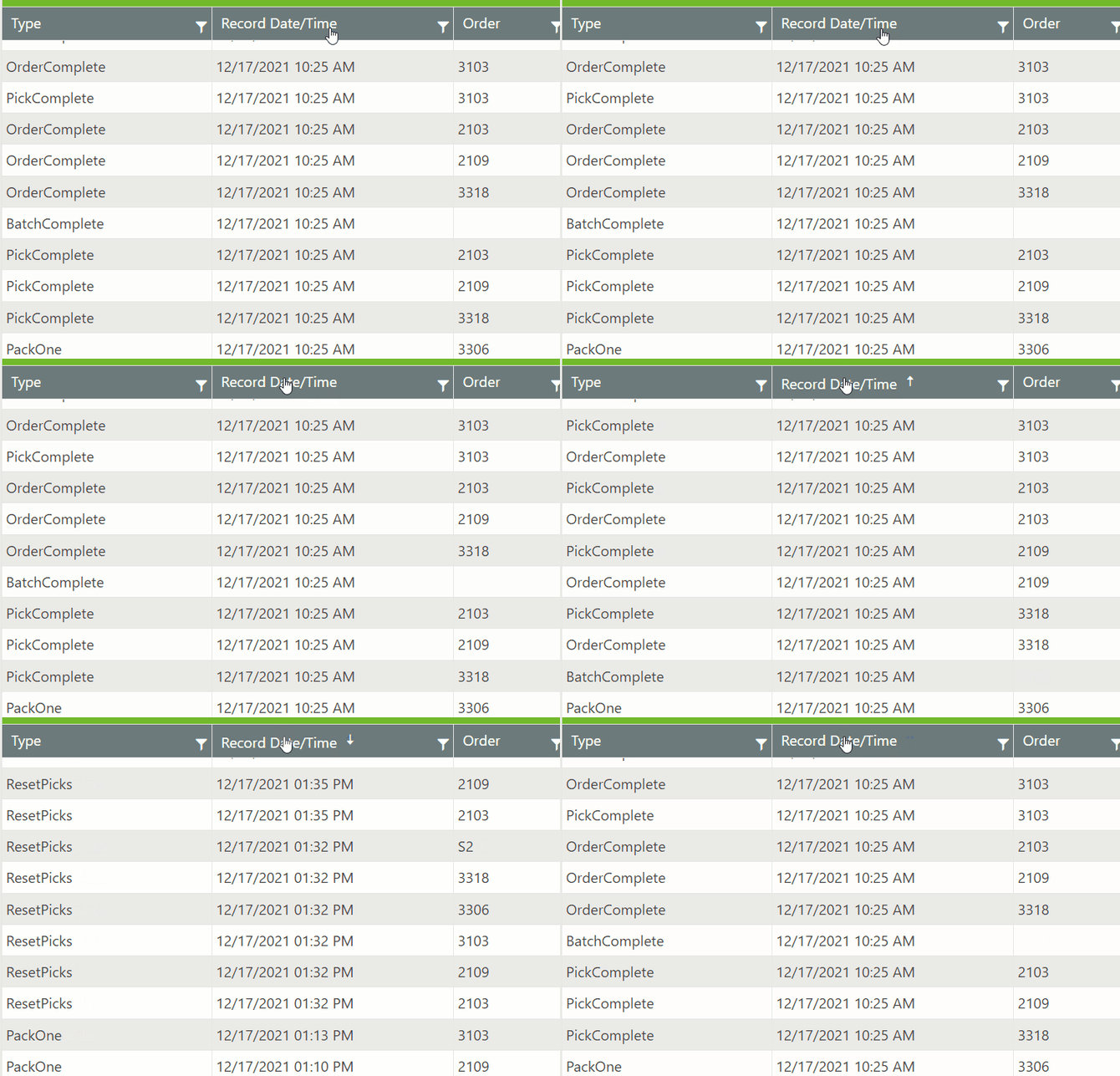
Sorts will nest

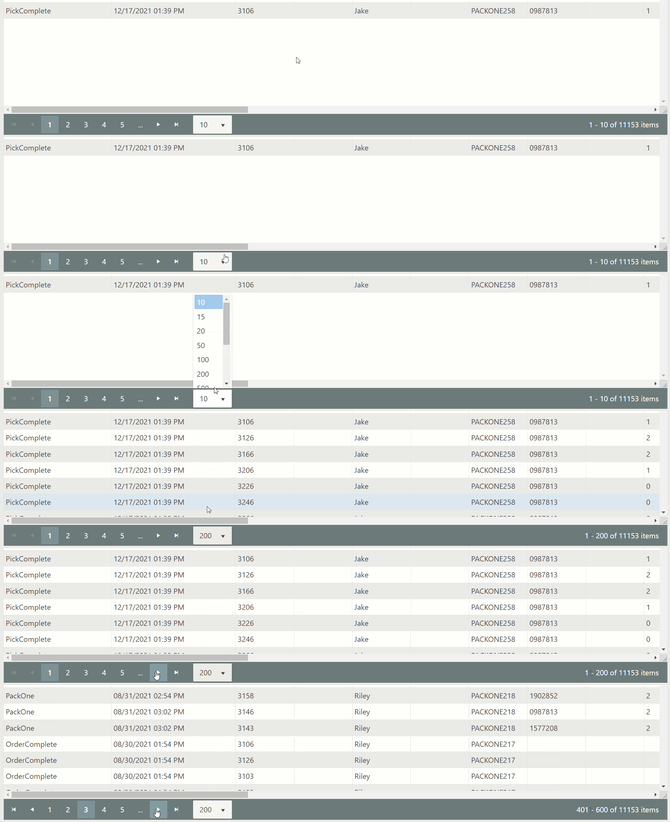
Paging
Export
Click the <Export to Excel> button to export all filtered and sorted data. Additional statistical analysis may be performed from within the spreadsheet.
Potential Uses
The History Log is a good tool for researching anomaly conditions which may have occurred in your system. Examples may be:
Research Inventory Anomalies
- View the events that occurred in a specific location
- Track the activity of a specific item today
- Who performed the events
- Track the Manual Movements of inventory in and out of locations
Research Order/Batch Anomalies
- View activity on a specific Cart
- View Order picking activity
- View Batch activity
- View picking activity by user/device
Identify Training Opportunities
- Identify user(s) that are operating outside the norms
Productivity Statistics (export)
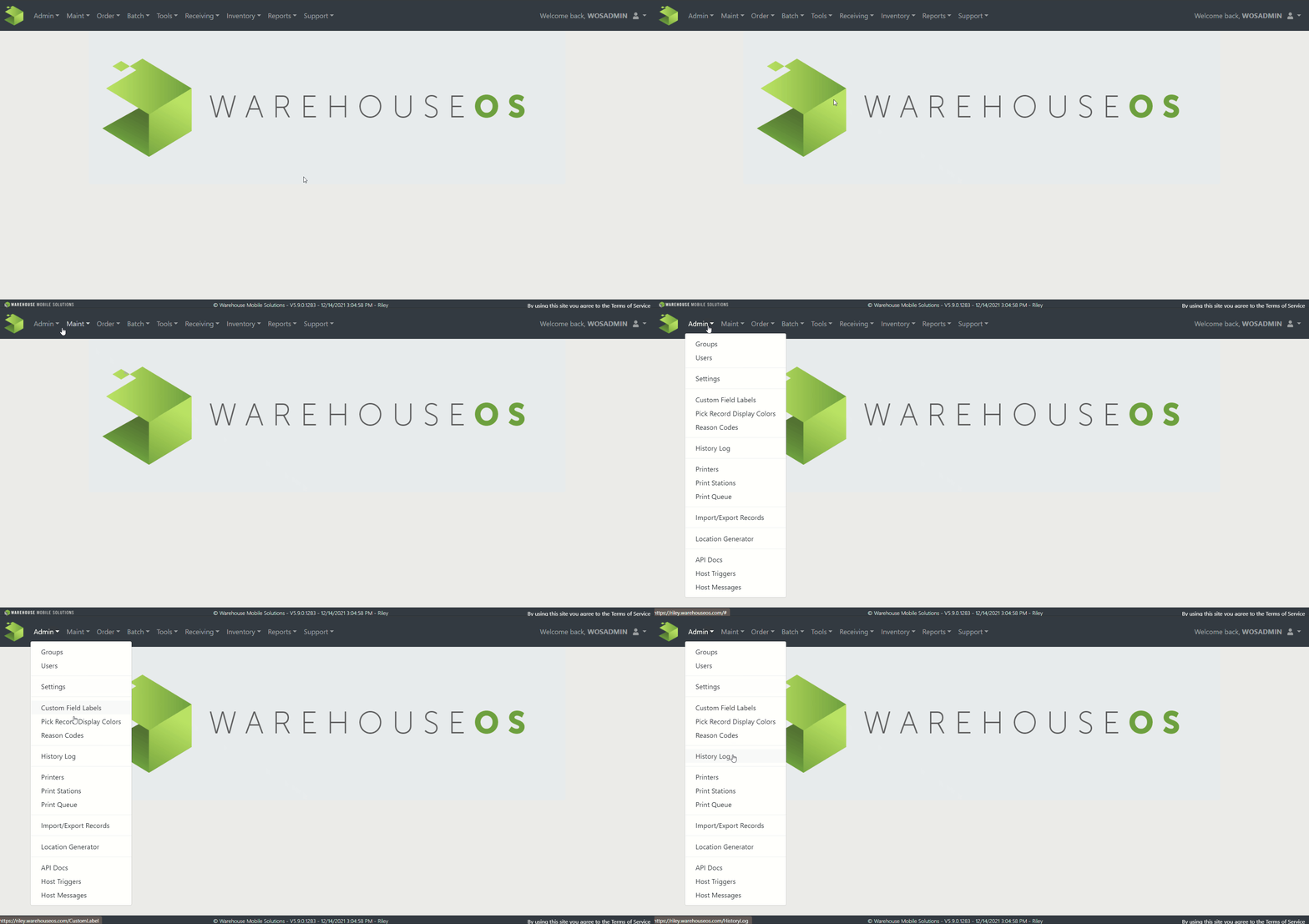
Select Admin->History Log to view the system History.
For ease of use the system defaults the Start Date/Time to: yesterday at 12 AM and the End Date/Time to: Today at 11:59 PM. This eliminates the error of attempting to bring back ALL the history.
Note: History Log contains a large amount of data so filtering the data by Start/End Date and Time is important.