Warning: The WMS Fusion app will soon be deprecated. Please review Cycle Counting with WOS Fulfillment
The Cycle Count process is the act of verifying the accuracy of inventory in a location and making inventory adjustments if required.
Auto Apply Cycle Count
Warning: Auto Apply Cycle Count app permission should be applied carefully. When this is enabled, inventory counted in the cycle count app requires no review or approval before inventory is updated
WOS Manager Cycle Count settings provide flexibility in how the Cycle Count Process is to be managed. The most important setting is Auto Apply Cycle Counts.
Admin -> Settings -> System Configuration -> Auto Apply Cycle Counts
The Auto Apply Cycle Counts setting dictates the overall flow of the Cycle Count Process. Inventory > Cycle Count Confirm
- Enabled – The Cycle Count function on the iPad app manipulates inventory data in real-time. As the User completes each count the inventory is being adjusted.
- Disabled – Cycle Counting becomes a two-step operation. First, the Cycle Count function on the iPad records the inventory counts BUT does not adjust the inventory data in real-time. The WOS Manager Cycle Count Confirm screen is then used to review and verify the cycle counts.
Inventory -> Cycle Count Confirm

Cycle Count Permissions
A second Cycle Count setting is subtler in its effect. It determines if the User is confirming inventory counts or performing a blind count.
First, navigate to the Group settings, Admin -> Groups -> [GROUP NAME]

Your options include Hide Cycle Count Quantity and Scan Each Item Cycle Count.

Hide Cycle Count Quantity
-
Enabled – Scan required. As the User scans each item in a location the system will keep a count by Item. When everything has been scanned the User confirms the counts.
- Disabled – Total Count required. The User scans the Item and enters a Total Count for the Item. When all items have been counted the User confirms the counts.
WOS Operator Cycle Count Procedure
Once in the Cycle Count app:
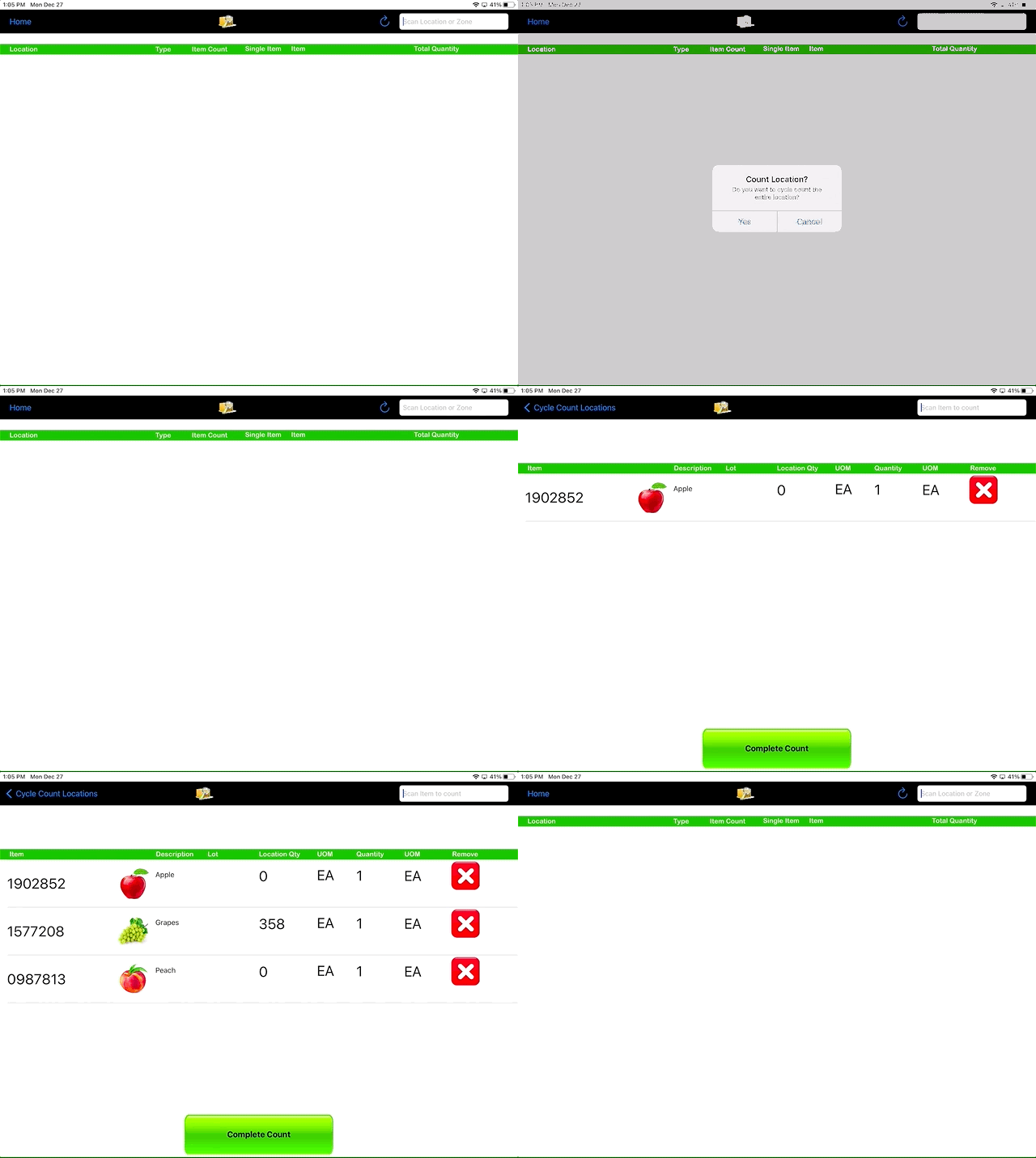
- Scan a location to count. The system will ask you to confirm that you want to count that location. After clicking Yes,
- Start by either scanning each individual item or by scanning a specific SKU then typing in the quantity depending on the Group settings as described above.
- Once all items are counted press Complete Count. Doing so will either update inventory in real-time or be pushed to be verified in Tablet Director depending on the Auto Apply settings.
If Auto Apply Cycle Count is disabled the administrator must go into WOS Manager to either Apply, Cancel or mark the location to be Re-counted. In this process, inventory is only updated with the Apply is clicked.

Cycle Count Queue
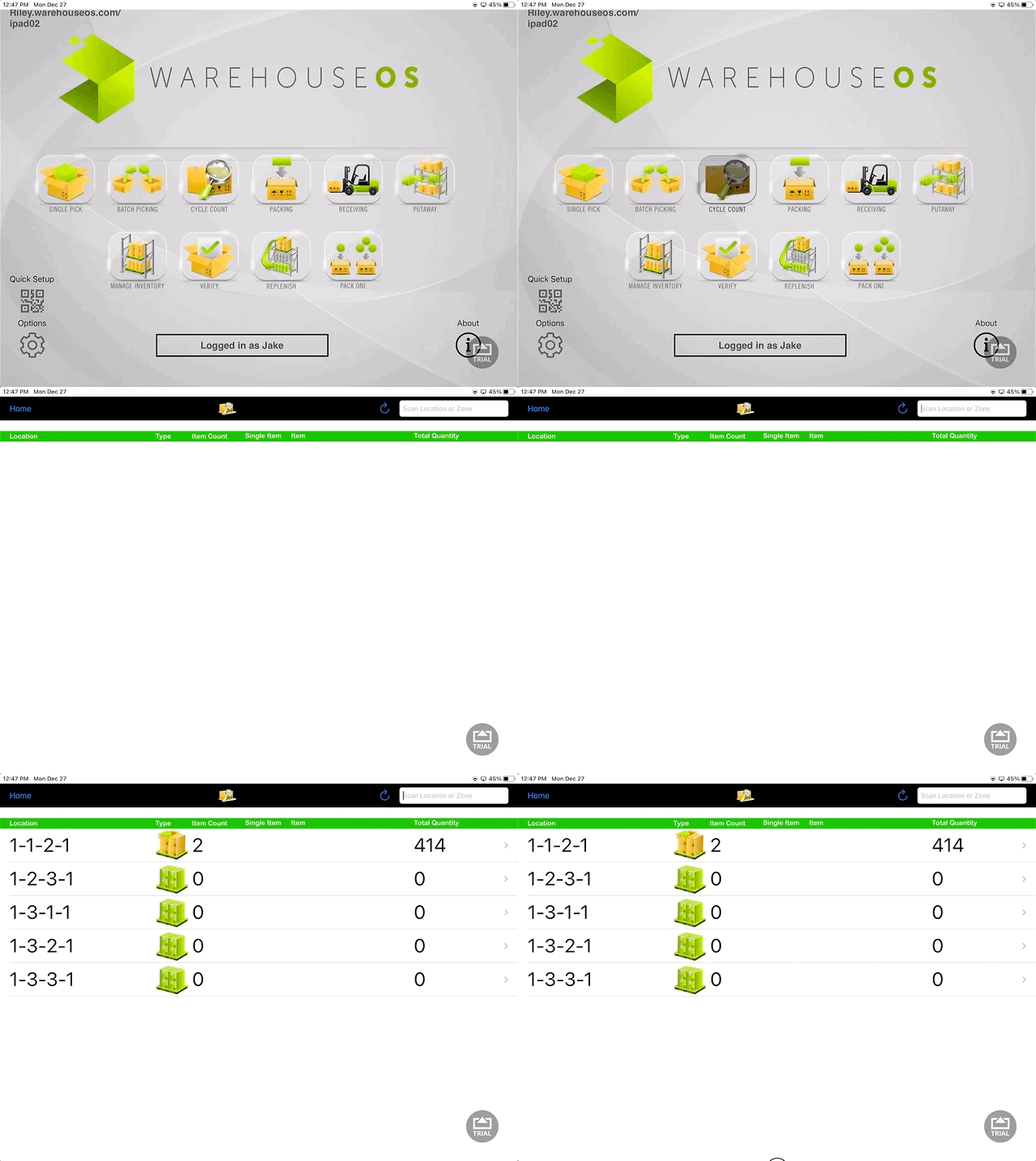
All items or locations marked to be cycle counted are pushed to the Cycle Count Queue. iPad Users can access this queue through the WOS Operator Cycle Count app. Once in the app, click the refresh button on the upper right-hand corner of the screen. Doing so will pull the first 5 records on the queue to the iPad. Pulling from the queue in groups of five allows for multiple iPad Users to be performing cycle counts simultaneously. Scan a location on the list to begin counting.
Adding to the Queue:
Both WOS Operator and WOS Manager have the ability to add to the Cycle Count Queue.
Adding from WOS Manager:
By Item: all inventory for a specific item is to be counted.

By Location: all product in a location is to be counted
Adding from WOS Operator:
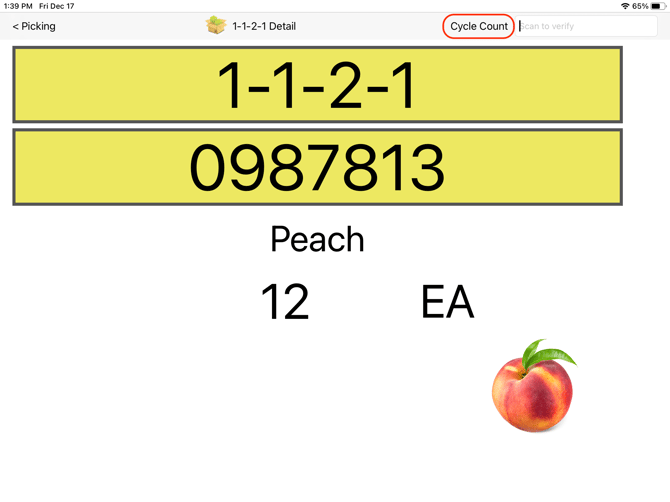
While someone is in the picking process and they come across a location that has some kind of inventory discrepancy, the User can tag that location and add it to the cycle count queue by pressing the Cycle Count button at the top of the screen. This allows the picking process to not be disrupted, and that discrepancy to not be forgotten.