TABLE OF CONTENTS
WOS Fulfillment Cycle Count Procedure
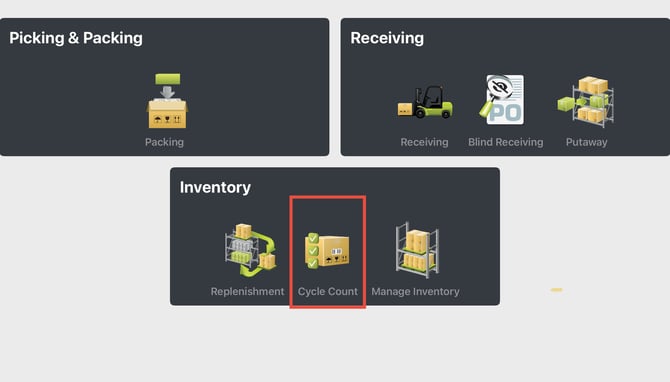
In WOS Fulfillment, under Inventory, tap Cycle Count
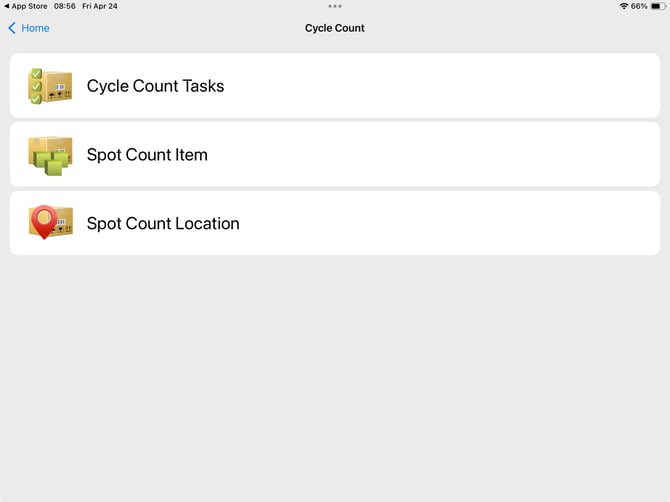
Choose to perform assigned Cycle Count Tasks or to perform a Spot Count for an Item or Location.
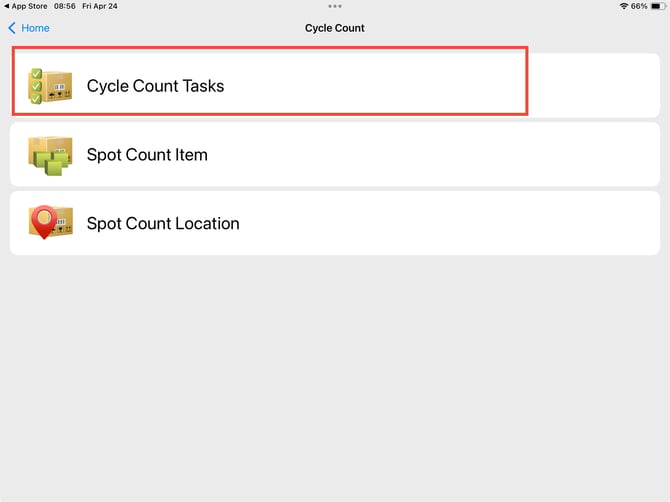
Complete Cycle Count Tasks
- Select Cycle Count Tasks.
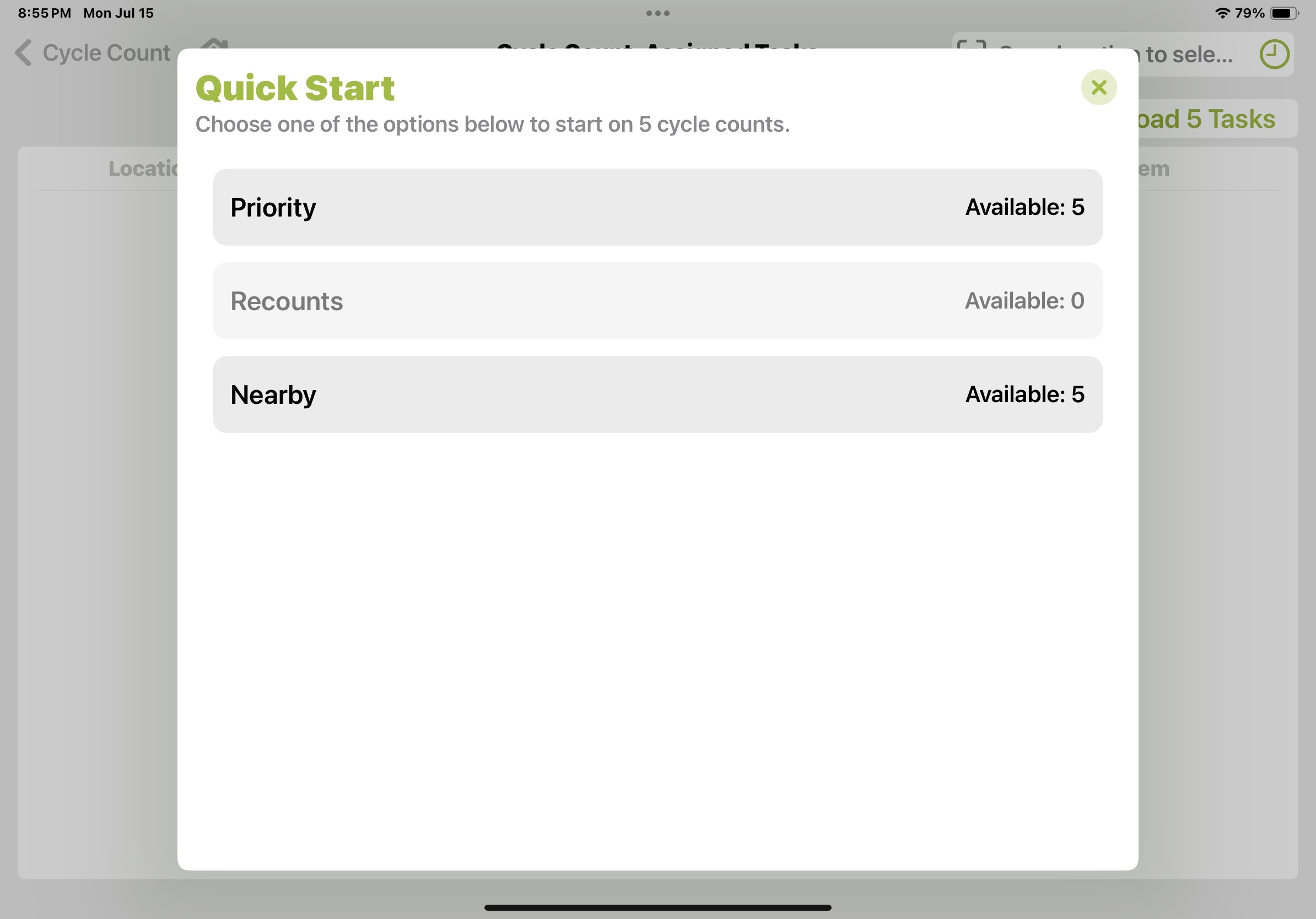
- A quick start menu will appear, allowing the User to choose how they want to assign tasks.
- By Priority: this is determined by the Sequence value on Cycle Count tasks, any tasks with a higher priority than the default will show on the Priority list
- By Recounts: when Cycle Count Confirmations are ON there is an option to flag a count for a Recount. Those will show on the Recount list if the User Group Permissions allow Recounts to be performed
- By Nearby Locations: this allows any location to be scanned into an entry and the closest cycle count tasks to that location will be automatically assigned
- A list of assigned tasks will populate based on the selection above. The Type column shows if a count is for an Item or Location, and Recount will indicate if this is a Recount task.
Additional tasks can be assigned to the Device by tapping on the Download 5 Tasks button at the top right.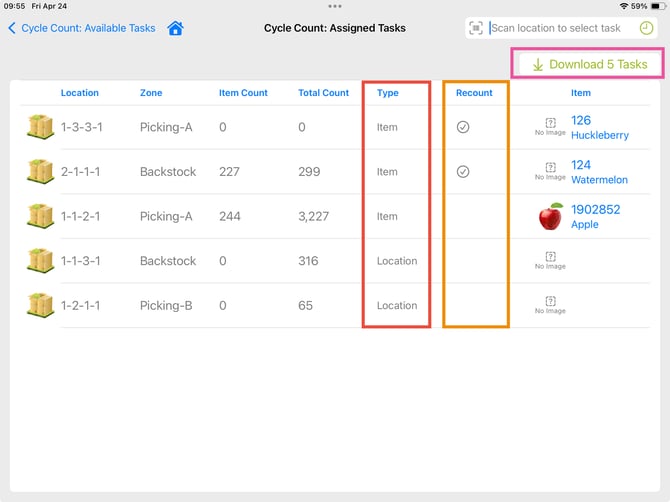
- Tap or Scan a Location to select a task from the Assigned list.
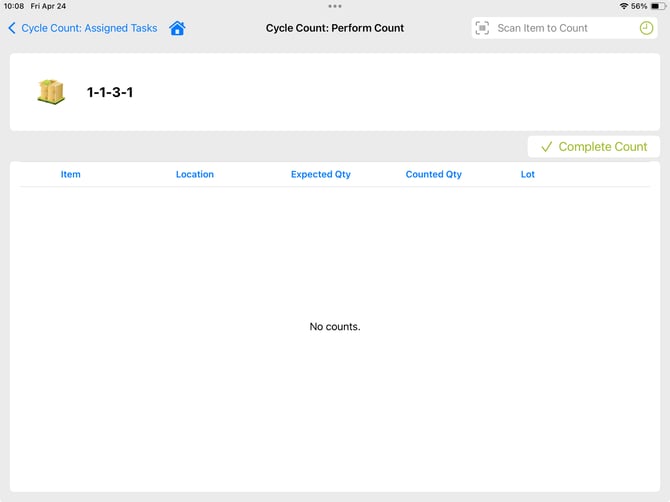
- If a Location Count scan all items and enter a quantity for each.
- If an Item Count scan the item and enter a quantity.
- If a Location Count scan all items and enter a quantity for each.
- When finished, tap Complete Count.
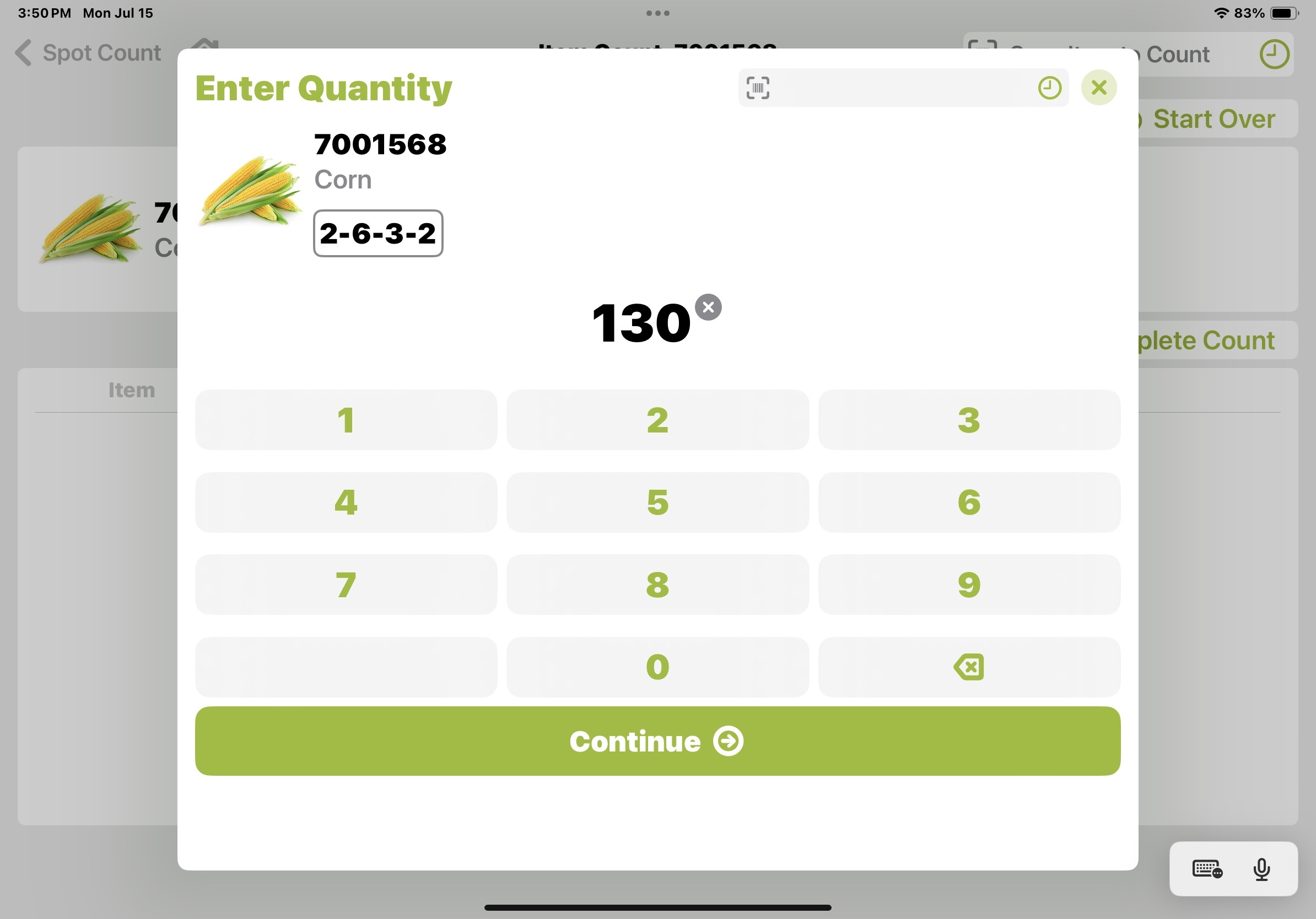
NOTE: Tapping Continue will add the quantity to the Counted screen. If the Item has already had a quantity entered for it, this new quantity will be added to the previous count, creating an aggregated count of the Item. This means that the same item can have multiple quantities entered.
ALSO: If the Scan Each setting if turned on, the number keyboard will be hidden, forcing the User to Scan Each Item to increment the quantity.
Perform a Spot Count:
Tap Spot Count.
Users can perform Spot Counts by Location or by Item.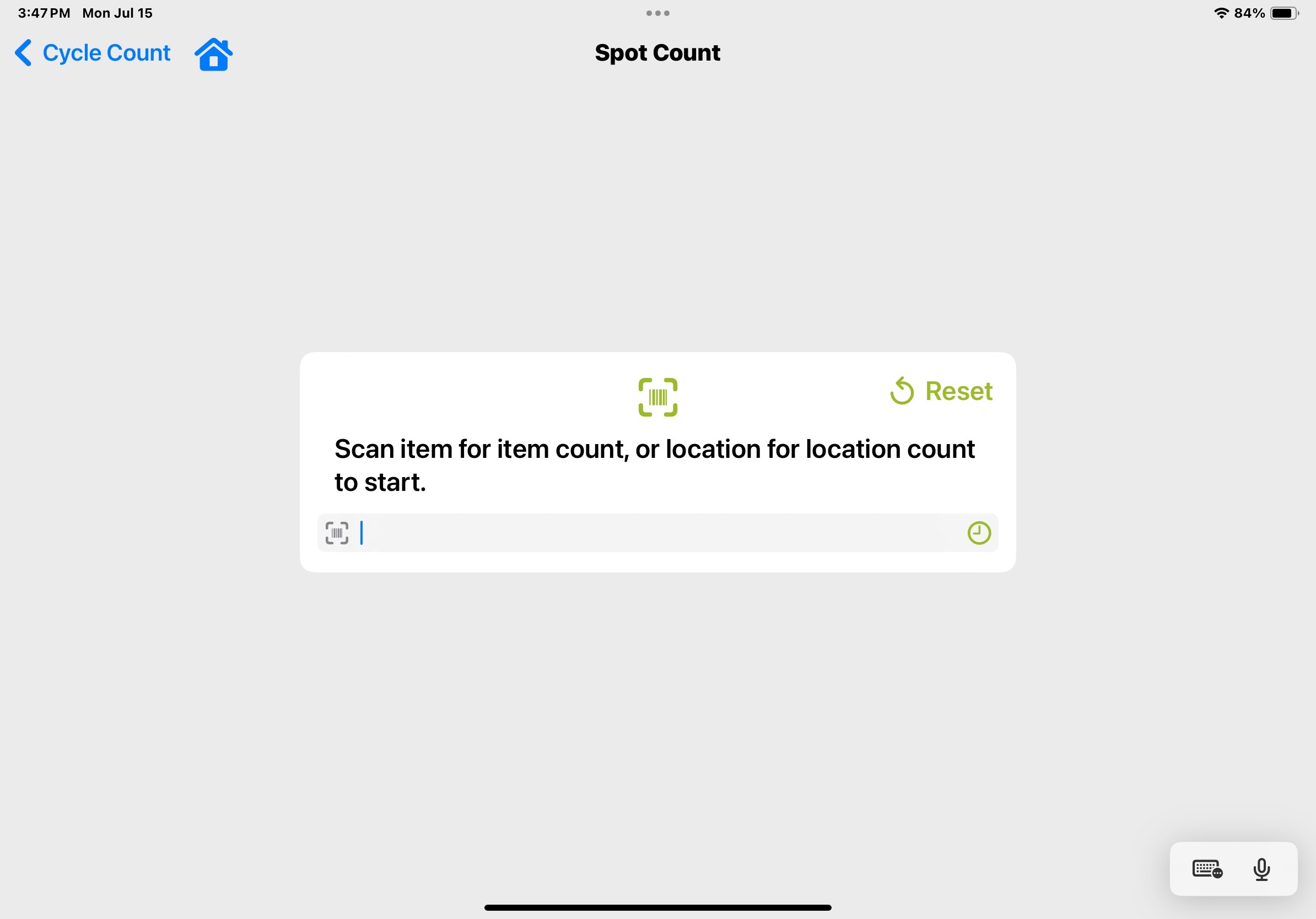
- Spot Count by Location:
- Scan the Location
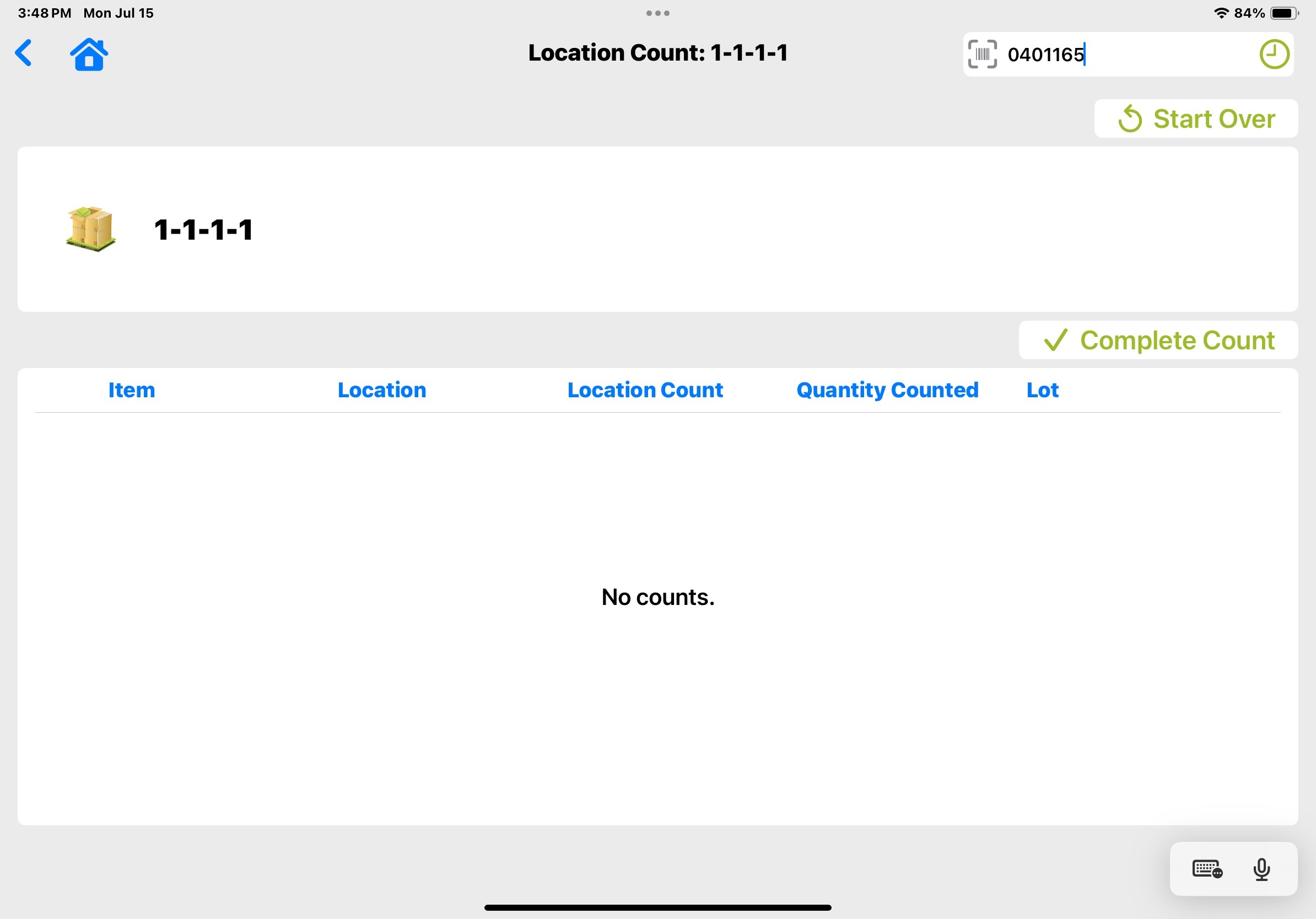
- Scan the Item to Count,
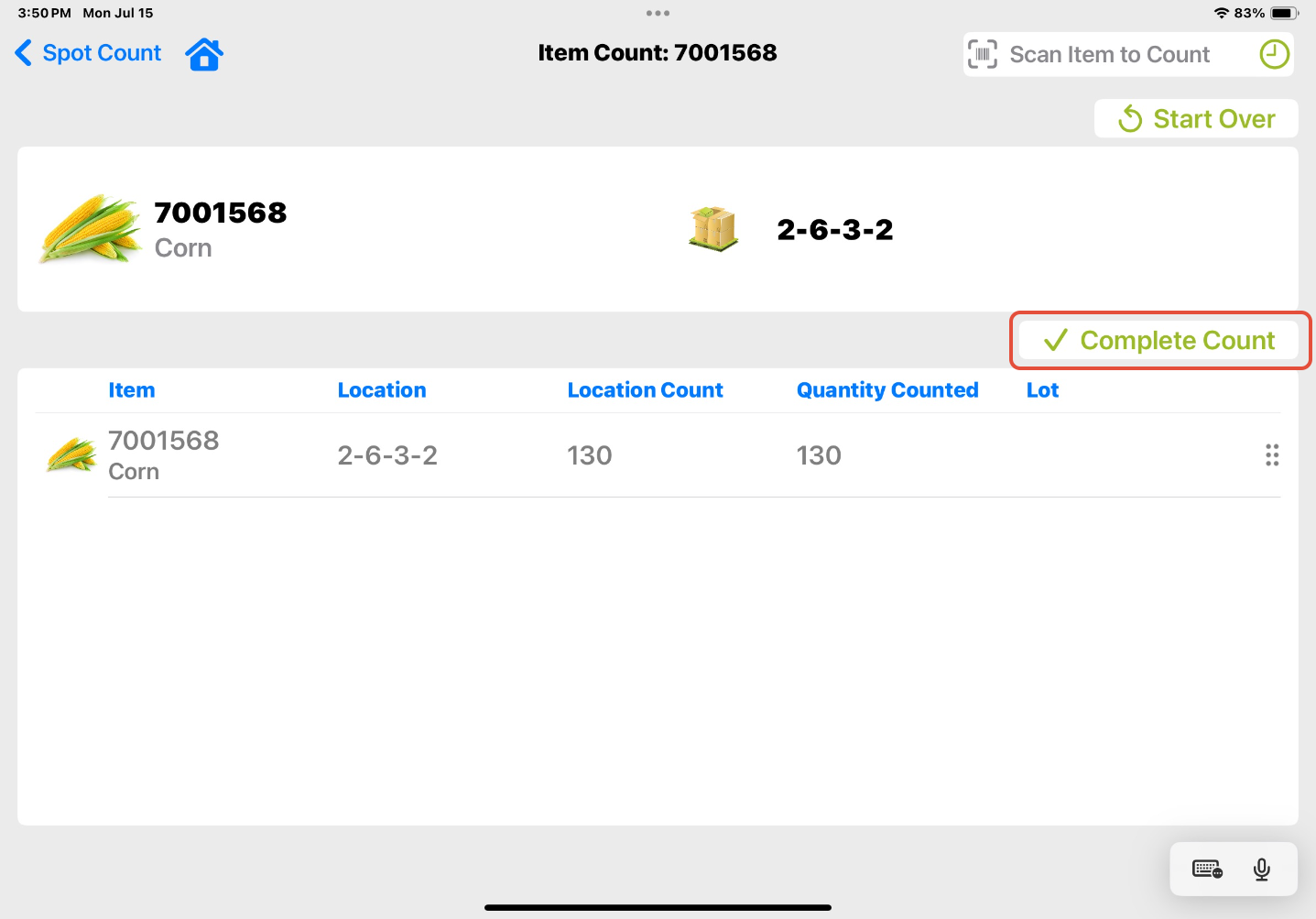
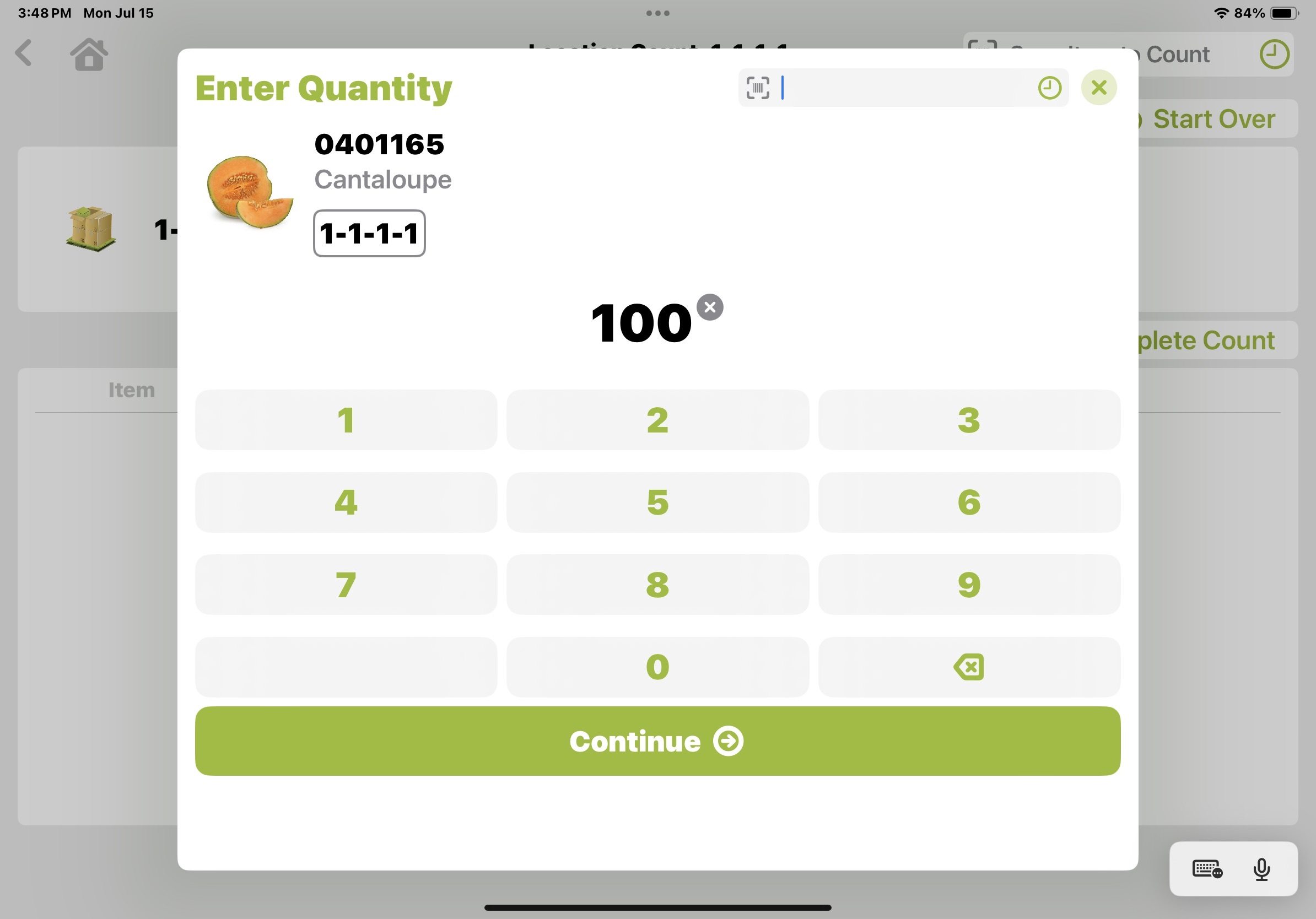 Once all the Items in the Location have been Counted, tap Complete Count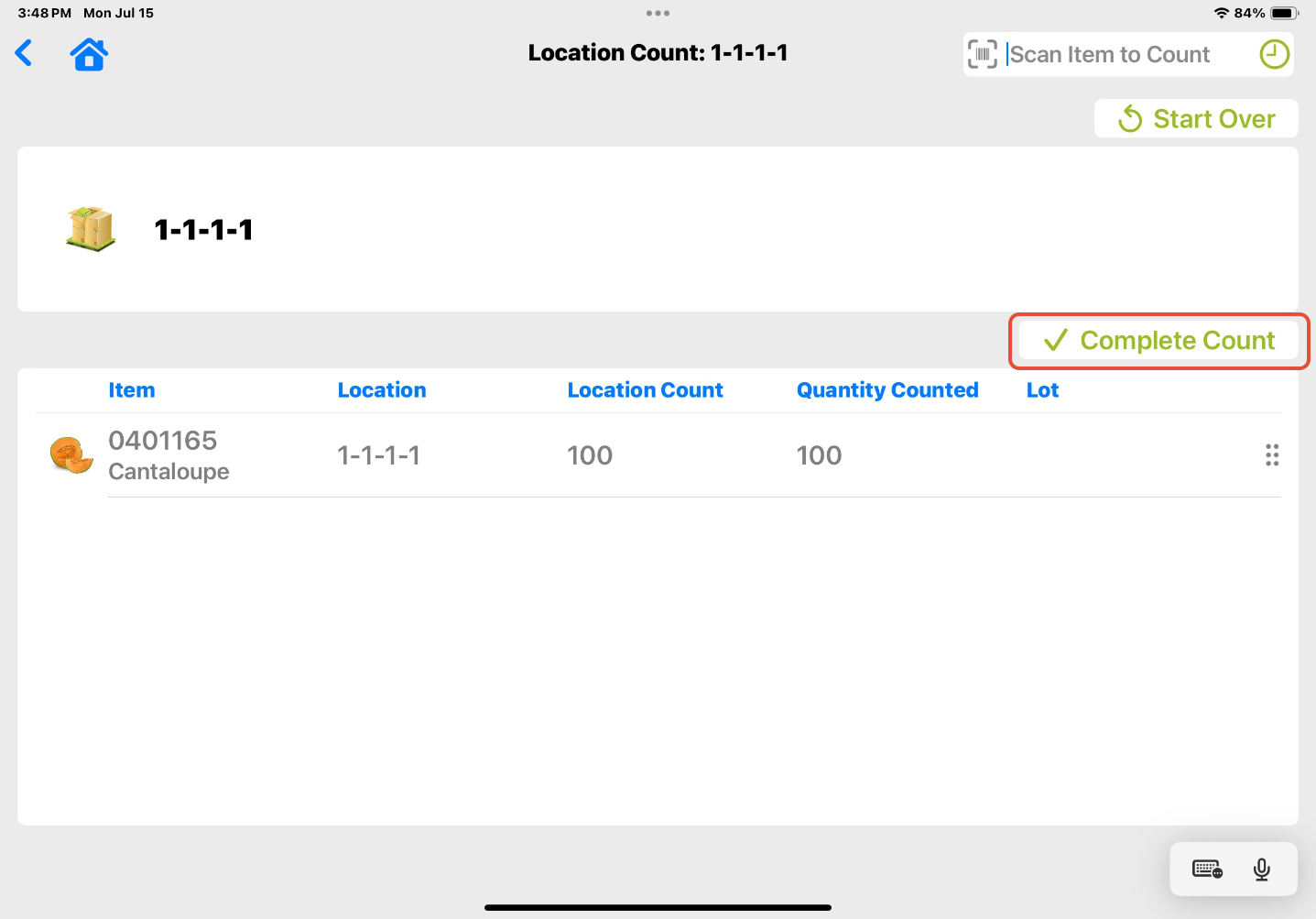
- Then the User is ready to scan the next Location or Item to Spot Count
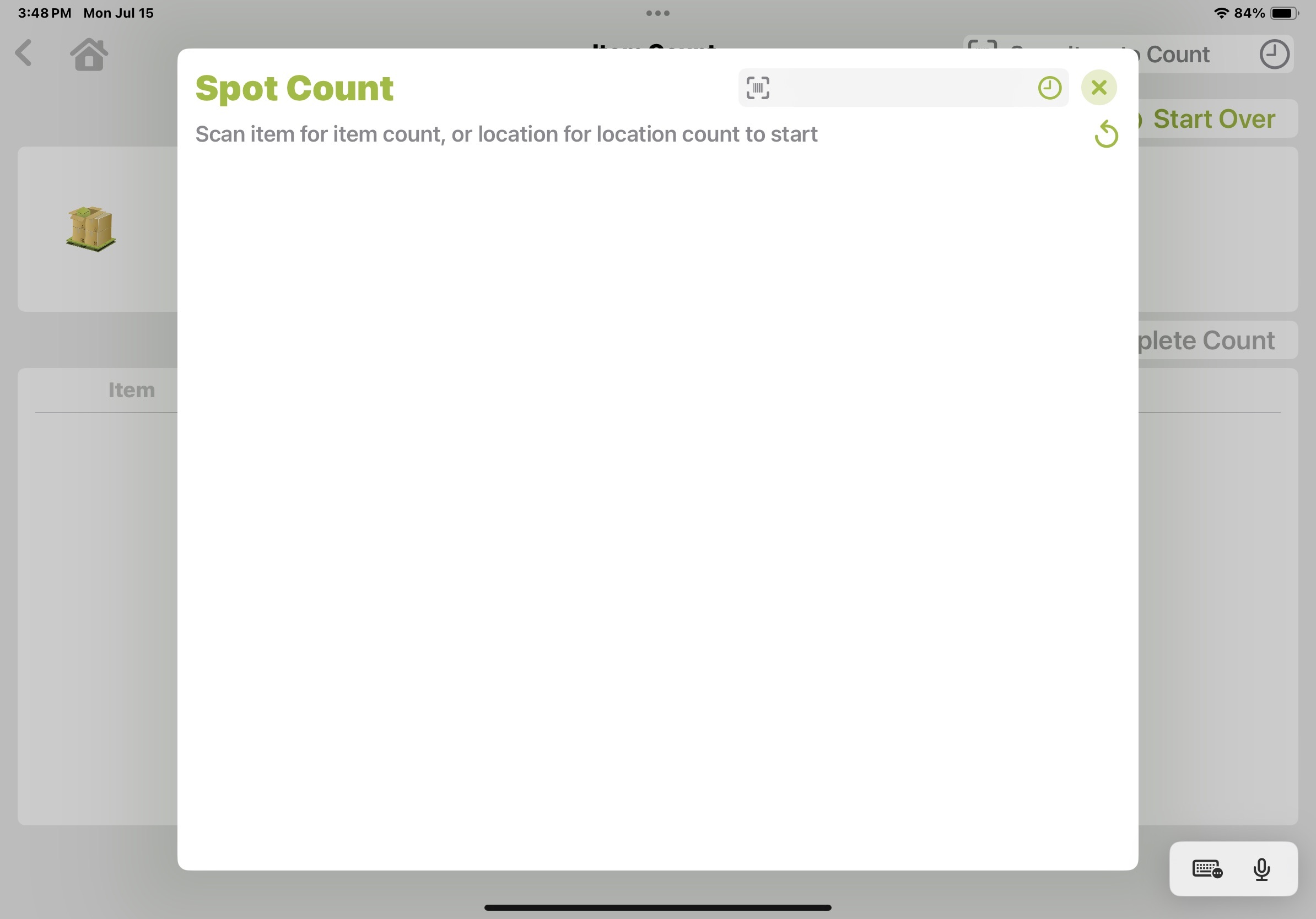
- Scan the Location
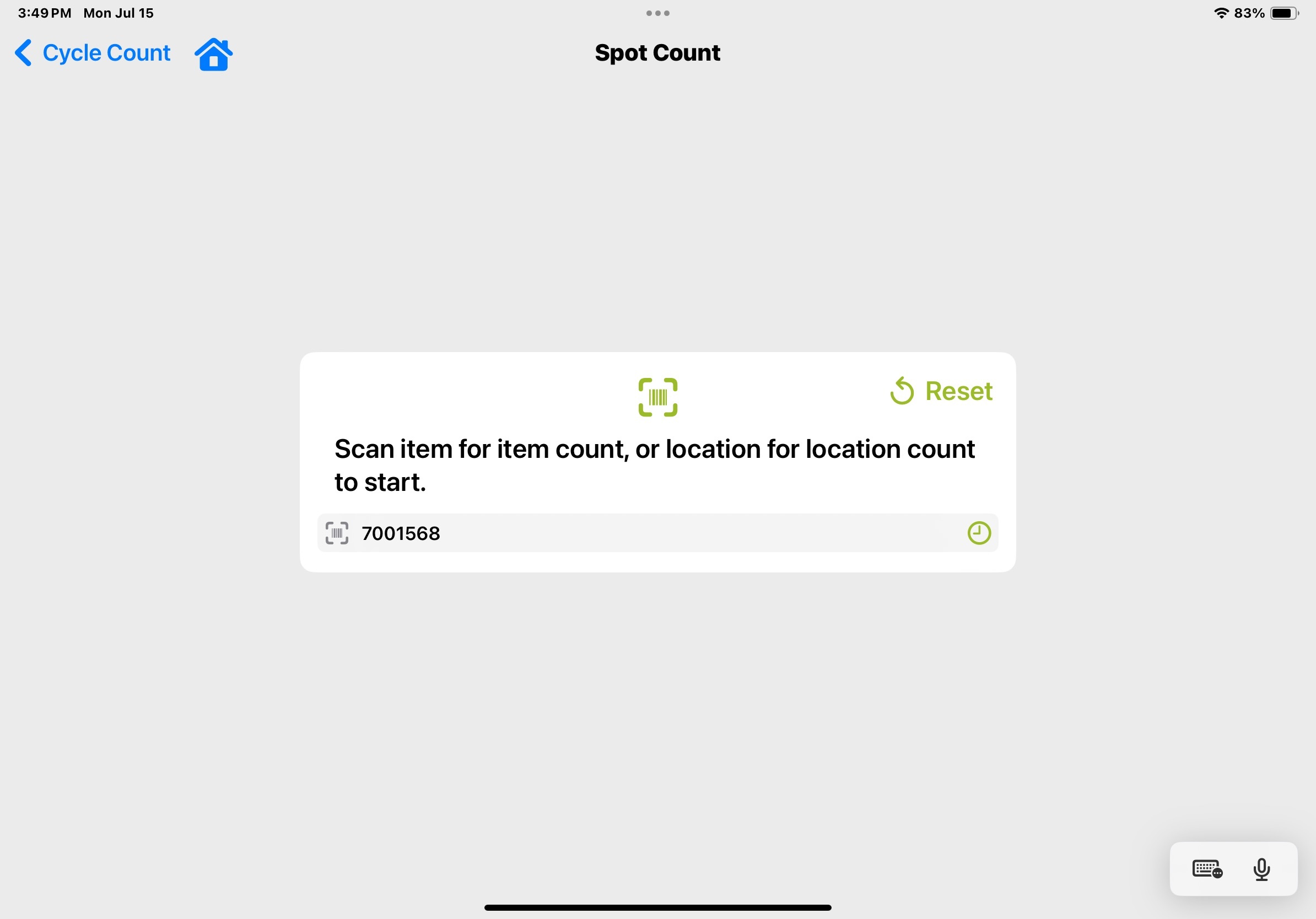
- Spot Count by Item:
- Scan the Item to be Counted
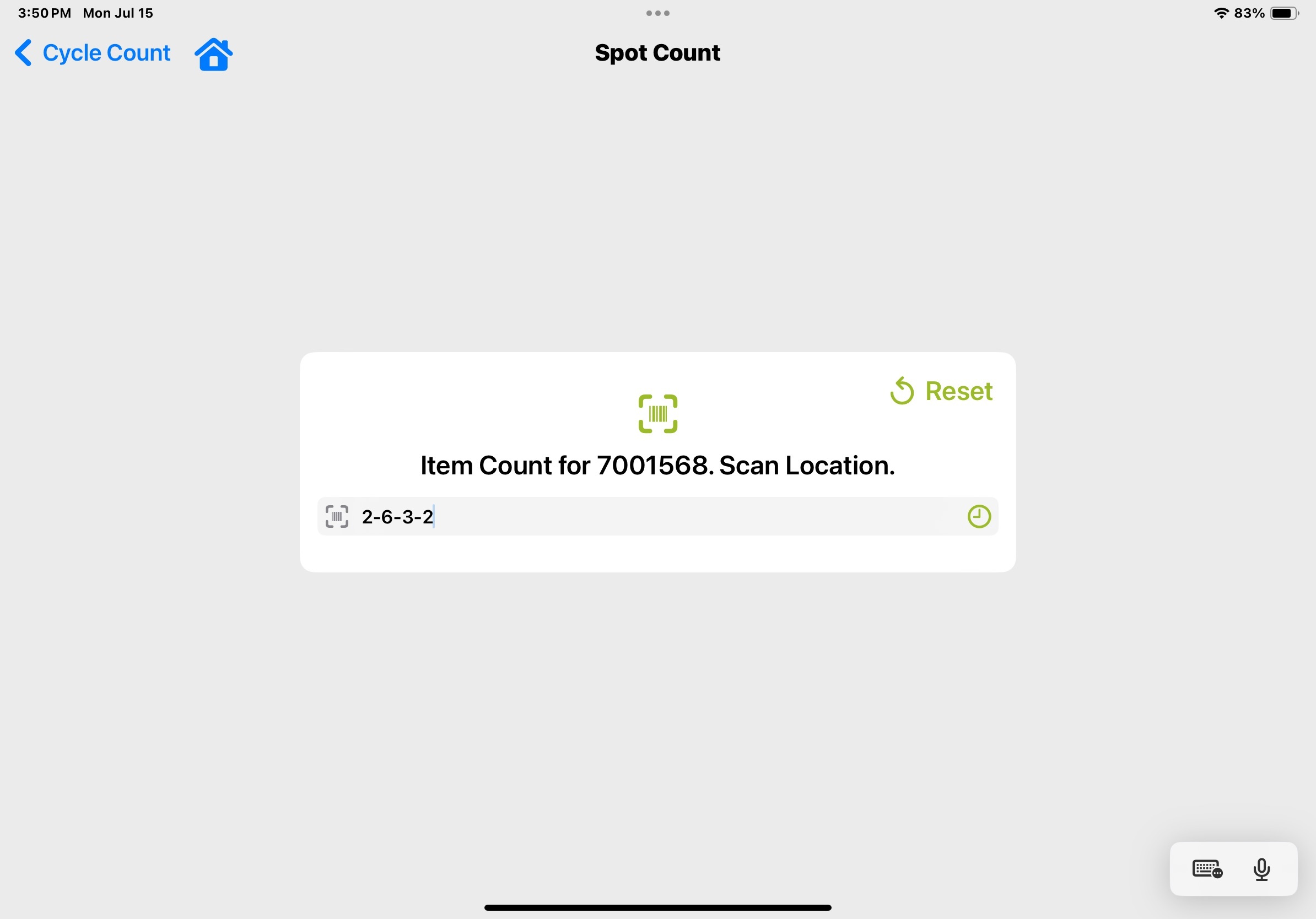
- Scan the Location to Count from
- Enter the Quantity and tap Continue
- Tap Complete Count
- Scan the Item to be Counted
Lots
If an Item is set to require Lots to be recorded, after the Item is Scanned, an additional Lot Selection Screen will pop up.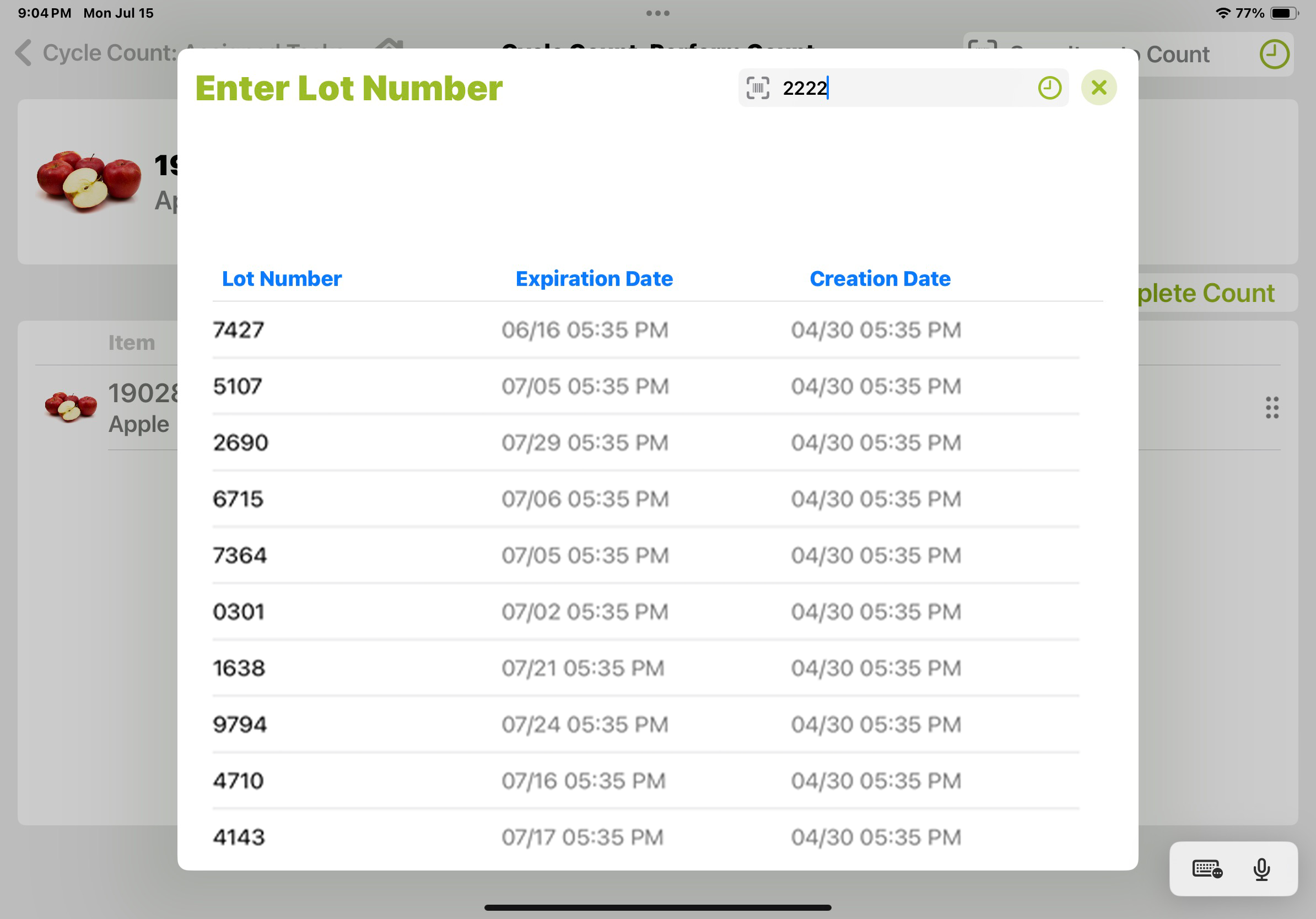
From here, a User can select a Lot Number from the List, Scan a Lot Number, or Enter a Lot Number. If a Lot for an Item requiring an expiration date is scanned/entered, and no expiration date exists in the system, an expiration date must be chosen.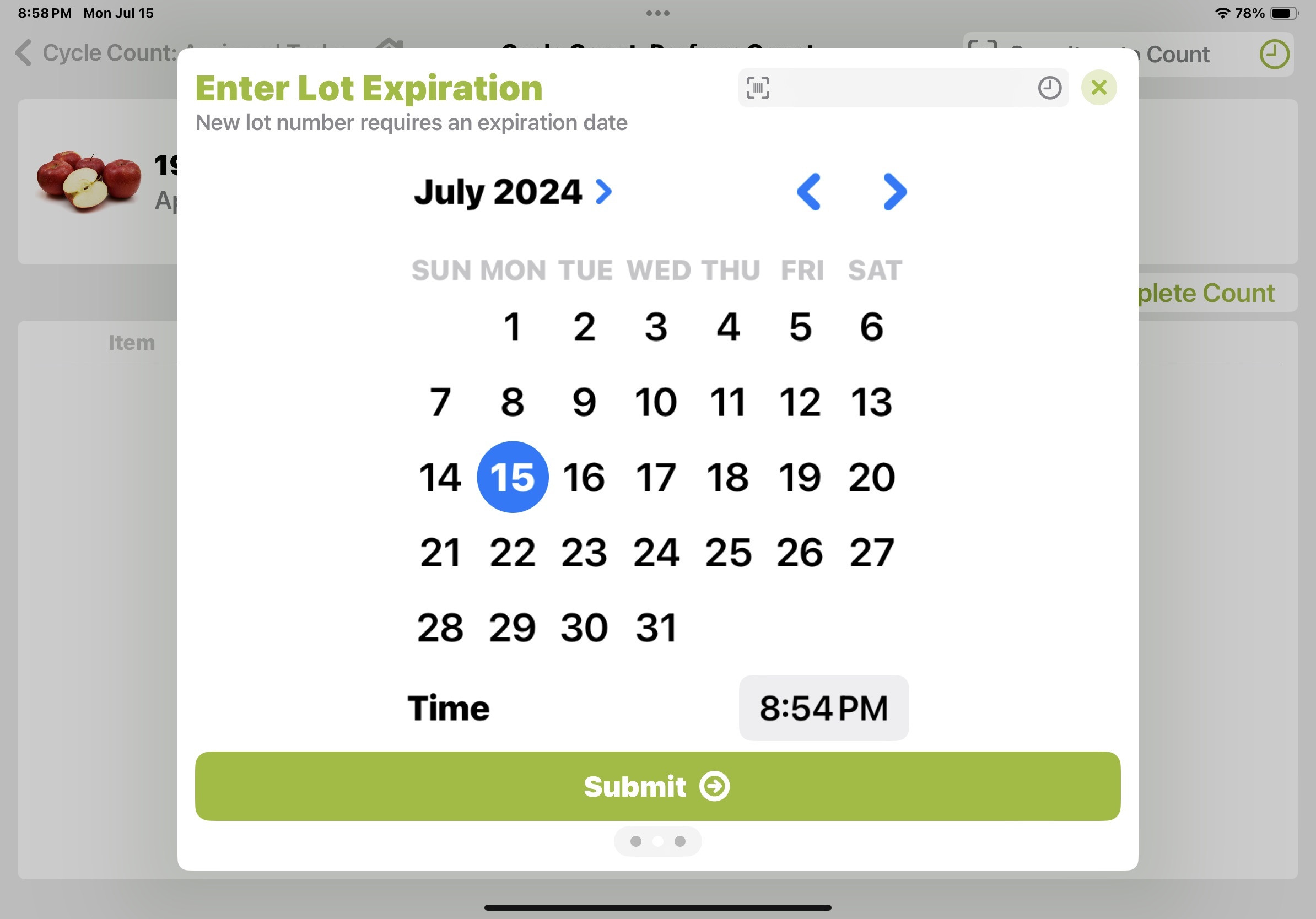
Blind Cycle Counts
If the User Group setting Enable Blind Counts is ON, the user will not see any expected items or quantities. Please note that blind counts are not currently compatible with tap functionality for cycle counting, as there will be no list of items for the user to tap on.