
Table of Contents
WOS Insight can be helpful when displayed on a large TV for the warehouse team to see what the current status is. There are a few options to automatically cycle through multiple pages. Unfortunately none of them are native to PowerBI online.
Chrome Add-In - Revolver
This add-in seems to be the simplest option to cycle through pages in a PowerBI report
Warning: WOS does not manage this add-in. The instructions and screen shots may not be updated to reflect most recent changes to either Chrome or the Add-in.
Setup the browser so that each page is displayed on a different tab Use Duplicate tab to easily open the same report and then change the page
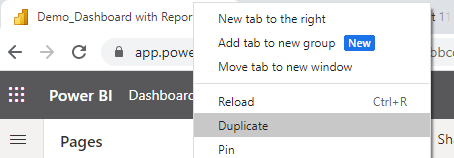
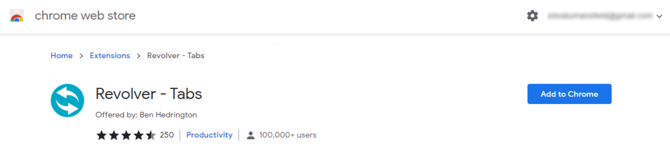
Search for the Chrome Add-in Revolver and add to Chrome (https://chrome.google.com/webstore/detail/revolver-tabs/dlknooajieciikpedpldejhhijacnbda?hl=en)
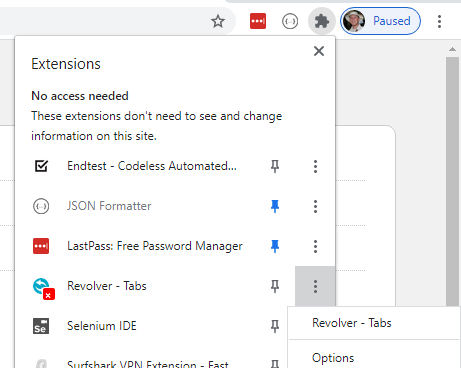
Open the Options menu for Revolver
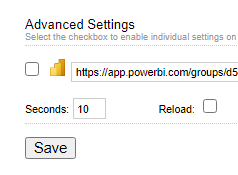
Set the number of seconds to display each page. The option to Reload shouldn't be needed with the WOS Insight reports.
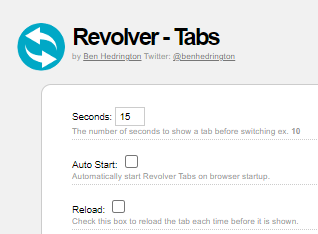
Each page can be displayed for a different number of seconds or individual pages can be reloaded if needed in the Advanced Settings
In the Chrome Extensions list, ensure the green check is on, indicating that Revolver is running
Chrome Add-In Tab Rotate
Tab Rotate seems to offer more options, but can be a little more technical to setup. It does not rotate through currently open tabs, but this also allows the tab configuration to be setup and remembered
Warning: WOS does not manage this add-in. The instructions and screen shots may not be updated to reflect most recent changes to either Chrome or the Add-in.
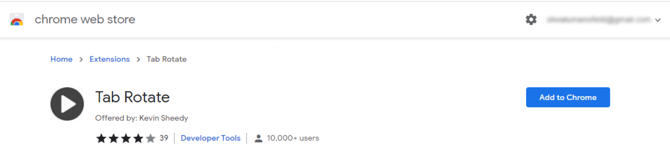
Search for the Chrome Add-In Tab Rotate and add to Chrome (https://chrome.google.com/webstore/detail/tab-rotate/pjgjpabbgnnoohijnillgbckikfkbjed/related?hl=en-GB)
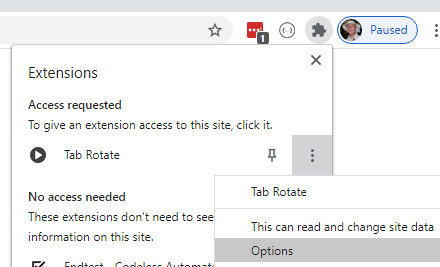
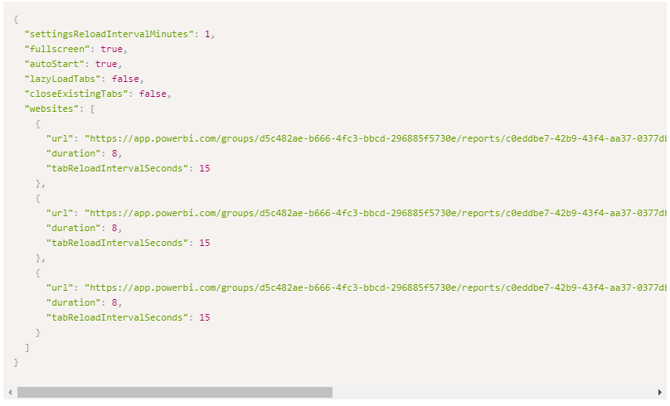
Open the Options menu for Tab Rotate
-
- Set fullscreen to true (so the browser will automatically go to Full Screen when started)
- Set autostart to true (so it will automatically start cycling through when Chrome is opened)
- For each page that will be displayed
- Paste the PowerBI Page URL into the url value
- Set the duration that each page should be displayed
- If the page should ever be reloaded (completely independent of how often it is displayed), set the tabReloadIntervalSeconds value
Open the Extensions and click on Tab Rotate to start it
Tip: If Tab Rotate was set to open in full screen, pressing F11 will exit full screen so Chrome settings can be found and configured.