- Introduction
- Production Runs Grid
- Production Run - Edit Page
- Creation of Production Runs
- Order Edit Page - Production Runs
- Assembly - WOS Fulfillment
Introduction
Production Runs are used in the desktop to track Assembly actions performed for Kitting and Work Orders. Production Runs can be made up of multiple Work Orders and kits, they are not limited to a single one.
Because Production Runs are not restricted to a single Work Order (WO) the identifier does not contain the WO number, rather shows as "PRODUCTIONxxx" and counts up based on the amount of runs in the account. Example "PRODUCTION004".
This is similar to the way batches automatically number themselves.
The Assembly app on WOS Fulfillment is the feature used on the iPad to perform the kitting process of combining component items into kit item inventory. Production Runs are the desktop list to see the work queued up or performed in the Assembly app.
Production Runs Grid
To view Production Runs in WarehouseOS go to Order -> Work Orders -> Production Runs. This grid view is pre-filtered to only show Production Runs with a status of Available, In Progress, or On Hold.
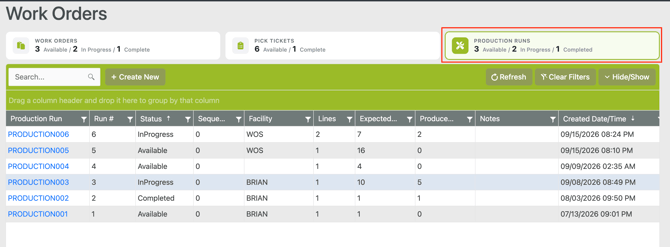 This grid includes the informational fields listed below:
- Production Run: Production Number (e.g. PRODUCTION007), also a hyperlink to an Edit page specific to the PR
- Status: Available, In Progress, Completed, or On Hold
- Sequence: Priority Sequence assigned to a Production Run
- Facility: Assigned Facility
- Lines: Work Order lines assigned to the Production Run (different from component or PT lines)
- Expected Qty: Total number of kits expected to be produced at the end of assembly for all Work Order lines
- Produced Qty: Number of kits produced in the Production Run
- Notes: Any Notes can be passed down or added
- Created Date: Date and Time the Production Run was created
- Updated By: account or user to last update or work on the Production Run
- Updated Date: Date and Time the Production Run was last updated or worked on
Production Runs - Edit Page
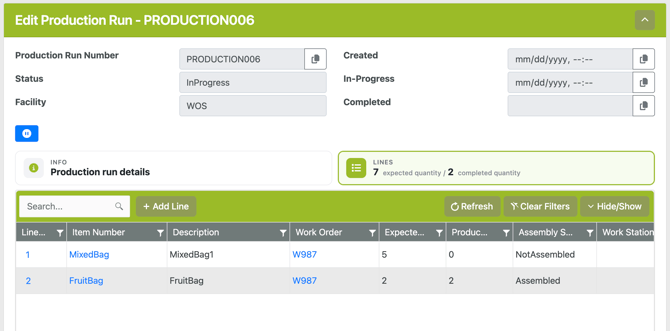
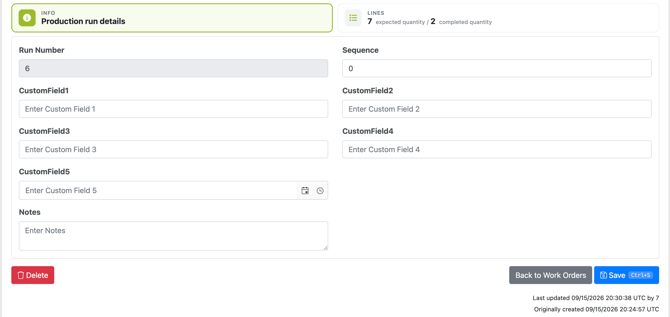
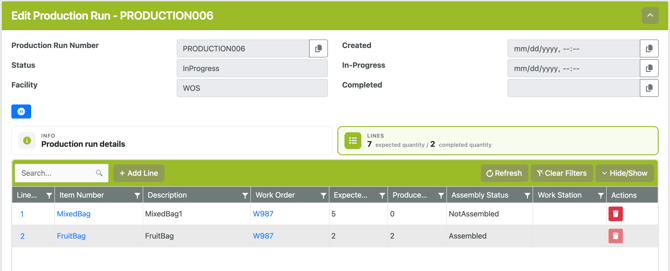
To view the Production Run details click on the Production number and it will open an edit page. The edit page contains 2 tabs: Info and Lines. The blue Pause button at the top left of the page is an option to put the Production Run on Hold making it unavailable for assembly.
Info - Production Run Details: this tab contains details about the Production Run. The Run Number is the count of PRs in the system. It also shows the Custom Fields, Sequence, and Notes. These can all be edited in this view by entering or changing a value and hitting Save at the bottom.
Production Runs can also be deleted from this view with the Delete button at the bottom left.
Lines: this tab contains a list of all Work Order lines, with their respective expected and assembled quantities.
- Item Number - Kit item assigned on the Work Order
- Work Order - Work Order the kit line exists on
- Expected Quantity - Quantity assigned from the original kit order line to the Production Run. This can be a total or partial quantity of the original order line
- Produced Quantity - Amount of kits created in the Assembly app
- Assembled Status - NotAssembled, InProgress, Assembled
- Work Station - The work station being used to assembly the kit. Production Runs are not limited to a single work station
- Delete - If the Work Order line is not yet In Progress or Assembled, it may be removed from the Production Run
Creation of Production Runs
When a Work order is created, through the API or manually in the UI, there is an option to automatically create a Production Run during the order creation. If this option is enabled, a Production Run is automatically created with all kit lines assigned. Assembly for the Production Run can be started on after components are picked, or components can be picked directly from a work station in the Assembly app,
In a Pick to Assembly process for a Work Order, a Production Run will be automatically created when the Work Order (or Cart if picked to a cart) is scanned or selected in the Assembly app. For regular processing of Work Orders, Production Runs will be a 1:1 ratio and only contain the specific Work Order line(s). Production Runs need not be considered too much for being managed or coordinated.
Create New
Because Production Runs are not limited to a single Work Order, they can also be manually created from this grid view using the Create New button on the top of the grid. When manually created, eligible Work Order lines from multiple orders may be selected and assigned to the Production Run.
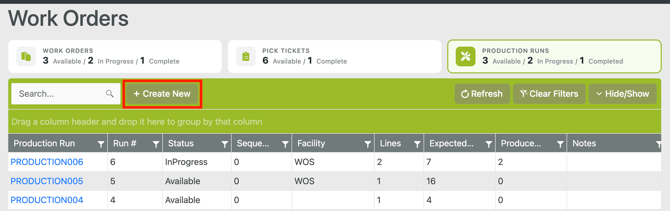
- Create New - open to the Info tab view
- Select a Facility - this important because only Work Order lines that match the selected facility will be eligible for assignment
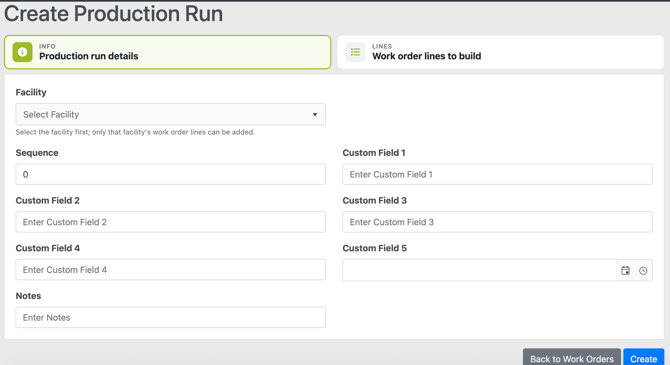
- Add any other notes or custom field information
- Go to the Lines tab view
- Add Production Run Line
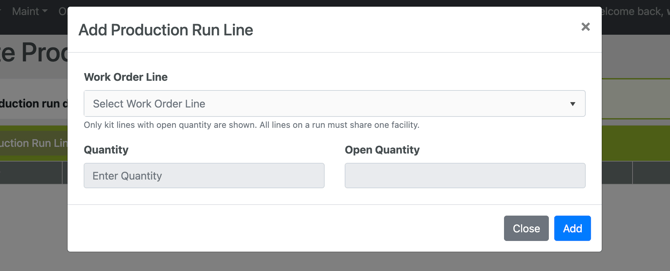
- Select an eligible Work Order line
- To be eligible a Work Order line cannot already be assigned to a Production Run and the Work Order must be assigned to the selected Facility
- Once all details and Work Order lines have been added, click Create
Order Edit - Production Runs
Production Runs assigned to a Work Order can also be viewed on the Work Order's Edit page. Clicking into a Work Order number opens the Edit page, where a Production Run tab is visible.
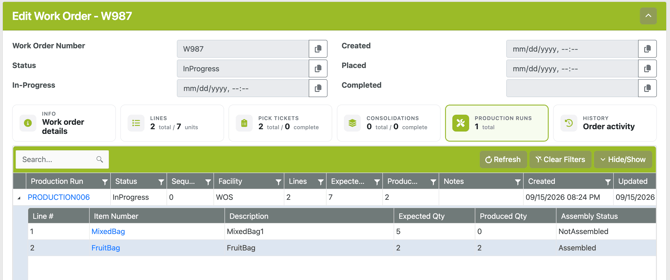
The Production Run tab view contains a nested grid showing any PRs the Work Order lines are assigned to. The parent grid is an overview of the Production Run status, facility assignment, and summaries of how many lines from this Work Order are assigned and expected to be assembled.
Be aware that the Production Run may contain additional lines and expected quantities not listed on this Edit page; this view is configured to only calculate and show the lines from the specific Work Order.
The child grid lines nested in the Production Runs show the Work Order Lines assigned. Fields will include a link to the kit Item Number and Item Description, Expected and Produced Quantity, and Assembly Status. The quantities fields will update as kits are produced in the Assembly app.
Assembly - WOS Fulfillment
Production Runs (PR) show a record in the desktop of kit items that have been produced through the Assembly app. The Assembly app does not require a Production Run to be created before processing, a Work Order or Cart can be selected to work on instead of a PR. However when any order or kit is assembled within the app it will be automatically assigned to a new PR to store a record.
If Work Order lines are assigned to a Production Run before processing, they show a status of NotAssembled. When the line is selected within the Assembly app to be worked on, the status changes to In Progress and will populate the Work Station. When the Production Run line's expected quantity has been filled, the status will update to Assembled.
For further details on the Assembly app and how components are converted into kit inventory, please review the Assembly - WOS Fulfillment article.