
Table of Contents
WMS Fusion is the name of the mobile application developed for the iPad. The app is referred to as WMS Fusion which directly interfaces with WOS Manager and is not operational on its own without WOS Manager. WMS Fusion is how the app is referred to within the documentation. In the Apple Appstore, the name of the app is WMSFusion 3.
WMS Fusion is now a legacy app of WarehouseOS. All operations are currently being migrated to the new app WOS Fulfillment. WMS Fusion will be deprecated in early 2027.
Download the WMS Fusion App
- Ensure a system administrator has established an Apple ID and provided access to the App Store
- Make sure the iPad is connected to the internet
- In the Apple App Store, search for WMSFusion 3 OR scan the App Store QR code from Site Settings (In WOS Manager, go to the settings menu in the top right of the screen and select Site Settings)
-
Select the latest version and install the app
Note: There is a WarehouseOS app in the App Store that was developed for iPods and has limited functionality. Ensure you have searched for and found the WMSFusion 3 app that was designed for iPads.
Configure the App
Review the Devices documentation for how to configure and register the device with WOS Manager
Disable Demo Mode
Tip: Before accessing functionality on the iPad one of the necessary steps is to Disable Demo Mode. When first logging into the app, the default screen will be displayed in Demo Mode.
To DISABLE Demo Mode
Open the app
Click on the i About logo on the bottom right of the screen
This will prompt the the following pop up screen and tap DISABLE Demo Mode

Once you have disabled demo mode the process is complete when the green button has been switched to ENABLE Demo Mode.
Tap anywhere on the screen and follow the rest of the setup below to configure and log into device.

Login
After the device has been configured the initial user can log in and register the device in WOS Manager.
Note: The user must be created in WOS Manager before being able to log in through WMS Fusion. Review the WMS Fusion Users documentation explaining how to add users.
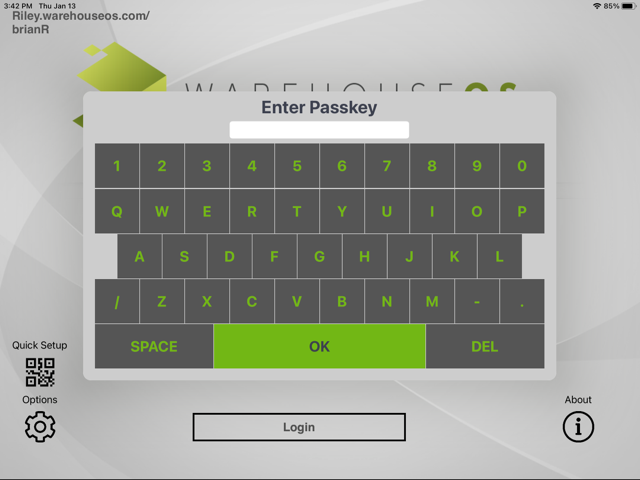
- Touch the Login button at the bottom center of the key
- Enter the Passkey setup when the desired user was created
-
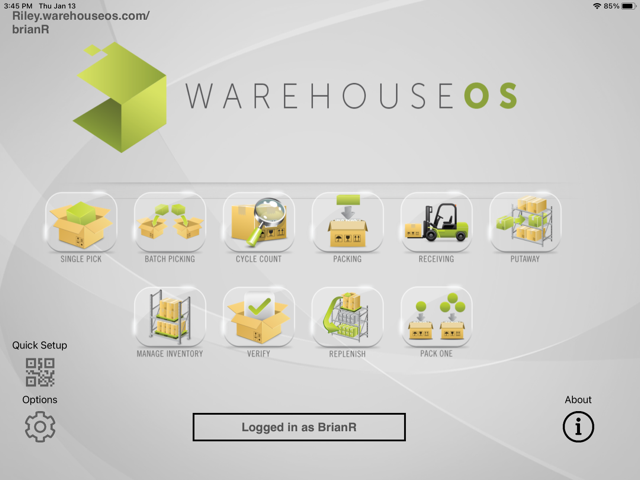
- If the passkey was correct and the user is logged in, it will display all the apps available to that user
-
Click "Logged in as [user]" to log out.
Adjust Keyboard Settings
Because scanners are connected to the iPad as a Bluetooth keyboard, all of the iPadOS auto-complete functionality can affect the input from the scanner. To control this effect, we recommend turning off these keyboard settings on the iPad. The location of these settings can change. But they are typically found under General -> Keyboard.
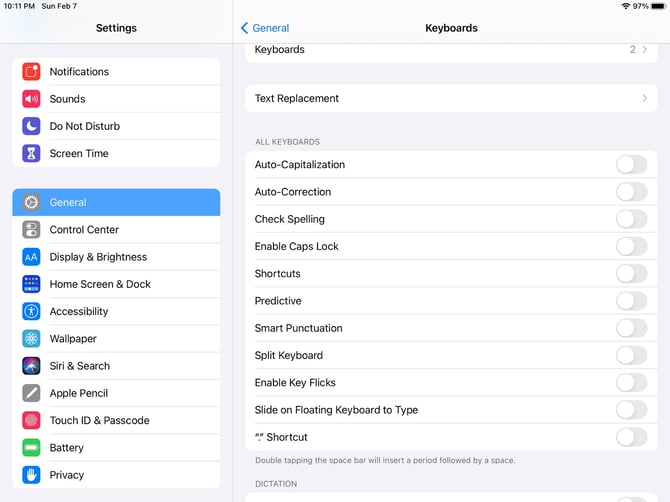
As an example, with all of the keyboard settings turned on, scanning a barcode that said "Unitech" into the Notepad app auto-corrected to "Unite him". With all of the keyboard settings turned off, it scanned properly as "Unitech".