
WarehouseOS has a Shopify app that can now be used to connect the two systems for an integration.
Connect a New Shopify x WOS Integration
Below is a video demonstrating the connection process. Steps are also outline below that can be followed.
Complete the following steps to connect a Shopify store to WOS using the Shopify x WOS app:
- Install the Shopify x WOS app.
- Open the Shopify App Store listing: https://apps.shopify.com/warehouseos
.png?width=670&height=431&name=image%20(9).png)
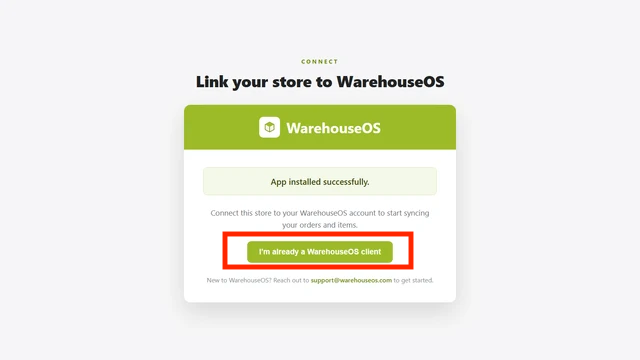
- Once the app is installed and this image displays, select I'm already a WarehouseOS Client.
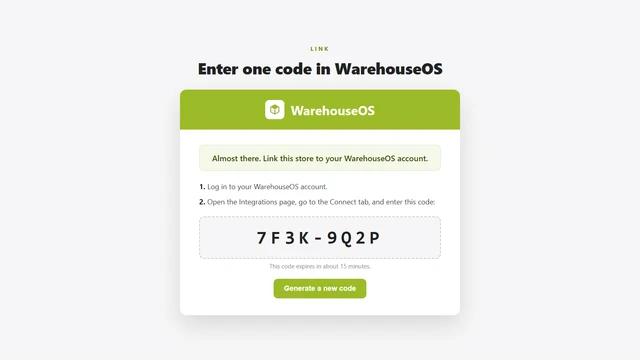
- Shopify will provide an authorization code to copy.
- In WOS, navigate to Admin > Integrations > Connect > Shopify.
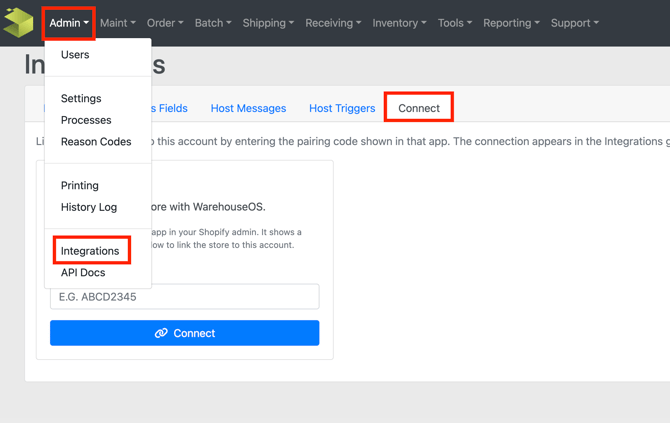
- Paste the authorization code into the appropriate field to complete the connection.
- Open the Shopify App Store listing: https://apps.shopify.com/warehouseos
- Monitor the provisioning status.
- In WOS, navigate to Admin > Integrations and locate the Standard Shopify integration.
-
- Review the Provisioning Status column.
.png?width=670&height=261&name=image%20(11).png)
- The status will display Provisioning while the integration is being configured. Setup typically completes within approximately 10 minutes.
- Once setup is complete, the status will change to Live. Refresh the page periodically to view status updates.
-1.png?width=670&height=103&name=image%20(13)-1.png)
- Review the Provisioning Status column.
- Verify the app connections.
- In WOS, navigate to Admin > Integrations and open the Standard Shopify Integration.
- Select the App Connections tab.
.png?width=670&height=145&name=image%20(14).png)
- Confirm that both Shopify App Connection and WarehouseOS App Connection display a status of Authorized.
.png?width=454&height=249&name=image%20(12).png)
Note: The integration is ready for configuration and use after the Provisioning Status is Live and both app connections display Authorized.
Existing Integration Transition to the Shopify x WOS App
If a Shopify integration is already configured with WOS, complete the additional steps below to migrate from the existing custom app to the new Shopify x WOS app.
When transitioning from the custom app to the new app in Shopify, please be sure to coordinate with the WOS team to ensure steps are taken on our end to facilitate a successful switch. Otherwise connection downtime could occur.
-
Add the Base URL and WOS credentials to the Shopify App connector in WOS.
- This step needs to be completed by the WOS Team.
- Uninstall the existing custom WOS app from Shopify.
- This step only applies if a custom WOS app was previously installed in the Shopify store.
- Install the Shopify x WOS app.
- Open the Shopify App Store listing: https://apps.shopify.com/warehouseos
.png?width=545&height=350&name=image%20(9).png)
- Once the app is installed and this image displays, select I'm already a WarehouseOS Client.
- Shopify will provide an authorization code to copy.
- In WOS, navigate to Admin > Integrations > Connect > Shopify.
- Paste the authorization code into the appropriate field to complete the connection.
- Open the Shopify App Store listing: https://apps.shopify.com/warehouseos
- Verify the app connection.
- In WOS, navigate to Admin > Integrations click into the Main Integration.
- Select the App Connections tab.
- Confirm that the Shopify App Connection status displays Authorized.