
TABLE OF CONTENTS
An Order in WarehouseOS is simply a grouping of Order Lines where each Order Line consists of an Item and a Requested Quantity. Orders are typically imported via the Host API but can be manually created.
Edit Order Page
Order details can be viewed on the Edit Order page.
- In WOS Manager, go to Orders -> Orders
- Click the Order Number of the Order you'd like to view
- This will open the Edit Order page
The top section of the Edit Order page displays system information that is created or updated by WarehouseOS as the order progresses through the system.
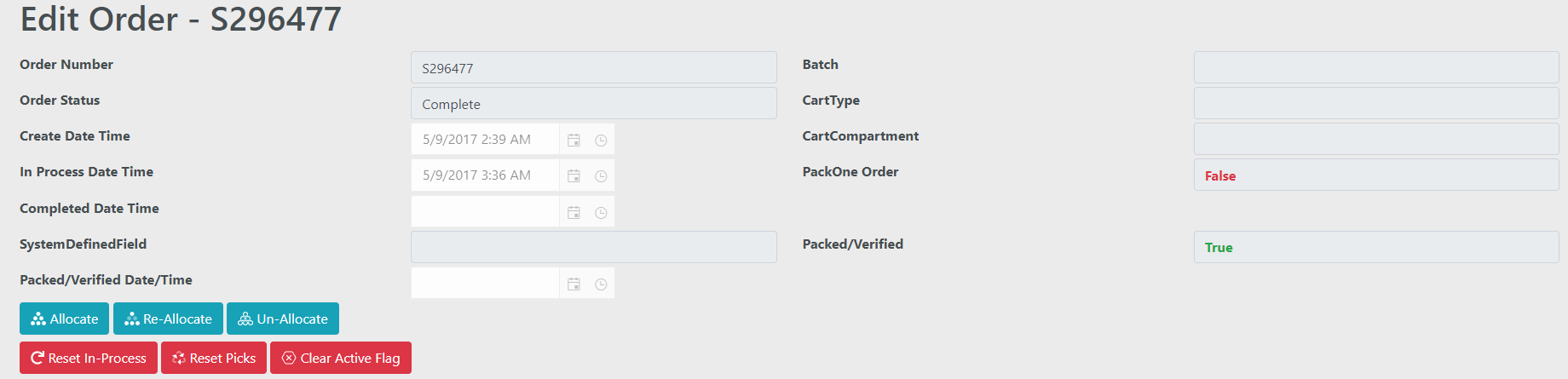
WarehouseOS System Fields
- Order Status
- Hold - An order may be placed on Hold at any time prior to the order being completed
-
Available - The order is available to be batched or pulled to a tablet to be single picked
-
In process - The order has been assigned to a specific device (iPad) for picking. It may be currently active on the device or just assigned to the device
-
Complete - Order has been Picked to completion. The order is no longer active and cannot be reactivated without resetting all of the picks on the order and starting from the beginning
-
Complete and Packed - Order has been completely Packed. The order Status is Complete and a flag on the order indicates that it has been Packed
-
Complete and Verified - Order has been completely Verified. The order Status is Complete and a flag on the order indicates that it has been Verified
-
Created Date Time
- This date can be set when the order is created, allowing this date to represent some value from the host system
- If the date is not set when the order is created, the date is set with a timestamp of when the order was created in WarehouseOS
- In Process Date Time
- The date the order was assigned to a tablet and the order had started picking
- Completed Date Time
- The date the order was picked complete
- Packed/Verified Date Time
- The date and time the order was packed or verified complete
Tab Views
The Edit Order page has several tabs that hold different types of information about the order. To navigate them, simply click on the tab header to view. Tabs include the following and will be detailed below:
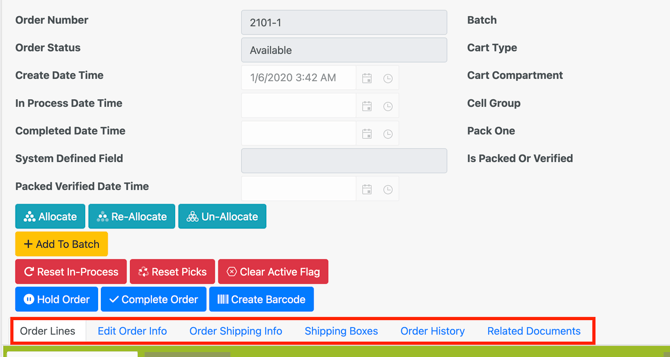
Order Lines
Order Lines is the defaulted tab view upon opening the Edit Order page and includes all order lines on the order. As previously defined, an order lines consists of an item and a quantity. In this grid view, columns also display related information to the lines:
| Pick Location | Location allocated to initially, updated if picked from another location |
| Home Location |
If item has a Home Location assigned, shown here |
| Picked Qty |
Quantity actually picked, this will show highlighted in Red if below the original quantity |
| Pick Zone |
Zone allocated to or picked from |
| Lot # |
Lot number assigned during picking |
| Status |
Available, Picked, or Packed |
| Active Flag |
True if currently on a Device, otherwise False |
| Device | Device that picked the line |
| Picked By | User that picked the line |
| Cart | Cart the line was picked to |
Edit Order Info
Expand the Edit Order Info section to see the other order fields that can be edited through the Edit Order page. These values can be changed by editing their values and clicking Save at the bottom of the Edit Order Info section.
- Order Pick Method
- Either - Order can be picked with any method (this is the default option)
- SinglePickOnly - Order must be picked one at a time through Single Pick.
- BatchPickOnly - Order can only be picked as part of a batch through Batch Pick
- Area
- When using the Area Allocation logic, if an order is assigned to an Area then allocation is restricted to locations within that area. See Areas for more info
- Sequence
- When using Single Pick, orders are assigned to devices in priority sequence order. Order Priority is sorted in ascending order so that 1 comes before 10.
- In the Batch Build page, orders can be sorted by Order Priority to identify and batch those of higher priority
- This is a field that can be set automatically by an integration based on order criteria
- Order Custom Fields
- CustomField1-4 are text format and CustomField5 is a date/time format
- Custom Fields can have a custom label applied so that they are easier to identify in the data grids throughout the site. This can be done by following the instructions in Custom Field Labels
- Barcode Data
- This is the value that is presented in the Order Barcode during Packing or Verify
- If not provided on order import, the Barcode value is set to be the Order Number. This field can be any value if necessary and should be set on order creation if needed. For example, a partial order may have an incremental value in the Order Number field (123456-3), but the Barcode value should still be the original order number (123456)
Order Shipping Info
This tab contains order fields related to shipping. These can be viewed or edited from this page. Most often these fields are filled from the Host System, with others populated through processing; but can be manually input as well.
| Street 1, Street 2, City, State, Country, Postal Code |
Customer shipping address |
| Address Validation Status | If using Address Validation integration, this will show as "Validated" or "NotValidated" |
| Address Validation Message | Any error messages related to address validation |
| Shipping Notes | Another Note field, separate from Order Notes |
| Gift Message | Message from Customer to Addressee |
| Ship Method | Shipping option chosen at checkout |
| Shipping Carrier | Carrier set by shipping rules |
| Shipping Service | Carrier and Service used in Label Creation |
| Shipment Type |
- LocalPickup - to be picked up not shipped - PerBoxLabel - shipping label per individual shipping box - PreGeneratedLabel - shipping label created after pick complete - PackSlipOnly - no shipping label automation, only packing slip generated |
| Default Box Configs | Package Dimensions set by automation rules or manual selection |
| Single Box Tracking Number | Tracking number for first shipping label |
| Total Value | Cost of goods on order |
| Total Shipping Cost | Cost of shipping labels |
| BOL Number, Pro Number, Stop Number | |
|
Local Pickup Spot, Pickup Date Time |
Shipping Boxes
This view displays a list of shipping boxes created to pack the order.
| Box Label | Also known as Shipping LPN |
| Box Number | Number of the box created |
| Status | "In Process" if not closed yet, "Complete" if box is closed |
| Device | Device that opened the box |
| Total Lines | Count of Order Lines packed into the box (not indicative of item quantity) |
| Dimensions | Package dimensions assigned during packing |
| Box Weight | Box weight |
| Box Configs | Box Config name, if selected |
| Tracking Number | Tracking number of shipping label for the box |
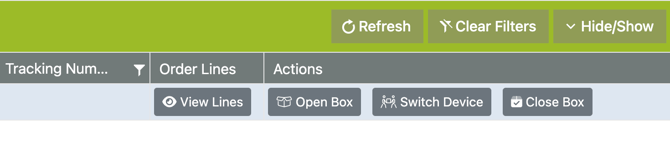
At the far left of the grid are buttons available:
- View Lines - will show a pop up of which order lines and item quantities were packed in the shipping box
- Open Box - able to reopen a box from WOS Manager
- Switch Devices - able to reassign box to another device to view and interact with the box (not needed in WOS Fulfillment, any device can see all boxes)
- Close Box - able to close a box from WOS Manager
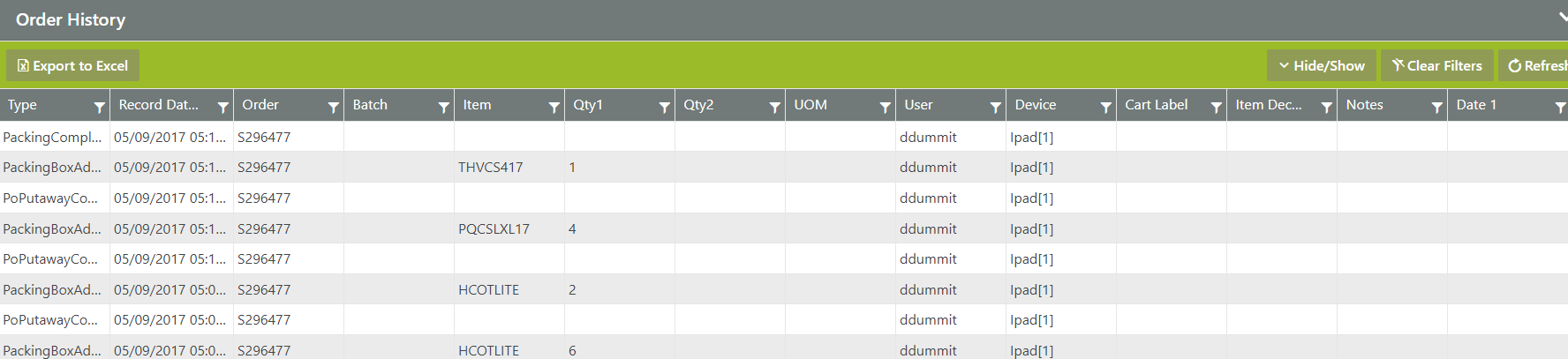
Order History
The Edit Order page contains a pre-filtered History Log to show all the history related to the order, including creation through picking and packing.
Related Documents
This view displays any documents added to the order during processing. At the far left of the grid is a "Show" button that will display a print preview of the document and is able to be printed directly from the computer.
If the integration is controlled by WOS, these are the document types to view:
- Shipping Labels
- Packing Slips
- Error Labels - if unable to generate a shipping label
- Custom Docs - these can be work order forms, customer gift notes or messages, package fill form, etc. If you have a document to generate for a processed order please reach out to support@warehouseos.com for help designing and generating the documents
Delete Order
An order can be deleted either through the API or manually on the Edit Order page. Orders are locked once they are added to a batch. They cannot be deleted through the API once they are locked. To delete a locked order through WOS Manager, the order must be removed from the batch and have the in-process status reset.
- Go to the Edit Order page for the order
- Expand the Edit Order info section
- Click Delete
- When the confirmation page loads, click Delete again