
TABLE OF CONTENTS
An Item Bundle is sold to a consumer as a single unit, but it is comprised of multiple components that are inventoried separately and must each be picked.
When Orders are created through the API, it looks for matches inside of the system to line up the line item to a corresponding item in WOS. If it finds a matching Item Bundle, it will split the order line into each component so that each component Item can be picked.
Note: When an Order identifies a matching Item in WOS, it uses the following list of rules. It stops as soon as it finds a match.
1. Match from the list of Items
2. Match to an Alias that has been configured on 1 and only 1 Item
3. Match to an Item Bundle
4. If no matches are found above, a new Item is created in WOS
Because of this process, if the same Item Number ends up being created as both an Item and a Bundle, Orders will link back to the Item and will not be split out for each component of the bundle.
Create an Item Bundle
- Go to Maint -> Item Bundles
- Click on Create New
- Enter the Bundle Number and the Bundle Description
- Bundle Number is required and is should match the SKU/Item Number that will come through on Orders
- Bundle Description is only used to help identify and manage bundles and is not used anywhere else
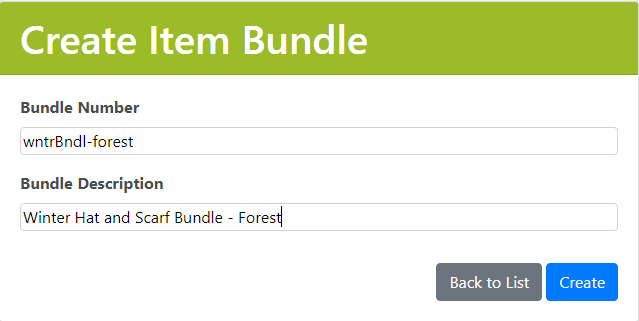
- Click Create
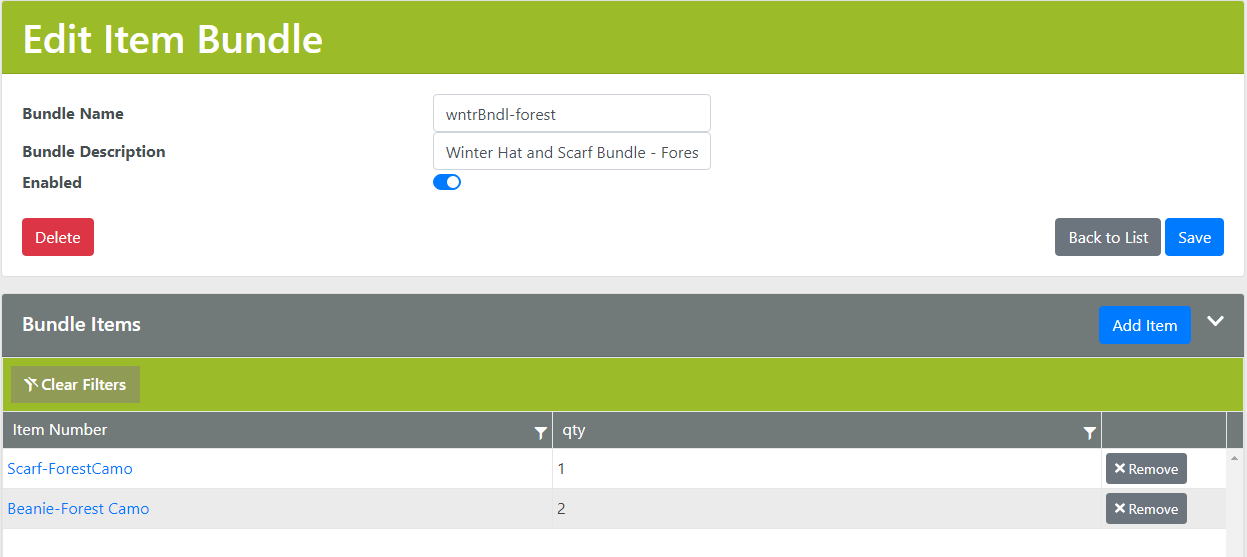
- On the Edit Item Bundle, add Items to the Bundle Items section
- Click Add Item and enter the Item Number and Quantity
- The Quantity represents how many of that Item is in the Bundle
- If the Bundle contains 2 hats, and a customer orders 3 Bundles, the User will be directed to pick 6 hats
- Click Save Changes
The Bundle will now show the Items and Quantity of all the components of the bundle
Bundle Usage
Using the example bundle above, when an Order is created through the API and includes the Item Number "wntrBndl-forest", it will split the line to each component and multiply the quantity.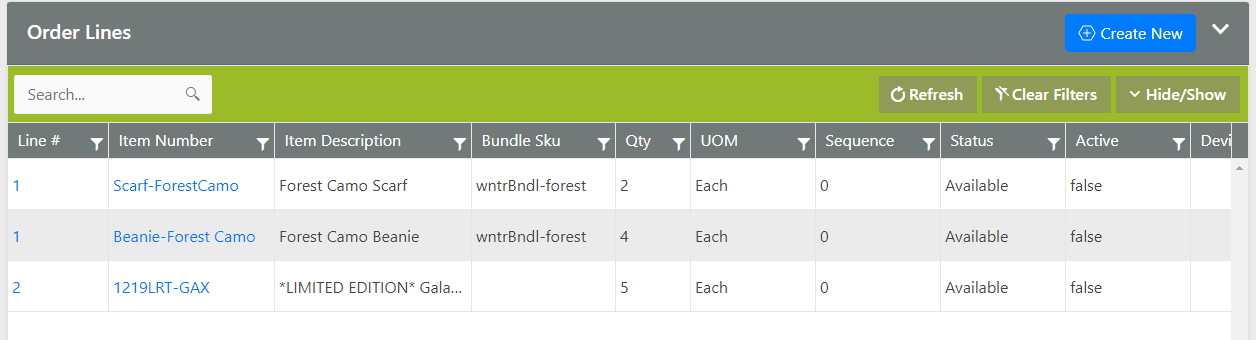
There is not currently a way to split an order line into its components once the order comes to WOS. If this is necessary, the Order will need to be deleted and resent through the API. Please reach out to support@warehouseos.com for help.
Convert Item to Bundle
An action on the Edit Item page allows an Item to be converted to a Bundle. In the conversion pop-up, the Bundle description can be updated and components added.
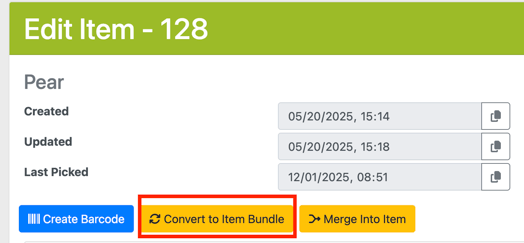
Note: If the Item is tied to Inventory it CANNOT be converted into a Bundle. If an attempt is made an error message will inform of existing inventory that needs to be removed before converting.
If an Item is tied to existing Orders Lines, when converted to a Bundle, the order lines will be broken out into the corresponding Bundle components upon the conversion.
Bundle Inventory
WarehouseOS doesn't have a native aggregate function to show bundle inventory on the Inventory or Inventory Summary pages. To view inventory by bundle sku and component, there is a data grid option under the Reporting -> Reports tab, called "Bundle Inventory."
This grid displays bundle skus broken out by individual components with respective inventory. The Total Bundles Available shows the number of complete bundles that could be picked or assembled. This is calculated by taking the lowest inventory of any of the components, this includes calculating for the quantity required for the bundle. In the example image, the wntrBndl-forest has 14 total inventory because the Beanie-ForestCamo has 28 available inventory, and 2 are required for each bundle.
