
TABLE OF CONTENTS
- Perform Cycle Counts From WOS Fulfillment
- Auto Apply Cycle Count
- Cycle Count Permissions
- Confirm Cycle Counts
- Recounts
- Creating Cycle Count Tasks
- Cycle Count Work Queue
- Aggregate Count
Perform Cycle Counts From WOS Fulfillment
To perform Cycle Counts in the New WOS Fulfillment App, the "Perform Cycle Counts From" setting needs to be set to "WosFulfillment."
Admin -> Settings -> System Configuration -> Perform Cycle Counts From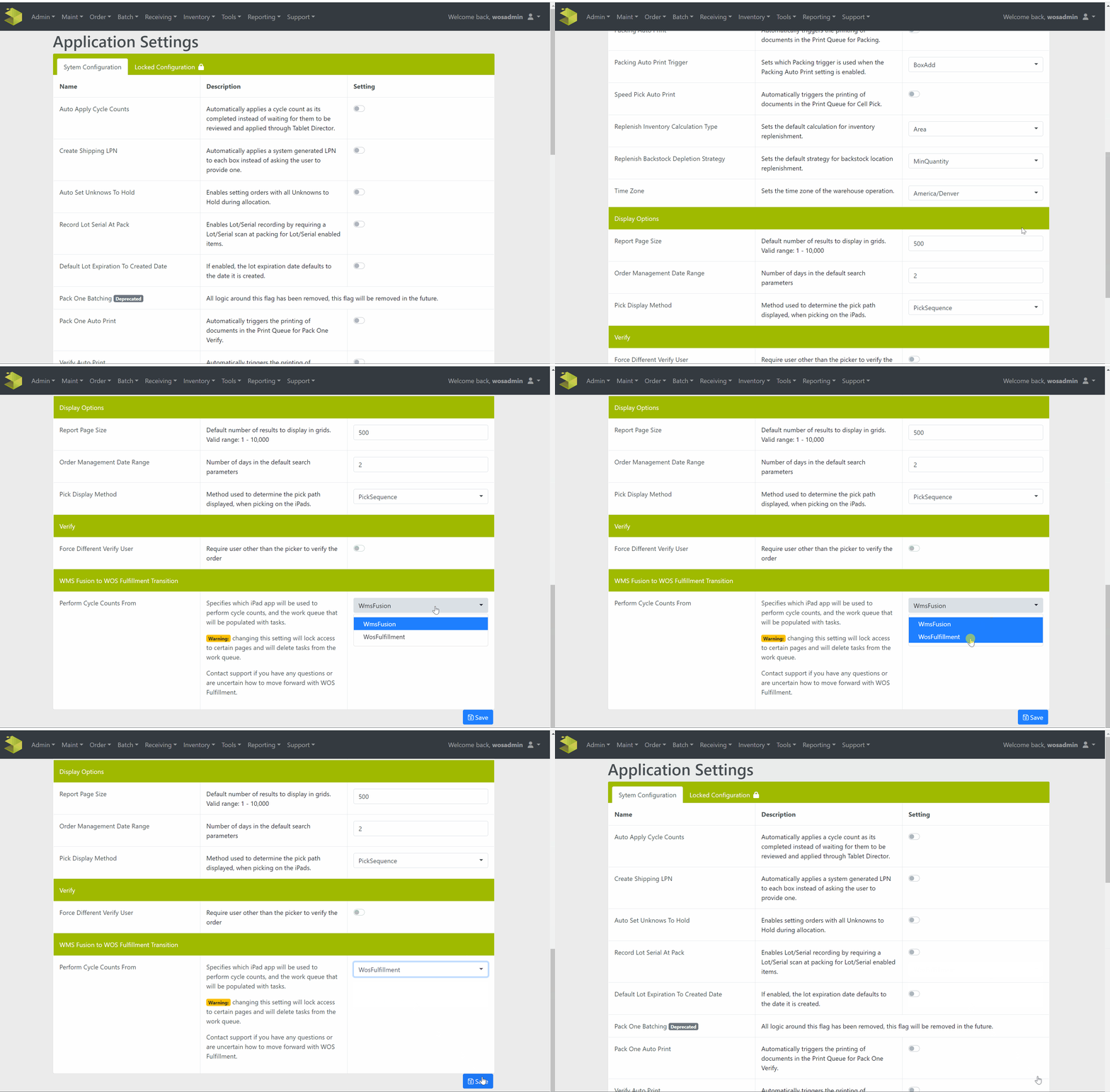
Auto Apply Cycle Count
Warning: Auto Apply Cycle Count app permission should be applied carefully. When this is enabled, inventory counted in the cycle count app requires no review or approval before inventory is updated
WOS Manager Cycle Count settings provide flexibility in how the Cycle Count Process is to be managed. The most important setting is Auto Apply Cycle Counts.
Admin -> Settings -> System Configuration -> Auto Apply Cycle Counts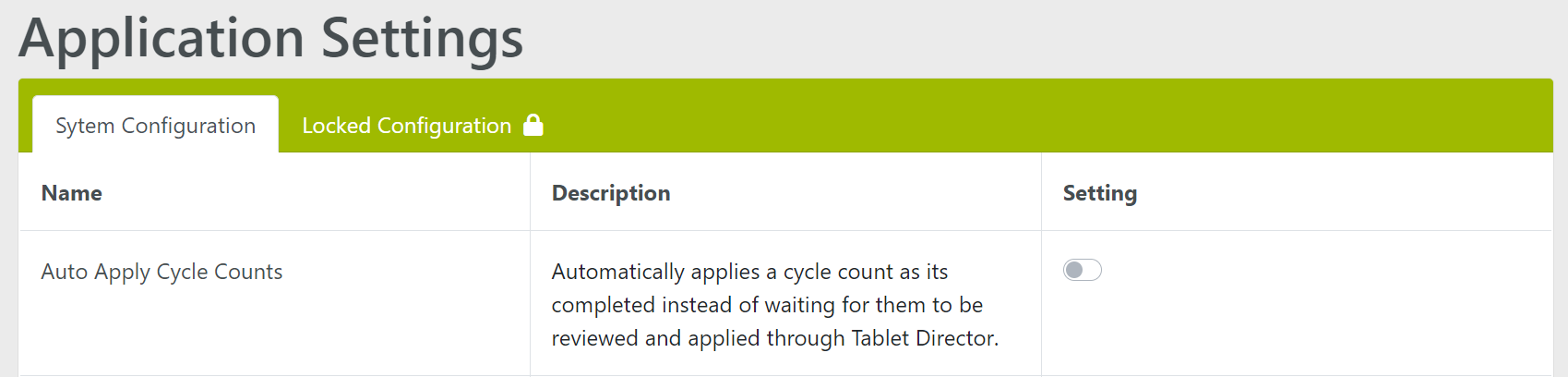
The Auto Apply Cycle Counts setting dictates if the Cycle Count Process is 1 step or 2:
- Enabled – The Cycle Count function on the iPad app manipulates inventory data in real-time. As the User completes each count the inventory is being adjusted.
- Disabled – Cycle Counting becomes a two-step operation. First, the Cycle Count function on the iPad records the inventory counts BUT does not adjust the inventory data in real-time. The WOS Manager Cycle Count Confirm screen is then used to review and verify the cycle counts.
Cycle Count Permissions
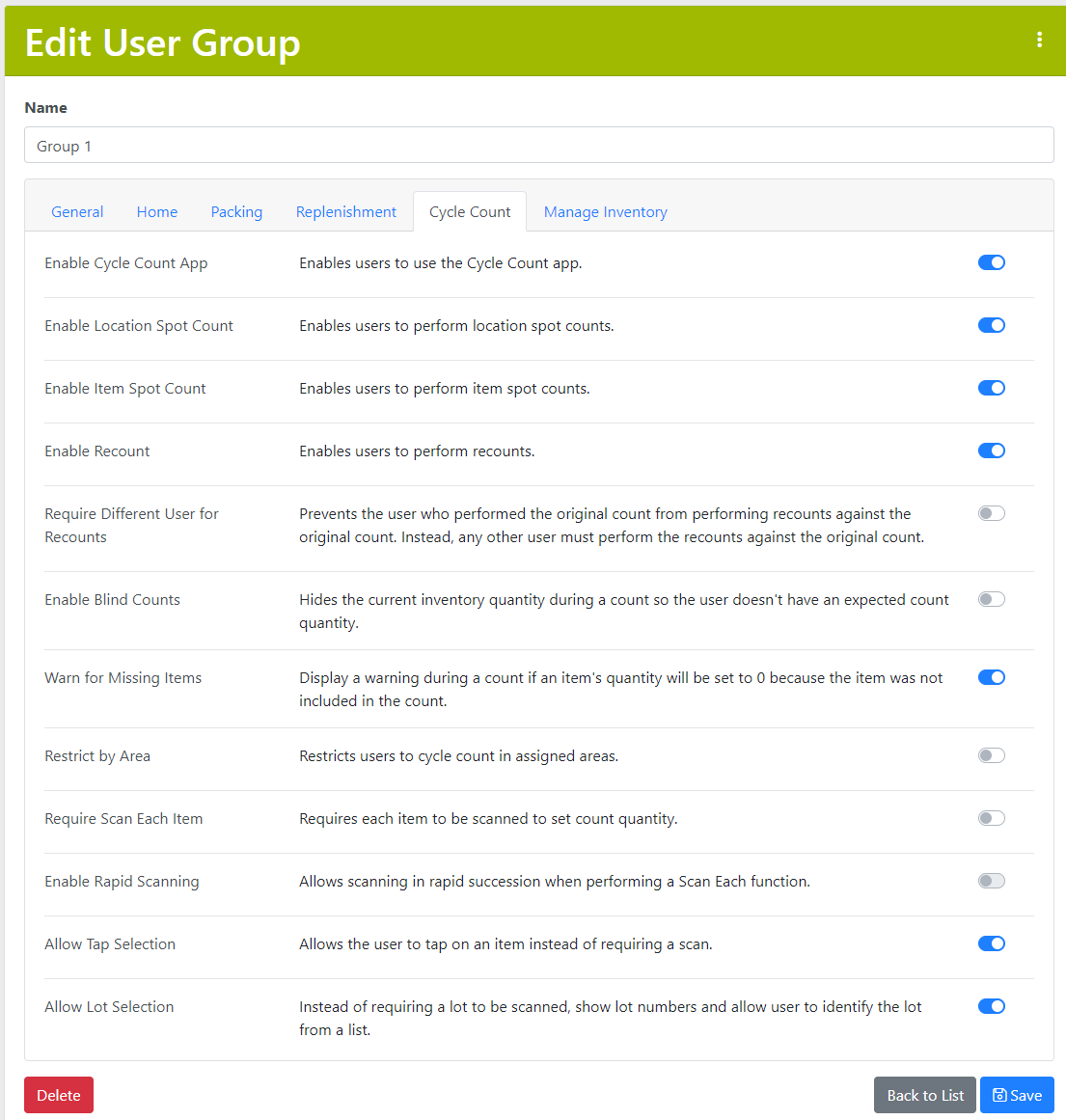
The Cycle Count Permissions settings determines a number of things.
First, navigate to the User Group settings,
Admin -> User Groups (WOS Fulfillment) -> [GROUP NAME] ->Cycle Count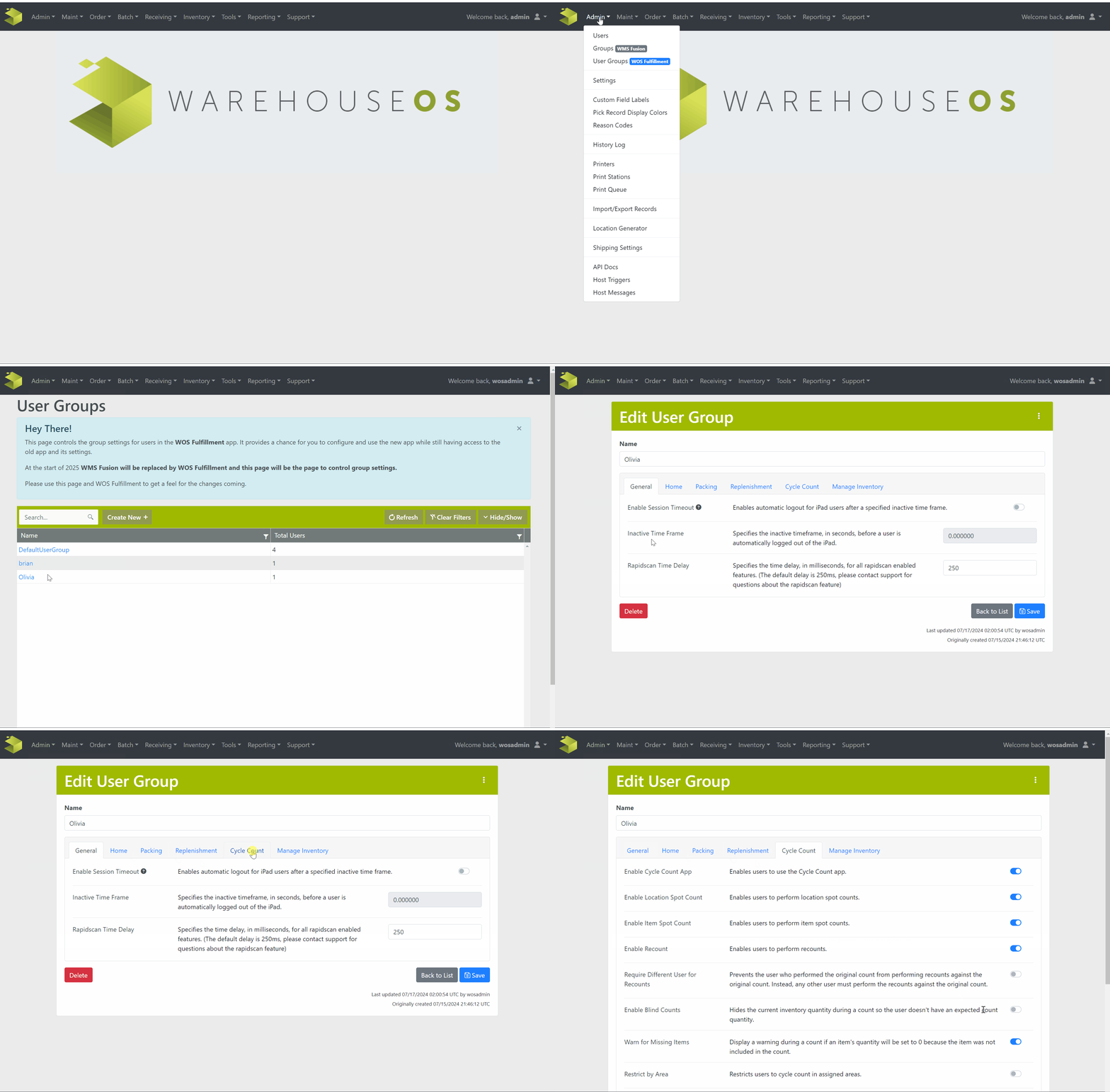
Your options include:
- Enable Cycle Count: Determines if the Cycle Count App is available for the Users in a particular Group
- Enable Location Spot Count: A Location Spot Count is when a User navigates to a particular Location and chooses to perform a Cycle Count that is not an assigned Cycle Count Task.
- Enable Item Spot Count: An Item Spot Count is when a User navigates to a particular Item at a Location and chooses to perform a Cycle Count that is not an assigned Cycle Count Task.
- Enable Recount: A Recount is when a Cycle Count has been set to Recount from the Cycle Count Confirm page in WOS Manager. This setting allows Users in a Group to be assigned Recount tasks.
- Require Different User for Recounts: When this setting is enabled, the User who performed the initial Cycle Count is unable to perform the Recount for the same task.
- Enable Blind Counts: This setting is similar in function to the "Hide Cycle Count Quantity" setting from the WMS Fusion Cycle Count Settings. When enabled, the Cycle Count function does NOT display the expected inventory quantity in the location. Therefore, the User must count the inventory blind. When disabled, the Cycle Count function will display the expected inventory quantity in the location allowing the User to verify the count.
- Warn for Missing Items: When Cycle Counting a Location, each Item in said Location needs to be Counted. Failure to input a Count for an Item will set that Item's Quantity to zero in the Location. When enabled, this setting will display a warning upon Cycle Count Completion that the Quantity of that Item in the Location will be set to zero.
- Restrict by Area: Only allows Users to complete Cycle Counts in the Areas assigned.
- Require Scan Each Item: This setting is similar in function to the "Scan Cycle Count" setting from WMS Fusion. When enabled, a Scan is required for each Item. As the User scans each Item in a Location, WOS will keep a count by Item. When everything has been scanned the User confirms the counts. When disabled, only the Total Count is required. The User scans the Item and enters a Total Count for the Item. When all Items have been counted the User confirms the counts.
- Enable Rapid Scanning: While performing a Scan Each function, this setting allows Items to be scanned in rapid succession. WOS keeps track of how many Items are scanned and pushes the number to the system after scanning has finished.
- Allow Tap Selection: Instead of scanning an Item, Users can tap on the Item on the iPad to select it.
- Allow Lot Selection: For Items where Lot Recording is required, this setting allows Users to select the Lot from a list of available Lot Numbers, rather than having to scan or type in the Lot Number.
Confirm Cycle Counts
If Auto Apply Cycle Count is disabled the administrator must go into WOS Manager to either Apply, Cancel or mark the location to be Re-counted. In this process, inventory is only updated when Apply is selected.
Navigate to Inventory -> Cycle Count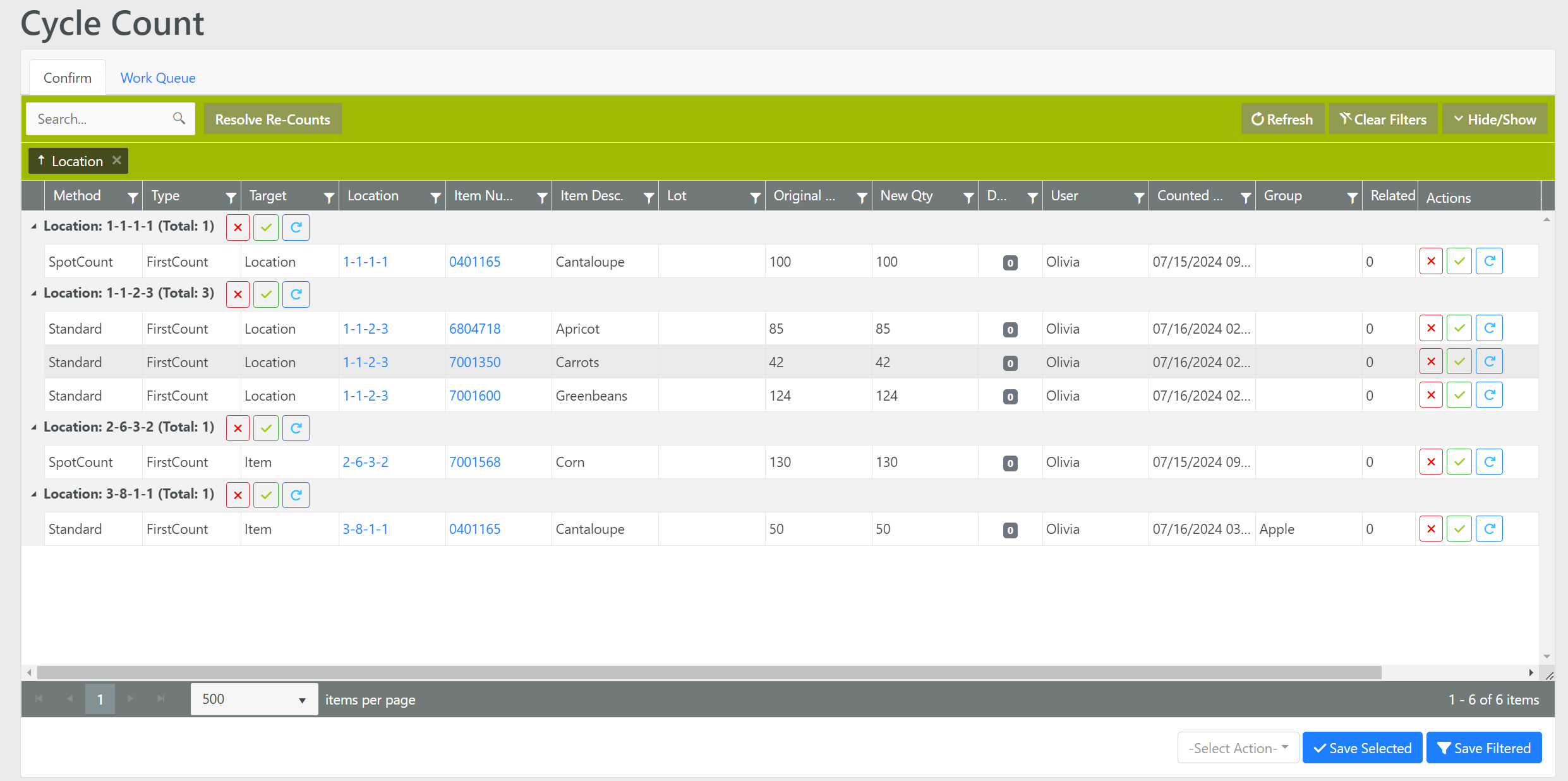
Cycle Counts can be confirmed Item by Item, by the whole Location, or multiple lines can be selected or filtered and then an Action can be chosen from the Action menu at the bottom of the screen to be applied to all selected/filtered in bulk.
Recounts
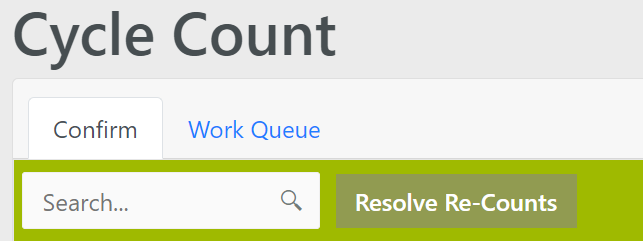
To resolve all recounts, click Resolve Re-Counts.
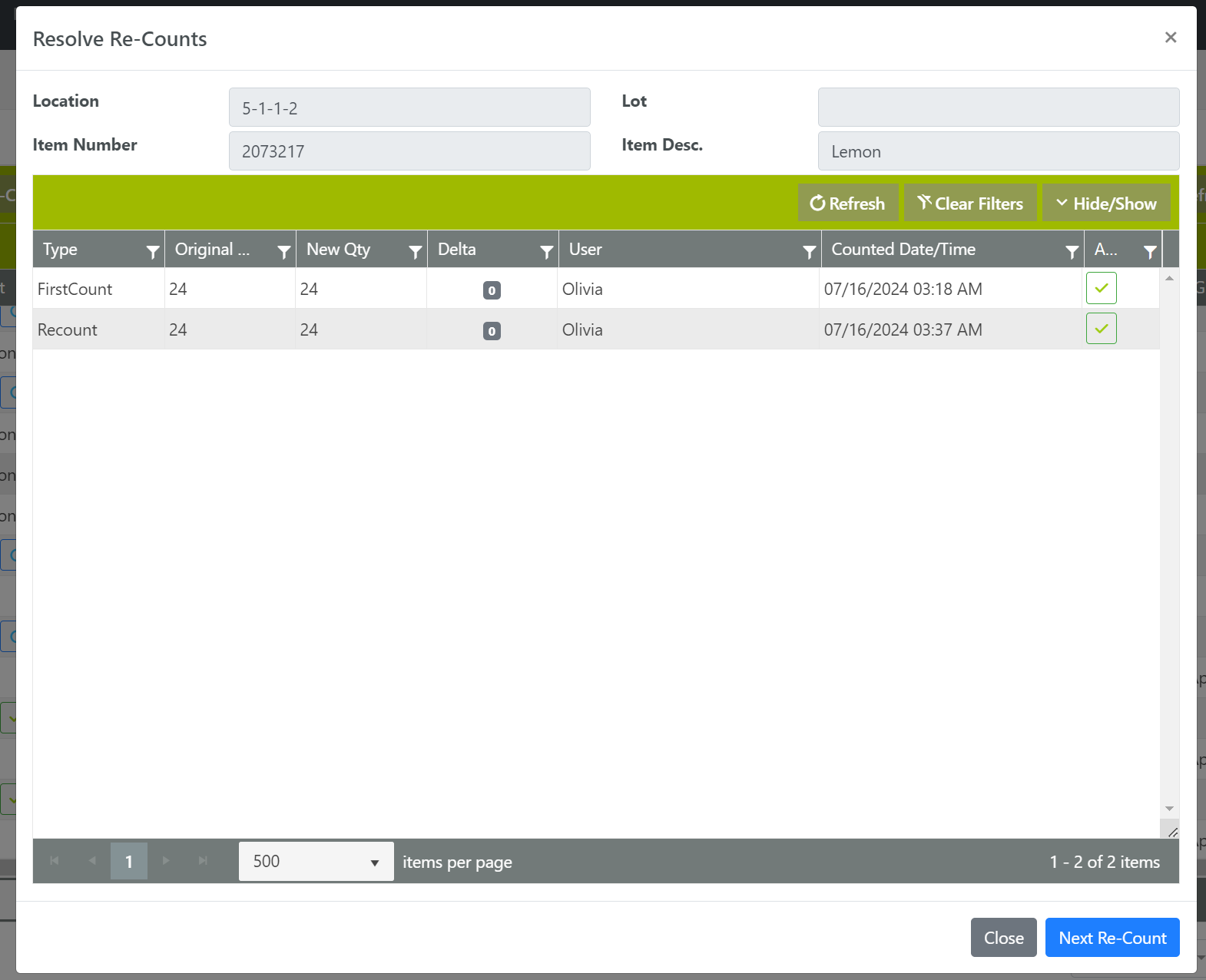
This will open a new window displaying the original count and any other recounts performed against an item or location. Only a single count can be applied, but the comparison of multiple counts can be seen for validation of inventory being off; or if a shift lead performed another count with a different result to be more trusted. Once a count is applied from the page, all associated counts will be resolved.
Creating Cycle Count Tasks
Adding to the Queue: Tasks can be added to the queue from both the desktop, WOS Manager, or the iPad in WOS Fulfillment
- Adding from WOS Manager can be done in 3 ways:
- By Inventory: any selected records from the Inventory grid can have a task created. This can be used to filter for old inventory, or inventory with low quantities that needs to be counted more urgently.
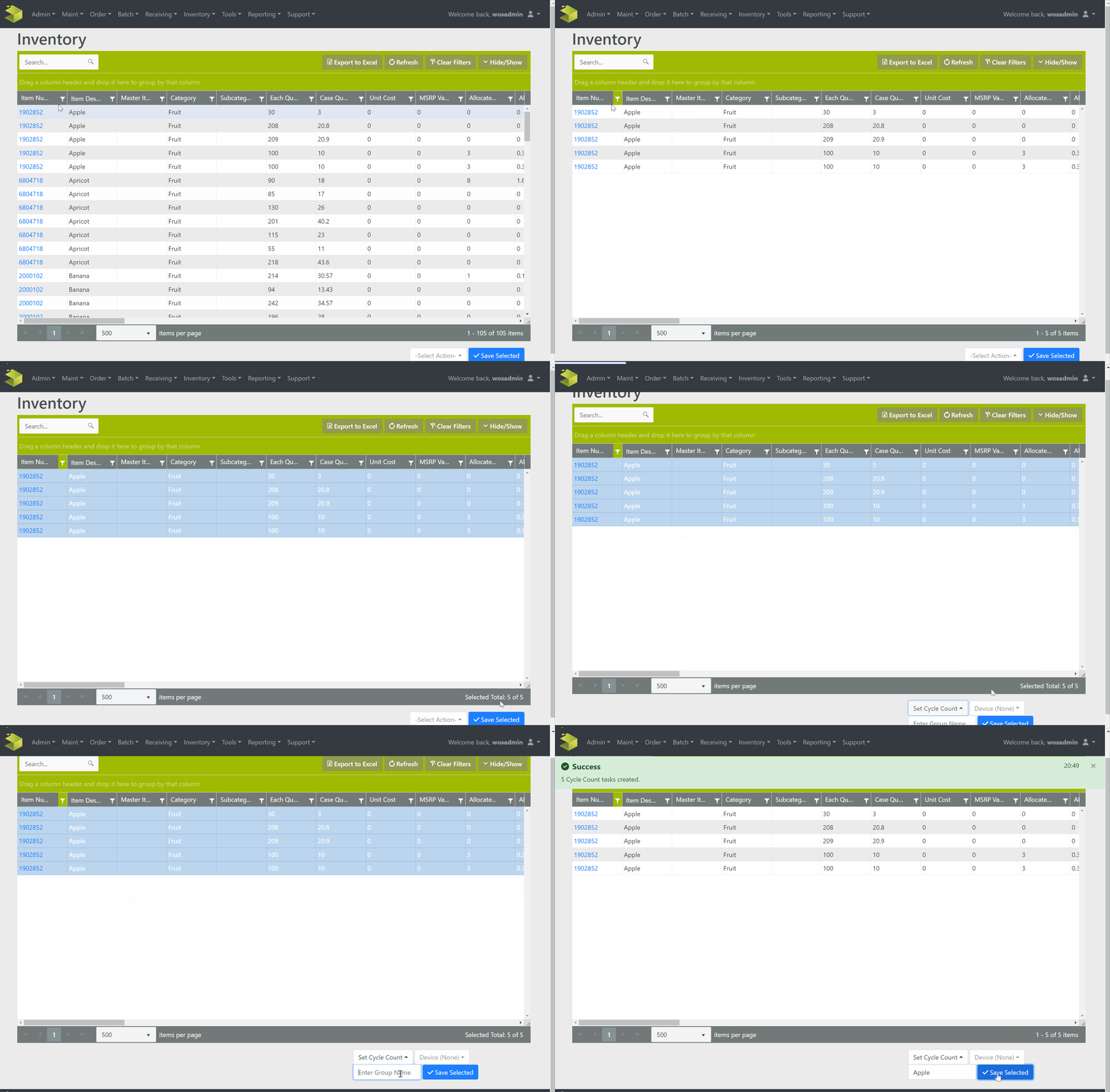
- By Location: locations can be filtered and selected for a cycle count task on the Locations page. The "Last Cycle Count Date/Time" column can be used to track and filter frequency, or the Row, Bay, Slot, or Tier columns to generate tasks for certain rows or location groups.
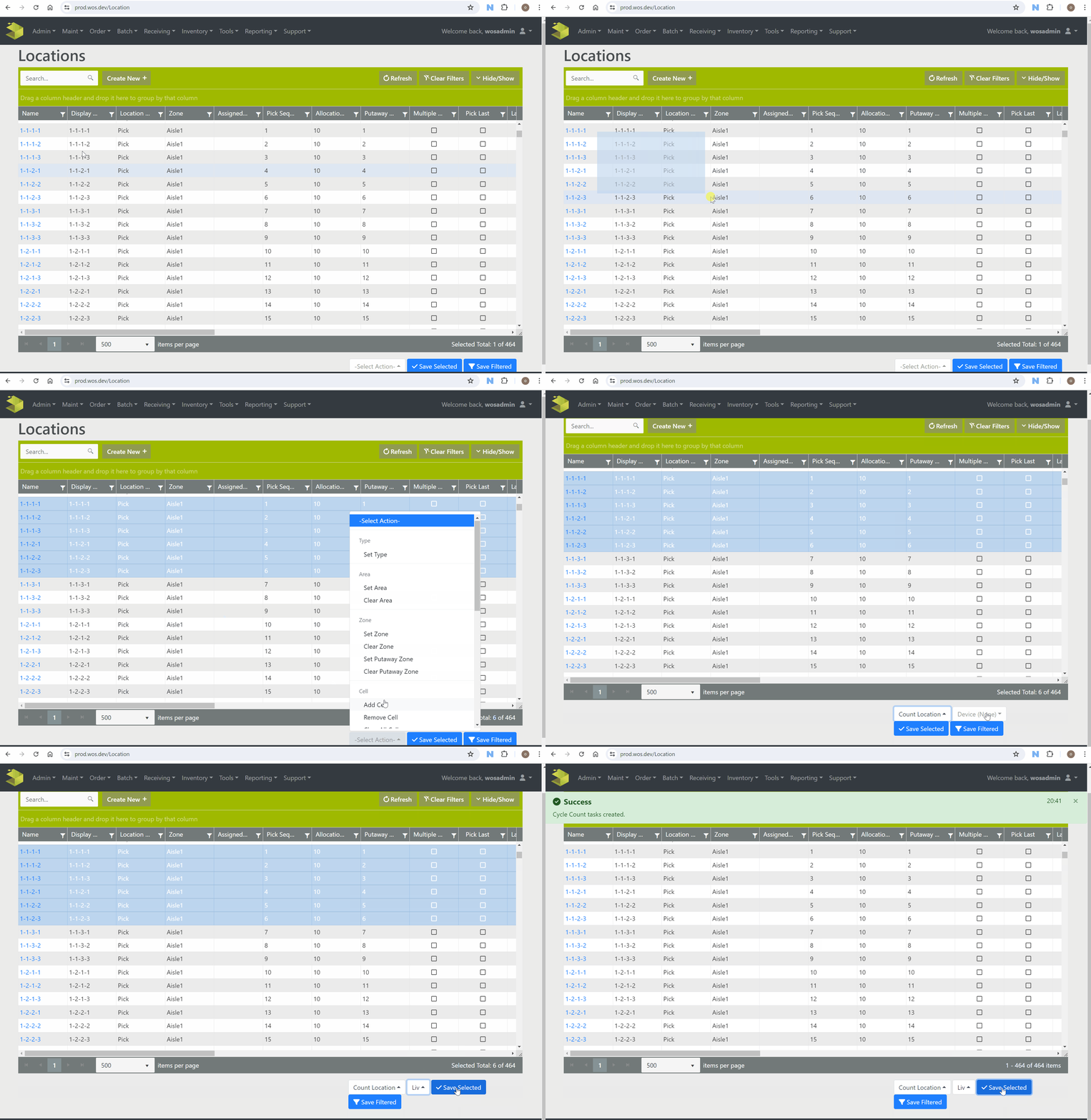
- By Item: On the Items grid items can be selected to be cycle counted. A task will be created for all inventory records of the item if in multiple locations. Any other items in the same location will not need to be counted (different from a Location count).
There is also a Last Cycle Count Date/Time column for filtration of items.
- By Inventory: any selected records from the Inventory grid can have a task created. This can be used to filter for old inventory, or inventory with low quantities that needs to be counted more urgently.
Note: All tasks created through WOS Manager can be assigned to a Device during the task creation methods outlined above.
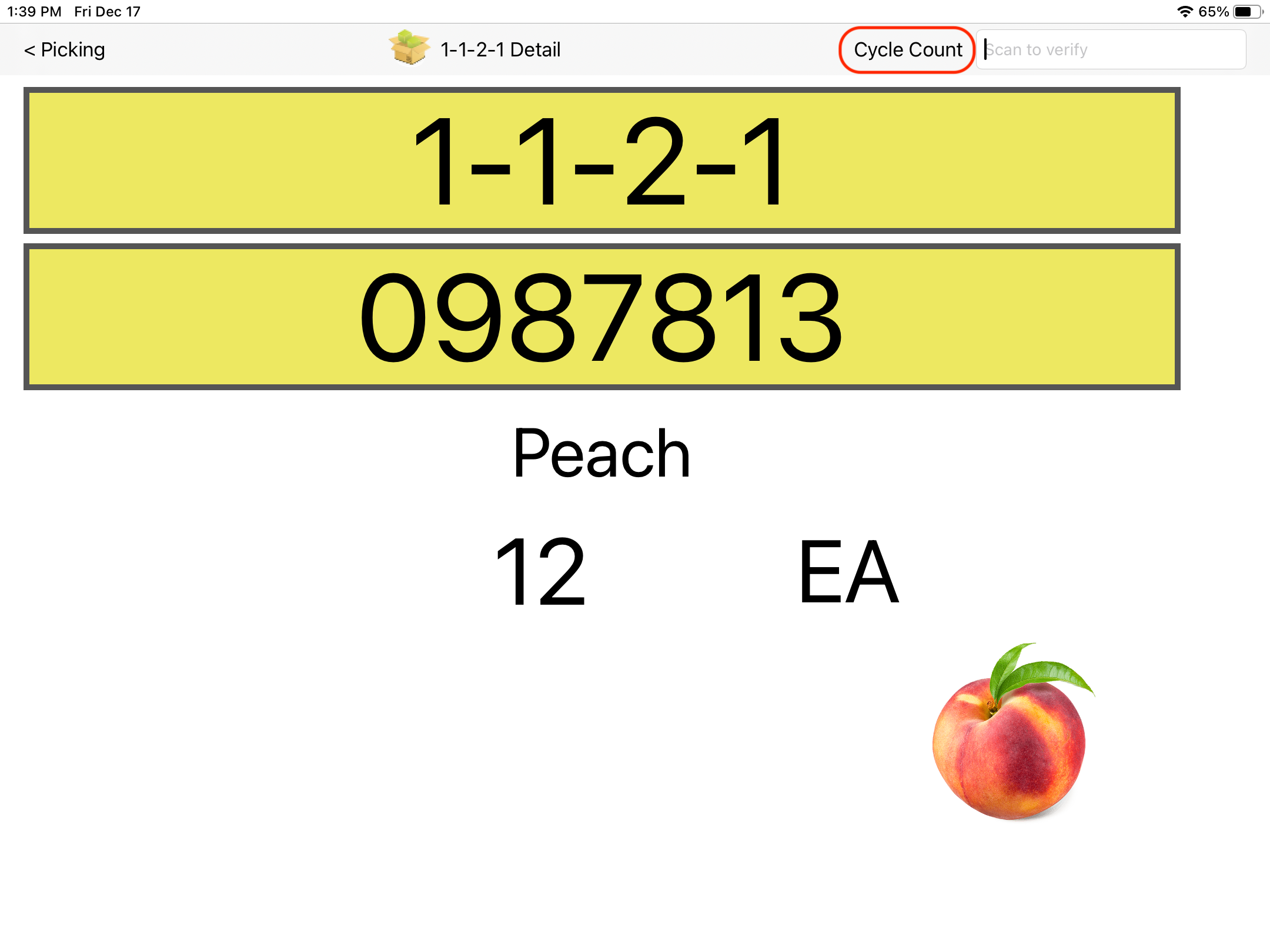
- Adding Tasks During Picking on iPad: While someone is in the picking process and they come across a location that has some kind of inventory discrepancy, the User can tag that location and add it to the cycle count queue by pressing the Cycle Count button at the top of the screen. This allows the picking process to not be disrupted, and the discrepancy to not be forgotten by creating a task to count the location.
Cycle Count Work Queue
Navigate to Inventory -> Cycle Count ->Work Queue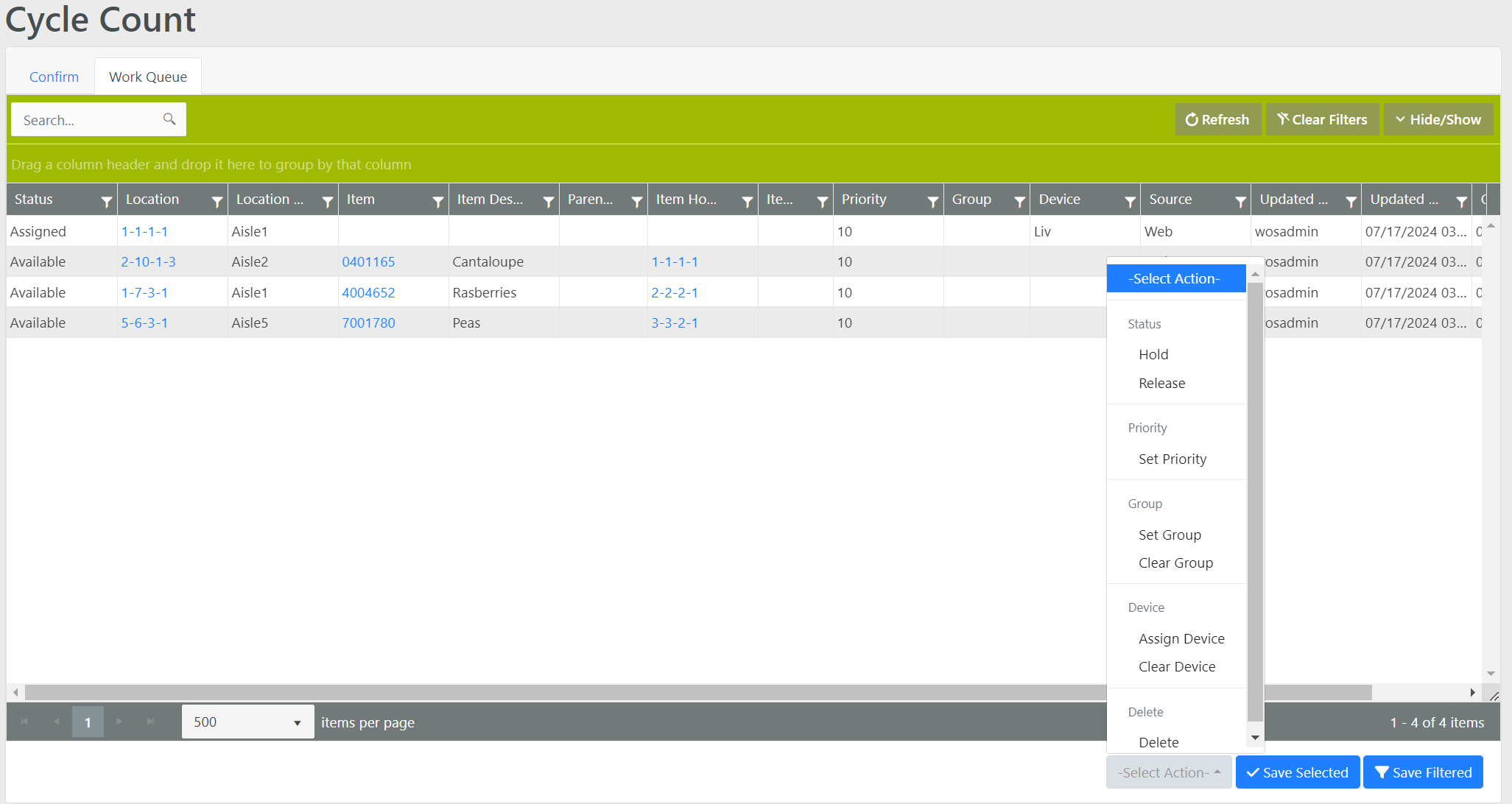
From the Work Queue, Cycle Count Tasks can be assigned a Status, assigned a Priority, assigned to a Group, cleared from a Group, Assigned to a Device, Cleared from a Device, or Deleted.
Aggregate Count
When Cycle Counting a Location, sometimes there will be multiple Items and/or multiple Cases of Items, so instead of needing to sort out each Item and enter the total Item quantity, the Aggregate Count allows for the User to Count item number multiple times, then will aggregate the Total Quantity Counted of that Item in the Location.
Warning: Users must be sure nor to double count a SKU.