
In order to ensure the integration between Shopify and WOS works, there are a few rules when creating a location for a store.
Create an Area that matches your Shopify location name.
- Maint => Areas
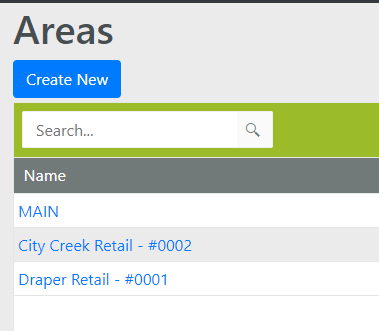
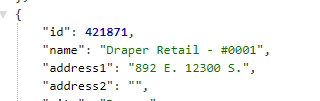
- Area should match the “name” from Shopify location
Add the Area to the new locations
-
Go to Maint => Locations and click on Create New to create the new store location
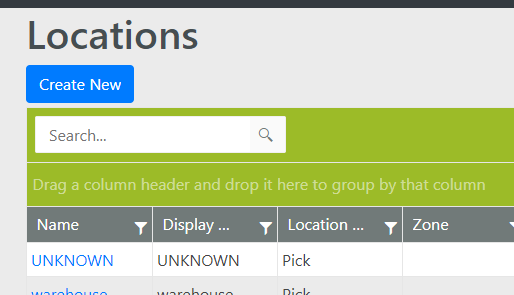
- The actual location name isn’t important at this point, but make sure it’s added to your new Area
- Add Store as the Zone
- Adjust the pick and allocation sequences as necessary
- WOS Support will need to know when you create the locations so we can get them included in the POS flow
- The integration didn’t have a good way of doing a lookup from Shopify’s location ID (421871) into the designated location to remove inventory from (DRetail0001). So we have manually just added that connection in the POS integration.