WOS has a Client Module that can be used to create a definitive separation between items and orders. After creating a list of Clients, all Items and Orders must be associated with a Client. Both Items and Orders are prefixed with a client-specific code which enforces uniqueness across clients.
Client Prefix
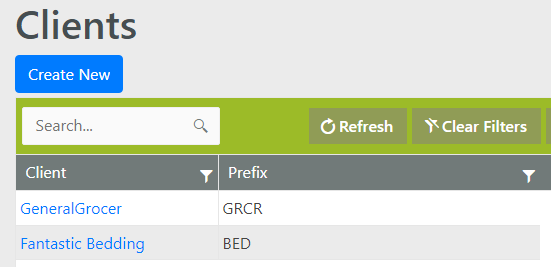
All Clients that are created in WOS must contain a code that will be used as a unique Prefix. These should be short, but distinguishable.
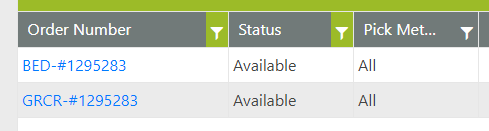
As Items and Orders are created in WOS, the Client Name must be provided for each. The Prefix associated to the Client will be added to the ItemNumber and OrderNumber to create a unique value across Clients.
WOS doesn't allow the same Order Number or Item to be created twice. By adding the prefix to the Order Number, the same value from multiple Clients can be created and maintain the required uniqueness in the system.
Given the following list of clients:
If both clients have an order number #1295283, they would both be created in WOS with the client prefix:
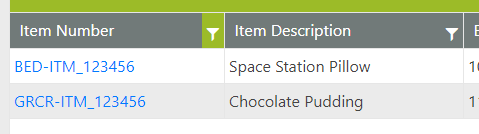
If both clients have the same item number ITM_123456, they would both be created in WOS with the client prefix:
Clients vs Areas
Another method WOS has for separating inventory is Areas. See the Areas page for more details, Areas in WOS.
While Areas is a physical separation of inventory, Clients are a logical separation by forcing the creation of separate items per Client. With the Client Module enabled, the creation of Items and Orders must include the Client they are associated with. The Items and Orders are then prefixed with the Client Code.
With the Client Module turned on, it is not possible to share inventory across multiple clients. Because the items are prefixed, they are unique and must match the client value on the order.
Note: The Client Module is not used for channel separation. Typically, the same item is sold across multiple channels which ends up sharing inventory. The Client Module puts a prefix on the items and enforces uniqueness across them.
Create Clients
- Go to Maint -> Clients
- Click Create New
- Add the Client Name and a desired Prefix
- The Prefix must be unique and can't already exist on another client
- When creating orders and items through the API, it is the Client Name that is passed, not the prefix
- Click Create
Client Portal
With the Client Module turned on, Account logins can be created that gives access through the WOS web UI to only the details for the specific Client.
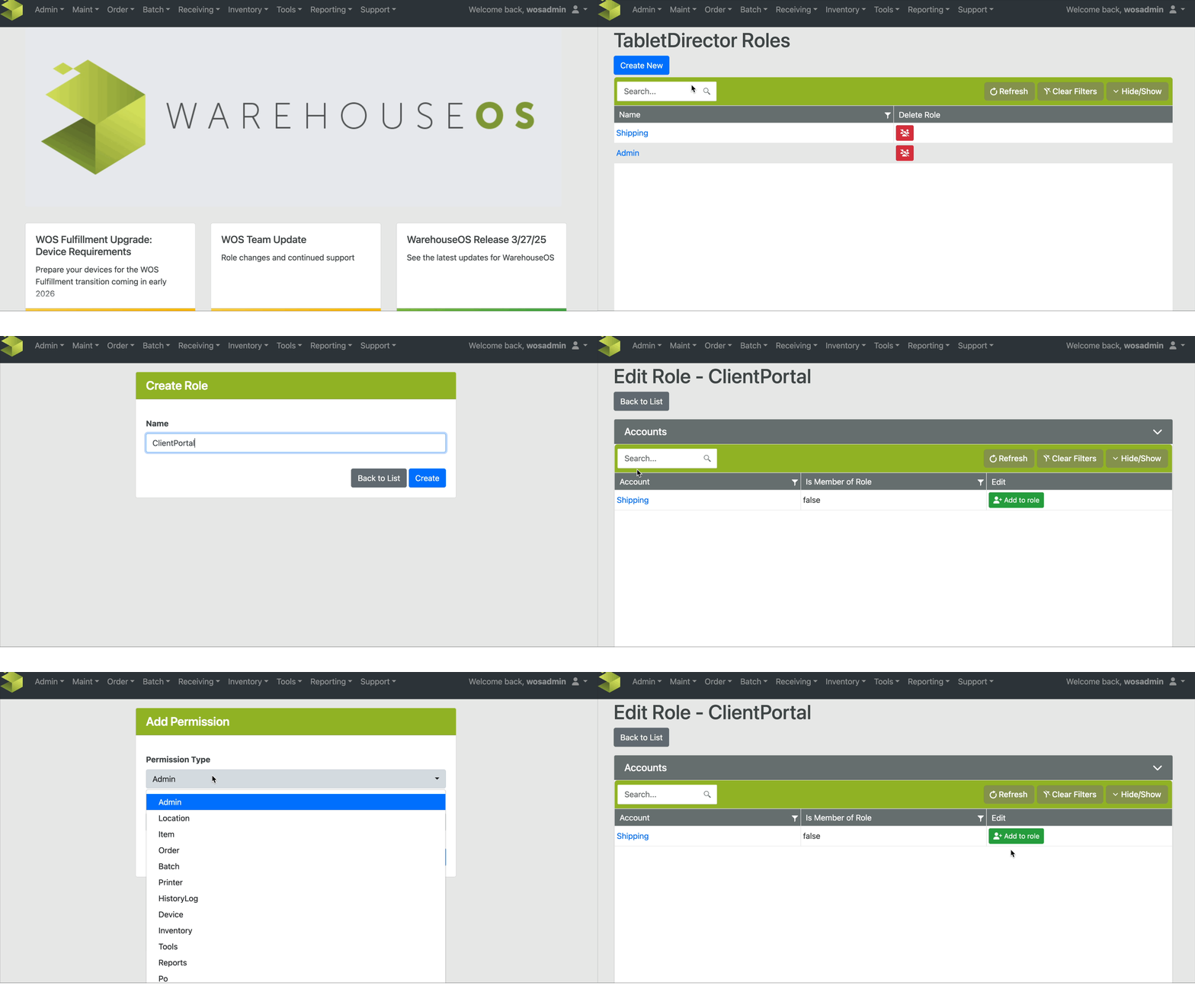
Create Client Portal Role
- Go to the right menu and select Roles
- Create New named "ClientPortal"
- Click into the Role and scroll down to the Permissions grid -> Add Permission
- Select the Client Portal option and Save
- Edit or View will not make a difference, the Client Portal permission is read only
Create New Client Account
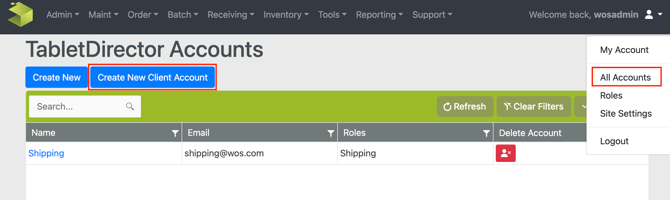
- Go to All Accounts
- Click Create New Client Account
- Select the Client
- Enter the Name, Email, and Password as is usual for an Account
- Click Create
- The Role "ClientPortal" will be automatically added to the created account.
- If the role ClientPortal doesn't exist, the creation of the account will fail
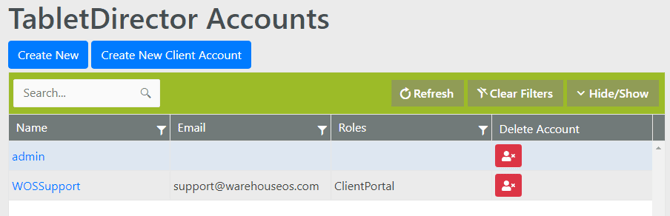
Viewing the Client Portal
The Client Portal is accessed from the same URL that the warehouse accesses WOS ("https://sitename.warehouseos.com"). When a Client Account is used to log in, there is a limited view that shows Orders, Inventory, and POs. The Client Portal is view only; there are no edit or create capabilities within the portal.
Orders
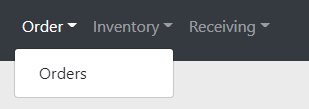
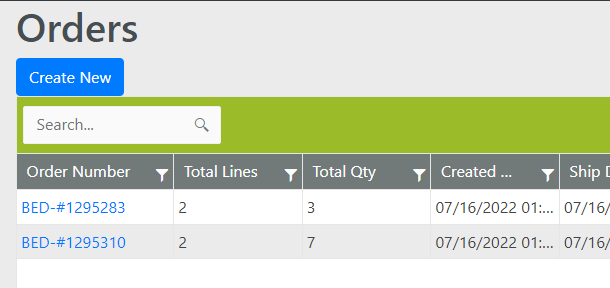
The Orders menu only has one option to view the list of Orders
The list of Orders is limited to only those that are assigned to the logged in Client
Inventory
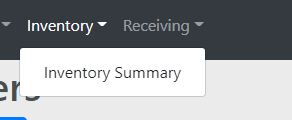
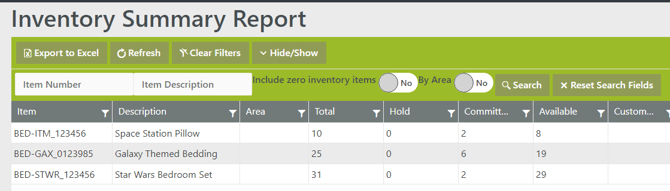
The Inventory view is only the Inventory Summary. It does not show any location details, only summary totals within the warehouse.
The summary report will show committed, hold, and the calculated Available quantity, but it will not show the individual locations where that item is being stored.
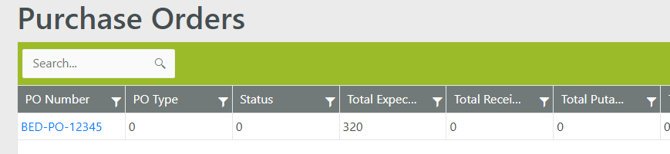
The Receiving menu only has one option to view the list of Purchase Orders
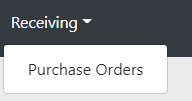
The list of purchase orders is limited to only those that are assigned to the logged in Client