
When a batch is downloaded to the iPad, it will eventually be assigned to the device that downloaded the batch and the cart being used for picking. But these assignments don't happen at the same time.
Batch Assignments
An unassigned batch will not have either a device or a cart, the Device will show as "Unassigned" and the Cart field will be blank.
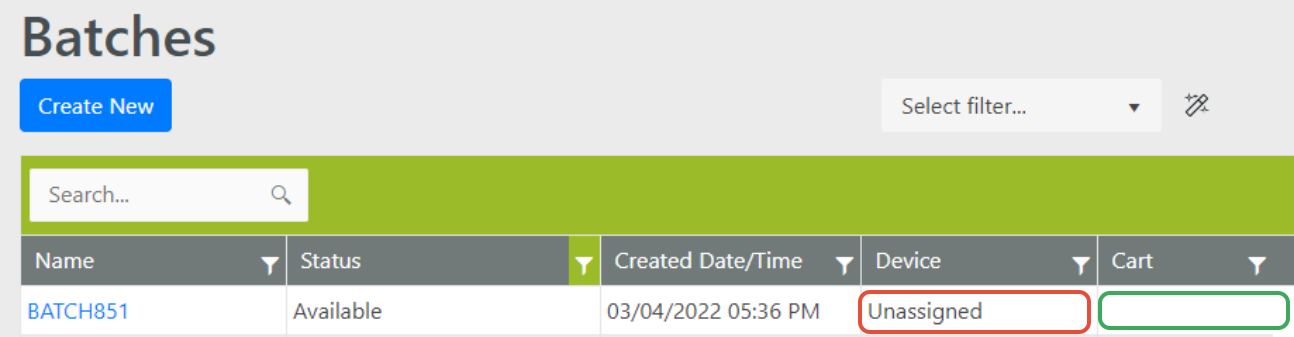
When a batch is pulled down to a device, the Device field will be assigned the device name. This happens immediately when the batch is assigned to the device and pulled down.
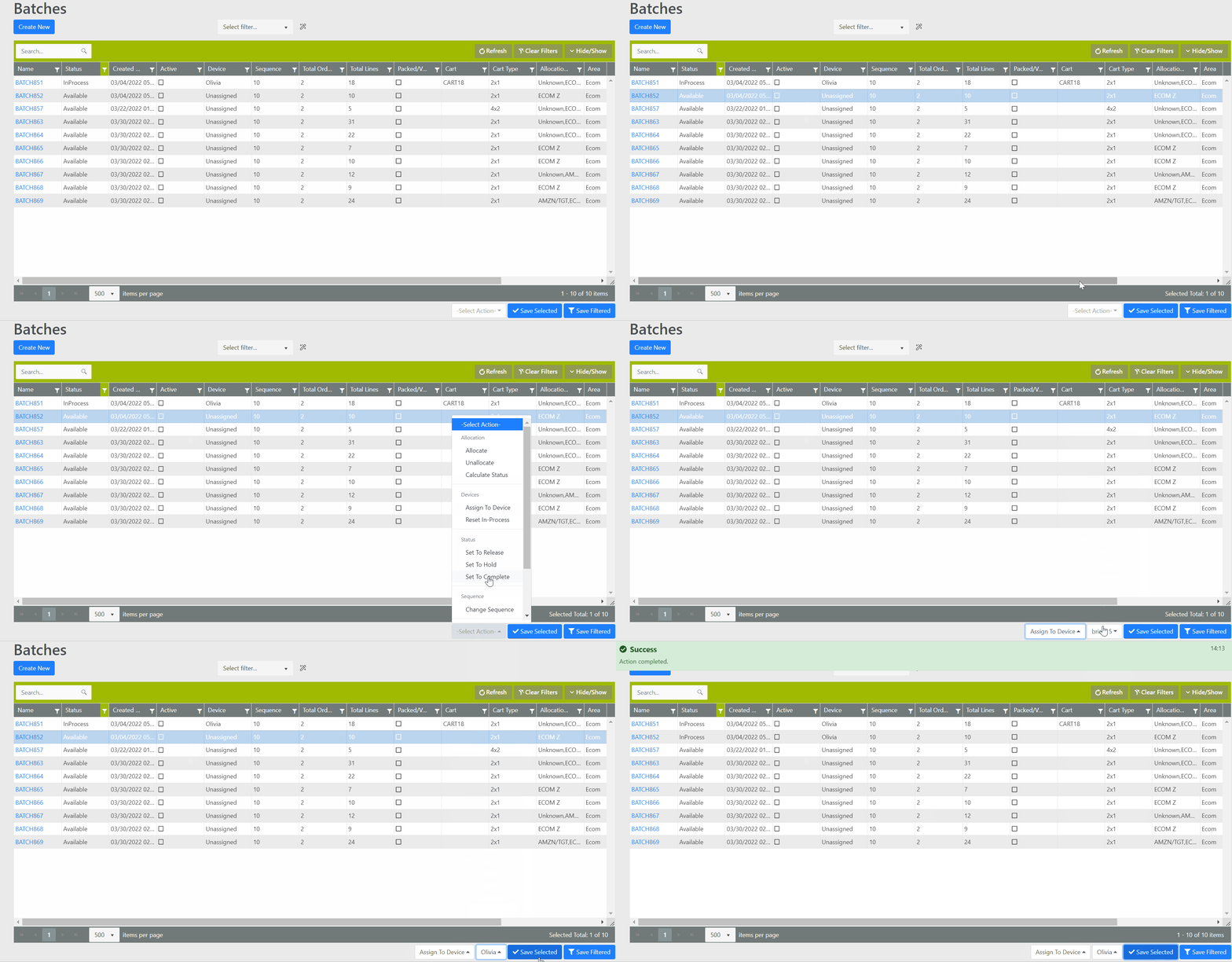
This field can be populated manually by selecting the Batch or Batches, selecting the “Assign to Device” option from the action drop-down menu below the Batched grid, then selecting the Device name from the drop-down. To assign the Batch to the Device, click “Save Selected.”
This manual assignment from the desktop restricts the Batch so it can only be picked by that Device.
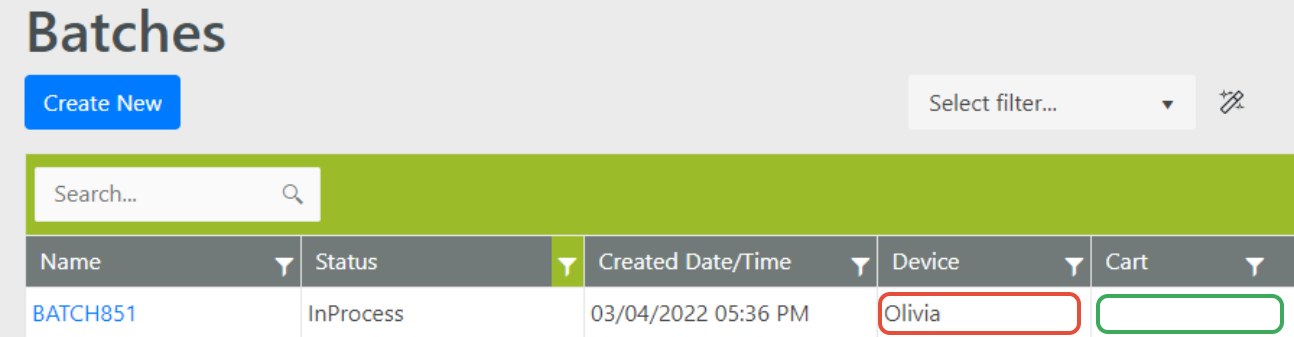
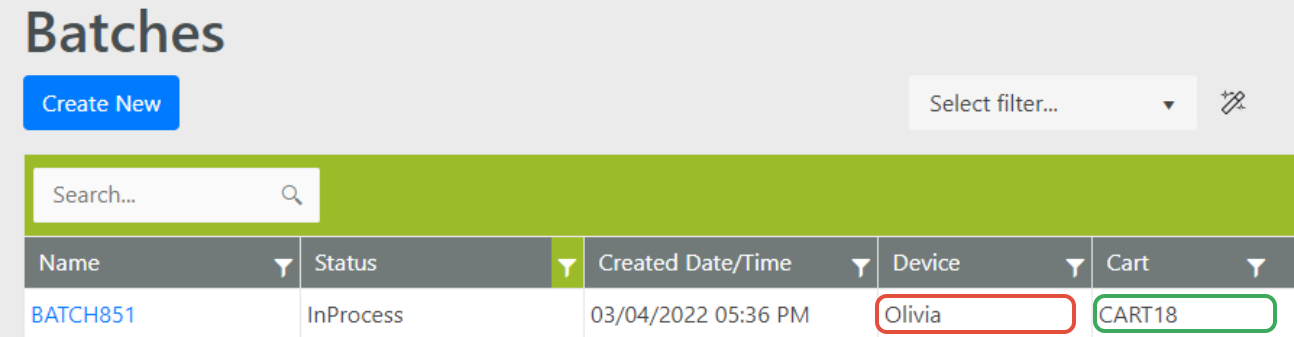
The cart is only assigned to a batch when the first pick is completed. This helps prevent carts from being tied up if a user decides to move on to another batch or another task before the first pick was completed.
To clear the Device field on an unpicked batch, click "Reset In-Process" from the Edit Batch screen. "Reset In-Process" can also be selected from the action drop-down below the Batches grid.
"Reset In-Process" will only work if the Batch has not yet had any picks performed against it. Once items have been picked to the Cart, the Batch is locked to that Cart and the Device and must be finished by the same Device.
If a Reset is still required, Reset Picks can be used but inventory will need to be accounted for. Review the article How to Use Reset Picks for more information.